
The Audio Expert System traditionally operates in two modes: 1) non-referenced mode, and 2) referenced mode.
Audio Expert System Operating Modes
|
Mode |
Description |
|
Non- Referenced |
Processing audio of completely unknown program content (e.g. arbitrary music or speech content). Since the system does not have any prior knowledge of the audio being analyzed, the types of audio analysis that can be performed is limited. |
|
Referenced |
A “pseudo closed loop” test scenario where the user plays specific Reference Audio files (pre-recorded audio test files provided by Frontline) on the Source DUT (Device Under Test). The analysis of the received audio results in a series of “Audio Events” being reported by comparing changes in the received audio to expected changes of the Reference Audio, and reporting deviation events when they occur. |
Reference mode detects a larger number of events because the reference audio has specific frequency, amplitude, and duration occurring at known points in time allowing for precise comparison.
Non-Referenced Mode
In Non-Referenced Mode, the system is typically processing audio of completely unknown program content (e.g., arbitrary music or speech content). Since the system does not have any prior knowledge of the audio being analyzed, the types of audio analysis that can be performed is limited.
The following events are reported whenever the system is operating in Non-Reference mode. These are the meaningful audio analysis that the system can perform without reporting too many false positive results.
-
Volume Level (Low Volume or High Volume): Reported if the average volume level is not in a range conducive to performing meaningful audio analysis.
-
Clipping: Amplitude distortion due to a signal amplitude exceeding the maximum value that can be represented by the digital system
-
Dropout: Abrupt and very short duration intervals of silence
-
Glitch: Extremely large sample-to-sample audio amplitude transitions that have little probability of occurring within natural speech or music
Reference Mode
In Referenced Mode, the system operates in a “pseudo closed loop” test scenario where the user plays a specific Reference Audio file on the Source DUT. The Source DUT negotiates with the Sink DUT to determine the appropriate codec and audio parameters to use and will process the Reference Audio file accordingly before transmitting the resulting audio via Bluetooth. The Reference Audio is a pre-recorded audio test file provided in the Wireless Protocol Suite software installer.
The Sink DUT receives the encoded audio, decodes it, and processes it for playback. In parallel, the Teledyne LeCroy analyzer unit snoops the over-the-air signal between the Source DUT and Sink DUT and emulates the RF reception and decoding done inside the Sink DUT. The Audio Expert System™ automatically detects that a Reference Audio file is being received and then analyzes the resulting audio for deviations from expected parameters.
Referenced Audio files are protocol specific.
The following events are reported whenever the system is operating in the Referenced mode:
-
Test ID Found
-
Test Script Not Found
-
Invalid Test Script
-
Synchronization Lost
-
Unexpected Frequency
-
Unexpected Level
-
Unexpected Duration
-
Amplitude Fluctuation
-
Unexpected Phase Change
-
Clipping
-
Excess Noise
-
CVSD HF Level Too High
-
End of Test
Reference Audio Test Files
The Reference Audio files are specific audio files that exercise the system so that audio impairments can more efficiently and accurately be identified and reported. The Reference Audio files are composed of a series of back-to-back and relatively short duration tones of changing amplitude, frequency, and duration.
C:\Program Files (x86)\Teledyne LeCroy Wireless\Wireless Protocol Suite <version>\Help and Tools\Audio Expert Test Files
The test files are stored on the user’s computer in the installation directory "\Teledyne LeCroy Wireless\Wireless Protocol Suite <version>\Help and Tools\Audio Expert Test Files ". For example,
Test_1.03_48kHz_16Bit_3Loops_2Ch.wav
*For macOS installations, the Wireless Protocol Suite directory locations are available via a link that is created in the Documents shortcut in your Finder window within a “Teledyne LeCroy Wireless” folder.
Reference test files are periodically updated. Shown here is an example. Files delivered with your latest Wireless Protocol Suite software version may have changed. Contact Teledyne LeCroy Technical Support for information on the latest reference file versions.
The test files have a set of tones forming a unique Test ID that lets the analyzer know that it is capturing a test file instead of an arbitrary audio stream. There is no need for special configuration of the analyzer. The Test ID will have the identifier notation N.vv, where N = the file number and vv = a two digit version, for example 1.02.
Using the Test Files
The analysis of the received audio results in a series of Audio Events being reported by comparing changes in the received audio to expected changes of the Reference Audio and reporting deviation events when they occur.
The system starts up in Non-Referenced mode and is continuously looking for a valid Reference Audio file by measuring frequency and amplitude of the over-the-air audio received. Transitioning to Referenced mode requires the successful detection of a Test ID tone sequence of proper frequency, duration, and value.
Once the Referenced Mode state is achieved, the expectation is that all tones encountered will conform to the script identified by the Collected Digits (the “Test ID”). The system remains in the Referenced Mode state until either the end of test is reached or a loss of synchronization occurs.
The synchronization of the received audio (from the Reference Audio files) versus the internal Test Script is achieved based on changes in frequency of the tones in the Reference Audio file. Frequency changes are used because this parameter is relatively immune to the configuration of the network.
For a comparison of reference mode detectable problems to unreferenced detectable problems see the table in the audio event type table.
The Test Script
The Reference Audio used for Referenced Mode testing is generated from scripts that define a series of audio segments. Each segment provides audio tone parameters including frequency, amplitude, duration, fade in/fade out durations, and start time. The script is an XML file delivered with the Wireless Protocol Suite software. This file is used during Referenced mode testing for comparison to the "sniffed" Reference Audio parameters of frequency, amplitude, duration, etc.
The following table (Sample Test Script Table) is a sample script table and the resulting sample Reference Audio .wav file. The generated .wav file begins with a Test ID that is used to identify the "sniffed" audio as a Reference Audio file, and the Audio Expert System™ automatically switches from Non-Referenced mode to Referenced mode.
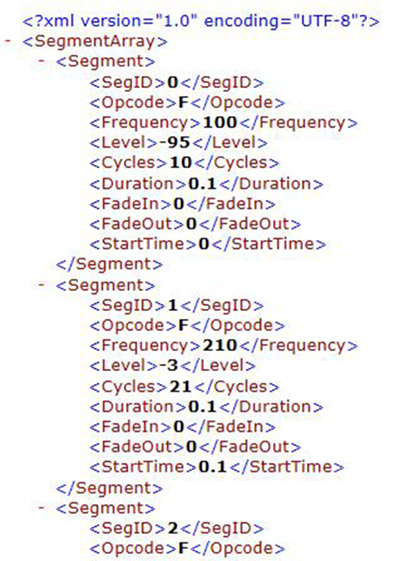
Sample Test Script Table
Segment
|
OpCode
|
Frequency
|
Level
|
Cycles
|
Duration
|
Fade in
|
Fade Out
|
Start Time
|
|---|---|---|---|---|---|---|---|---|
1
|
F
|
200
|
0
|
5
|
0.025
|
0
|
0
|
0.000
|
2
|
F
|
1000
|
0
|
25
|
0.025
|
0
|
0
|
0.025
|
3
|
F
|
300
|
-12
|
15
|
0.050
|
0
|
0
|
0.050
|
4
|
F
|
600
|
0
|
30
|
0.050
|
0
|
0
|
0.100
|
5
|
F+
|
880
|
-6
|
44
|
0.050
|
0
|
0
|
0.150
|
6
|
F+
|
240
|
-6
|
12
|
0.050
|
0
|
0
|
0.150
|
7
|
F
|
600
|
-95
|
30
|
0.050
|
0
|
0
|
0.200
|
8
|
F
|
600
|
0
|
30
|
0.050
|
0
|
10
|
0.200
|
Referenced Mode Testing Processes
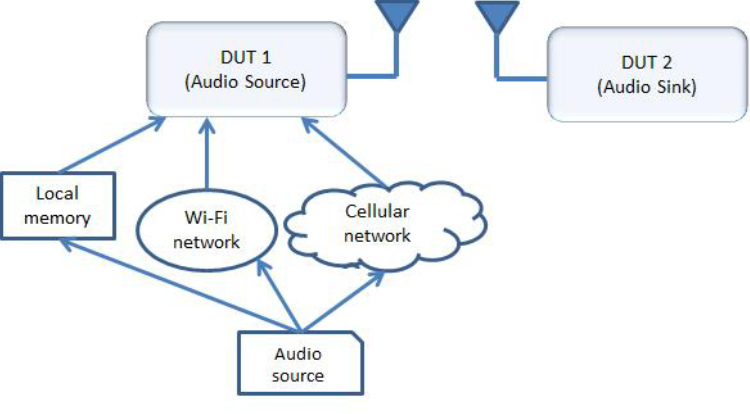
In the Referenced mode, the devices under test use a specific audio file (called reference file or test file) provided by Teledyne LeCroy whose contents are already known to the Wireless Protocol Suite software. The software compares the parameters of the received audio data against its parameters and presents analysis for the user. Commonly, in Bluetooth technology, the music is sent via A2DP and speech is sent via HFP. There are a few ways users can conduct referenced mode testing depending upon what profile they are using. The following table (Referenced Mode Testing Process Between Two DUTs) shows the source of the audio and the medium through which it can be accessed by Source device to send to sink device via Bluetooth.
Referenced Mode Testing Process Between Two DUTs
|
Audio Source |
Process to Send Using A2DP |
Process to Send Using HFP |
|
A file stored on the device’s local memory |
Play the locally stored file on the audio source device. |
Play using the third-party App that transmits music data on HFP. |
|
Streaming audio over a cellular network |
Play the test in a browser on the audio source device using the Audio Expert System Referenced Mode Test link below. |
Make a call to +1 434-964-1407 or +1 434-964-1304 through a cellular network. The phone number receiving the call plays the recorded test signal. |
|
Streaming audio over a Wi-Fi network |
Play the test in a browser on the audio source device using the Audio Expert System Referenced Mode Test link below. |
Make a call to +1 434-964-1407 or +1 434-964-1304 through a VoIP provider such as Skype. The phone number receiving the call plays the recorded test signal. Potential problem: The VoIP provider might use custom codecs and cause undesirable behavior. |
A2DP
Playing the test file locally
The simplest way to perform music data testing is to directly play the reference file from DUT1 to DUT2. To do that, save the reference file provided with the Wireless Protocol Suite software on the Source device. Then connect the Bluetooth-enabled devices and play the music file from one device to the other. The software will detect the mode and present analysis for the user.
Playing the test file via Internet
If the user is testing a scenario where they need to analyze audio played through the internet (either using Wi-Fi or cellular data plan), they may access the reference file on YouTube provided by Teledyne LeCroy (below).
The software is only analyzing the Bluetooth link between the two DUTs. Any abnormalities at the Wi-Fi and cellular network level will affect the audio quality that may not be Bluetooth protocol related, and the software will not be able to detect that.
HFP
Playing the test file by calling a phone number
Teledyne LeCroy provides the following phone numbers: +1 434-964-1407 and +1 434-964-1304 that users can call, to conduct speech audio data analysis over Bluetooth. The calls can be made using the cellular network (most common method) or VoIP. Again, the VoIP provider might use custom codecs and cause undesirable behavior which cannot be detected by Audio Expert System software.
Playing the test file using Third party Apps
Bluetooth Audio Expert System™ Reference mode testing can be accomplished using third party apps on Android, iOS, and Windows phones. The following apps are available from their respective App stores.
When selecting and using these apps, thoroughly review all the vendor documentation. While Teledyne LeCroy has conducted testing of these apps, Teledyne LeCroy has not completed full interoperability testing with our library of Bluetooth devices and does not warrant the use of these apps with every device when using the following procedures. Teledyne LeCroy does not provide support or maintenance for third party apps. Any issues or questions should be directed to the app developer.
-
In the following steps Device Under Test 1 (DUT1) is the device sending the reference test file to DUT2.
-
Download the third-party app to DUT1 and follow the app vendor's instructions for installation and use.
-
Load the Audio Expert System reference test file "Test_1.02_44.1kHz_16Bit.wav" on DUT1. The test file is stored on the user’s computer in the directory "\Teledyne LeCroy Wireless\Wireless Protocol Suite <version>\Help and Tools\Audio Expert Test Files\".
*For macOS installations, the Wireless Protocol Suite directory locations are available via a link that is created in the Documents shortcut in your Finder window within a “Teledyne LeCroy Wireless” folder.
Reference test files are periodically updated. Shown here is an example. Files delivered with your latest Wireless Protocol Suite software version may have changed. Contact Teledyne LeCroy Technical Support for information on the latest reference file versions.
-
With the analyzer connected to the computer, follow procedures to capture data.
-
Switch to Audio Expert view.
-
Turn on Bluetooth on your DUTs, DUT1 and DUT2. Turn on the third-party Bluetooth app for routing the reference file over A2DP or HFP by following the vendor's directions.
-
Send the reference test file from DUT1 to DUT2 via the third-party app.
-
Observe the events in the Audio Expert System Events Table. Look for an event with Description:
“TestIDFound : REF: Test ID 1.02, Channel Gain = -11.8 dB TermFreq=400.0”.
This is an example. The display may vary with the reference file version.
The Teledyne LeCroy analyzer has successfully detected the reference test signal, and the system is locked into reference mode.
System Calibration for Referenced Mode
The objective is to achieve settings at the Bluetooth source device (DUT1) that bring the PCM sample levels of tones in the Reference Audio files sent over-the-air as close as possible to the levels at which they were created, without exceeding them. Test ID tones, and the tones in test file sequences for Referenced Mode are generally recorded with a maximum tone segment level of -3 dBFS, although there are a few exceptions where signal levels be as high as -1 dBFS.
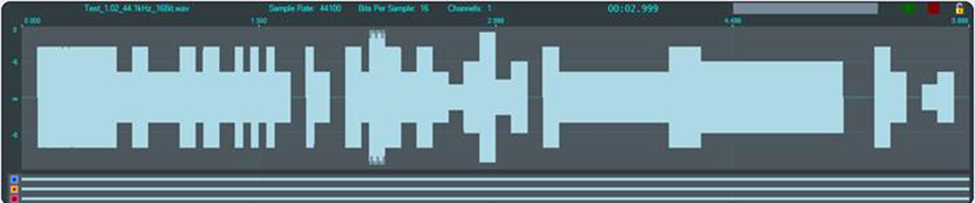
Show in the image above, is a graphic of the overall envelope of the Reference Audio test file “Test_1.02_44.1kHz_16Bit.wav”. Test 1.02 is a test file that enables a wide range of tests that includes a number amplitude changes, frequency changes, intentional silence, and multi-frequency tone segments. Its goal is to flush out the audio chain’s general ability to convey amplitude, frequency, silence, and duration.
The ideal calibration for this file is one where the waveform visualization on Audio Expert System User Interface (UI) looks identical to the one shown below with respect to maximum levels. There are three segments in this test whose peaks are at exactly -6 dBFS. That is, there is zero loss or gain through the chain.
Test 1.02 -6 dBFS Segments
|
SegmentID |
Frequency, Hz |
Start Time, sec. |
Duration, sec. |
|
32 |
800 |
2.800 |
0.100 |
|
35 |
1120 |
3.100 |
0.100 |
|
40 |
400 |
4.300 |
0.900 |
These -6 dBFS segments are described in the Test 1.02 -6 dBFS Segments table. These segments serve as a convenient and quick visual indicator that levels are appropriate, especially the longer 3rd case which is evident at the 4.999 second reference time of the above image (a little over 2/3 of the way through the test).
The first 0.500 seconds of Test 1.02, which contains the Test ID value “1.02” is shown below. The three digits ‘1’, ‘0’, and ‘2’ are represented by the low frequencies 210 Hz, 200 Hz, and 220 Hz, respectively, which are 100 milliseconds in duration, and are separated by 1 kHz digit delimiters of 50 milliseconds duration. The final tone is a 100-millisecond segment at 400 Hz, defined as a “Test ID Terminator”. Note that since the levels of all these tones are at exactly -3 dBFS, the peak levels should be exactly halfway between any available -6 dBFS (50%) gridline.
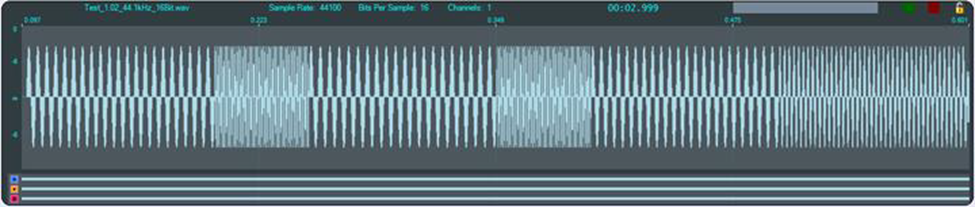
The three digits ‘1’, ‘0’, and ‘2’ are represented by the low frequencies 210 Hz, 200 Hz, and 220 Hz, respectively, which are 100 ms in duration, and are separated by 1 kHz digit delimiters of 50 ms duration. The final tone is a 100 ms segment at 400 Hz, defined as a “Test ID Terminator”. Note that since the levels of all these tones are exactly -3 dBFS, the peak levels -3 dBFS.
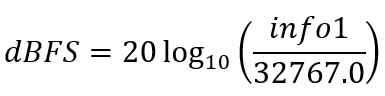
The value in the Info1 parameter of the “Test ID Found” event is optimally the value 23196 and may be converted by the relationship:
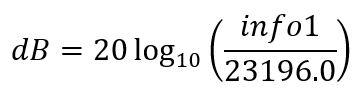
Optionally the value can be interpreted as “Channel Gain” via the relationship:
"Test ID Found" Event "info1" Maximum and Minimum Values
|
Format |
Application |
Maximum |
Minimum |
|
Integer |
Speech |
23196 |
5826 |
|
|
Music |
23196 |
3297 |
|
Level |
Speech |
-3 dBFS |
-15 dBFS |
|
|
Music |
-3 dBFS |
-20 dBFS |
|
Channel Gain |
Speech |
0 dB |
-12 dB |
|
|
Music |
0 dB |
-17 dB |
This table indicates the maximum and minimum acceptable levels for the “Test ID Found” Info1 parameter in integer form, decibel level in dBFS, and Channel Gain in dB.
Example 1: For the case where the Info1 parameter is converted to “Channel Gain”, if the audio is speech (i.e. transported via a SCO channel), then a value of -11.9 dB is acceptable, and a value of -12.1 dB is not.
Example 2: For the case where the Info1 parameter is converted to “Channel Gain”, if the audio is music (i.e. transported via an A2DP connection), then a value of -16.9 dB is acceptable, and a value of -17.1 dB is not.
For both cases, at the high-volume end, a value of -0.1 dB is acceptable, a value of 0.1 dB is not.
The dynamic range of the audio path is important to understand because it has a direct impact on measurement accuracy. Only levels at or above the minimum and at or below the maximum are examined for expected level and frequency.
Adjusting for Optimal Volume Levels
The exact steps that need to be taken depend on the exact devices being used, and their device specific setup requirements, and the speech or audio configuration under test. For the simplest case where, for example, a “music” audio file is to be played by a smartphone to a set of Bluetooth speakers, the typical steps would include the following.
-
Choose an audio reference file to be played at DUT1 appropriate for the configuration to be tested. The test files are stored on the user’s computer in the installation directory. Example:
C:\Program Files (x86)\Teledyne LeCroy Wireless\Wireless Protocol Suite <version>\Help and Tools\Audio Expert Test Files\Test_1.03_48kHz_16Bit_3Loops_2Ch.wav
*For macOS installations, the Wireless Protocol Suite directory locations are available via a link that is created in the Documents shortcut in your Finder window within a “Teledyne LeCroy Wireless” folder.
Reference test files are periodically updated. Shown here is an example. Files delivered with your latest Wireless Protocol Suite software version may have changed. Contact Teledyne LeCroy Technical Support for information on the latest reference file versions.
-
Before establishing the Bluetooth connection, play the file while listening to it on the DUT1 device itself, and become familiar with the overall sound quality, generally ignoring exact volume.
-
Set the playback volume at DUT1 to maximum.
-
Set the playback volume at DUT2 to minimum.
-
Establish the Bluetooth connection and begin playback of the file on DUT1, if possible, in “Loop” or “Repeat” mode, to avoid having to continuously restart.
-
Slowly increase the volume on DUT2 until it is at a comfortable level.
-
If the audio sounds distorted, reduce the playback volume at DUT1, and repeat Step 6.
-
When the clarity of the audio is comparable to that heard when listening to the DUT1 device, proceed with using the Wireless Protocol Suite enabled to capture and analyze the Bluetooth data.
-
Visually observe the waveform in the Audio Expert System Wave Panel comparing it to the image above, Figure 5.96. If the level of the -6 dB, 0.9 sec duration, 400 Hz tone (a little over 2/3 of the way through the test) is grossly above or below the –6 dB (50% volume) grid line, adjust the DUT1 volume accordingly and repeat this step. Optimally it would be on or just below the -6 dB gridline, but not above. The peak should never hit the maximum positive or negative limits of the display.
-
Find the “Test ID Found” event in the Event Table to verify that the system has transitioned to Referenced Mode and verify that the value for “Channel Gain” (or “Level” as implemented in the UI) is within the range of values specified in previous table ("Test ID Found" Event "info1" Maximum and Minimum Values).
If the observed (captured) waveforms do not reasonably conform to the above graphic for Test_1.02, or the “Test ID Found” event is not reported, there is a problem along the audio chain. This could be as simple as a configuration setting, or more subtle such as an encoder/decoder incompatibility.