
The Main windows Status Bar appears at the bottom of the Main windows. It contains the following information.
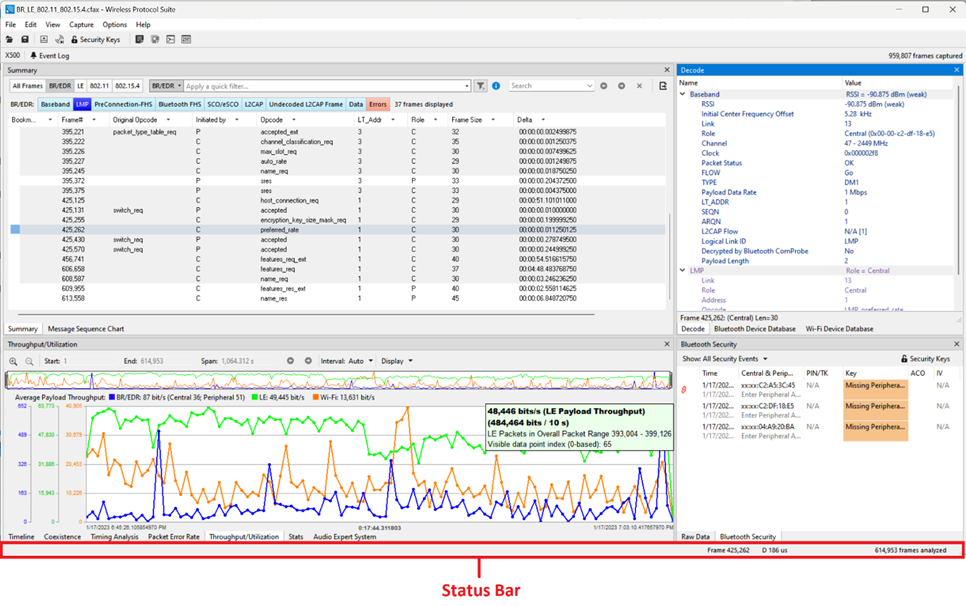

Application Status
The Wireless Protocol Suite software status is shown at the bottom of the Main window. The software can be in one of several states as shown below:
-
Ready: The Wireless Protocol Suite software is not active.
-
Recording: The Wireless Protocol Suite software is recording traffic.
-
Filtering: The Wireless Protocol Suite software is filtering the incoming traffic before it can be analyzed.
Selected Frames Information
This part of the Status Bar is displayed only when packet(s) have been selected.
The user can see information for one or several packets. In the Summary view, you can select multiple sequential packets or several non-sequential packets.
Information for one packet
-
Packet number in the format “Packet /Number/”. Example: "Packet 880".
-
Duration in the format “D /Time/ /Time Unit/”. Example: "D 376 us".
Information for several packets
-
The number of selected packets in the format “/Number of packets/ packets”. Example: "3 packets".
-
Gap - Duration between the end of the first selected packet and the beginning of the last selected packet in the format “G /Time/ /Time Unit/”. Example: "G 317 us".
-
Delta - Duration between the beginnings of the first and last packets selected. Delta in the format “Δ /Time/ /Time Unit/”. Example: "Δ 623 us".
-
Span - Duration between the beginning of the first selected packet and the end of the last selected packet. Span in the format “S /Time/ /Time Unit/”. Example: "S 749 us".
-
Duration - Duration is the beginning of the first packet to the end of the last packet.
-
Time for Duration, Gap, Delta and Span are shown in “000.000” format. If the number is an integer, then decimal is not displayed.
-
If the time exceeds 999.999, the unit of measurement switches to the higher unit of measurement.
-
Time is shown in second, millisecond, microsecond, and nanosecond. Second – s, Millisecond – ms, Microsecond – us, Nanosecond – ns. There must be a space between the number and the measurement unit.
-
The figures below show several packets that have been selected (highlighted) and the data from those packets in the Status Bar.
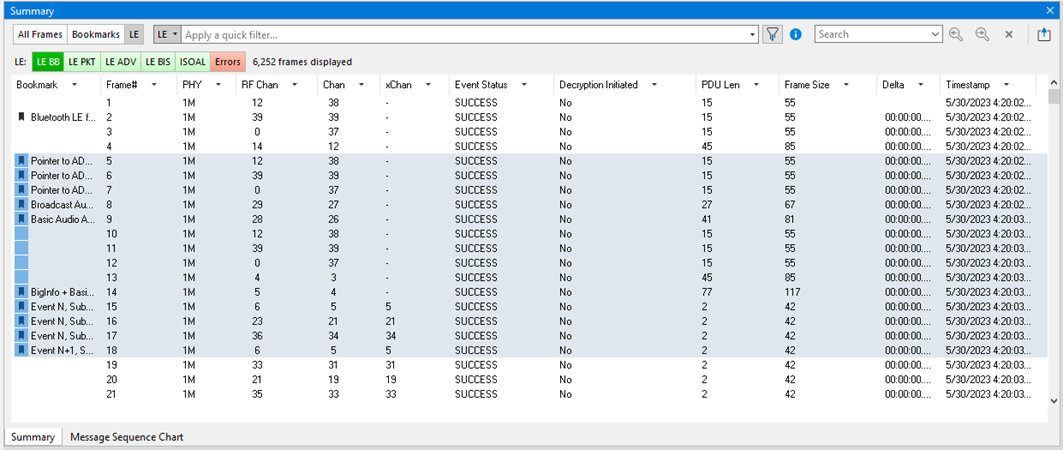
This information about selected frames is at the bottom of the WPS window (shown below).

Total Frames Information
The information about the total number of frames is in the bottom right corner of the WPS window. It displays the total number of frames analyzed. This number will update as additional frames are captured and analyzed.
