
The Analyzer Toolbar appears under the main Toolbar. The Analyzer Toolbar is described in detail in section Wireless Protocol Suite Analyzer Toolbars . Below is the summary table of the Analyzer Toolbar icons and menus.
Wireless Protocol Suite Analyzer Toolbar Icons
|
Icon/Menu |
Description |
|
Analyzer Information menu: 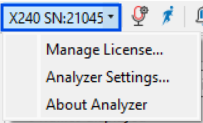
|
Manage License (X240 only) – Opens Manage License dialog to view the details of a currently installed license file or update the X240 license file. Analyzer Settings – Opens Analyzer Settings dialog to view and change IP settings, Analyzer Nickname, and enabling Autoboot. About Analyzer - Opens window with version and configuration information. |
|

|
Opens the Record Options dialog where the attached hardware can be configured for Bluetooth technologies and other capture modes. For additional information see Record Options. |
|

|
Opens the Manage eExcursion Mode captures dialog. Record or delete captures that were created using eExcursion Mode. This selection is disabled during live capture. |

|
Opens Event Log view. |
|



|
Displays the analyzer’s status. The Analyzer status. The following are available: Ready to record – the Analyzer is connected and ready to record traffic. Recording – the Analyzer is recording traffic. Disconnected – the Analyzer is disconnected from the system. |

|
If it has expired, press this button to update your license. |
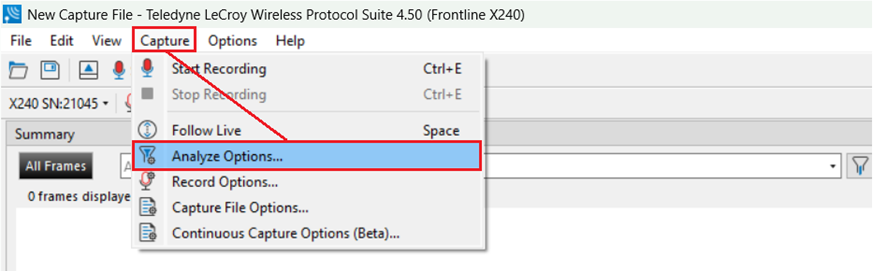
Analyze Options
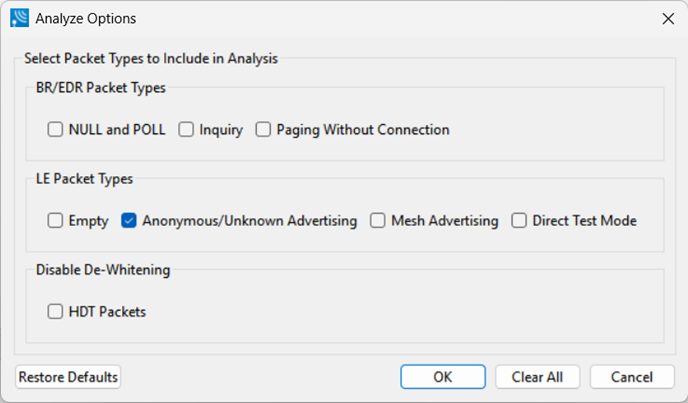
BR/EDR Packet Types
Bluetooth BR/EDR (Basic Rate/Enhanced Data Rate) defines several packet types, including the Access Code, Header, and Payload. These packets can vary in type, such as ID, NULL, POLL, and others, which determine the number of slots the current packet occupies during transmission.
LE Packet Types
Bluetooth Low Energy (BLE) uses two main types of packets: advertising channel PDUs and data channel PDUs. Advertising channel PDUs are used to establish connections and include various types like connectable and non-connectable advertisements, while data channel PDUs are used for data transmission after a connection is established.
Disable De-Whitening
Packets typically go through a process called data whitening before transmission to avoid long sequences on zeros or ones. These packets must be de-whitened when received by WPS or Bluetooth devices. When a feature is in early development, packets are often not whitened before transmission to simplify debugging. The "Disable De-Whitening/HDT Packets" Analyze option may be enabled if it is known that HDT packets have not been whitened and will prevent WPS from applying the de-whitening algorithm to these packets.