
WPS includes a powerful filtering mechanism that helps remove noise from packet traces and lets you see only the packets you care about.
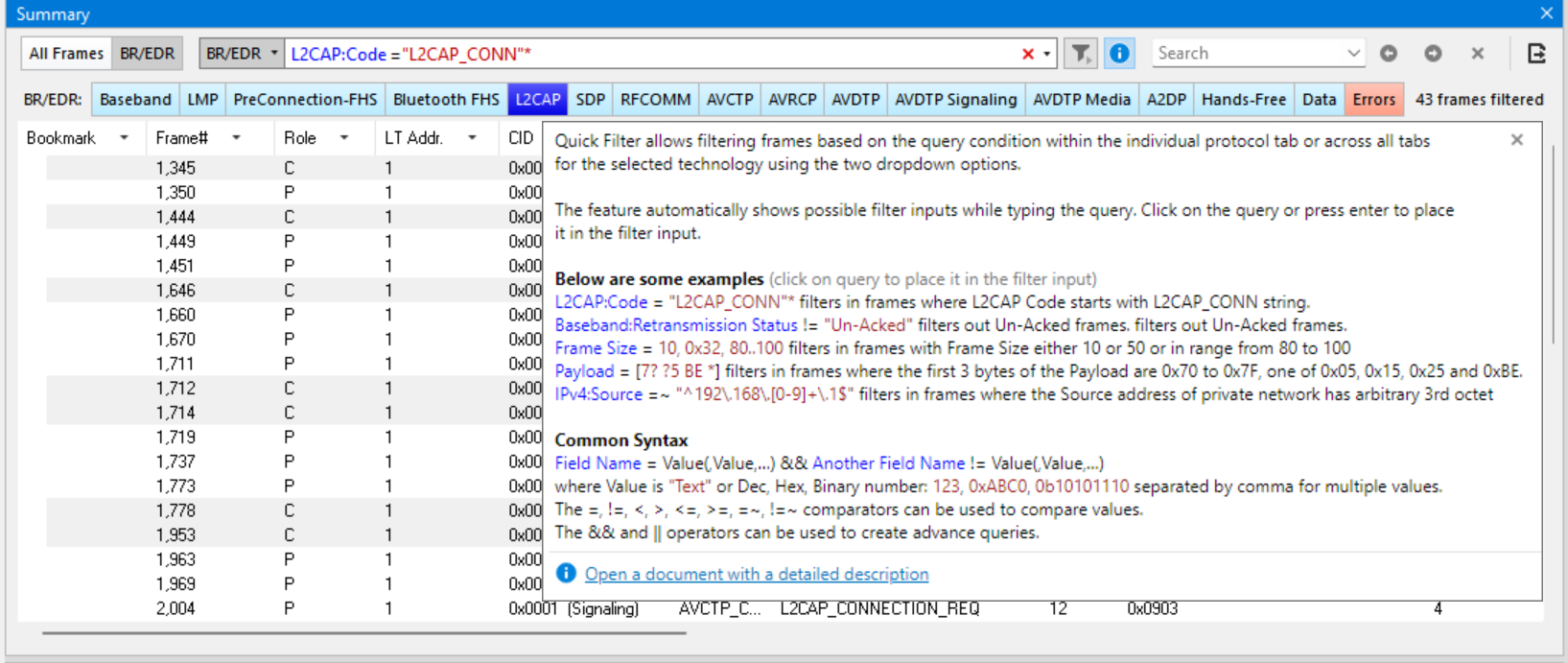
This filter can be used to precisely search and display information of interest for any column in the Summary view or field in the Decode view during live session or saved capture files. You don't have to put fields from the Decode view into the Overview view to use those fields in a filter query.
|
Function |
Description |
|
Apply drop-down |
A feature that allows you to apply changes to a selected protocol tab or across the entire selected technology. Read more below. |
|
Clear icon |
To clear the entire filter, click on the large red X that appears after entering the query. |
|
History arrow |
To apply queries saved in history, click on the down arrow and select the query applied to the selected technology before. |
|
Apply button |
Disabled by default. Use the Apply button or Enter key to apply the entered query. |
|
Hint button |
A quick syntax checker with several examples of using operators and arithmetic operators. You can click on any of the examples to assign it to the filter input. |
The query-based filter is also available via Summary context menu (see section 5.7.2) and Decode context menu (see section 5.10).
Auto-Suggestion Feature
To make query creation simpler and more accurate, the application suggests possible options to choose from when you start typing in the filter input. A suggestion list guides you through every step of creating or editing a query based on the specs of supported technologies.
The CTRL+SPACE hotkey can be used to force an autosuggestion to appear.
Whole Technology vs Protocol Only Feature
Use the drop-down to the left of the filter input to be able to apply the query to the selected protocol tab or to all protocol tabs of the selected technology. This will allow you to first apply the desired query to all tabs, and then locally expand it for some tabs.
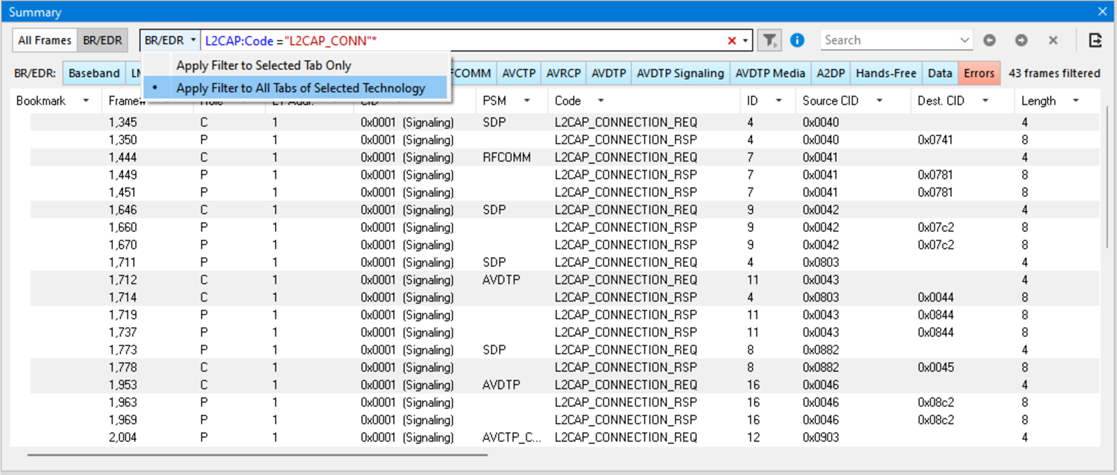
This option will also help clear applied queries to a selected tab or to an entire technology.
Operators and Comparators
The simplest filter allows you to check the presence of a protocol or field.
Comparison Operators
|
Operator |
Function |
&&
|
AND |
||
|
OR |
!
|
NOT |
=
|
EQUALS |
!=
|
NOT EQUALS |
<
|
LESS THAN |
>
|
GREATER THAN |
<=
|
LESS THAN OR EQUAL |
>=
|
GREATER THAN OR EQUAL |
=~
|
REGEX MATCH |
!~
|
NOT REGEX MATCH |
Arithmetic Operators
|
Operator |
Function |
+
|
Addition |
-
|
Subtraction |
*
|
Multiplication |
/
|
Division |
%
|
Modulo |
Bitwise Operators
|
Operator |
Function |
&
|
Bitwise AND |
^
|
Bitwise XOR |
<<
|
Bitwise LEFT SHIFT |
>>
|
Bitwise RIGHT SHIFT |
Filter Syntax
Values can be numbers, text (in double quotes), or computations using other fields. Text can use a star (*) to represent any character. An exclamation mark can be used before values to create a Not condition. Two periods (..) can be used to create a time range in time-based columns.
Each field has a value, and that value can be used in operations on comparable values (which can be literals, other fields, or the results of a function).
Using Arithmetic and Bitwise operations
Arithmetic and Bitwise shift operations are performed in place, so the field is matched against the expression result:
field = 3 * 3, 0x2 << 2 is equivalent to field = 9 || field = 0x8
Boolean Values
All of the following conditions are equivalent.
|
field = true
|
field = false
|
Ranges
The range can be defined as field = 5...25 which is opposed to: field >= 5 && field <= 25.
Condition Enumeration
A field can be checked against multiple values separated by a comma: field = 5, 25, 0xFF which expands to the following conditions: field = 5 || field = 25 || field = 0xFF
Text matching
-
Case sensitive:
field = "Text" - the field value equals the string “Text”
field = *"Text" - the string “Text” is at the end of the field value
field = "Text"* - the string “Text” is at the beginning of the field value field = *"Text"* - the string “Text” is a substring of the field value
-
Case insensitive:
By default, string matching is case-sensitive. To make case-insensitive matching use suffix /i. field = "abc"/i - the field value equals any of the strings “Abc”, “aBc”, “AbC” etc.
The Wildcard operator (*) is also supported.
Raw payload matching
payload = [01 02 FF] - matches the entire payload
payload = [BE EF *] - wildcard variant where the first payload bytes are 0xBE 0xEF followed by anything payload = [* BE EF] - wildcard variant where the last payload bytes are 0xBE 0xEF preceded by anything payload = [* BE EF *] - wildcard variant where the payload contains bytes 0xBE 0xEF payload = [* 7? ?5 ? 0A/0C * BE EF *] - wildcard variant where the payload contains bytes 0x70-0x7F, one of 0x05, 0x15, 0x25... then (byte[i] & 0x0C == 0x0A) and 0xBE 0xEF
Time format
In Wireless Protocol Suite, there are two timestamp formats.
absolute time bound to system time during the capture: 7/12/2023 7:47:19.156956260 AM, Accept one or both of the following time format:
"7/12/2023 23:18:04.954975 AM" - month-year-time format