
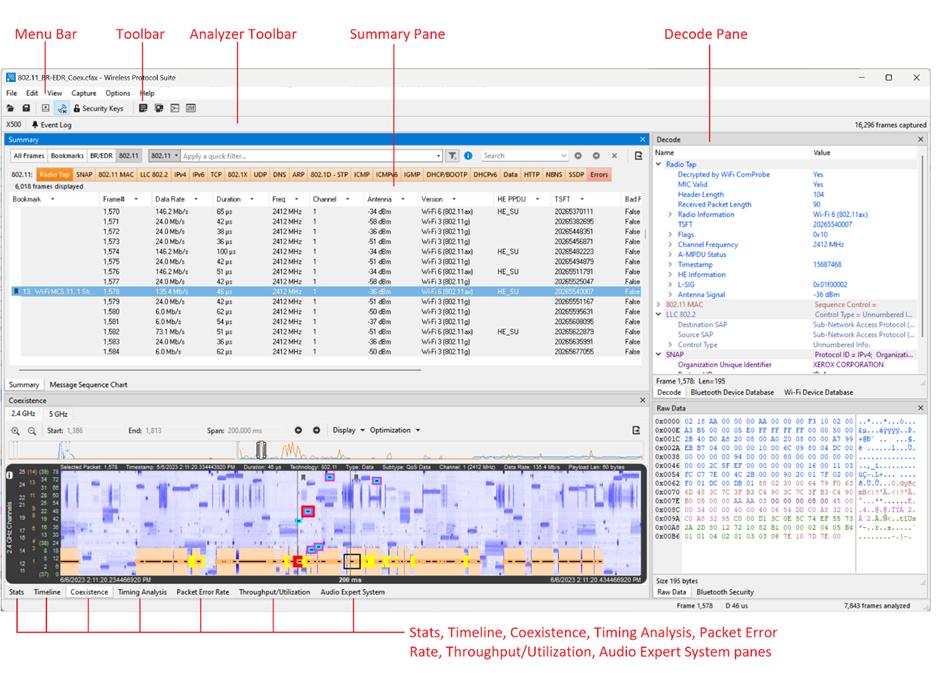
The main application window of the Wireless Protocol Suite is used for analyzing captured frames. The main components of this window are shown below and are described in more detail in the following sections.
Wireless Protocol Suite: Main Window
By default, the Menu Bar, Tool Bar, and the Analyzer Toolbar with four separate are displayed when the Main window first opens. Any of the panes can be selected and moved around in the Main window. If you click and drag on the top of the pane, you can attach it to another existing pane or create a new pane. The figure below shows the default set of panes and bars.
Protocol Filter Tabs
-
Clicking on a protocol filter tab in the General group filters in all packets containing that protocol regardless of each packet’s technology.
-
Clicking on a protocol filter tab in a technology-specific group filters in all packets containing that protocol on that technology.
-
A protocol filter tab appears in the General group only if the protocol occurs in more than one of the technology-specific tab groups. For example, if L2CAP occurs in both Classic Bluetooth and Bluetooth Low Energy, there will be L2CAP tabs in the General group, the Classic Bluetooth group, and the Bluetooth Low Energy group.
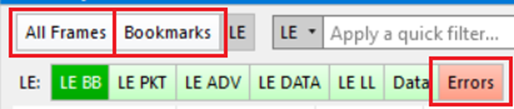
There are several special tabs that appear in the Summary Pane when certain conditions are met. These tabs appear only in the General group and apply to all technologies. The tabs are:
-
All Frames displays all frames from all technologies captured. This includes over-the-air packets, wired frames such as HCI and Logic Signal transitions.
-
Bookmarks appear when a bookmark is first seen.
-
Errors appear when an error is first seen. An error is a physical error in a data byte or an error in the protocol decode.
-
Info appears when a frame containing an Information field is first seen.
The tabs disappear when the capture buffer is cleared during live capture or when decoders are reloaded, even if one of the tabs is currently selected. They subsequently reappear as the corresponding events are detected.
Toolbar
The tabs that appear in the Wireless Protocol Suite Main Window vary according to the configuration of the analyzer. For controls not available the icons will be grayed out.

When selected, the File, Edit, View, Capture, Options and Help menu items form pull down menus with options for each topic.
The icons below the tabs are described in the table below.
Wireless Protocol Suite Main Window Toolbar Icons
|
Icon |
Description |

|
Open a captured file. |

|
Save – Save a captured file |
|
Hide/Show analyzer bar |
|
Start/Stop a Recording |
|

|
When actively Capturing traffic, clicking on the Follow Live button will freeze the Summary, Coexistence, Packet Error Rate and Throughput panes so you can look at a frame you're interested in as the tool continues capturing traffic. Clicking the Follow Live button again will display the latest traffic captured. Follow Live can also be selected/deselected by pressing the space bar. |
|
Security Keys opens the window to configure security keys for Bluetooth, Wi-Fi, 802.15.4, and Matter. |

|
Notes - Opens the Capture Notes window where you can view or add notes to the capture file. |

|
Bookmarks – Opens window to display, modify, and delete bookmarks added to capture. |
|

|
Synchronize All Views - This turns on/off synchronization for all time-based views. The synchronization means that the views all display the same time range (time window). Any range update, either by scroll or zoom, involves the same update for all other synchronized views. Synchronization can be turned on/off for all views or for each view separately using Synchronize button on each view’s toolbar: 
The following views can be synchronized:
|
If the frames are sorted in other than ascending frame number order, the order of the frames in the buffer is the sorted order. Therefore, the last frame in the buffer may not have the last frame number.