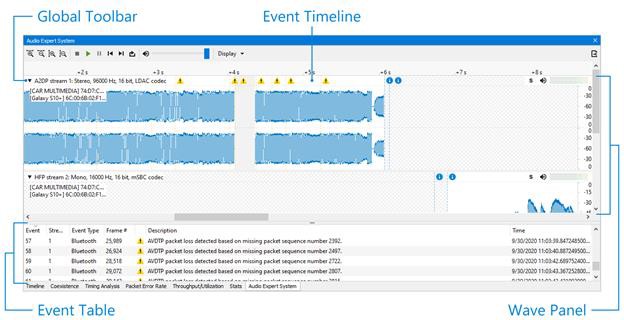
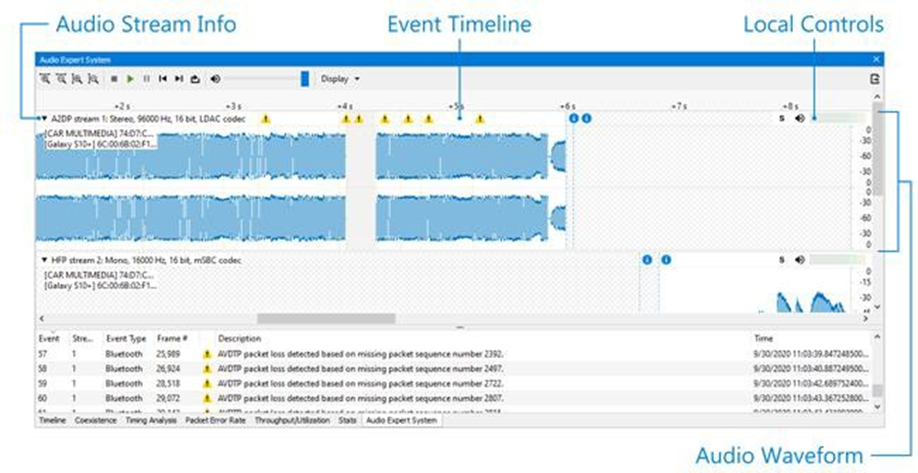
The Audio Expert System panel contains four principal areas shown below.
-
Toolbar - provides play cursor controls, waveform viewing controls, and volume controls that affect all Wave Panels.
-
Wave Panel - displays the waveforms for each captured audio stream. There is a separate Wave Panel for each stream. Each panel contains local information, controls, and an event timeline specific to the displayed audio stream being shown. Other Wave Panels that may be off screen may be viewed using the vertical scroll control or by collapsing other Wave Panels.
-
Event Timeline - shows Bluetooth events, Codec events, and Audio events synchronized to the displayed waveform. There is an Event Timeline in each Wave Panel.
-
Event Table – a tabular listing of Bluetooth, codec, and audio events with information on event severity, related Bluetooth frame, timestamp, and event information. The severity is denoted by icons, such as Info


Global Toolbar
The global toolbar provides audio play controls, audio play cursor positioning controls, waveform viewing controls, and volume controls. Global toolbar controls apply simultaneously to all waveform panels.
Global Toolbar Controls

|
Icon |
Description |

|
Horizontal Zoom In: Decreases the amount of data that is visible on the screen; however, more detail is discernible. |

|
Horizontal Zoom Out: Increases the amount of data that is visible on the screen; however, less detail is discernible. |

|
Vertical Zoom In: Decreases the waveform display vertically. The waveform amplitude is always visible, and the Vertical Zoom In control decreases the entire vertical size of the display. |

|
Vertical Zoom Out: Increases the waveform display vertically. The waveform amplitude is always visible, and the Vertical Zoom In control increases the entire vertical size of the display. |

|
Stop: Stops playing immediately, and releases Pause if depressed. |

|
Play: Start playing the audio from the current play cursor position. Toggles to Pause when clicked. |

|
Pause: Stops audio play back at its current position, toggles to Play when clicked. |

|
Home: Moves play cursor to beginning of the waveform. |

|
End: Moves the play cursor to the end of the waveform. |

|
Loop: Loops waveform playback continuously. |

|
Volume: Manage the audio playback volume of all Wave Panels based on the current volume level setting for each individual Wave Panel. |
|
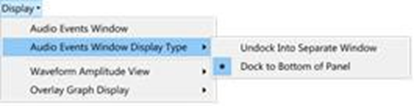
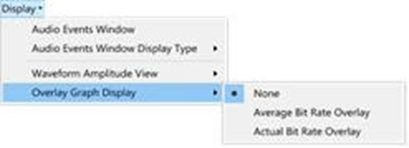
Display: Allows the user to manage view and display options for event table, waveform amplitude, and overlay graph. Audio Event Table view: The table shows at the bottom of the AES window by default. The Event Table can be undocked into a separate window which displays on the top of other windows. |
|
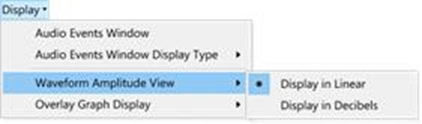
Display: The audio waveform is plotted as amplitude versus time on the Wave Panel. The waveform’s amplitude can be linear or in decibels. The linear range is -1.0 to +1.0. The range for the dB scale is 0 dB for the maximum positive and maximum negative values, and silence is negative infinity. |
|
Display: Average Bit Rate Overlay: Displays an overlay graph of the average bit rate for the audio stream in each Wave Panel. The average is based on a 0.10 second moving window. When active, will deactivate Actual Bit Rate Overlay and Audio Rating Metric. Actual Bit Rate Overlay: Displays an overlay graph of the instantaneous bit rate for the audio stream in each Wave Panel. When active, will deactivate Average Bit Rate Overlay and Audio Rating Metric. |
|

|
Export Data: Exports audio data in .raw and/or .wav format for selected Wave Panels or all the Wave Panels. This button also lets user export Event Table data in .csv format. Refer to Waveform Export Audio Data for more details. |
Wave Panel
The Stream Panel is where the details of the captured audio stream are presented. The Stream Panel displays the captured audio waveform along with an event timeline that displays discrete Bluetooth, Codec, and Audio events synchronized to the captured waveform.
The Wave Panel contains four sections.
-
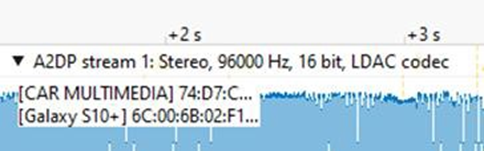
Audio stream information provides users with information such as stream capture sequence #, Mono/Stereo, sample rate, bit/sample, codec, and DUT (Device Under Test) addresses with a friendly name or user-provided nickname.
-
Local Controls include audio Volume indicator, Mute, and Solo controls.
-
An Audio Waveform which is plotted as amplitude (linear or dB) versus time and an interactive play cursor. The play cursor appears as a green vertical line across the waveform.
-
Event Timeline that shows error, warning, and info events. Details of these events are listed in the Audio Expert
Audio Stream Info and Local Controls
The Audio Stream Info displays Audio, Bluetooth, and Codec information (left to right in the image below) about the audio waveform displayed in the panel. This information is discovered during AVDTP signaling when the devices under test (DUT) negotiate audio streaming parameters.
Audio Stream Info and Local Controls
|
Category |
Name |
Description |
|
Audio |
Stream |
A system assigned index number that represents an audio waveform between a pair of Bluetooth devices. This number appears in the Event Table for easy cross-referencing. |
|
Sample Rate |
Sample Rate Displays the sampling frequency used to digitize the original audio. |
|
|
Mono/Stereo |
Mono/Stereo Indicates if the audio data is monaural or stereophonic. |
|
|
Bits/Sample |
Bits/Sample Displays the number of bits per sample of the audio data. |
|
|
Transport Protocol |
Transport Protocol The user can check the transport protocol next to the stream number. |
|
|
Bluetooth |
DUT1 and 2 |
Bluetooth DUT1 and 2 Bluetooth address of the two devices in the connection sending or receiving the audio data. |
|
Codec |
Codec |
Codec Displays the Codec type used by the captured audio stream. |

|
Collapse/Expand |
Collapse/Expand button toggles between two views. |

|
Solo |
When the stream is set to Solo, it is the only one that can be heard. The Solo is a shortcut way of muting all tracks except one. |
|
|
Volume Indicator |
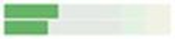
The volume indicator shows the relative audio volume at the waveform display play cursor. When the green bars completely fill the indicator the audio volume is at its highest level. As the volume decreases, the bars will move to the right linearly, with no visible green bar indicating no audio. The volume indicator will continue to operate if the audio stream has been muted. |
Audio Waveform
The Audio Waveform Panel displays the captured audio waveform. If the waveform is stereo, both channels are visible in the Wave Panel. The user can view the entire waveform or can zoom to view a portion of the waveform in more detail.
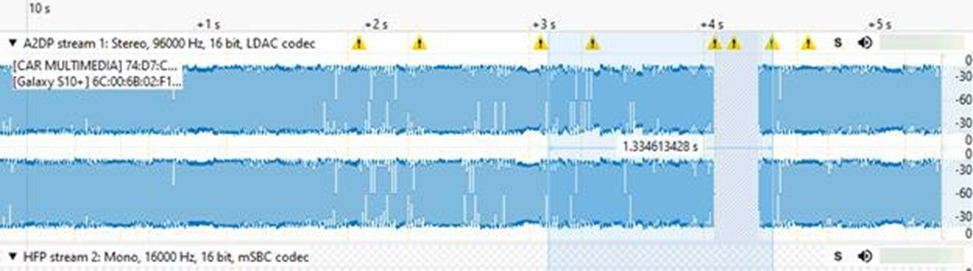
The audio waveform is plotted as amplitude versus time on the Wave Panel. The amplitude setting is located in the Display menu of the global toolbar. The waveform’s amplitude can be linear or in decibels. The linear range is -1.0 to +1.0. The range for the dB scale is 0 dB for the maximum positive and maximum negative values, and silence is negative infinity. A toggle switch at the bottom of the amplitude scale will switch between Linear scale and dB scale. Moving the switch to the left will display the Linear scale and moving it to the right will display the dB scale.
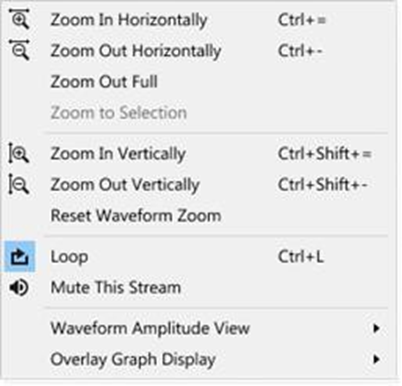
The Play Cursor is identified by a green vertical line on the Wave Panel. The Play Cursor appears when user clicks on any point in the waveform, or, if the cursor is already present it can be dragged to another position. To drag the Play Cursor, hover the mouse cursor over the Play Cursor until the cursor changes to a pointing hand. Click and drag the cursor to a new position. The following options are available via the right click.
Bitrate Overlay Display
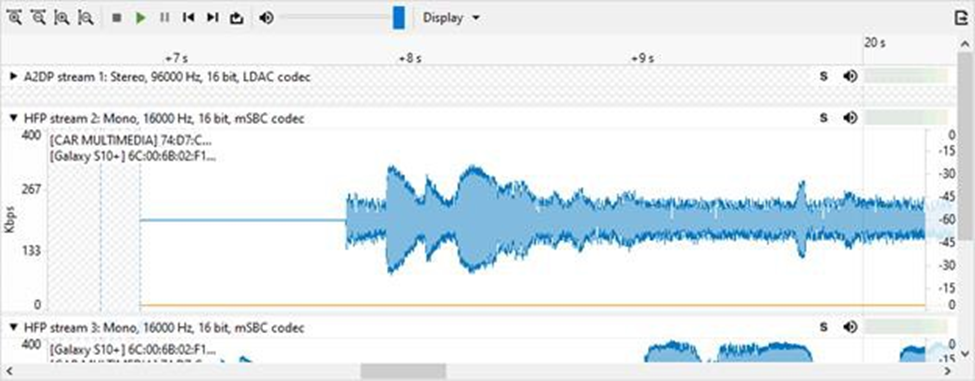
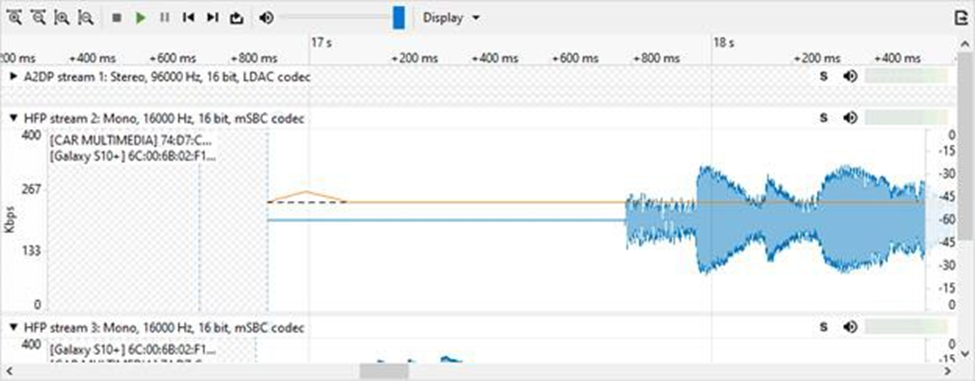
The Average and Actual audio stream bitrate graphs can be displayed over the audio waveform using the Display menu on the Global Toolbar. These are presented as overlays onto the main Wave Panel so the user can correlate audio issues with bitrate changes and the like. The scale is in Kbps. Hovering over the bitrate scale will display a pop-up showing the bitrate at the play cursor position.
Event Timeline
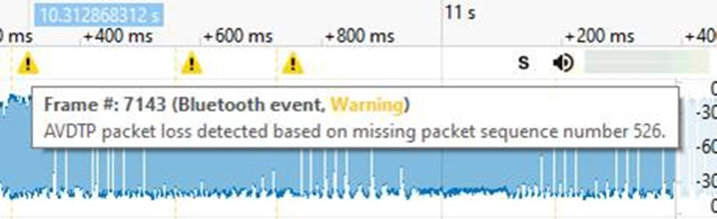
The Event Timeline in the Wave Panel shows the Bluetooth, Codec, and Audio events related to the waveform being viewed. The events are synchronized in time to the waveform displayed in the Wave Panel. When the cursor hovers over a selected event severity icon in the Event Timeline, a pop-up will display the associated Bluetooth frame, event class, severity, and description from the audio event table.
Event Table
The Event Table lists all audio stream events. Clicking on an event will select that event in the Event Timeline in the Wave Panel. If the selected event is outside the visible area of the waveform, the waveform will move and bring the selected event to the center of the display. The event icon in the Event Timeline is also centered and the selected icon will be larger than the non-selected event icons. Selecting one or more events in the table will highlight the associated frames in the standard Frontline software windows, such as Main windows, Coexistence View, Bluetooth Timeline, etc.
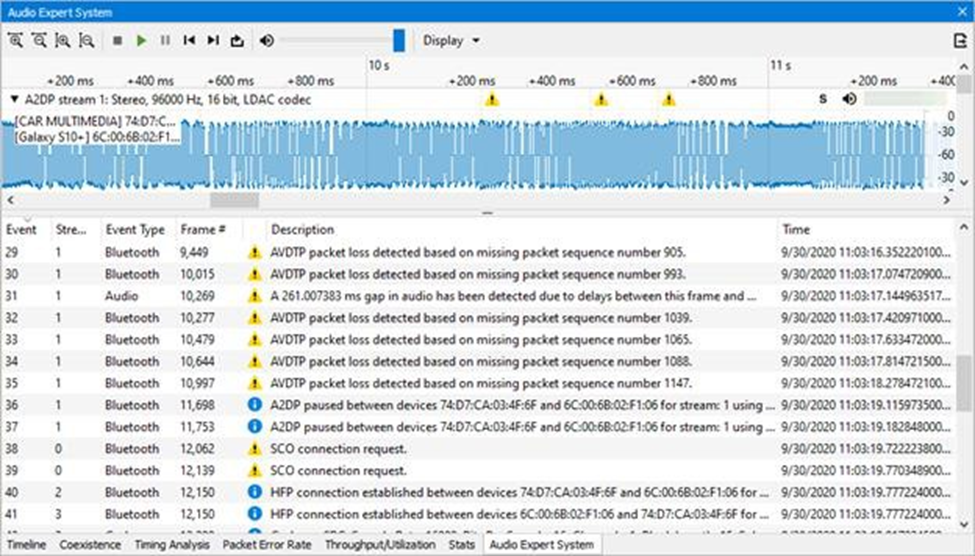
Several events can be selected by clicking and dragging over the events, or by holding down the Shift key and clicking on events. To select events that are not adjacent hold down the Ctrl key and click on the events.
Event Table Sections
|
Name |
Value |
Description |
|
Event |
integer |
System generated sequential numbering of events. |
|
Severity |
|
Information - provides information of interest but does not indicate a problem event. Warning -identifies a potential problem where further investigation may be appropriate. Error - identifies a definite problem. |
|
Stream Id |
integer |
A system generated ID that is assigned in order that the audio streams are detected. The ID is not maintained between captures for the same device with the same audio. It identifies the Wave Panel where the event can be viewed. The ID appears in the Audio Stream Info of the Wave Panel. |
|
Frame Number |
integer |
The system generated identification for a specific frame. |
|
Description |
|
Details and explanation about this event. |
|
Timestamp |
clock date and time |
A system generated time stamp for each frame. |
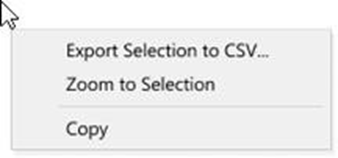
A right click on the Event Table window provides the following options.
Export Audio Data
The export audio data feature is available via the following ways.
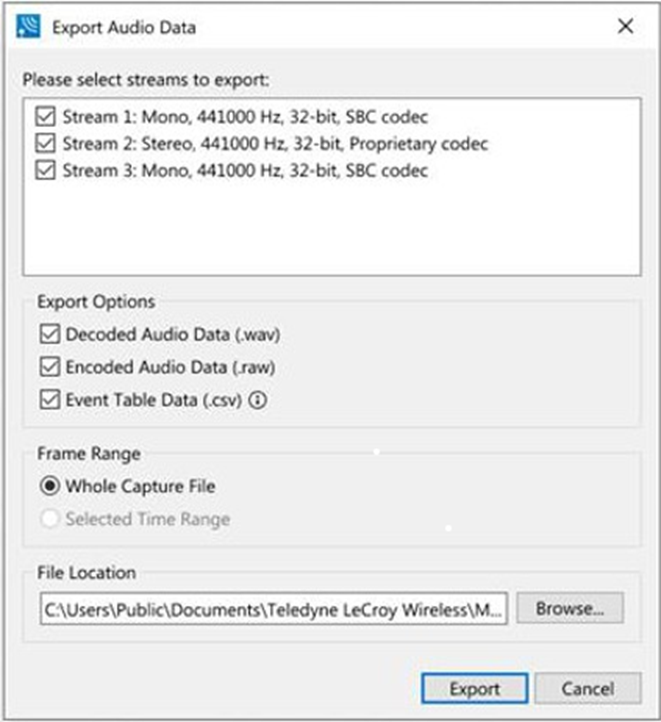
-
Clicking the Audio Expert System window Global Toolbar Export button

-
Right-click in Event Table Pop-up Menu and a pop-up menu will appear. Select Export Selection to CSV.
-
Main File menu and select Audio Export from the Export sub-menu.
The Audio export allows exporting audio data in .wav and .raw format and event table in the .csv format. Users can export the entire file or a time range. By default, all audio streams are selected.