
This feature enables continuous capture of ongoing connections without requiring WPS to record the connection for its entire life. If the capture hardware remains powered on and WPS has captured the initial connection setup and any associated encryption keys, the connection information is remembered between stopping and starting capture sessions.
The Bluetooth Continuous Capture feature is found in the Capture options dropdown menu in “Capture/Continuous Capture Options” and has two modes. The default mode “Analyze Current Session Only” displays only the currently active capture session. The alternate mode “Analyze All Sessions” displays all previous capture sessions along with the currently active session.
When capturing in the Continuous Capture mode using the “Analyze All Sessions” option, Spectrum data (if configured) will only be displayed for the current session.
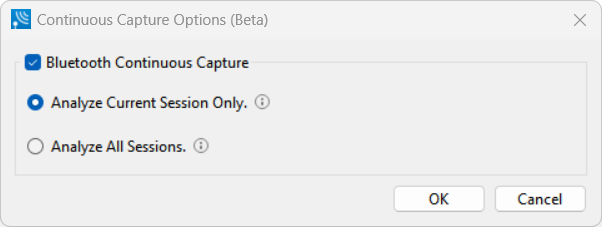
No time gaps are visible with the default “Analyze Current Session Only” mode enabled since only the current session is analyzed as shown in the Coexistence view below.

Time gaps are visible between capture sessions with the alternate “Analyze All Sessions” mode enabled since the hardware is not capturing packets between sessions and both the previous sessions and current session are analyzed as shown below.

In either mode, any data packets associated with connections active when the “Stop Record” button is pressed will be present after a succeeding press of the “Start Record” button if the connection is still active when capture is restarted. Note that connection setup packets will only be seen in the session in which they were recorded and should be saved for reference before restarting capture if in the “Analyze Current Session Only” mode. In “Analyze All Sessions” mode the earlier sessions will be restored when capturing is restarted, and the connection setup packets will be visible.
The Bluetooth Continuous Capture feature is not supported with the Message Sequence Chart feature. If the Bluetooth Continuous Capture feature is enabled on one X240, it must be enabled on all X240s attached with a CATC Sync cable.