
The X500e/X700 Wireless tab is scrollable.
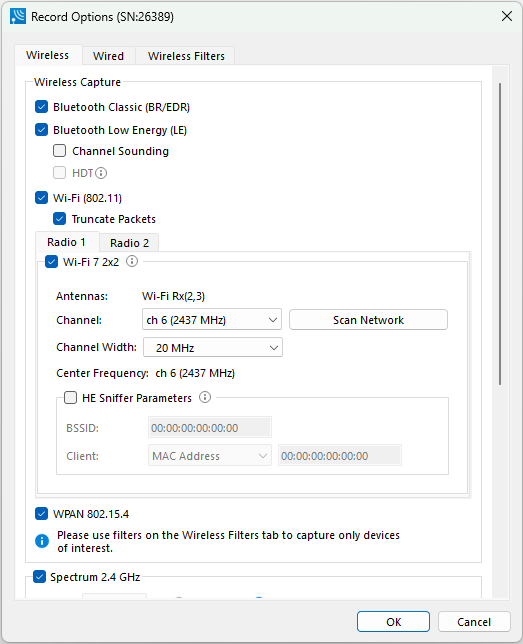
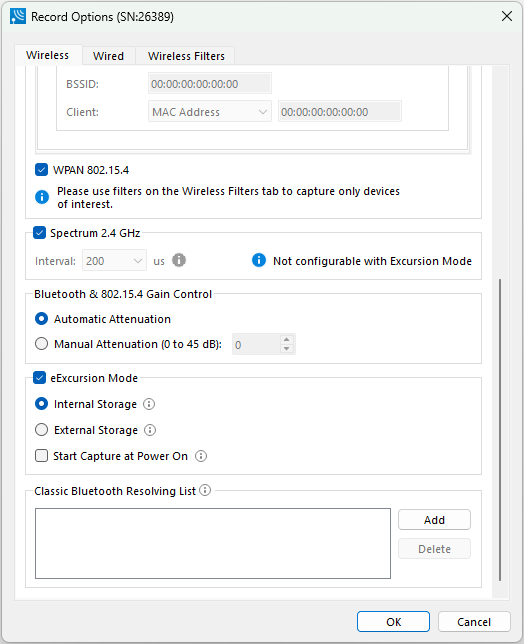
X500e/X700 Record Options Wireless Tab Selections
|
Section |
Selection |
Description |
|
Wireless Capture |
Classic Bluetooth |
When checked, will capture data from Classic Bluetooth devices. |
|
Bluetooth Low Energy |
When checked, will capture data from Bluetooth Low Energy (LE) devices. |
|
|
Channel Sounding |
This feature enables high-accuracy distance measurement (HADM) between Bluetooth devices. On 16 September 2021, the WG changed the name from "High-Accuracy Distance Measurement (Two-Way Ranging) (HADM 2WR), Connection-Oriented" to "Channel Sounding". |
|
|
Wi-Fi 7 2x2 |
When checked, will capture Wi-Fi 5, Wi-Fi 6e, and Wi-Fi 7 data from 802.11 devices. See the section titled Wi-Fi 7 2x2 Configuration following this table. |
|
|
WPAN 802.15.4 |
When checked, will capture data from 802.15.4 devices.
|
|
|
Spectrum 2.4 GHz |
|
When checked this selection provides the user with the ability to capture samples of the 2.4 GHz RF present at the antenna. The Spectrum data represents the RSSI and it is automatically saved when the capture is saved. It can be optionally viewed in the Coexistence View. Spectrum sampling is set at 20, 50, 100, or 200 microsecond intervals using the Interval control. 
Capturing Spectrum data will use additional memory and the smaller the sample interval, the more memory that is used. So, when using sample rates less than 200 microseconds, the analyzer must be connected to a computer and not being used in eExcursion Mode. See Spectrum Analysis and Coexistence View - Spectrum for more information. |
|
Bluetooth & 802.15.4 Gain Control |
Automatic Attenuation |
The analyzer will automatically adjust the attenuation of the received RF signal to estimated levels suitable for effective data capture. |
|
Manual Attenuation |
Manual Attenuation may be necessary if the capture does not provide reliable results. Attenuation can be adjusted from 0 to 45 dB in 1 dB steps. For example, in the presence of a strong Wi-Fi signal the user may have to increase the attenuation to achieve a reliable Bluetooth or 802.15.4 data capture. The user should adjust the attenuation and then capture the data again. Repeat, if necessary, until a reliable data capture is achieved. 
The default Manual Attenuation is 0dB. |
|
|
eExcursion Mode |
|
When eExcursion Mode is checked, the analyzer will support eExcursion Mode captures where the hardware can capture data without being connected to a computer. The configured traffic is captured for later upload and analysis using a computer running the Wireless Protocol Suite software. Refer to eExcursion Mode for more information. |
|
Classic Bluetooth Resolving List |
|
This is a list of Classic Bluetooth device addresses used to resolve packet source BD_ADDRs (Bluetooth Device ADDResses) during capture. The Analyzer maintains a database of known device BD_ADDRs indexed on the least significant 4 bytes of the BD_ADDR – the UAP and LAP. Over time, the device database will grow and may contain multiple devices with BD_ADDRs with the same UAP and LAP. The resolving list is used to specify a known set of device BD_ADDRs that will be encountered in a capture session. This list will be checked first for matching device BD_ADDRs. Each BD_ADDR on the resolving list must have a unique value for the least significant 4 bytes of the BD_ADDR (UAP and LAP). |
Wi-Fi 7 2x2 Configuration
The Wi-Fi 7 2x2 options permit configuration of the Primary 20 MHz Channel and Channel Width on which to capture Wi-Fi.
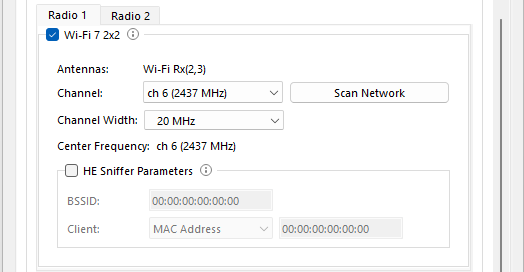
X500e/X700 Wi-Fi 7 2x2 Option Selections
|
Section |
Description |
|
Truncate Packets |
When checked, the system truncates Wi-Fi data packets. The system does not truncate management or control type packets. In summary view, a user will only see the decoding for the Radio Tap and MAC header of truncated packets. This allows for smaller capture files. The system only allows capturing Spectrum data when Wi-Fi packets are truncated. |
|
Channel |
Select from the 2.4, 5, 6/6E, or 7 GHz channels. The channels are 5 MHz wide. They are used for signaling and backwards compatibility. |
|
Channel Width |
The possible Channel Width options are enabled based on the Channel selection. For a 2.4 GHz channel, the possible options are 20 MHz, +40 MHz (expanded above the primary channel). and -40 MHz (expanded below the primary channel). For a 5 GHz channel, the possible options are 20, 40, 80, and 160 MHz. For a 6 GHz or 7 GHz channel, the options are 20, 40, 80, 160 and 320 MHz. |
|
Channel |
This is the center frequency, automatically calculated from the Channel and the Channel Width selections. |
The X240 Wireless tab is scrollable.
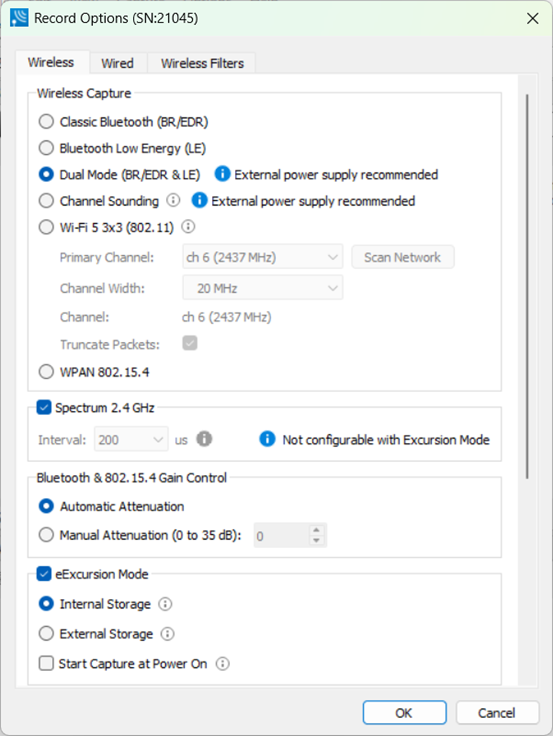
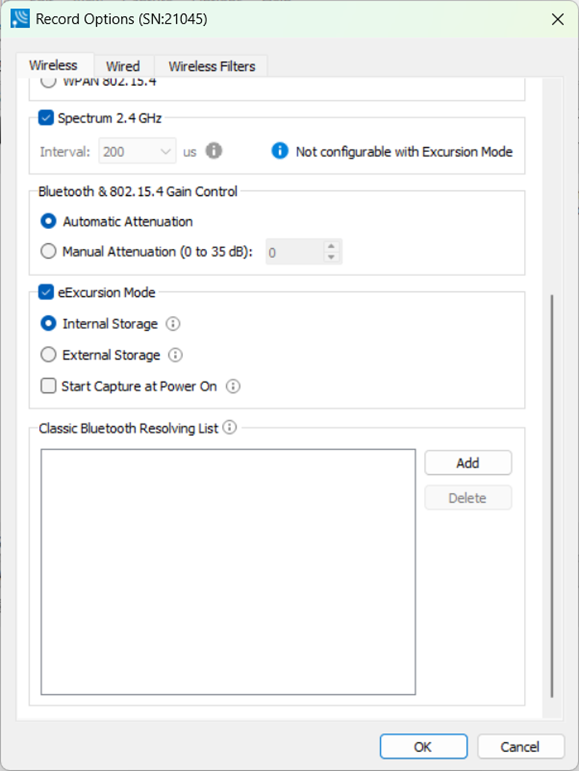
X240 Record Options Wireless Tab Selections
|
Section |
Selection |
Description |
|
Wireless Capture |
Classic Bluetooth |
When checked, will capture data from Classic Bluetooth devices. |
|
Bluetooth Low Energy |
When checked, will capture data from Bluetooth Low Energy (LE) devices. |
|
|
Bluetooth Dual Mode (BR/EDR and LE) |
When checked, will capture data from both Bluetooth Classic and LE devices. It is recommended to use an external power supply when using X240 in dual mode configuration. The X240 hardware may shut down if the PC cannot deliver at least 15W to the hardware consistently. It is also recommended to use certified USB cables provided by Teledyne LeCroy for optimal performance. |
|
|
Channel Sounding |
This feature enables high-accuracy distance measurement (HADM) between Bluetooth devices. On 16 September 2021, the WG changed the name from "High-Accuracy Distance Measurement (Two-Way Ranging) (HADM 2WR), Connection-Oriented" to "Channel Sounding". |
|
|
Wi-Fi 5 3x3 |
When checked, will capture data from 802.11 devices. See the section titled Wi-Fi 5 3x3 Configuration following this table. |
|
|
WPAN 802.15.4 |
When checked, will capture data from 802.15.4 devices.
|
|
|
|
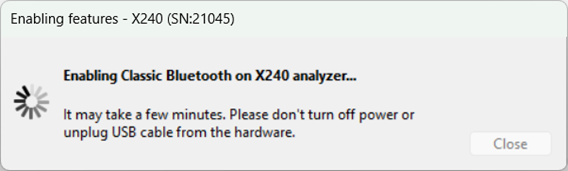
When the Wireless Capture technology is changed, a dialog will appear indicating that the selected Wireless Capture technology is being enabled.
|
|
|
Spectrum 2.4 GHz |
|
When checked this selection provides the user with the ability to capture samples of the 2.4 GHz RF present at the X240 antenna. The Spectrum data represents the RSSI and it is automatically saved when the capture is saved. It can be optionally viewed in the Coexistence View. Spectrum sampling is set at 20, 50, 100, or 200 microsecond intervals using the Interval control.
Capturing Spectrum data will use additional memory and the smaller the sample interval, the more memory that is used. So, when using sample rates less than 200 microseconds, the X240 unit must be connected to a computer and not being used in eExcursion Mode. See Spectrum Analysis and Coexistence View - Spectrum for more information. |
|
Bluetooth & 802.15.4 Gain Control |
Automatic Attenuation |
The X240 unit will automatically adjust the attenuation of the received RF signal to estimated levels suitable for effective data capture. |
|
Manual Attenuation |
Manual Attenuation may be necessary if the capture does not provide reliable results. Attenuation can be adjusted from 0 to 45 dB in 1 dB steps. For example, in the presence of a strong Wi-Fi signal the user may have to increase the attenuation to achieve a reliable Bluetooth or 802.15.4 data capture. The user should adjust the attenuation and then capture the data again. Repeat, if necessary, until a reliable data capture is achieved. 
The X240 default Manual Attenuation is 0dB. |
|
|
eExcursion Mode |
|
When eExcursion Mode is checked, the X240 hardware will support eExcursion Mode captures where the hardware can capture data without being connected to a computer. The configured traffic is captured for later upload and analysis using a computer running the Wireless Protocol Suite software. Refer to eExcursion Mode for more information. |
|
Classic Bluetooth Resolving List |
|
This is a list of Classic Bluetooth device addresses used to resolve packet source BD_ADDRs (Bluetooth Device ADDResses) during capture. The Analyzer maintains a database of known device BD_ADDRs indexed on the least significant 4 bytes of the BD_ADDR – the UAP and LAP. Over time, the device database will grow and may contain multiple devices with BD_ADDRs with the same UAP and LAP. The resolving list is used to specify a known set of device BD_ADDRs that will be encountered in a capture session. This list will be checked first for matching device BD_ADDRs. Each BD_ADDR on the resolving list must have a unique value for the least significant 4 bytes of the BD_ADDR (UAP and LAP). |
Classic Bluetooth Resolving List Configuration
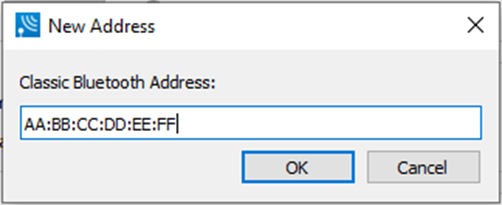
To add a Classic Bluetooth Device Address to the resolving list, select the “Add” button. Enter the Classic Bluetooth Address. Click OK. See figure below.
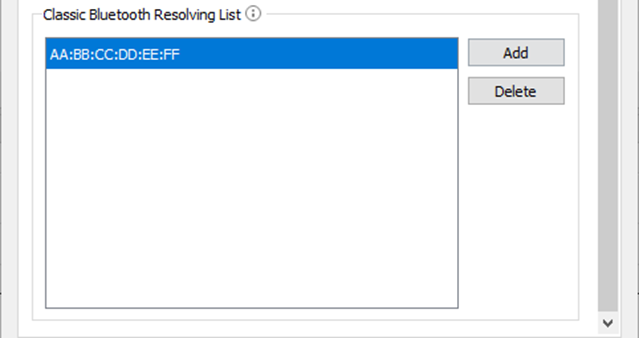
To edit a Classic Bluetooth Device Address that is already on the list, select that address and click the “Edit” button. Change the address, then click OK.
To remove a Classic Bluetooth Device Address that is on the list, select that address and click the “Delete” button.
Wi-Fi 5 3x3 Configuration
The Wi-Fi 5 3x3 options permit configuration of the Primary 20 MHz Channel and Channel Width on which to capture Wi-Fi.
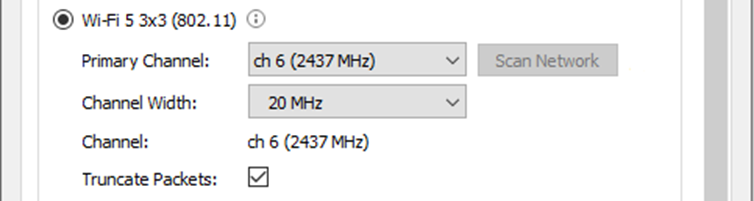
X240 Wi-Fi 5 3x3 Option Selections
|
Section |
Description |
|
Primary Channel |
Select from the 2.4 GHz or 5 GHz primary channels. The primary channels are 20 MHz wide. They are used for signaling and backwards compatibility. |
|
Channel Width |
The possible Channel Width options are enabled based on the Primary Channel selection. For a 2.4 GHz channel, the possible options are 20 MHz, +40 MHz (expanded above the primary channel). and -40 MHz (expanded below the primary channel). For a 5 GHz channel, the possible options are 20 MHz, 40 MHz, and 80 MHz. |
|
Channel |
This is the center frequency, automatically calculated from the Primary Channel and the Channel Width selections. |
|
Truncate Packets |
When checked, the system truncates Wi-Fi data packets. The system does not truncate management or control type packets. In summary view, a user will only see the decoding for the Radio Tap and MAC header of truncated packets. This allows for smaller capture files. The system only allows capturing Spectrum data when Wi-Fi packets are truncated. |
Wi-Fi Device Scanner
The “Scan Network” button allows a user to scan Wi-Fi channels for Wireless networks. The scanner scans channels on both the 2.4 GHz and 5.0 GHz frequency bands. After the scanning is complete, the user can choose the primary channel to record. This is helpful if one doesn’t know before recording what channel to use.
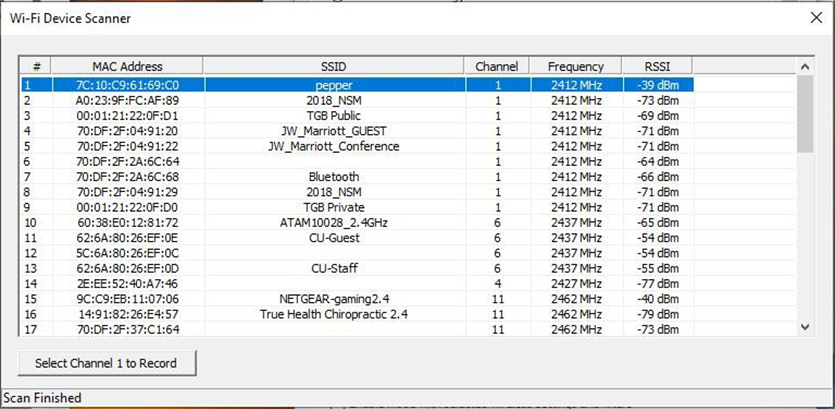
Scanning takes a few seconds to complete before displaying a list of Wireless networks.
Select an entry and click the “Select Channel to Record” button.
With the X240, the Wi-Fi tab only enables the “Scan Network” button when the current firmware image in the X240 supports Wi-Fi 5 3x3 capture.
Wireless Filters Tab
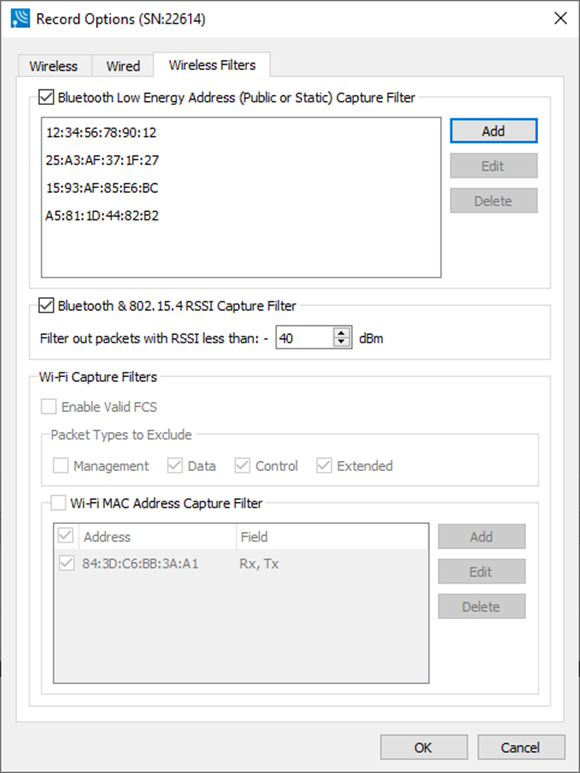
Record Options Wireless Filters Selections
|
Section |
Description |
|
Bluetooth Low Energy Address Capture Filter
|
By enabling the Bluetooth Low Energy Address Capture Filter, only Low Energy packets from the listed Bluetooth Addresses will be processed into the capture. Addresses can be added, selected and edited, and selected and deleted by using the Add, Edit, Delete buttons respectively. 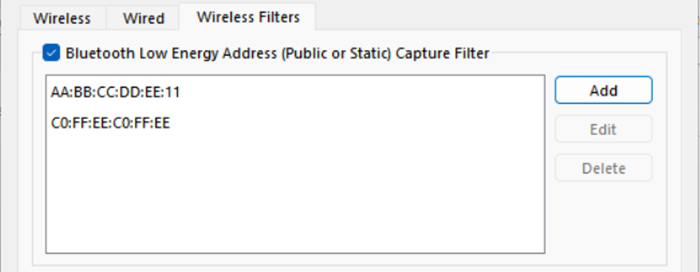
This filter can be useful in a crowded Bluetooth environment. Advertising devices that aren't listed in the Bluetooth Low Energy Address Capture Filter will still show up in the Bluetooth Device Database. This way, if a device in the capture filter connects to an advertiser, the previous packets for context are available. |
|
RSSI Capture Filter |
By enabling the RSSI Capture Filter, only those packets with RSSI greater than the entered dBm value will be processed into the capture. 
This filter can be useful in a crowded Bluetooth environment. (RSSI is measured at the beginning of the packet and that same value is retained for the entire duration of the packet. Once the packet transmission ends, the RSSI value is reset.) |
|
Wi-Fi Capture Filters |
|
|
Enable Valid FCS |
When checked, the system only captures Wi-Fi packets with a valid checksum. This allows a user to filter out bad packets. |
|
Packet Types to Exclude |
When a type is checked, the system does not capture this type of Wi-Fi packet. This allows a user to filter out unnecessary packet types. For example, a user may only want to see Management type packets. |
|
Wi-Fi MAC Address Capture Filter |
See Wi-Fi MAC Address Filtering following this table. |
Wi-Fi MAC Address Filtering
In environments where many Wi-Fi signals can make it hard to focus analysis on only a few signals of interest, the Wi-Fi MAC Address Capture Filter options allow configuration of only the signals of interest.
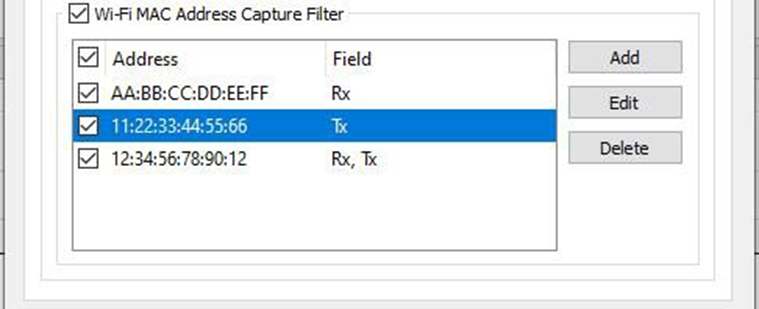
Wi-Fi Tab MAC Address Filtering
|
Setting |
Description |
|
Wi-Fi MAC Address Capture Filters |
This must be checked to enable the filtering of MAC Addresses on the analyzer. Unchecking this disables MAC Address filtering allowing all Wi-Fi signals captured into WPS for analysis. |
|
Add |
Displays a dialog in which the MAC Address can be entered and controls for selecting TX/RX. See Wi-Fi MAC Address Editing following this table. |
|
Edit |
After selecting one of the MAC Addresses in the table, this will display a dialog in which the MAC Address and the TX/RX can be changed. See Wi-Fi MAC Address Editing following this table. |
|
Delete |
After selecting one of the MAC Addresses in the table, this will delete that MAC Address filter. |
Wi-Fi MAC Address Editing
The MAC Address table displays the MAC Address and the Fields which indicates whether the MAC Address is filtered by the Rx (Receive) and/or Tx (Transmit) Field in the MAC Frame.
There is an Enable checkbox for each MAC Address so that each one can be enabled or disabled for filtering. Up to eight MAC Addresses can be entered for filtering.
To add a MAC Address, click the Add button. The New Address dialog is displayed.
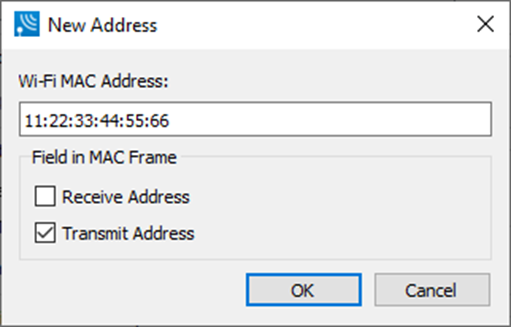
Enter the MAC Address into the edit field as indicated and select whether to filter that address as Receive and/or Transmit. Click OK and the MAC Address will appear in the MAC Address table with its Enable checkbox checked by default.
To edit a MAC Address, click on one of the MAC Addresses in the table to select it and click the Edit button. The same New Address dialog as above will display with all the information from the table already entered. Edit then click OK. The changes to the MAC Address appear in the MAC Address table.
If the Wi-Fi MAC Address Capture Filter checkbox is turned off, the MAC Address filters themselves are still retained on the analyzer for re-enabling later.