
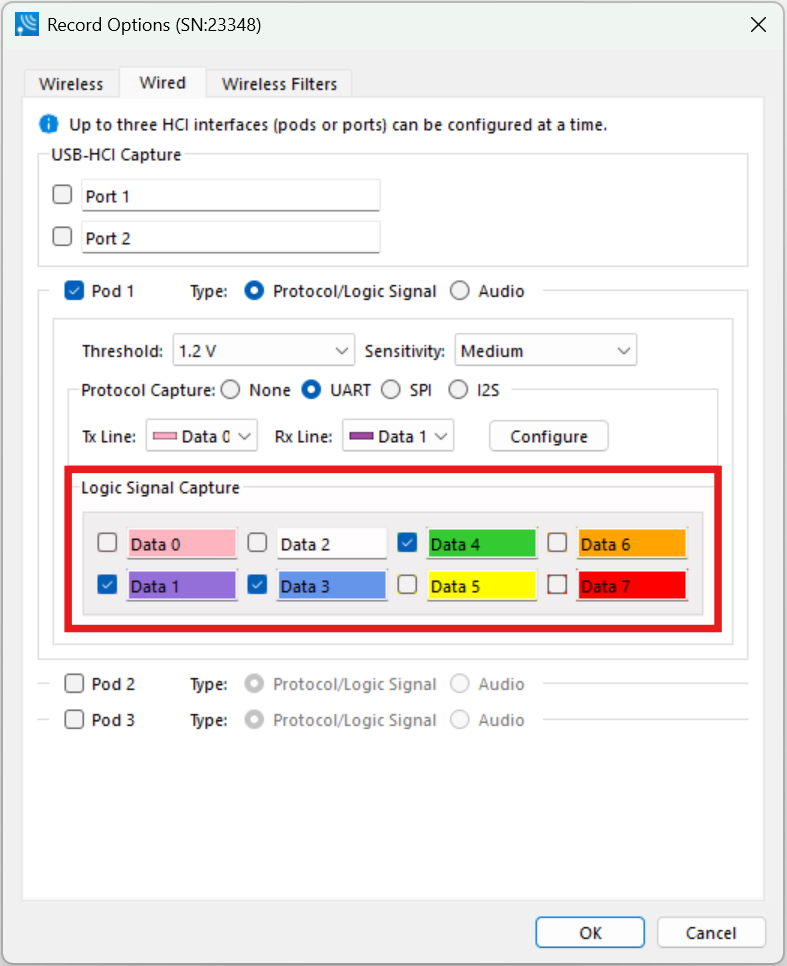
Logic signal analysis is accomplished by capturing the logic signal using the HCI Pods. Captured logic event changes are mapped to packets that are recorded to the Wireless Protocol Suite software. To configure logic signal capture and analysis, select the POD(s) which are to be used for capturing in the Record Options dialog as shown in the figure below.
Hardware Setup
Follow the procedures in UART Capture Configuration.
Analyzer Configuration
On the Analyzer toolbar, press Record Options button and the Record Options dialog will open. Select the Wired tab and then select the Logic Analyzer Signal Pod(s) being used to capture the logic events. Click OK to close the dialog.
Recording the Capture
Click on the Start Record button. Logic events captured at the pods are placed in packets and sent to the host computer.
The captured logic events can be saved as a capture file for future analysis.
Analyzing the Recoded Events
Logic level changes are recorded into packets. Each packet contains a single logic level change. View the packets in the Wireless Protocol Suite Summary view. Logic frames will have their own protocol tabs in the Wireless Protocol Suite Summary view.
Spectrum Analysis
The Analyzers have an option to sample the 2.4 GHz RF Spectrum at the hardware unit's antenna connector. The Spectrum data represents the Received Signal Strength Indicator (RSSI) and is automatically saved when the capture is saved.
The Spectrum data is synchronized in time to the received packets and is displayed in the Coexistence View 2.4 GHz Timeline when Show Spectrum is selected in the Spectrum menu on the Coexistence View.
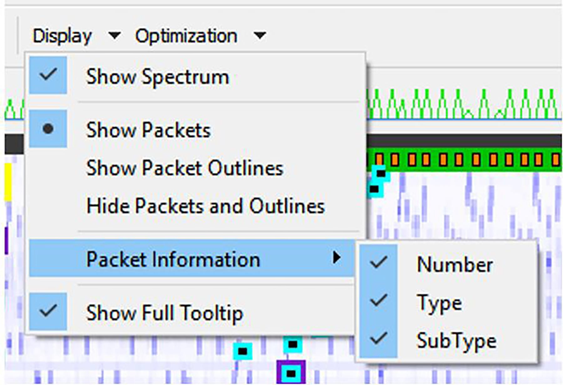
The Spectrum power level is shown as a "heat map" behind the timeline packets. The "heat map" appears in shades of blue with darker blues representing higher power levels and lighter blues representing lower power levels (white represents the lowest power level). The darkest shade of blue represents -15dBm and above, while white represents -100 dBm and below.
If a signal level that is too strong is detected, a note will be added to the Events Log View. See Hardware Signal Too Strong Indication for more information.
Spectrum data appearing in the Coexistence View that is not synchronized to a packet may indicate the presence of RF interference. Interference has the potential to degrade the Bluetooth signal.
The Spectrum can be sampled at 20, 50, 100, or 200 microseconds. The Spectrum option and sample rate is set in the Record Options Dialog. Smaller sample rate will cause an increase in memory used. However, identifying potential sources of interference may require more samples to avoid missing a signal.
For Spectrum sample intervals less than 200 microseconds, the capture hardware must be connected to a computer.
Critical Packets and Information for Decryption
After two Bluetooth devices are paired and the Bluetooth analyzers have captured data, the Wireless Protocol Suite software requires certain packets and information for successful post capture decryption.
BR/EDR Legacy Encryption (E0)
The following information and packets are needed to follow decryption:
-
Link Key
-
Full Central BD_ADDR, Full Peripheral BD_ADDR
-
All packets from the last authentication (central or central) before encryption starts (LMP_au_rand, and LMP_ sres)
-
LMP_en_rand, negotiated LMP_encryption_key_size
-
LMP_start_encryption_req, LMP_accepted(LMP_start_encryption_req)
-
LMP_stop_encryption_req, LMP_accepted(LMP_stop_encryption_req)
BR/EDR Secure Encryption (AES)
The following information and packets are needed to follow decryption:
-
Link Key
-
Full Central BD_ADDR, Full Peripheral BD_ADDR
-
Complete mutual authentication (LMP_au_rand from the central as well as LMP_sres from the peripheral)
-
Negotiated LMP_encryption_key_size
-
LMP_start_encryption_req, LMP_accepted(LMP_start_encryption_req)
-
LMP_pause_encryption_aes_req (if pausing and resuming AES encryption)
-
LMP_stop_encryption_req, LMP_accepted(LMP_stop_encryption_req)
Bluetooth Low Energy Encryption (AES)
The following information and packets are needed to follow decryption:
-
Long-Term Key (LTK)
-
LL_ENC_REQ, LL_ENC_RSP
-
LL_START_ENC_REQ, LL_START_ENC_RSP
-
LL_PAUSE_ENC_REQ, LL_PAUSE_ENC_RSP
Saving Analyzed Data to Disk
Start Record is not available when viewing a previously recorded Capture file.
Choose File Location from the File menu to change the default file location.
-
Click on the Start Record button in the main software.
-
The analyzer will begin capturing data from all wireless devices within range and from all connected wired devices.
-
In the Device Database and Wired Devices View select the active devices for analysis.
-
Files are placed in My Capture Files folder by default and have a .cfax extension.
-
Click on Stop Record button
-
To save captured data, click on Save button

Extended Inquiry Response
Extended Inquiry Response (EIR) is a tab that appears automatically in the Summary pane of the Wireless Protocol Suite software when you capture data.
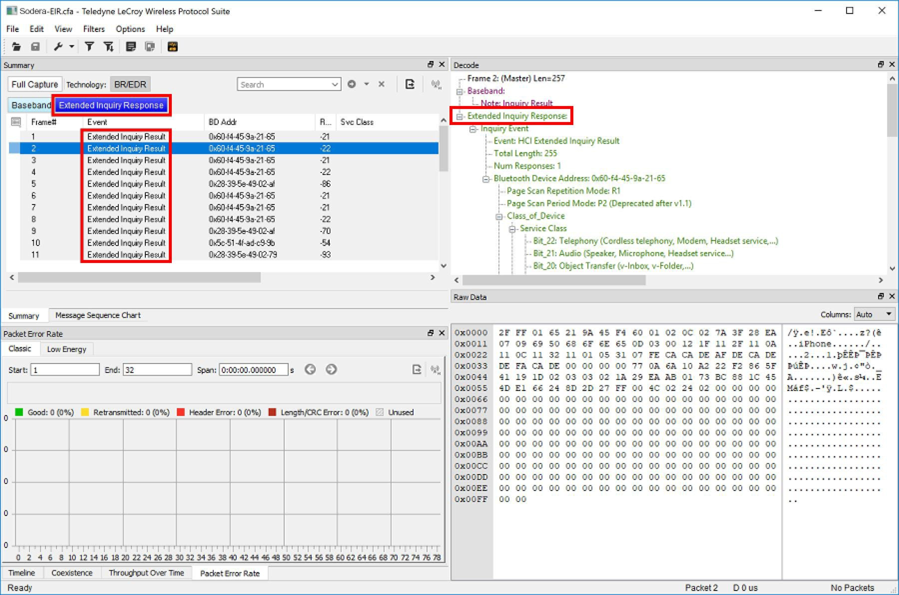
EIR displays extensive information about the Bluetooth® devices that are discovered as data is being captured. EIR provides more information during the inquiry procedure to allow better filtering of devices before connection; and sniff subrating, which reduces the power consumption in low-power mode. Before the EIR tab was created, this type of information was not available until a connection was made to a device. Therefore, EIR can be used to determine whether a connection can/should be made to a device prior to making the connection.
If a Bluetooth device does not support Extended Inquiry Response, the tab displays Received Signal Strength Indication (RSSI) data, which is less extensive than EIR data.