
The analyzer must have an eExcursion Mode license to enable and record without being connected to a computer.
eExcursion Mode is NOT allowed when capturing with multiple X240s.
Capturing data in eExcursion Mode allows the user to capture wireless data without the analyzer being connected to a computer. The captured data is stored on the hardware for later access and analysis when connected to a computer. This feature can make it easier to capture data while in a moving vehicle, in places where a laptop cannot readily be used, or in confined spaces. For example, the X500/X500e battery complements eExcursion Mode by providing sufficient power to capture data without being connected to an external power source.
To enable eExcursion Mode, the analyzer must be connected to a computer running the Wireless Protocol Suite software and configured prior to recording.
eExcursion Data Capture Mode
To enable eExcursion Data Capture Mode, follow the steps below:
Configure the record options for the hardware using the Record Options dialog. The record options you select will be stored to the hardware and applied during the excursion capture. For example, if you wish to only capture LE traffic, then you must make sure the hardware is configured to only capture LE traffic using the Record Options dialog. Finally, to enable eExcursion Mode on the hardware, you must select the eExcursion Mode record option (shown below).
When eExcursion Mode is enabled, Spectrum is not configurable (grayed out) and defaults back to 200 µs.
Enabling eExcursion Mode
-
Connect the analyzer to a computer with a USB cable and start the Wireless Protocol Suite software.
-
In the Main window, select Record Options from the toolbar.

-
Verify that the Record Options window title indicates the serial number of the connected hardware.
-
Check the box next to eExcursion Mode. Select either Internal Storage or External Storage depending on where to save the file. Internal Storage will store the captured packets internally on the hardware (default behavior). External Storage will store captured packets externally (via Ethernet). Click OK when finished. The pop-up will close and the Record Options are saved to the connected analyzer. The saved Record Options will travel with that specific analyzer and affect all subsequent captures performed regardless of whether they are performed using eExcursion Mode or using a connected computer.
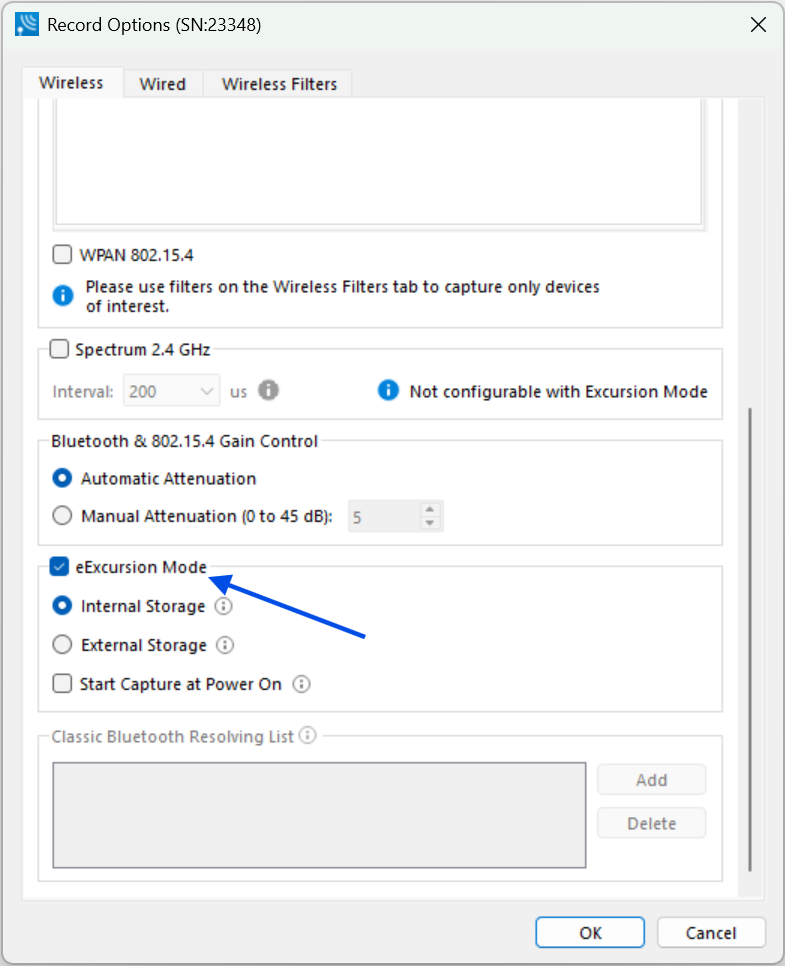
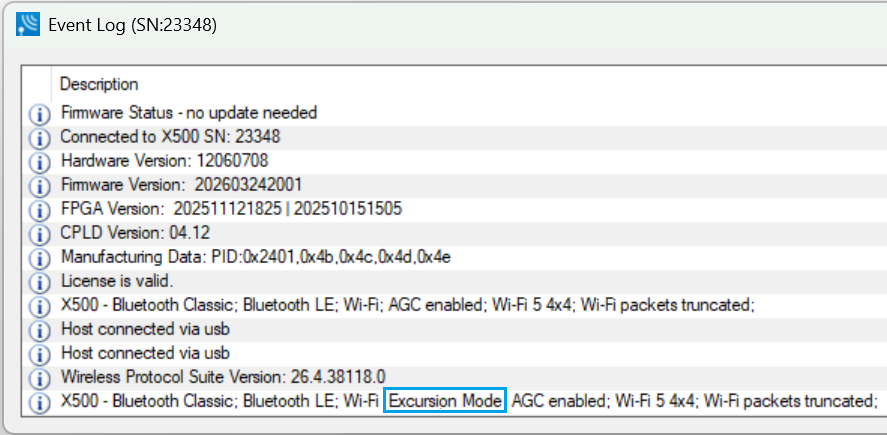
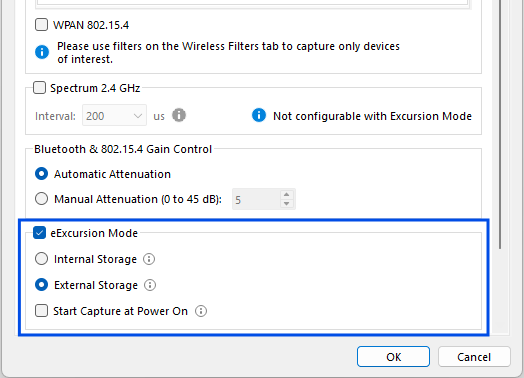
eExcursion Mode – Storage Selection
When the eExcursion Mode checkbox is selected, the radio buttons for Internal and External Storage are accessible.
-
With Internal Storage selected, the packets captured will be stored internally on the analyzer. This is default behavior.
-
With External Storage selected, the packets captured will be stored externally (via Ethernet).
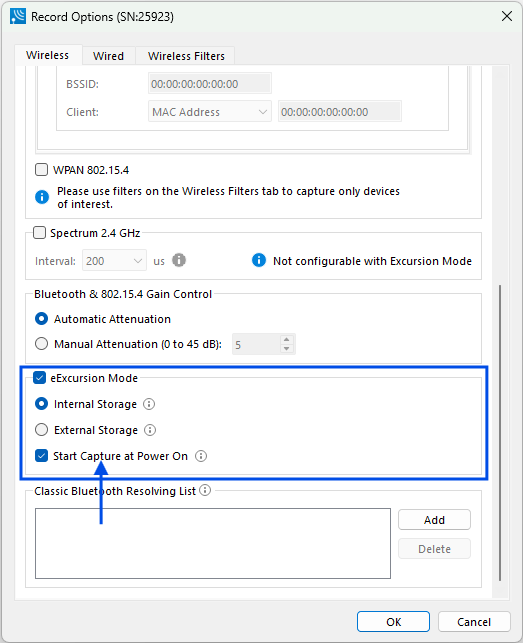
eExcursion Mode - Record Trigger-Power-up Option
Enable Capture at Powerup mode is an option in the Record Options window. This option configures the analyzer to start recording on power-up. The eExcursion button on the analyzer is not required to initiate recording.
This mode does not change the existing behavior of the eExcursion button. With eExcursion Mode enabled, button can still be used to start/stop capturing manually.
Disabling eExcursion Mode
-
Connect the analyzer to a computer with a USB cable and start the Wireless Protocol Suite software.
-
In the Main window, select Record Options... from the Options menu.
-
Verify that the Record Options window title indicates the serial number of the connected hardware.
-
Uncheck the box next to Enable eExcursion Mode and press OK. The pop-up will close and the Record Options are saved to the connected analyzer.
Limitations to eExcursion Mode Capture
The only limitations to eExcursion Mode capture are:
-
Battery life in X500/X500e: the analyzer has an external battery which has about two hours operating life under typical RF conditions. In the case of capture periods exceeding two hours, connect the X500/X500e to an external power source.
-
Battery life in the X240: The X240 does not have an internal battery. It can be powered via a USB Type C PD external battery backup, such as Charmast USB-C Power Bank - 26800mAh for eExcursion Mode. Under typical RF conditions, the 26800mAh battery allows about 4 hours of capture time in the dual mode configuration.
-
Internal memory - The X240, and X500/X500e analyzers have 64 GB of internal storage that is used to hold eExcursion Mode captures. This storage can be managed using the Wireless Protocol Suite.
-
Number of eExcursion Mode captures - There can be no more than 255 eExcursion Mode captures stored on the hardware. Refer to Manage eExcursion Mode Captures Dialog for instruction on how to delete eExcursion Mode capture files from the hardware unit.