
The Record Options dialog is used to configure the analyzer unit prior to data capture. The record options are stored on the analyzer hardware and these settings will persist until changed. The Record Options dialog is only active when the analyzer is connected to the computer running the Wireless Protocol Suite software.
If the analyzer is not connected to the computer, these settings can neither be viewed nor changed.
Clicking on OK will save the Record Options settings on the connected analyzer. Any Record Options parameter changes made will overwrite the previously saved Record Options.
Wireless Tab
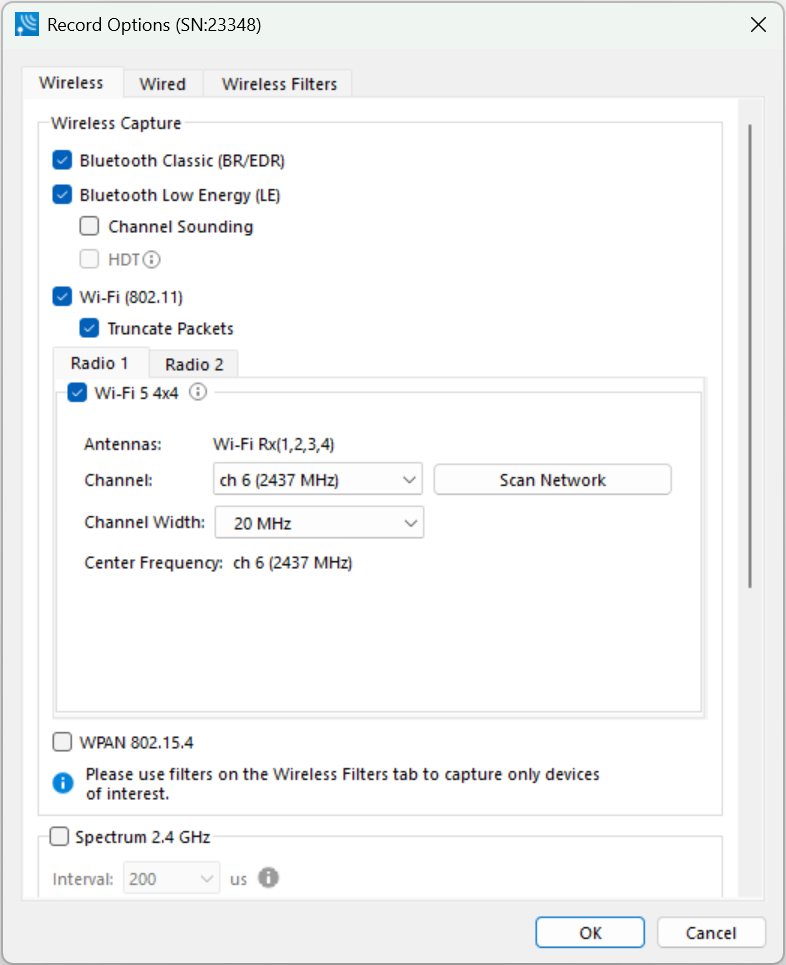
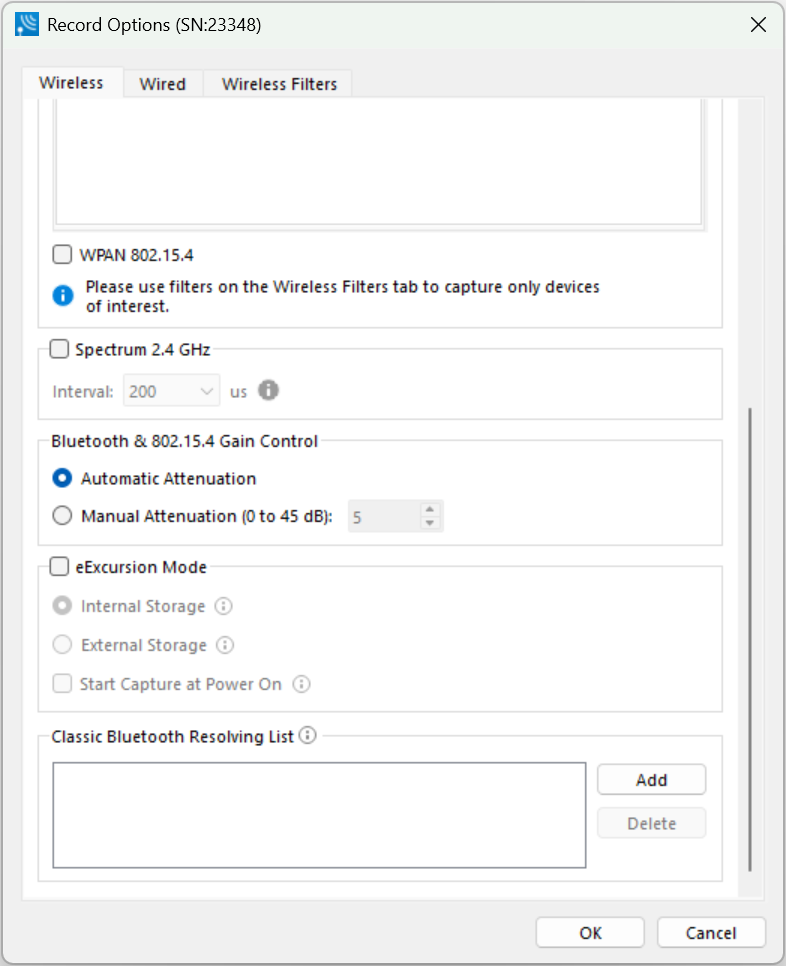
Record Options - Wireless Tab Selections
|
Section |
Selection |
Description |
|
Wireless Capture |
Classic Bluetooth |
When checked, will capture data from Classic Bluetooth devices. |
|
Bluetooth Low Energy |
When checked, will capture data from Bluetooth Low Energy devices. |
|
|
Bluetooth Low Energy 2 Mbps |
When checked captures Bluetooth Low Energy 2 Mbps data rate. When this option is selected for X240, the analyzer must be connected to an external power source. Refer to Applying Power. |
|
|
Spectrum 2.4 GHz |
|
When checked this selection provides the user with the ability to capture samples of the 2.4 GHz RF present at the analyzer’s antennas. The Spectrum data represents the RSSI and it is automatically saved when the capture is saved. It can be optionally viewed in the Coexistence View. Spectrum sampling is set at 20, 50, 100, or 200 microsecond intervals using the Interval control. 
Capturing Spectrum data will use additional memory. The smaller the sample interval, the more memory that is used, so when using sample rates less than 200 microseconds the analyzer must be connected to a computer and not being used in eExcursion Mode. See Spectrum Analysis and Coexistence View - Spectrum for more information. |
|
eExcursion Mode |
|
When eExcursion Mode is checked, the analyzer will support eExcursion mode captures where the hardware can capture data without being connected to a computer. The configured traffic is captured for later upload and analysis using a computer running the Wireless Protocol Suite software. Refer to eExcursion Mode for more information. |
|
Classic Bluetooth Resolving List |
|
This is a list of Classic Bluetooth device addresses used to resolve packet source BD_ADDRs (Bluetooth Device ADDResses) during capture. The Analyzer maintains a database of known device BD_ADDRs indexed on the least significant 4 bytes of the BD_ADDR – the UAP and LAP. Over time, the device database will grow and may contain multiple devices with BD_ADDRs with the same UAP and LAP. The resolving list is used to specify a known set of device BD_ADDRs that will be encountered in a capture session. This list will be checked first for matching device BD_ ADDRs. Each BD_ADDR on the resolving list must have a unique value for the least significant 4 bytes of the BD_ADDR (UAP and LAP). |
Classic Bluetooth Resolving List Configuration
To add a Classic Bluetooth Device Address to the resolving list, select the “Add” button. Enter the Classic Bluetooth Address. Click OK. See figure below.
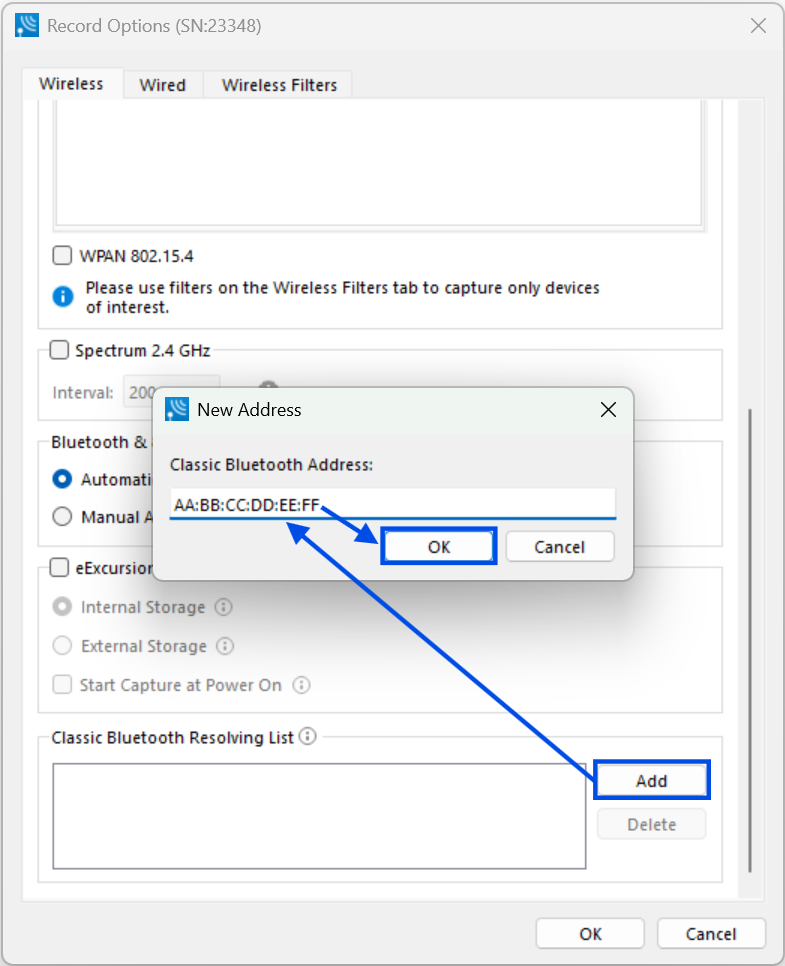
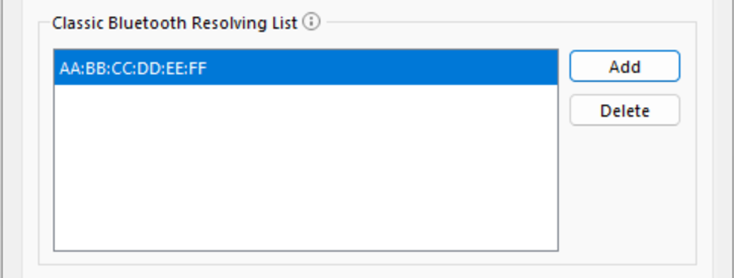
To edit a Classic Bluetooth Device Address that is already on the list, select that address and click the “Edit” button. Change the address, then click OK.
To remove a Classic Bluetooth Device Address that is on the list, select that address and click the “Delete” button.
Wired Tab
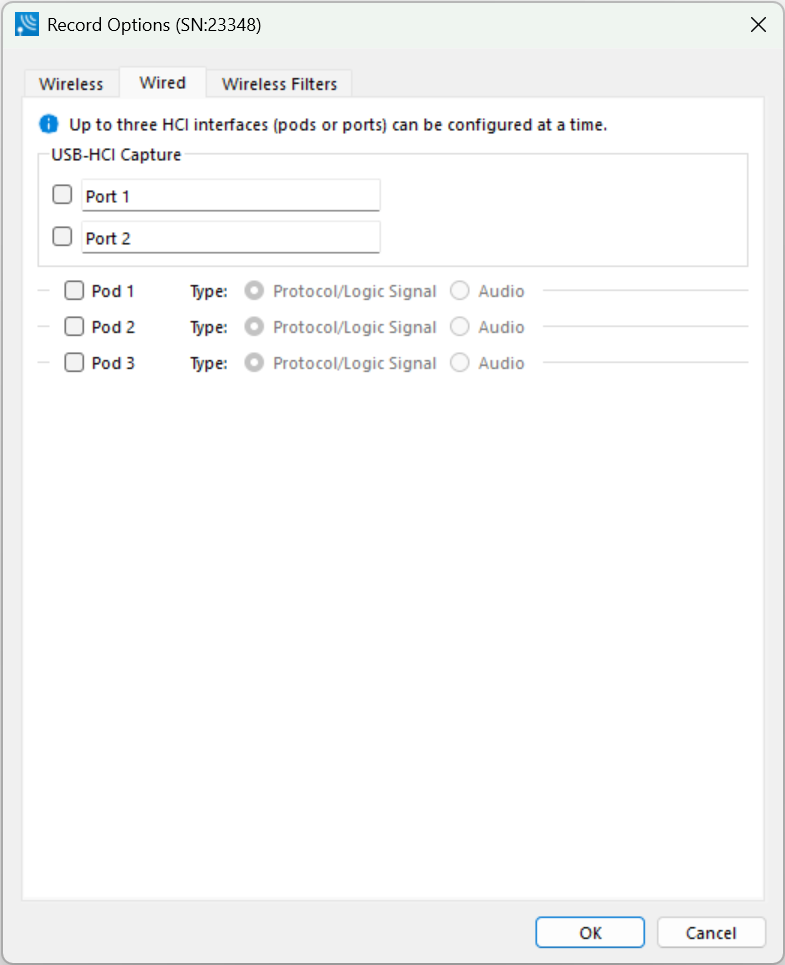
Record Options - Wired Tab Selections
|
Section |
Selection |
Description |
|
Interface 1 |
Capture method |
Control whether HCI traffic on POD1 will be captured. Available options are:
|
|
Logic Signal Capture |
When checked, the analyzer’s HCI POD1 is configured to capture logic events. Refer to UART Capture Configuration. |
|
|
Interface 2 |
Capture method |
Control whether HCI traffic on POD2 will be captured. Available options are:
|
|
Logic Signal Capture |
When checked, the analyzer’s HCI POD2 is configured to capture logic events. Refer to UART Capture Configuration. |
Editable Signal Line Names
USB-HCI Capture
The line names for Port 1 and Port 2 may be edited to have custom names of up to 32 characters. A right-click on either control will display a menu to restore either the specific line name to default or restore all line names to default.
Pod 1 and Pod 2 HCI Capture Methods
The line names in the HCI Capture Methods UART, SPI and I2S selection controls for Pod 1 and Pod 2 may be edited. A right-click on any line-selection control will display a menu to edit the line-name selections, restore the specific line name to default, or restore all line names to default. Selection of the option to edit line-name selections will display a dialog for specifying custom line names of up to 32 characters.
Pod 1, Pod 2 and Pod 3 Logic Signal Capture
The logic signal line names in the Logic Signal Capture methods for Pod 1, Pod 2 and Pod 3 may be edited to have custom names of up to 32 characters. A right-click on any line-selection control will display a menu to restore the specific line name to default or restore all line names to default.
HCI UART I/O Settings
After clicking on the Configure button, the I/O Settings for UART can be configured without an HCI pod being connected to the analyzer. When you click on the OK button, the configuration information is saved but is not stored on the analyzer hardware.
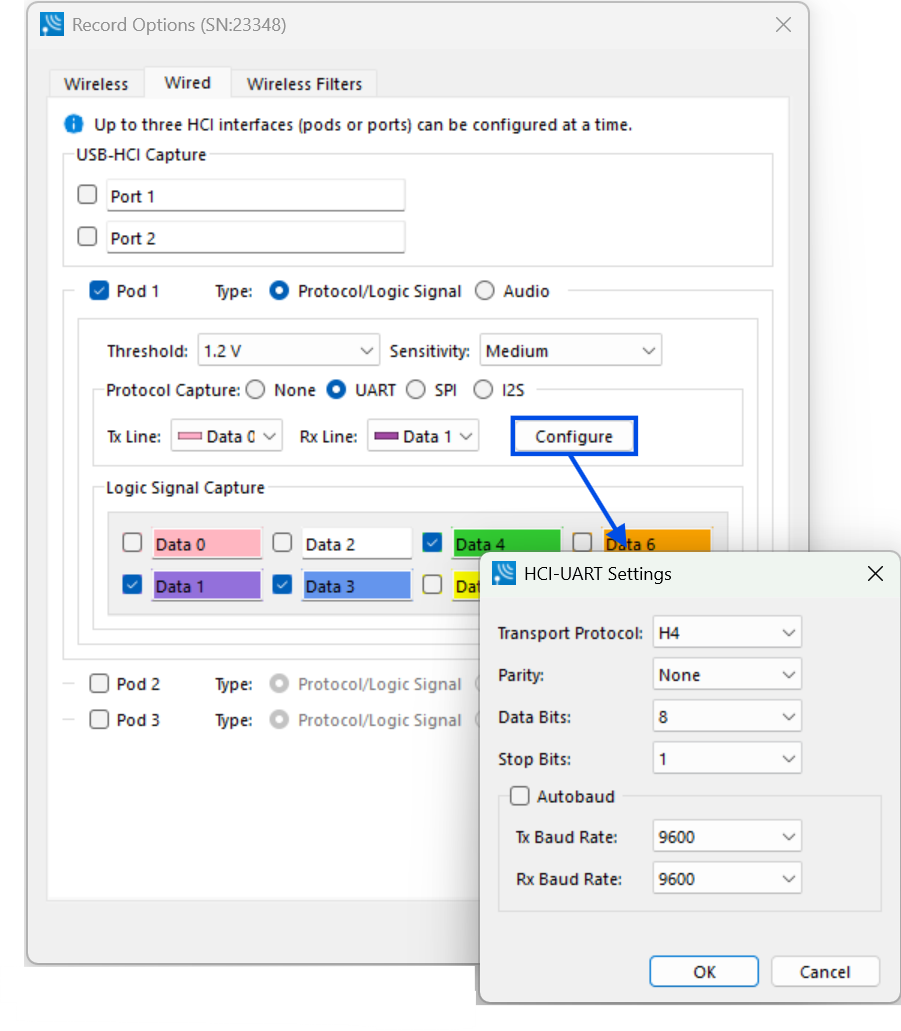
HCI Settings for UART
|
Setting |
Value |
Description |
|
Transport Protocol |
H4 |
The simplest protocol designed to operate over RS-232 with no parity in a 5-wire configuration. |
|
|
BCSP |
BlueCore Serial Protocol, developed by CSR, provides a more reliable alternative to H4. The protocol is defined to run a 3-wire connection and can optionally use a 5-wire UART connection with two flow control lines. |
|
|
3-Wire (H5) |
A 3-wire protocol that provides error detection and correction. |
|
|
MWS WCI- 2 |
The Wireless Coexistence Interface (WCI) is a full duplex UART carrying logic signals framed as UART characters. |
|
Parity |
None |
No parity check occurs |
|
|
Even |
The count of bits set is an even number. |
|
|
Odd |
The count of bits set is an odd number. |
|
Data Bits |
8 |
The number of data bits in the expected packet. |
|
7 |
||
|
6 |
||
|
5 |
||
|
Stop Bits |
1 |
The number of data bits held in the mark (logic 1) condition at the end of the expected packet. |
|
1.5 |
||
|
2 |
||
|
TX Baud Rate |
Disabled |
The baud rates displayed are nominal baud rates as opposed to the precise values internal to the analyzer which may differ slightly with a mean absolute average difference of less than half a percent. If autobaud is used, the difference may be more depending on how much the actual baud rate differs from those listed in the table. |
|
9,600 |
||
|
14,400 |
||
|
19,200 |
||
|
28,800 |
||
|
38,400 |
||
|
57,600 |
||
|
115,200 |
||
|
230,400 |
||
|
460,800 |
||
|
921,600 |
||
|
1,000,000 |
||
|
1,250,000 |
||
|
1,500,000 |
||
|
1,750,000 |
||
|
2,000,000 |
||
|
2,250,000 |
||
|
2,500,000 |
||
|
2,750,000 |
||
|
3,000,000 |
||
|
3,250,000 |
||
|
3,500,000 |
||
|
3,750,000 |
||
|
4,000,000 |
||
|
RX Baud Rate |
|
Value selections are the same as TX Baud Rate. |
Wireless Filters Tab
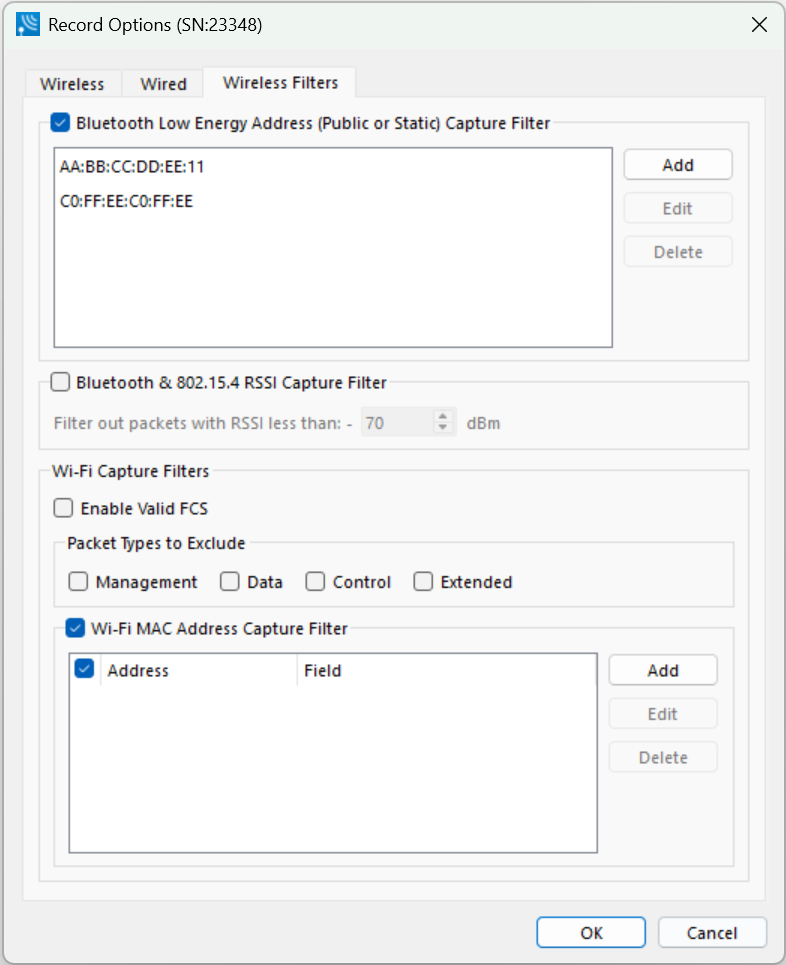
Record Options Wireless Filters Selections
|
Section |
Description |
|
Bluetooth Low Energy Address Capture Filter |
By enabling the Bluetooth Low Energy Address Capture Filter, only Low Energy packets from the list of Bluetooth Addresses will be processed into the capture. Addresses can be added or be selected to edit or delete by using the Add, Edit, and Delete buttons. |
|
|
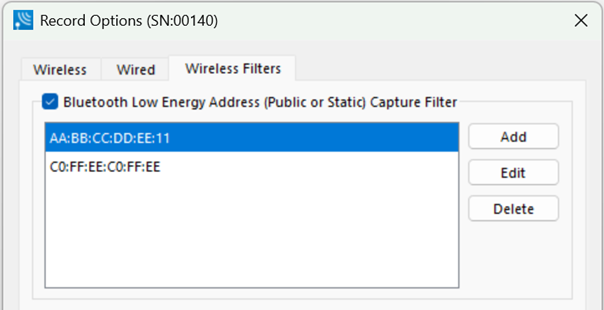
This filter can be useful in a crowded Bluetooth environment. Advertising devices that aren't listed in the Bluetooth Low Energy Address Capture Filter will still show up in the Bluetooth Device Database. This way, if a device in the capture filter connects to an advertiser, the previous packets for context are available. |
Device Database View
Device Database View provides the user with information on active, inactive, and previously detected devices within range of the analyzer. There are separate Device Database views to manage Bluetooth and Wi-Fi devices discovered by the analyzer. The Device Database view is available in the View menu on the main toolbar.
The Device Database View is a list populated by wireless devices that are:
-
Captured devices,
-
Previously captured devices, or
-
Added by the user
Bluetooth Device Database View
The Bluetooth Device Database View provides information from all connected Bluetooth receivers.
In performing analysis, the user will filter the captured data by selecting which devices the Wireless Protocol Suite software will use.
The Device Database View is a list populated by wireless devices that are:
-
Captured devices,
-
Previously captured devices, or
-
Added by the user
Devices are shown in a corresponding group: User-Added Devices, Captured Devices or Previously Captured Devices.
A new device/BD_ADDR is automatically added to the Device Database View when:
-
For BR/EDR, the full BD_ADDR encapsulated in the FHS Packet is added to the Device Database View when the analyzer captures an FHS packet that is successfully dewhitened with the CRC checked.
-
A partial BD_ADDR—just the Lower Address Part (LAP) and Upper Address Part (UAP)—may be added when we do not observe paging such as when a conversation is already ongoing at the time capturing is started. If the analyzer can successfully dewhiten a BR/EDR packet using the payload CRC to check repeated dewhitening attempts, then the partial BD_ADDR will be added.
-
For Bluetooth Low Energy, the full BD_ADDR is always displayed.
The devices added manually to the Device Database appear in the User-Added Devices group. They are saved across sessions and must be manually removed by the user.
All active (sending data over-the-air) devices during a capture session will appear in the Captured Devices group. If a device is inactive, it appears in the Previously Captured Devices group.
Retaining previously added devices allows the user to select devices prior to starting a session with the Start Record button.
When using a .cfa(capture) file, e.g. using the Viewer, the set of devices shown will only be the devices in that capture file. All devices will be shown in Captured Devices group. Any device changes made can be saved to that file, but do not affect the “live capture” database of devices.
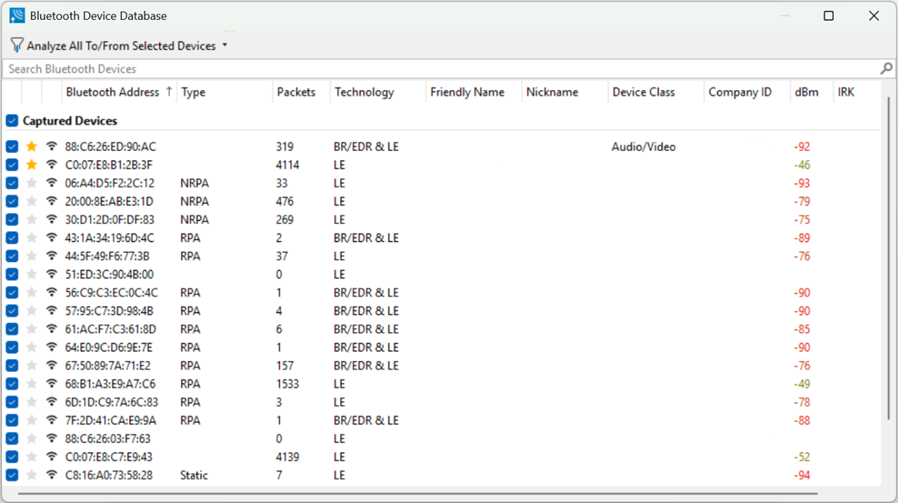
Device Database Table Columns
|
Column |
Description |
|
Filter Selection 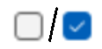
|
The filter is an on/off selection. When checked, the device’s wireless traffic will be included in the data displayed in the various views of Wireless Protocol Suite. The extent of included traffic from a device will depend on the “Analyzer Filter for Devices” selection. See description below.
|
|
Favorites 
|
When a star is activated by clicking on it, the device is designated as a "favorite". A "favorite" device will have a gold star. The "favorites" serve to identify devices key to the user's analysis. Favorite devices are always displayed regardless of their active/inactive status. |
|
Bluetooth Address |
The device’s address. |
|
Type |
Type of address. RPA (Resolvable Private Address) and NRPA (Non-Resolvable Private Address) |
|
Packets |
The number of packets the device successfully transmitted. |
|
Technology |
Device technology to include one of the following.
|
|
Friendly Name |
The device name. This field is blank if no friendly name has been observed. |
|
Nickname |
The nickname allows the user to organize the display of captured devices in the Device Database and Timing Analysis panels. |
|
Device Class |
A general use-classification for the wireless device. Lists the classes by Bluetooth technology (see table below). |
|
Company ID |
Obtained by OUI Company name. |
|
dBm |
This is the signal strength of the last packet the device transmitted. |
|
IRK |
Bluetooth Low Energy only allows the user to determine which devices are the same physical device. The Identity Resolving Key allows peer devices to determine their identities when using random addresses to maintain privacy. |
Device Classes
Class
|
BR/EDR
|
Low Energy
|
Audio/Video
|
X
|
|
Barcode Scanner
|
|
X
|
Barcode Scanner
|
|
X
|
Blood Pressure
|
|
X
|
Blood Pressure: Arm
|
|
X
|
Blood Pressure: Wrist
|
|
X
|
Card Reader
|
|
X
|
Clock
|
|
X
|
Computer
|
X
|
X
|
Cycling
|
|
X
|
Cycling: Cadence Sensor
|
|
X
|
Cycling: Cycling Computer
|
|
X
|
Cycling: Power Sensor
|
|
X
|
Cycling: Speed Cadence Sensor
|
|
X
|
Cycling: Speed Sensor
|
|
X
|
Digital Pen
|
|
X
|
Digitizer Tablet
|
|
X
|
Display
|
|
X
|
Eyeglasses
|
|
X
|
Gamepad
|
|
X
|
Glucose Meter
|
|
X
|
Health
|
X
|
|
Heart Rate Sensor
|
|
X
|
Heart Rate Sensor: Heart Rate Belt
|
|
X
|
Human Interface Device (HID)
|
|
X
|
Imaging
|
X
|
|
Joystick
|
|
X
|
Keyboard
|
|
X
|
Keyring
|
|
X
|
LAN/Network Access Point
|
X
|
|
Media Player
|
|
X
|
Miscellaneous
|
X
|
|
Mouse
|
|
X
|
Outdoor Sports Activity
|
|
X
|
Outdoor Sports: Location and Navigation Display
|
|
X
|
Outdoor Sports: Location and Navigation Pod
|
|
X
|
Outdoor Sports: Location Display
|
|
X
|
Outdoor Sports: Location Pod
|
|
X
|
Peripheral
|
X
|
|
Phone
|
X
|
X
|
Pulse Oximeter
|
|
X
|
Pulse Oximeter: Fingertip
|
|
X
|
Pulse Oximeter: Wrist
|
|
X
|
Remote Control
|
|
X
|
Reserved
|
X
|
|
Running Walking Sensor
|
|
X
|
Running Walking Sensor: On Shoe
|
|
X
|
Running Walking Sensor: In Shoe
|
|
X
|
Running Walking Sensor: On Hip
|
|
X
|
Sports Watch
|
|
X
|
Tag
|
|
X
|
Generic Thermometer
|
|
X
|
Thermometer: Ear
|
|
X
|
Toy
|
X
|
|
Uncategorized
|
X
|
|
Unknown
|
|
X
|
Watch
|
|
X
|
Wearable
|
X
|
|
Weight Scale
|
|
X
|
Analyze Filter for Devices
The Device Communication Filter allows the user to control the Bluetooth traffic associated with selected active devices (devices intercepted in the current session) and is located on the toolbar of the Bluetooth Device Database view.
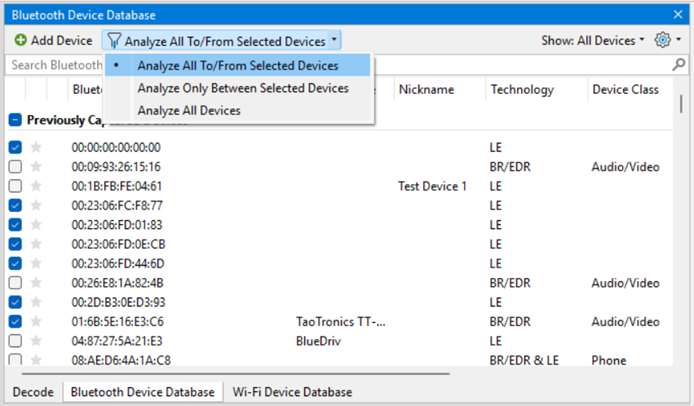
The Device Communication Filter doesn’t affect traffic type exclusions that the user makes in the Analyze Options selected from the Capture main menu.
Analyze Menu for Bluetooth Device Database Dialog
|
Filter State |
Function |
|
Analyze All to/from Selected Devices |
Default setting. Includes the connections between selected active devices and the traffic that those devices send and receive from any other devices. |
|
Analyze Only Between Selected Devices |
Includes only traffic between two or more selected active devices. This filter state can be found with right-click in the Security view. |
|
Analyze All Devices |
Includes all devices that are captured in the session and the traffic that those devices send and receive from any other devices. |
Wi-Fi Device Database View
The Wi-Fi Device Database View is shown in the top right corner of WPS main window. If it was closed, the Wi-Fi Device Database View can be opened from the main View menu.
The Wi-Fi Device Database View provides information on active, inactive, and previously detected Wi-Fi devices within range of the analyzer’s wide-band receiver. The Wi-Fi Device Database View provides information from all connected Wi-Fi receivers.
The Wi-Fi Device Database View is a list populated by wireless devices that are:
-
Captured devices
-
Previously captured devices
-
Added by the user
Devices are shown in a corresponding group: User-Added Devices, Captured Devices or Previously Captured Devices.
The devices added manually to the Device Database appear in the User-Added Devices group. They are saved across sessions and must be manually removed by the user.
All active (sending data over-the-air) devices during a capture session will appear in the Captured Devices group. If a device is inactive, it appears in the Previously Captured Devices group.
Retaining past added devices allows you to select devices prior to starting a session with the Start Record button.
When using a .cfax file, for example using the Viewer, the set of devices shown are only the devices in that capture file. All devices are shown in Captured Devices group. Any device changes made can be saved to that file, but do not affect the “live capture” database of devices.
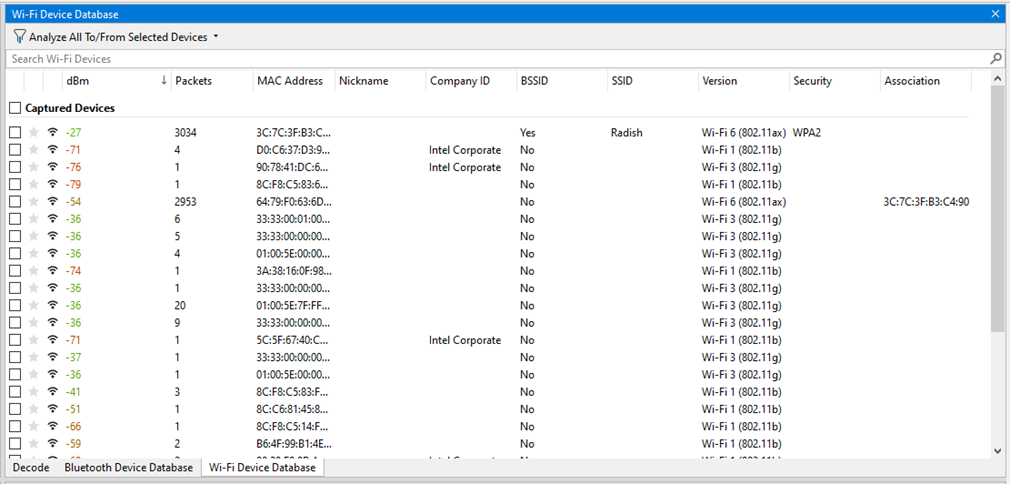
Wi-Fi Device Database Table Columns
|
Column |
Description |
|
Filter Selection
|
The filter is an on/off selection. When checked, the device’s wireless traffic will be included in the data displayed in the various views of Wireless Protocol Suite. Note, the extent of included traffic from a device will also depend on the “Analyzer Filter for Devices” selection. See description below. |
|
Favorites
|
When a star is activated by clicking on it, the device is designated as a "favorite". A "favorite" device will have a gold star. The "favorites" serve to identify devices key to the user's analysis. Favorite devices are always displayed regardless of their active/inactive status. |
|
dBm |
This is the signal strength of the last packet the device transmitted. |
|
Packets |
The number of packets the device successfully transmitted. |
|
MAC Address |
The device’s Wi-Fi (6-Byte) address. |
|
Nickname |
The nickname allows the user to organize the display of captured devices in the Device Database and Timing Analysis panels. |
|
Company ID |
Obtained by OUI Company name. |
|
BSSID |
This indicates if the Wi-Fi address corresponds to an Access Point (Yes or No). |
|
SSID |
If BSSID is “Yes”, then this is the network name corresponding to the access point. This shows the highest supported specification version. |
|
Version |
The version of Wi-Fi used, for example: Wi-Fi 7 (802.11be). |
|
Security |
This lists the supported security versions. In this column, multiple entries might exist. Examples include WPA2 and WPA3. |
|
Association |
For a client, this is the address of the Access Point that it corresponds to. For a BSSID, leave it empty. |
Analyze Filter for Wi-Fi Devices
The Device Communication Filter allows the user to control the Wi-Fi traffic associated with selected active devices (devices intercepted in the current session). Located on the toolbar of the Wi-Fi Device Database view.
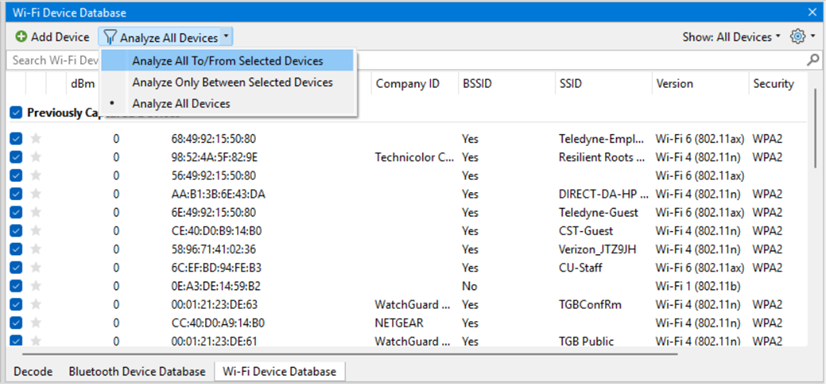
The Device Communication Filter doesn’t affect traffic type exclusions that the user makes in the Analyze Options selected from the Capture main menu.
Analyze Menu for Bluetooth Device Database Dialog
|
Filter State |
Function |
|
Analyze All To/From Selected Devices |
Default setting. Includes the connections between selected active devices and the traffic that those devices send and receive from any other devices. |
|
Analyze Only Between Selected Devices |
Includes only traffic between two or more selected active devices. This filter state can be found with right-click in the Security view. |
|
Analyze All Devices |
Includes all devices that are captured in the session and the traffic that those devices send and receive from any other devices. |
Sorting Device Database Columns
Any column in the Device Database Table can be used to sort the entire table. Each column is sortable in ascending or descending order, but only one column at a time can be used to sort.
Clicking on the column header will initiate the sort. An arrow will appear on the right side of the column. An upward pointing arrow indicates that the sort is in ascending order top to bottom. Clicking the column header again will toggle the sort to descending order top to bottom.
Devices added after sorting will not appear in the last sort order and are appended to the current list. The sort process must be repeated to place the new devices in sorted order.
Favorite devices will always be grouped together at the top of the Device Database Table in a sorted order. Non-favorite devices will appear immediately below the favorite devices in a sorted order.
Device Selection
Each group has a checked indication.

This indication shows:
-

-

-

All devices in a group can be checked/unchecked at once by clicking on a group checkbox.
Device Management Toolbar
At the top of the Device Database View are tools for managing the devices in the View. You can add devices, hide/unhide inactive devices, and search by content of any column.

In view mode, the Device Toolbar allows searching Wireless devices in the Wireless Table or opening the Wired Devices View.

In Live mode, the Device Toolbar allows adding devices, showing All/Active devices, managing maintenance settings for inactive devices, searching Wireless devices in the wireless table, maintenance device settings, clean device database or opening a Wired Devices View.
Devices Management Tools
|
Tool |
Icon/ Menu |
Description |
|
Add new device |
or 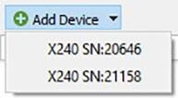
|
Single button in single analyzer personality. Drop-down menu with possibility to choose analyzer in multi analyzer personality. Clicking this tool will open the Edit Device Details dialog. Enter the new device’s Bluetooth address and other related data and press OK. |
|
Gear |
|
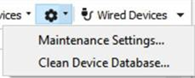
“Maintenance Settings…” opens dialog for device cleanup setting maintenance, which allows users to change Bluetooth device store capacity, storage time, and device exceptions when cleaning. Cleaning is performed each time when the user closes the application or returns to the Welcome screen. Refer to Clean Bluetooth and Wi-Fi Device Databases to start cleaning the Bluetooth device database with preferred device exceptions. |
|
Show All/Active devices |
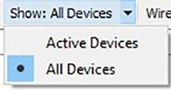
|
Show Active Devices. All inactive devices are hidden. Favorite devices are always displayed without regard to their active/inactive status. Show All Devices. All devices are shown. If inactive devices are selected and the control is toggled to Hide, the selected devices are deselected. |
|
Maintenance Settings |
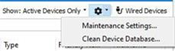
|
The user can manage the maintenance settings for inactive Bluetooth devices, as well as completely clear this list. By default, the application saves all captured devices. The user can set limits on the storage time since the capture of the device or on the device limit. In addition, the user can set exceptions to these two main parameters. 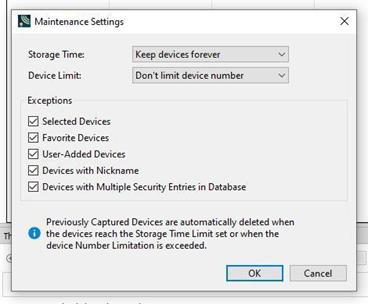
|
Searching Wireless Devices
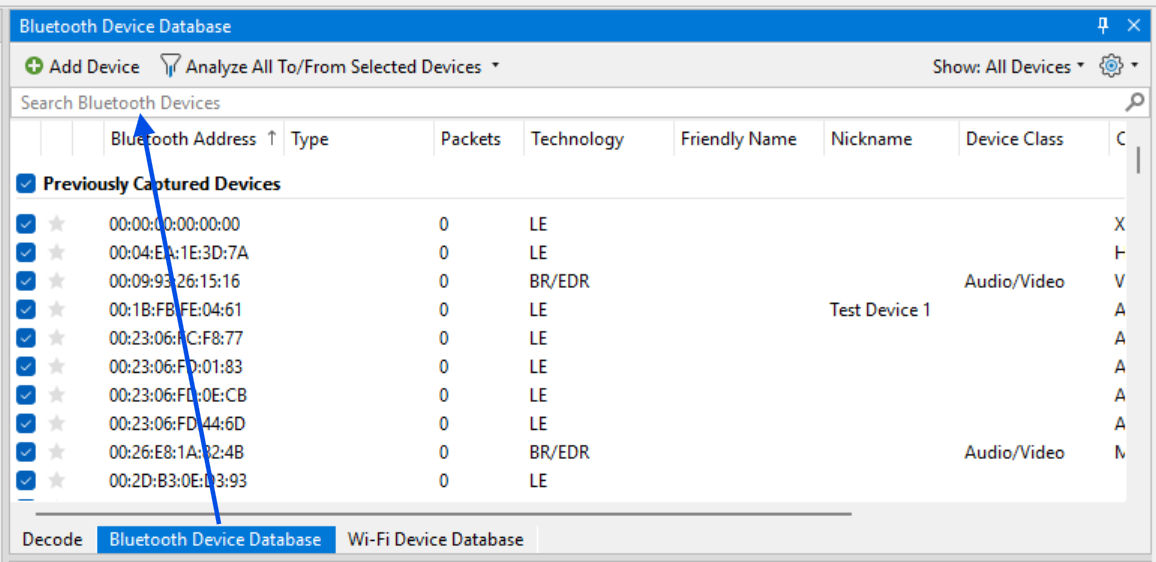
The Bluetooth Device Database and Wi-Fi Device Database have a search function that allows the filtering of all devices by all columns. If data in any column has a match with a search string, this device will be shown in the device table.
The search edit has a delay between inputting text and search, so the search result will be available in 0.5 seconds after the input data searching.
Data searching could be deleted by removing text or clicking the delete icon in the right end of the Search field 
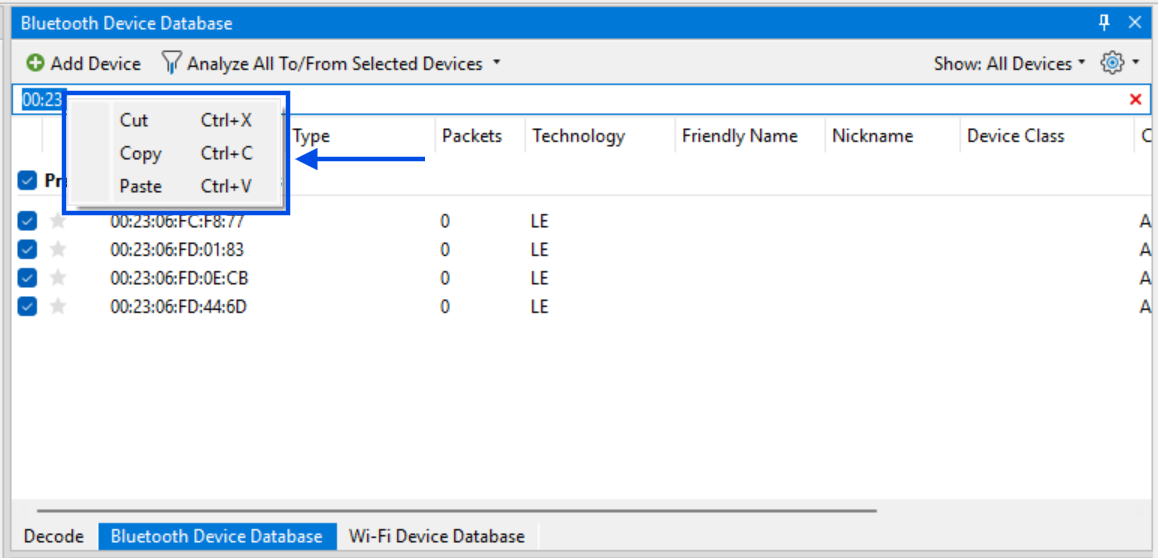
Search input has a standard text edit popup menu.
Edit Bluetooth Device Details
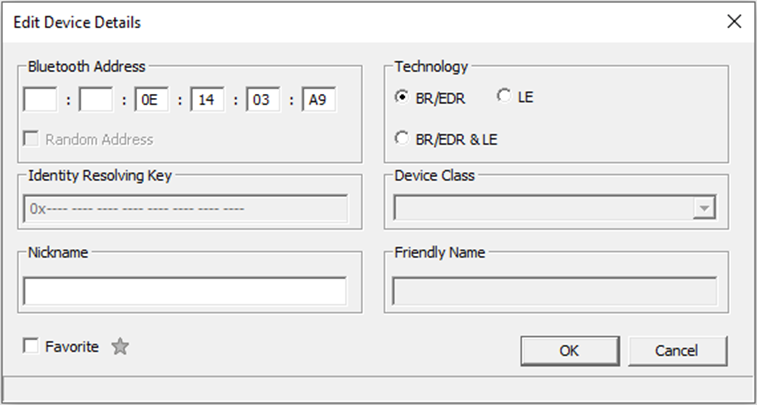
When a device is selected in the window and the Edit Device Details tool 
The Favorite designation can be changed in this dialog in addition to directly clicking on the star in the table or by using the right-click pop-up menu.
Identity Resolving Key (IRK) Field:
-
This field is enabled for devices with a random resolving address or public address. These devices are either LE (Smart) or BR/EDR & LE (Smart Ready) technology. The Bluetooth Address will be enabled and checked.
-
This field is disabled if the device selected for edit has a valid IRK.
-
For random resolving address, entered IRK values are validated against the BD_ADDR. User entered IRK values are automatically reordered when a secure connection is validated using the IRK. Refer to Reorder Identity Resolving Key (IRK) for details on reordering.
-
Entering an invalid IRK results in an error message and the field background displays red. The OK button is disabled.
-
Entering a valid IRK displays a green background and the OK button is enabled.
-
Valid IRK entries persist to the analyzer’s device database.
Nickname Field: User-defined name or identification, which may be useful for organizing analysis projects. The assigned nickname is also displayed next to the address in the Timing Analysis panel as well.
Right Click Popup Menu
After selecting a device or devices, right-clicking the mouse will open a pop-up menu that includes functions Edit Device, Delete, and Reset Columns. The menu active selections will vary depending on the status of the selected devices. For example, selecting multiple devices will inactivate the Edit devices menu selections.
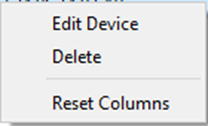
Right-Click Pop-Up Menu Selections
|
Selection |
Description |
|
Edit device |
Active when a single device has been selected. Allows the user to edit partially known BD_ADDRs, Technology type, Identity Resolving Key (IRK), Device Class and Friendly Name discovered during capture, and for entering a custom Nickname. Clicking this tool will open the Edit Device Details dialog. |
|
Delete |
Deletes the selected inactive devices from the wireless devices list. Only active when inactive devices are selected. If a device is marked as a Favorite, it will not be deleted even if it is inactive. When clicked, a warning appears asking for confirmation of the action. Warning can be of two types:
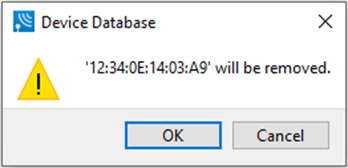
(devices MAC address will be shown in dialog)
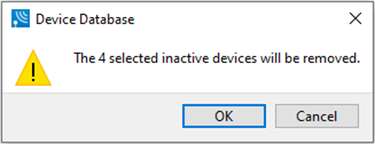
(Count of devices to remove will be shown in dialog). |
Reorder Identity Resolving Key (IRK)
When editing a Bluetooth Low Energy device from the Device Database table using the Edit Device Details dialog, the Wireless Protocol Suite software will automatically reorder the user entry. When the user provides an IRK that is in reverse order, the software applies the correct order when validating a secure connection using the IRK.
A reversed IRK is defined as the original IRK value with its endianness reversed. For example, the IRK 0xf31c 22ea a9cb 0422 f9b8 3e03 2305 27e2 in reverse order is 0xe227 0523 033e b8f9 2204 cba9 ea22 1cf3.
When the user enters a complete IRK in the Identity Resolving Key field, a validation of the reversed IRK will occur under the following conditions:
-
The device BD_ADDR is a random resolvable private address (RPA), and
-
Validation of the IRK in the user-entered order has failed.
The IRK field is also enabled for Bluetooth Low Energy devices with public address, however automatic validation does not occur
If the reversed IRK validates successfully, the Identity Resolving Key field turns green and becomes inactive (read only). The status bar at the bottom of the dialog displays "Identity Resolving Key: Valid (Reordered) - Properly resolves the random address". In the Device Database pane, the IRK will now appear for the selected device with "(Reordered)" appended.
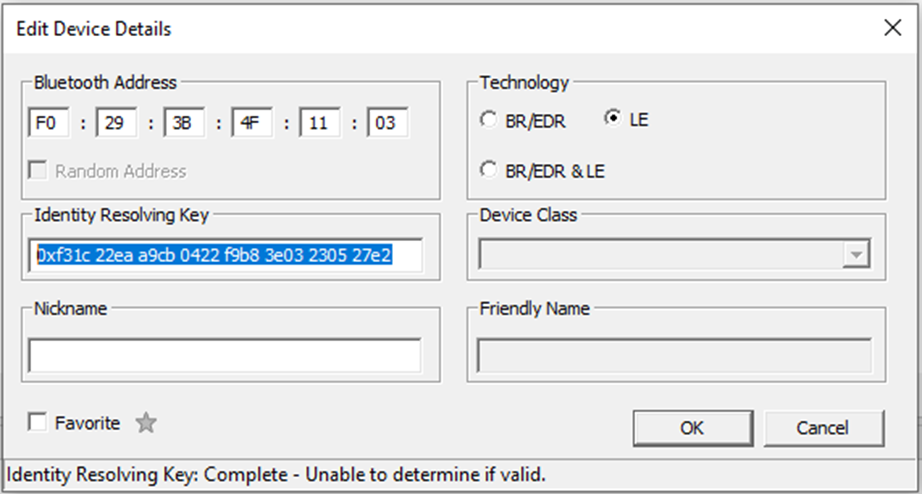

In the Device Database table, when the user selects a device for filtering for analysis, if that device has an IRK, other devices will also be selected if they match. Two devices match if they satisfy any of the following conditions:
-
If two devices have equal IRKs, they are considered to match.
-
If one device has a user entered IRK and its BD_ADDR is not a random resolvable private address (i.e., it is not either a public address or a random static address and therefore the IRK cannot be validated), it matches if either its IRK is equal or the reverse of its IRK is equal to the other device.
In this next example, we have selected a device with a public address. Entering the IRK in the Edit Device Details dialog will indicate "Identity Resolving Key: Complete - Unable to determine if valid." and the Identity Resolving Key field remains white and editable, but the OK button is active. Clicking OK closes the dialog and the reordered IRK appears in with the public address device with "(Reordered)" appended and matching addresses will display the same reordered IRK.
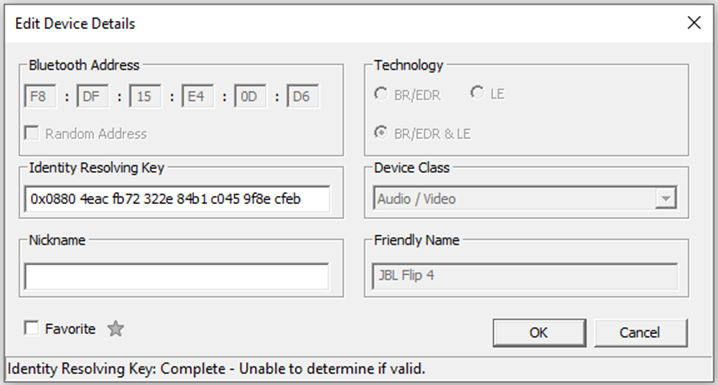

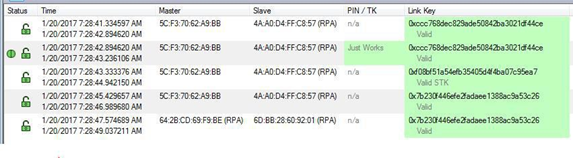
Open the Security pane. In the first security context for the public address device, enter the LTK into the Link Key field. If valid, the IRK for the public address device will appear with "(Reordered)" removed.

Clean Bluetooth and Wi-Fi Device Databases
The following section shows how to clean Bluetooth and Wi-Fi device databases.
Clean Device Database on Start Application
In case the device store contains more than 5000 devices the application will show the dialog with suggestion to clean the device database.
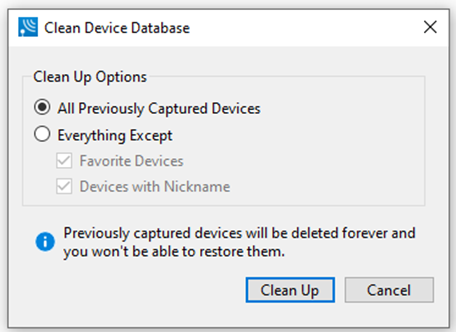
You can choose cleanup all previous captured devices, cleanup all previous captured devices except Favorite Devices and/or Devices with Nickname or leave the database as is.
Using the Gear menu on Bluetooth Device Database or Wi-Fi Device Database toolbar you can open the Maintenance Settings dialog to manage device cleanup functionality which starts every time when the user closes WPS, file or personality.
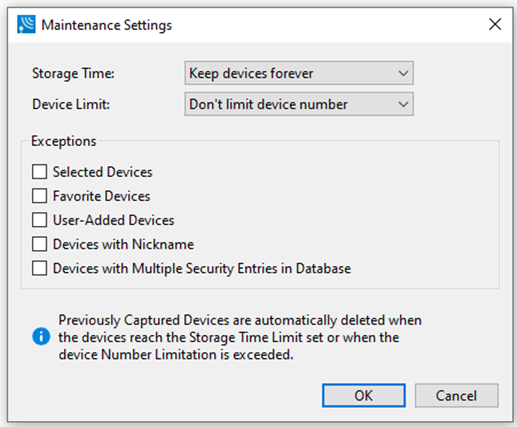
In this dialog user can choose device storage time:
-
Keep devices forever – this means that devices will never be removed.
-
1 year;
-
6 months;
-
1 month;
-
2 weeks;
-
1 week
-
Devices seen within the last day – this means that on exit all devices which were captured earlier than today will be removed.
-
Keep current devices only – this means that on exit all devices which were captured in previous sessions will be removed.
For all choices checked exceptions will be applied.
Also, user can choose limit of devices which can be stored:
-
Don’t limit number of devices
-
1000
-
500
-
250
-
100
-
50
-
25
-
10
For all choices checked exceptions will be applied.
Exceptions section allows users to exclude devices with specified parameters from the list of devices which should be deleted.
You can choose cleanup all previous captured devices, cleanup all previous captured devices except Favorite Devices and/or Devices with Nickname or leave the database as is.
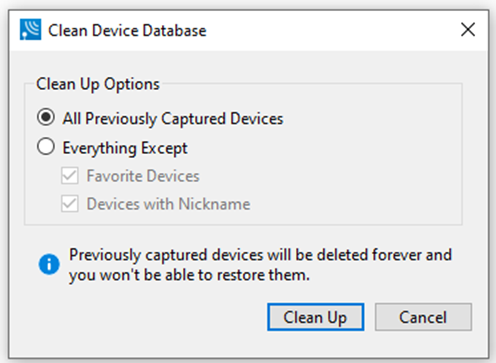
By default, all devices store in Device Database without any limitations.
All changes in cleanup settings are kept between WPS sessions.