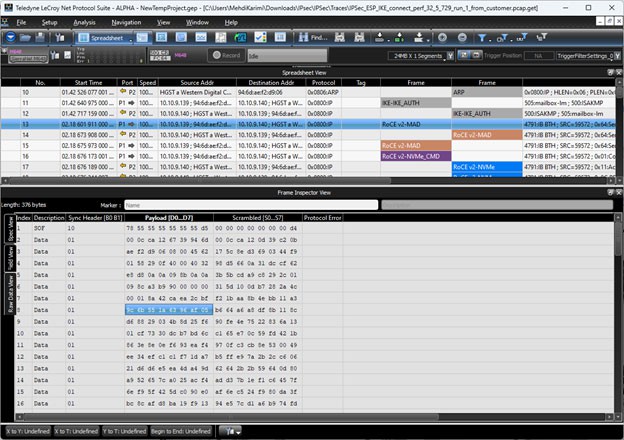
Frame Inspector View has lots of information that is available in event View, but not Spreadsheet View, so it is most useful in conjunction with the Spreadsheet View.
To open a Frame Inspector View of the current capture, select Analysis > Frame Inspector View or click the 
This Frame Inspector View has the following three tabs:
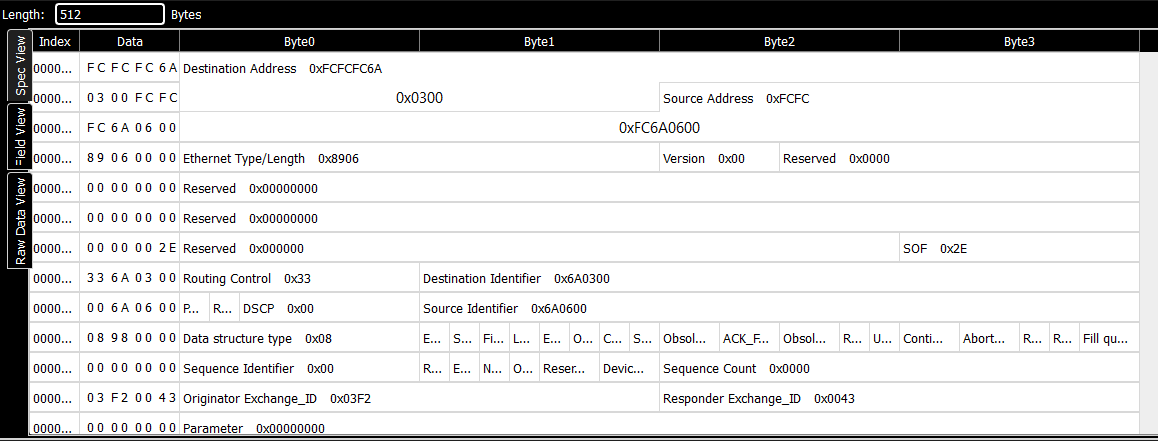
Spec View
This view shows the Frame as it would appear in the spec, with the field names and values spelled out clearly. Fields that are too short to clearly contain the description can be viewed as tooltips by hovering the mouse over them. Some fields might have a a lowercase ‘e’ button at the top right corner. Pressing this button displays an ‘expanded’ view of the sub-fields in this field.
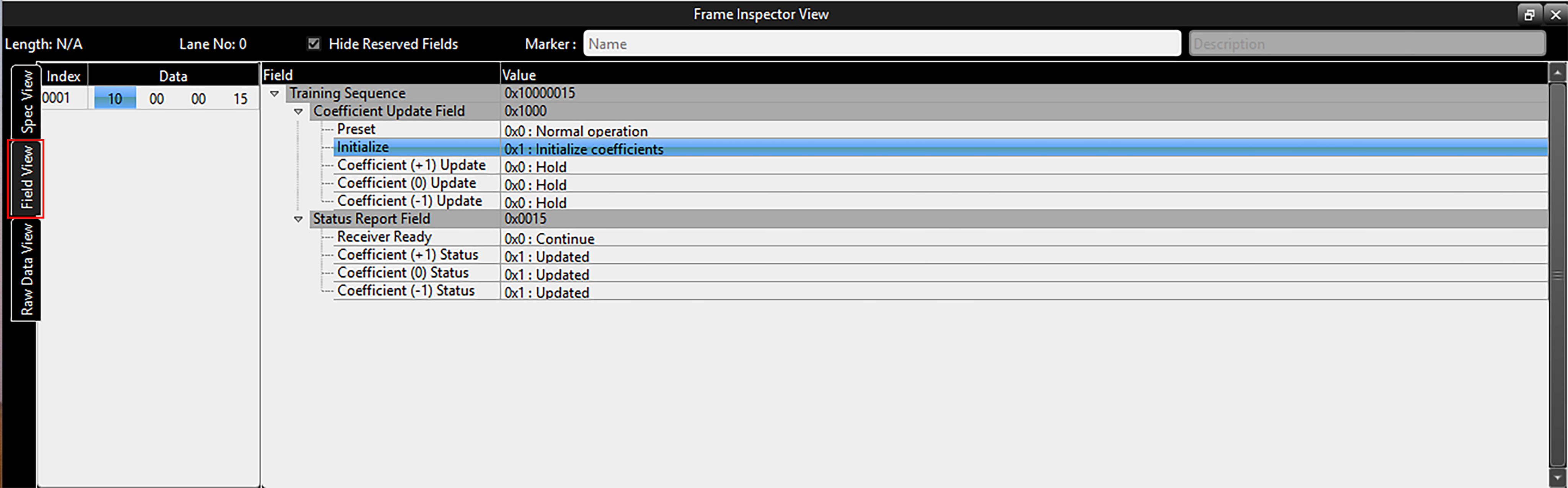
Field View
This view shows, when applicable, a hierarchical display of the selected event, with the relevant fields in each level.
Click the Data Payload button to display the Data Payload window.
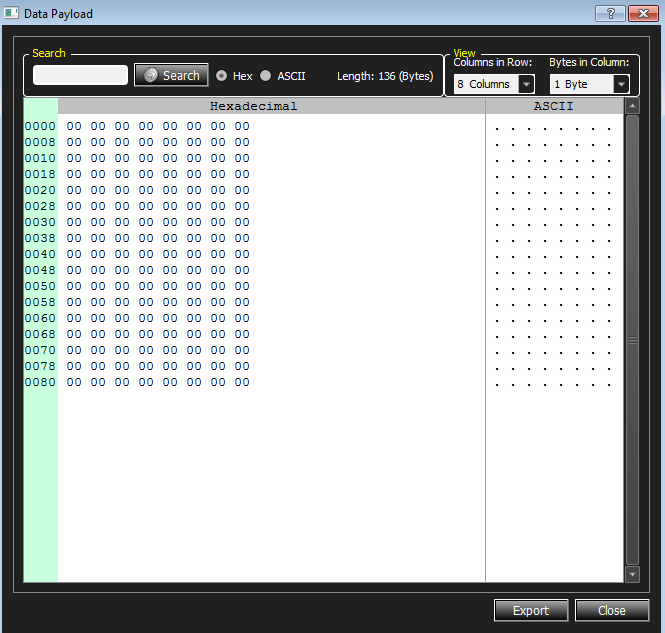
Any ASCII non-printable characters are depicted as black dots as shown above.
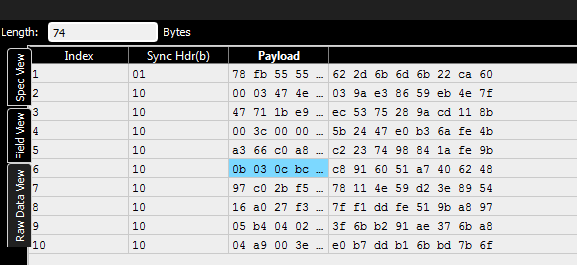
Raw Data View – Frame Inspector View for 64b/66b Decoding
Raw Data View in the Frame Inspector View window shows the exact bit stream in 66b format. This view shows Hex, 10-bit and Running Disparity views of each dword in the selected event. In this view, a 66 bits block is reconstructed similar to the received data (see the screen capture below). The following columns are displayed in the Raw Data View:
-
Index: This column demonstrates the index of the 66-bits symbol in current blocks.
-
Sync Header: This column shows the Sync Header bits of a symbol.
-
Payload: This column shows the 8 payload bytes in each symbol before scrambling.
-
Scrambled: This column shows the 8 payload bytes in each symbol after scrambling.
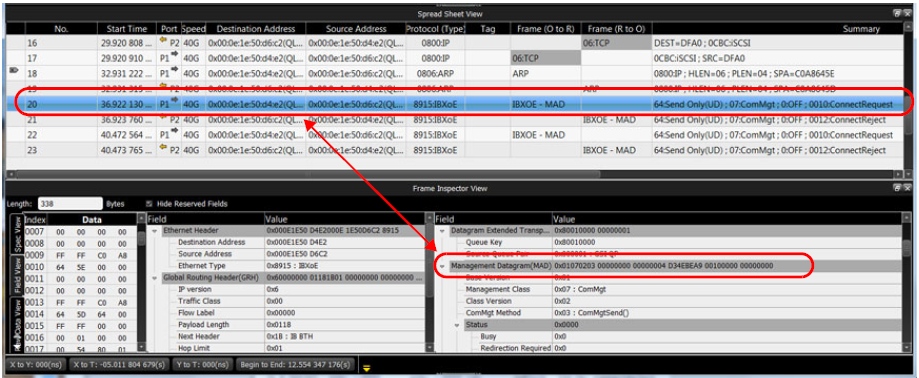
MAD Header Decode in Frame Inspector View
Another example of the link between Spreadsheet View and Frame Inspector View can be seen below in a MAD Header decode.
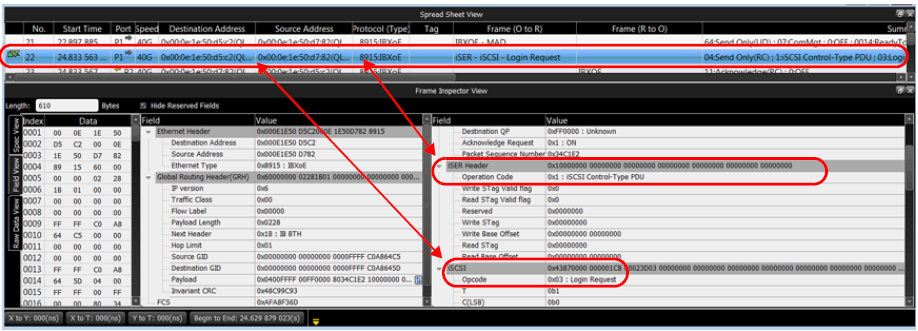
iSER Header Decode in Frame Inspector View
Another example of the link between Spreadsheet View and Frame Inspector View can be seen below in an iSER Header decode.
Add a New Column from Frame Inspector View to Spreadsheet View
You can add new columns to the Spreadsheet View from Frame Inspector by selecting a field of interest and performing a right click. A context menu opens with a Create new column tab and asking After which current column you want the new column added.
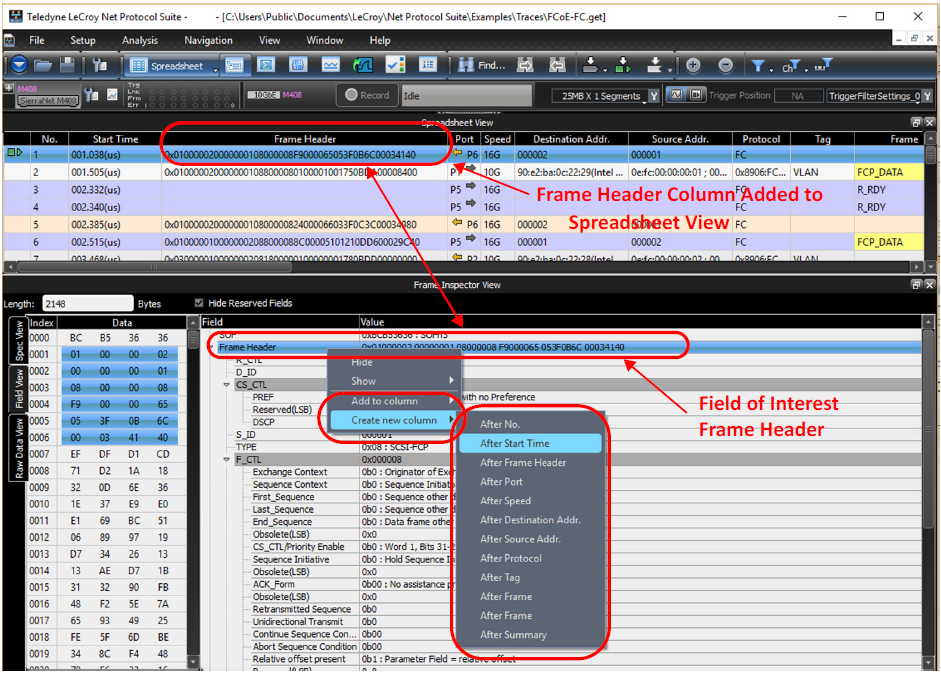
In the above example, the Frame Header was added after the Start Time.
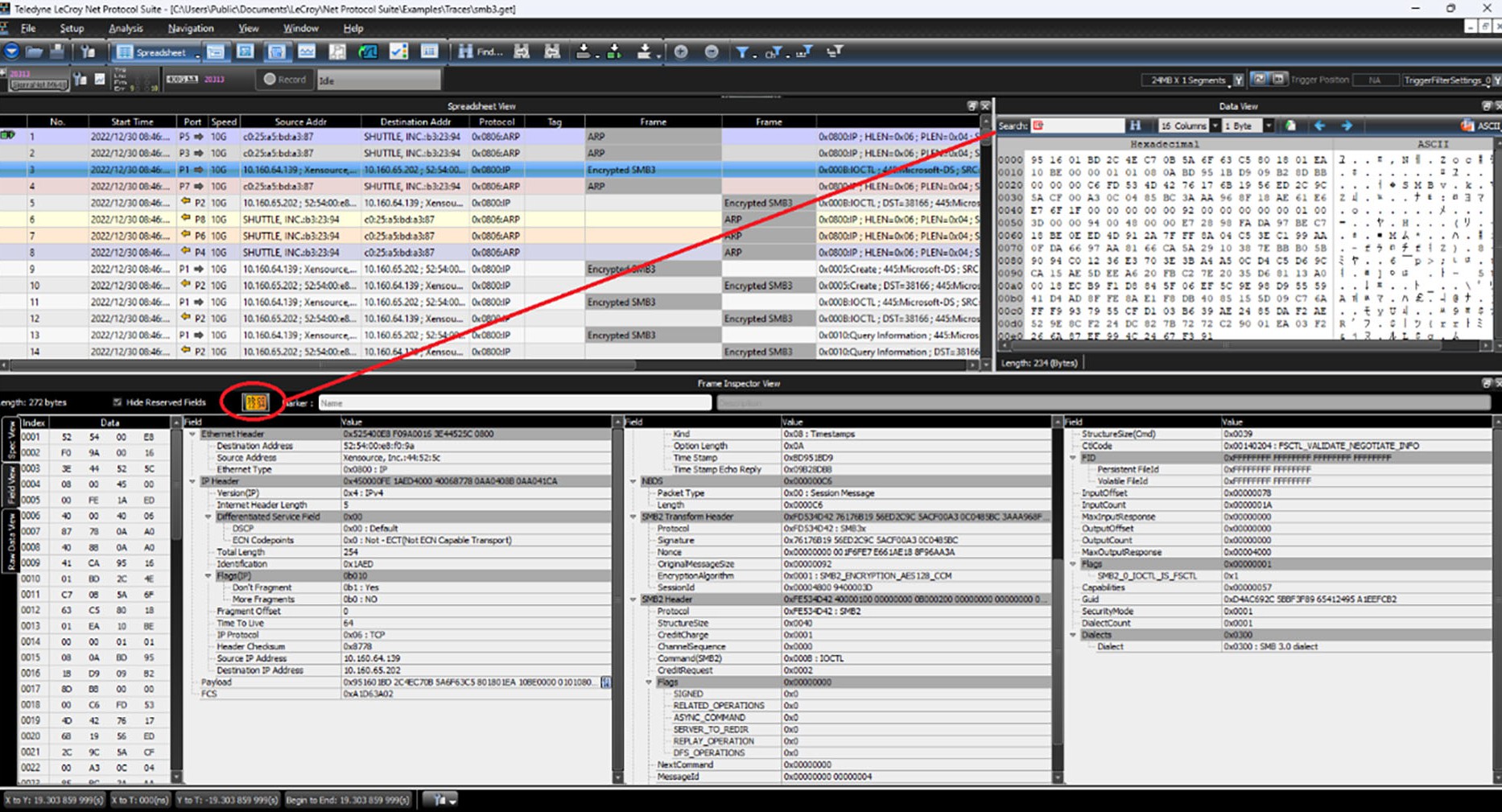
SMB Encrypted/Decrypted Data
Toggle the orange button in the Frame Inspector View to view encrypted/decrypted data. The encrypted/decrypted data will be shown in the Data View panel at the top right side of the window.
See SMB Session Assignment to learn how to assign an SMB session key if SMB frames are not decoded.
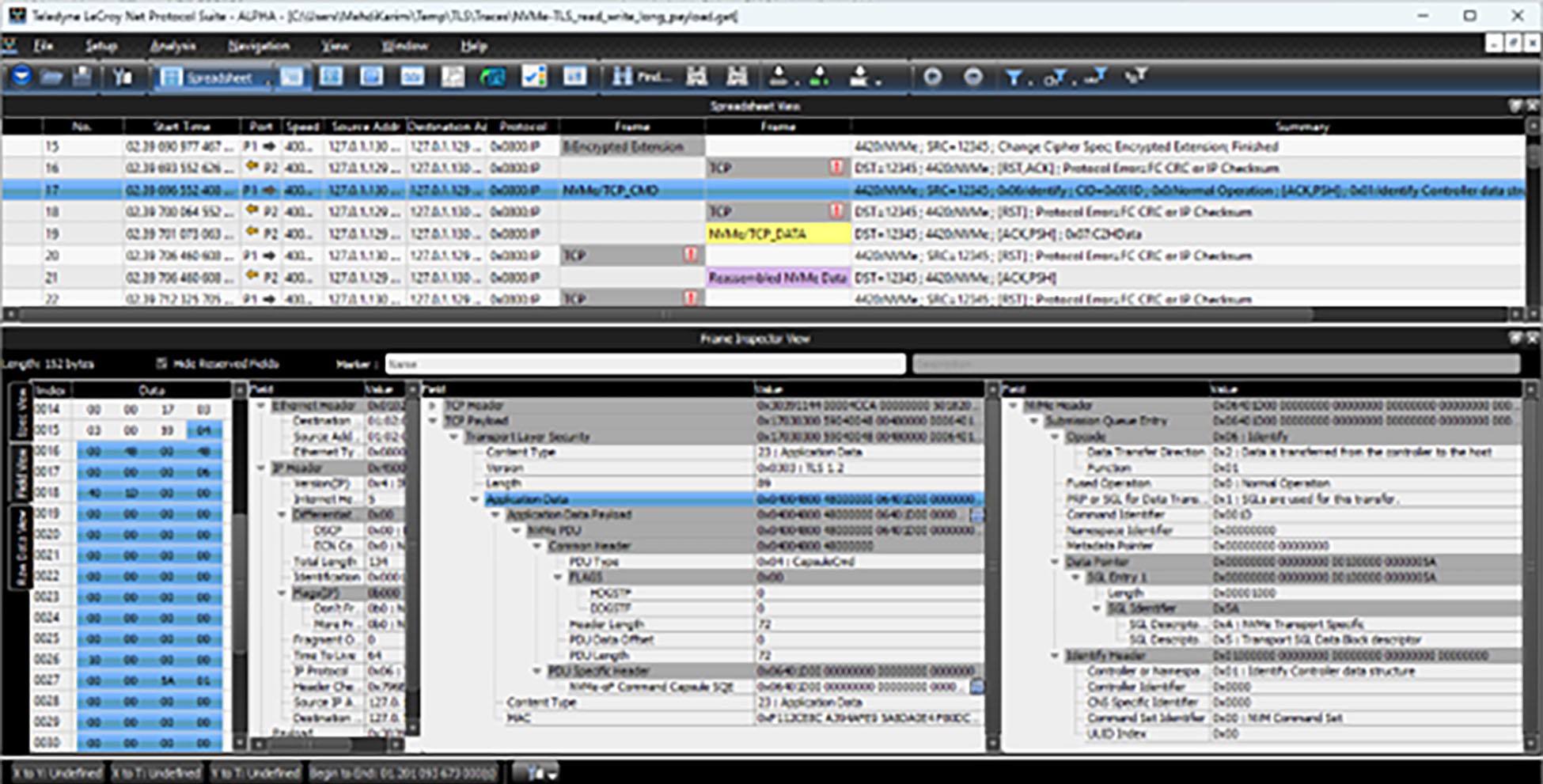
TLS Encrypted/Decrypted Data
Decrypted data is shown by default in the frame inspector view.
To view the encrypted data, switch to the raw data view.
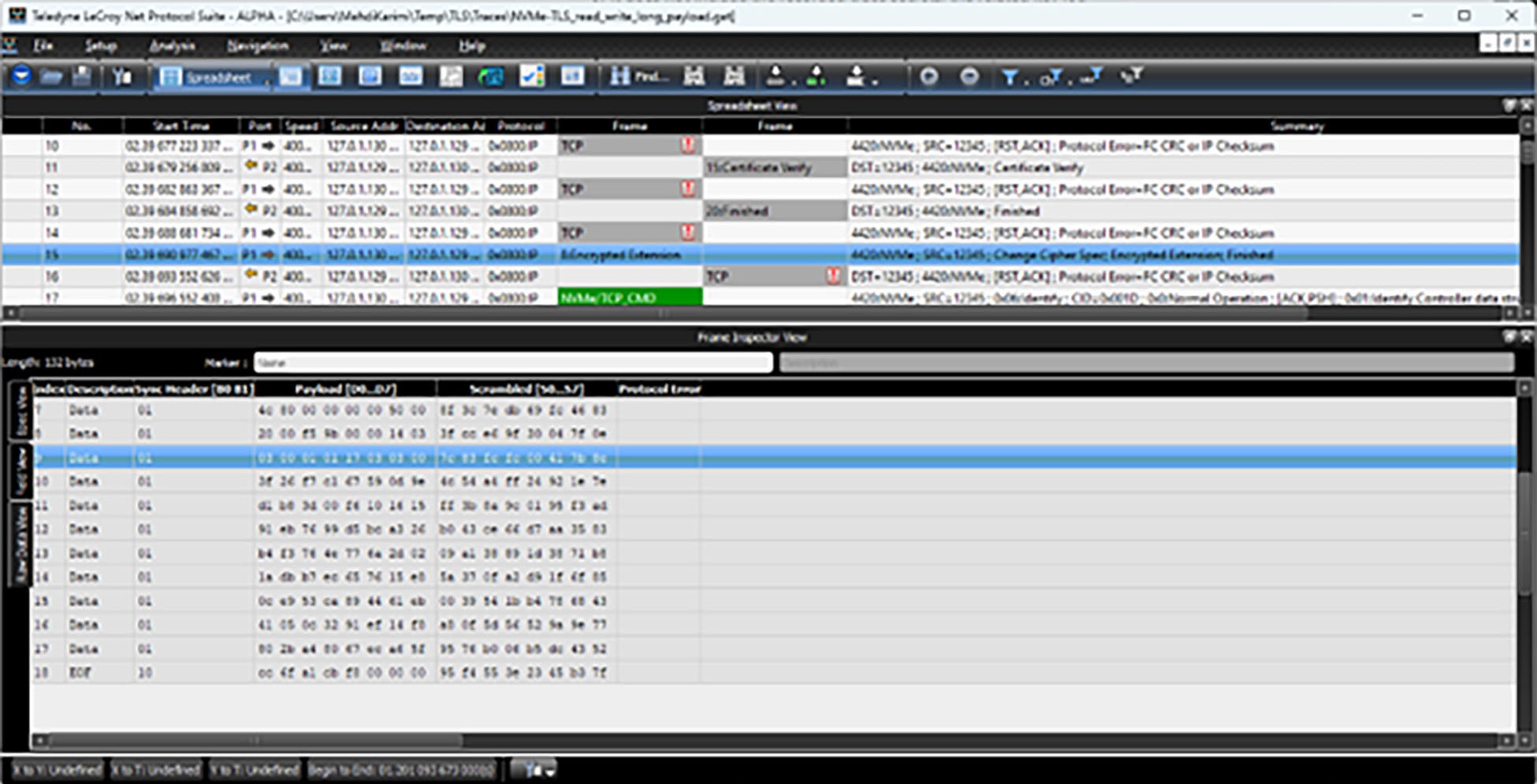
See TLS Decoding Assignment to learn how to assign TLS key log file if TLS frames are not decoded.
IPSec Encrypted/Decrypted Data
Decrypted data is shown by default in the frame inspector view.
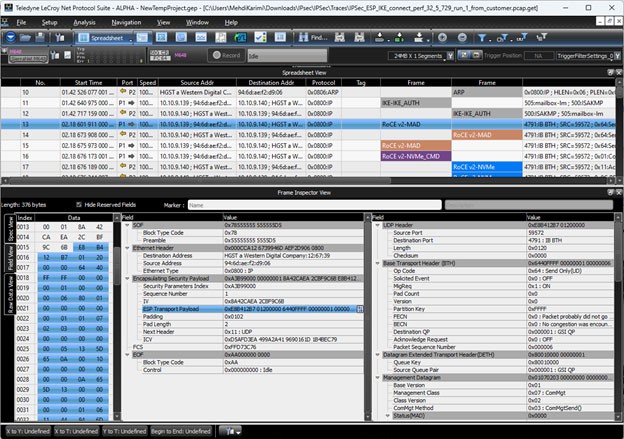
To view the encrypted data, switch to the raw data view.