
If you are using Windows Server 2019, the Teledyne LeCroy Net Protocol Suite Software needs to be added to the firewall exceptions to ensure that the application can find the Analyzers over your Ethernet network.
To add the Net Protocol Suite Software application to the firewall exceptions perform the following steps.
-
Go to Control Panel > Systems and Security.
-
Select Allow an App through Windows Firewall
-
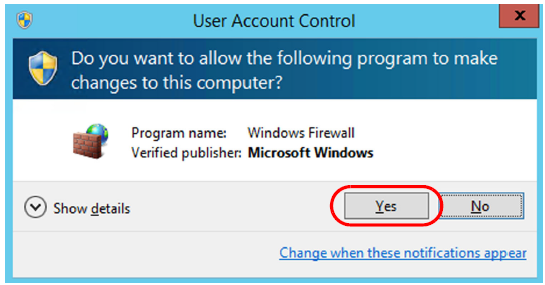
Click Change settings, then click Allow another app. User Account Control opens.
-
Select Yes. The Add an app dialog box appears.
Note: This might be optional if you have already allowed Microsoft Windows to make changes to your computer.
-
Click Browse, then navigate to the location of the installation directory for the Net Protocol Suite you are installing.
The Net Protocol Suite is typically installed in the C:\Program Files\LeCroy\Net Protocol Suite directory.
-
Do one of the following:
-
Select the Net Protocol Suite executable file (GIGE with the .exe extension) and click Open.
OR -
Select the specific Teledyne LeCroy Net Protocol Suite you want to add, then click ADD.
-
This adds the Teledyne LeCroy Net Protocol Suite software to the Apps allowed through the Firewall.
After the Application has been added, you can see it in the Allow apps to communicate through Windows Firewall screen.
-
Click OK to finish updating the firewall.