
When the software has detected an RF signal that is too strong, warnings will appear in several places.
-
Event Log - Displays "Received signal too strong to capture data reliably." with a Warning icon

The Frontline Bluetooth analyzers will continue to capture after a too strong signal detection, which may compromise the decoded packet integrity.
The Status Bar will display the "SIGNAL TOO STRONG" message (see Wireless Protocol Suite Analyzer Toolbars).
These warnings will occur only in live capture mode. No visual indications will occur in capture file playback or in eExcursion mode playback.
Conditions for "too strong" RF signal
The software will determine that a received signal is too strong based on the following conditions (see Analyzer Toolbar).
-
Normal Gain Record Options settings - 5 or more packets with RSSI greater than or equal to -20 dBm within the past 5 seconds.
-
Reduced Gain Record Options settings - 5 or more packets with RSSI greater than or equal to -0.5dBm or higher within the past 5 seconds.
Signal too Strong reset
When the software has determined that the RF signal has returned to a safe condition from a too strong condition, the following happens:
-
Event Log View - Displays "Received Signal Strength OK" with an Information icon

-
Status Bar - No display of signal strength.
Conditions for Signal too Strong reset
The software will determine that a “too strong” signal has returned to a “safe” status based on the following conditions (see Analyzer Toolbar Menu and Icons).
-
Normal Gain Record Options setting - No packets with RSSI greater than -24 dBm within the last 5 seconds.
-
Reduced Gain Record Options -> General settings - No packets with RSSI greater than -4.5 dBm within the last 5 seconds.
Suggested Corrective Action
The device under test (DUT) may be too close to the capturing unit. Try moving the DUT further away from the unit's antenna. Try capturing again.
The gain can be adjusted by using the Record Options Gain controls.
Example Gain controls from X500/X500e are shown below. Similar controls exist for X240.
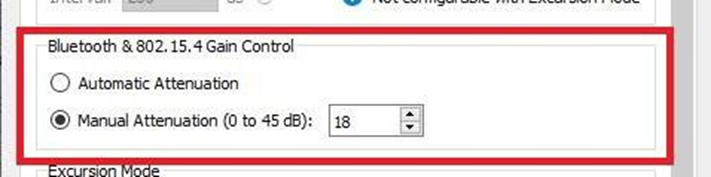
Try adjusting the Manual Attenuation from the Record Options dialog and then try capturing again. Repeat until successful capture is achieved.