
Data capture using Frontline Bluetooth analyzers will capture data from all devices with active connections within range of the analyzer. Once recording is started, wireless data from all devices are captured and frames of selected devices are displayed in the various views of Wireless Protocol Suite. The user can select from all devices that are actively communicating. The user can also select devices from a prior capture, when available, before recording. The data captured only from selected devices is sent to the Wireless Protocol Suite for event- and protocol-level analysis.
Record: Begin Capture
When starting a capture session, all these actions occur:
-
The active status of all devices is cleared in the Device Database pane and the Wired Devices pane.
-
The Security pane is emptied.
-
The Event Log pane retains all prior logged events.
On the Wireless Protocol Suite Toolbar, click on the Start Record button 
On the Wireless Protocol Suite Toolbar, clicking on the Stop Record button 
The Device Database View populates with any newly discovered devices. Selecting devices for analysis can be done while recording.
The Security View will show all encrypted Bluetooth links.
The Event Log View will begin to populate with information, warnings, and error messages. The Status Bar will show a running total of captured packets.
Starting a new capture session will clear all unsaved data from both the analyzer hardware and the Wireless Protocol Suite. If it has not been saved, then a pop-up warning message will appear.
Selecting Devices for Analysis
Once a capture session starts by clicking on Start Record on the Main Window Toolbar, data from all active devices within range or data from wireless or wired connections is being captured. To analyze the data using the Wireless Protocol Suite, select specific devices of interest to include in the analysis.
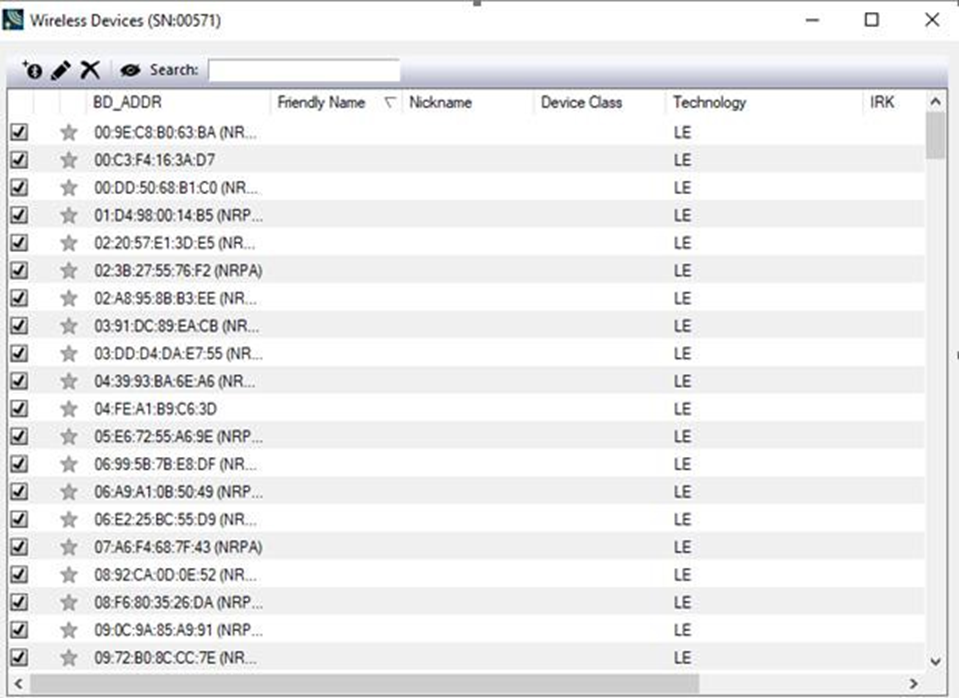
In the Device Database view, place a check in the row of each active device 

Data filtered by the device selection is an “OR” function, not an “AND” function. When selecting device1, device2, device3, ... the recorded data filtered into the analyzer is for device1 OR device2 OR device3 OR, if in the Options menu, analysis of LE Empty packets is selected, an AND function is included. For example: (device2 AND LE Empty packets) OR (device3 AND LE Empty packets).
The following table lists some common data capture and device selection scenarios.
Common Data Capture and Device Selection Scenarios
|
Scenario |
Wireless/Wired Devices View Selection |
|
Analyzing traffic between a Peripheral Device Under Test (DUT) and its Central. |
Select only the Peripheral DUT for analysis |
|
Analyzing all traffic involved in Inquiries |
In the Options menu select Analyze Inquiry Process Packets |
The Frontline Bluetooth analyzer is now ready to begin protocol- and event-level analysis. Once Devices are selected, analysis of the capture can begin.