
The WPS software supports splitting captured data into multiple files during recording or capturing to series. When the feature is enabled, the system will automatically create new file for the next portion of captured data based on chosen criteria: split by file size, split by time or split by frame count. The feature may be useful for long capturing sessions.
The captured files are available for user review immediately after creation. I.e., the user may open a segment in another WPS instance while recording to series is in progress.
The device information and security context currently are not stored in files when capturing in series.
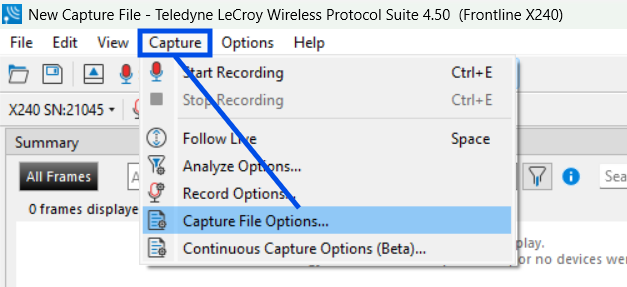
The capture to series feature is available via new Capture File Options menu:
The menu opens the Capture File Options dialog:
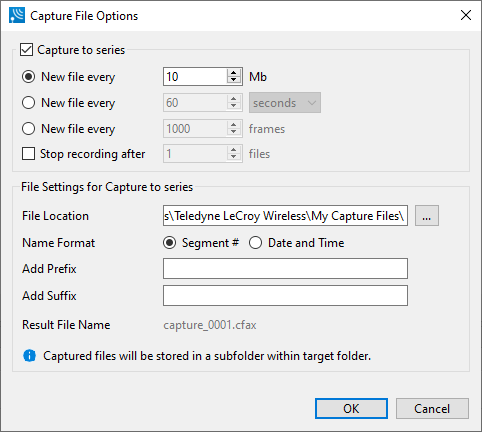
Capture File Settings
|
Setting |
Description |
|
Capture to Series |
When checked, it enables capturing to series of files. |
|
New File Every ... Mb |
When this option is selected, it sets the size limit for a single capture file (segment). When the size limit is hit, the system will automatically create a new file in series. The capture size is calculated approximately. The system will try to match the capture size to the specified size limit. The minimum allowed size is 1 Mb, maximum allowed size is 2048 Mb. |
|
New File Every … <Time> |
When this option is selected, it sets the duration of each file in the capture. Possible options include seconds, minutes, hours and days. |
|
New File Every … frames |
When this option is selected, it sets the maximum number of frames in each file. The maximum allowed is 1,000,000 frames. |
|
Stop Recording After |
When this option is selected, it sets the maximum number of files in series. Recording will stop automatically when the set number of files is reached. |
|
File Settings for Capture to Series |
|
|
File Location |
This allows selecting the folder where the captured files will be stored. The system will create a unique subfolder inside the specified folder for each recording session. This is done to prevent accidental overwriting of the existing capture files. The subfolder name will be as follows: wps_capture_series_<date>_<time>. |
|
Name Format |
This allows selecting the pattern for a file name. When Segment # is selected, the system will use the number of the file in series as a basis for a file name. When Date and Time is selected, the system will use current date and time as a basis for a file name. The sample file name will be displayed to the right of the Result File Name label. |
|
Add prefix |
When specified, this adds a prefix to the Name Format. The sample file name will be displayed to the right of the Result File Name label. |
|
Add suffix |
When specified, this adds a suffix to the Name Format. The sample file name will be displayed to the right of the Result File Name label. |
When capture to series is enabled, the system will display the current progress in the status bar during the recording:
