
Use the Recording Settings pane to select and set the number and size of segments and save a new trace file. (See Buffer Size and Segments.)
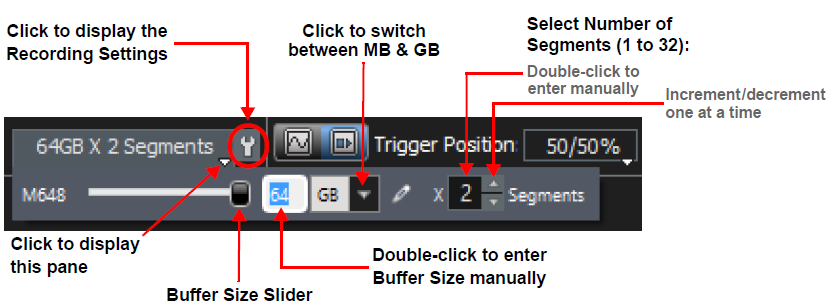
Note: Recording Settings has different options depending on the analyzer you use.
Note: In the M168/M408 the memory buffer is shared between Host and Device ports, while in the M328 Host and Device ports are using only half of the buffer. In the M328 half of the memory buffer is shared between the Host side of all ports and the other half of the memory buffer is shared between the Device side of all ports.
In the case where both the Host and Device ports have similar traffic, the memory buffer would be filled (~24 MB); however, in an unbalanced case the captured trace size would be different between the M168/M408 and the M328.
For axample, if one side is sending only Idles (Fill words) and the other side has Frames:
-
In the M168/M408, since the memory buffer is shared between the Host and Device of the same port, the analyzer would capture almost the full 24MB buffer size.
-
In the M328, one side would capture 12 MB (Frames) and the other side would capture packed Idles that use less buffer space and may have <1MB in size.
In this unbalanced case, the M328 would capture less than 13 MB of traffic.
Recording Settings: M1288
Click the Recording Settings icon 
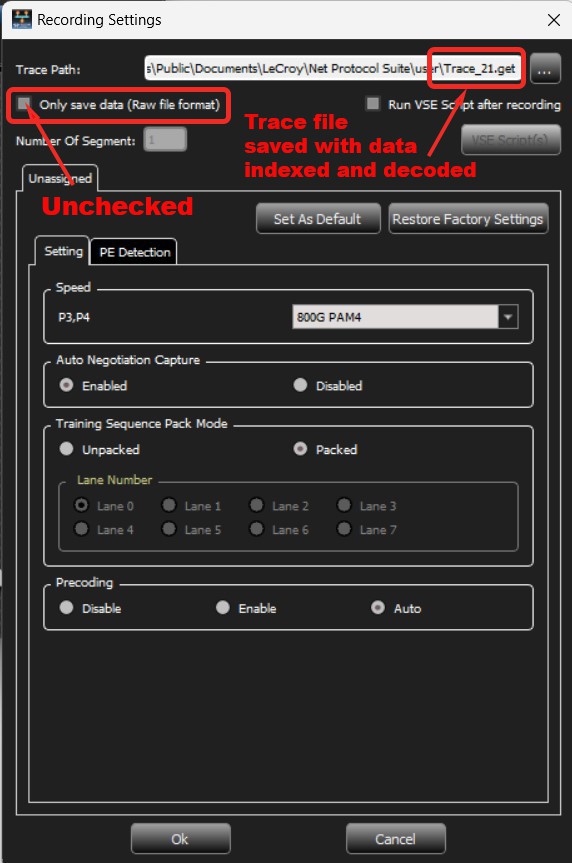
Recording Settings Window
|
Condition |
Setting |
Description |
|
Trace Path |
Trace File |
Location of Saved Trace. Click the ... to rename and/or change file location. You can save the trace data in two different modes: Indexed and Decoded, or Raw (check the Only Save Data box for Raw). Indexed and Decoded: Trace data saved as a .get file with Indexing and Decoding. |
|
Only Save Data (Raw file format) |
Checked/ Unchecked |
Raw: Trace data saved as a .geraw file without Indexing and Decoding. Saving a trace as Raw data will speed up saving the trace to host memory. The Raw data file can be indexed and decoded at a later date to view the Trace file. The option, Only save data (Raw file format), is available for all Sierra Net products (M1288, M648, M408, M168, T328 and M328). |
|
Number of Segment |
1-32 |
Select the segment number. |
|
Set as Default |
|
Save the Recording Settings you selected as the default. |
|
Restore Factory Settings |
|
To revert to Factory Settings, select Restore Factory Settings. |
|
Setting Tab |
||
|
Speed |
Speed of DUT |
For the selected ports in use, choose the DUT speed. |
|
Training Sequence Pack Mode |
Unpacked, Packed |
Setting the Training Sequence Pack Mode to Unpacked enables the selected Lanes to record all Training Sequence details, including PRBS. This could require much more buffer space, so should only be used when needed (the default is Packed). |
|
Precoding |
Disable, Enable, Auto |
Precoding tells the analyzer how to decode the traffic. For Digitally Retimed ports (DRT, Ports P1 and P2), the Precoding setting also affects the traffic on the M1288’s Tx, going to the DUT. When Precoding is set to Off, the trace only shows PCS data, if the traffic is NOT precoded. When Precoding is set to On, the trace only shows PCS data, if the traffic is precoded. Note: On DRT ports, the analyzer will send the traffic out as precoded, even if the received traffic was not precoded (APT traffic through the probe will not be affected). |
|
Lane Number |
Lane number(s) |
Select which lane(s) to unpack. Note: In some port configurations, not all lanes Training Signals can be Unpacked. |
|
PE Detection Tab |
||
|
Protocol Errors |
Checked/ Unchecked |
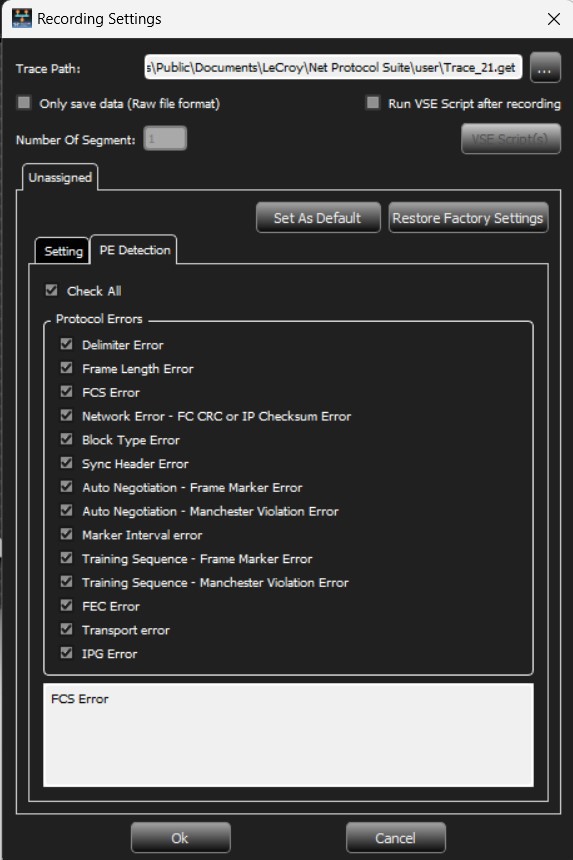
See Protocol Errors. |
|
Check All |
Checked/ Unchecked |
Check this box to select all Protocol Errors. |
Recording Settings: M408 – 10GbE
Click the Recording Settings icon 
-
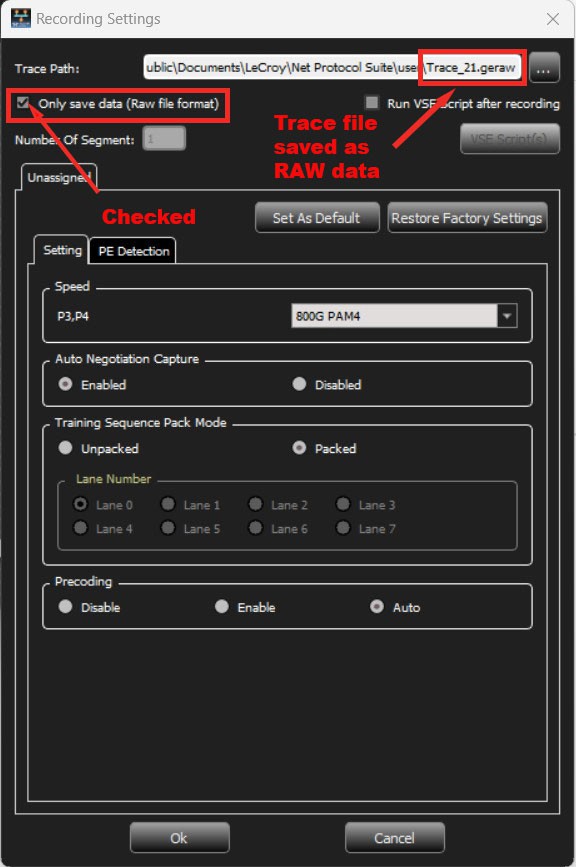
Indexed and Decoded (trace data saved as .get file with Indexing and Decoding).
-
Raw (trace data saved as .geraw file without Indexing and Decoding). Saving trace as RAW data will speed up saving the trace to host memory. The RAW data file can be indexed and decoded at a later date to view the Trace file.
Only save data (Raw file format) is available for all Sierra Net products (M1288, M408, M168, T328 and M328).
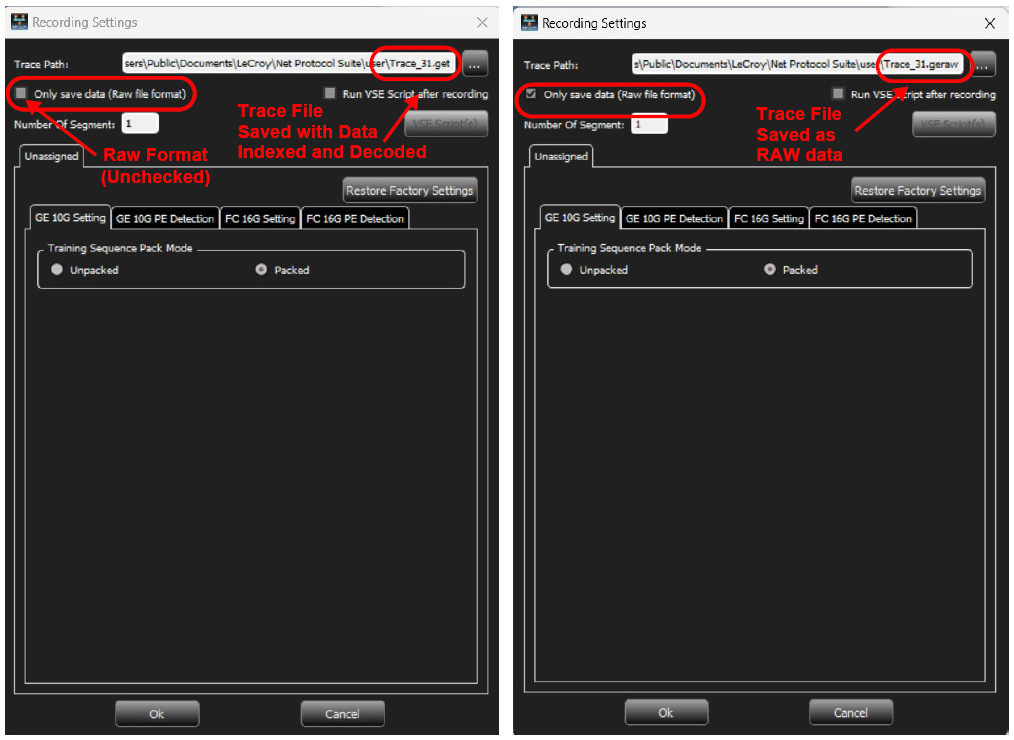
Recording Settings allows you to select conditions on which the analyzer will trigger, including:
-
Setting: Training Sequence Pack Mode, Unpacked or Packed
-
Set As Default: You can save the Recording Settings you selected as the default.
-
Restore Factory Settings: Click to revert to the Factory Settings.
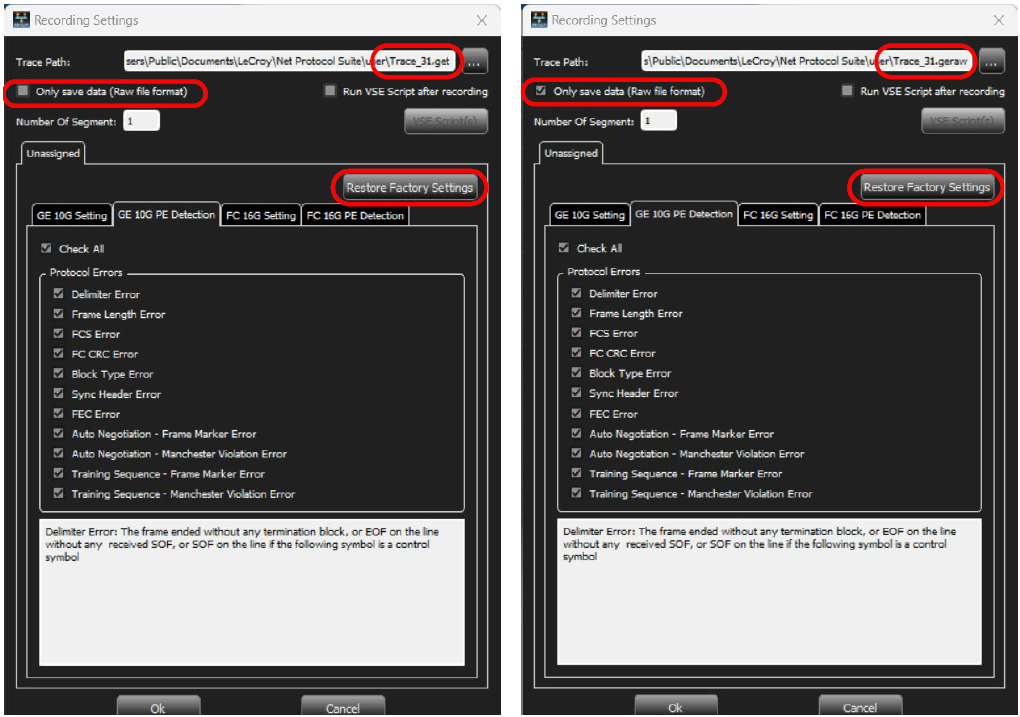
Protocol Error (PE) Detection Tab: M408 – 10GbE
The PE Detection Tab allows you to select which Protocol Errors the analyzer will show and which will be ignored. Select one or more protocol errors or select the Check All box to select all. Enter the Number of Segments in the field. You can save the trace in two different formats:
-
Indexed and Decoded (trace data saved as .get file with Indexing and Decoding).
-
Raw file format (trace data saved as .geraw file without Indexing and Decoding). Saving trace as RAW data will speed up saving the trace to host memory. The RAW data file can be indexed and decoded at a later date to view the Trace file.
Recording Settings: M408 – 40GbE
Click the Recording Settings icon 
-
Indexed and Decoded, generating a .get file
-
Raw file format, generating a .geraw file
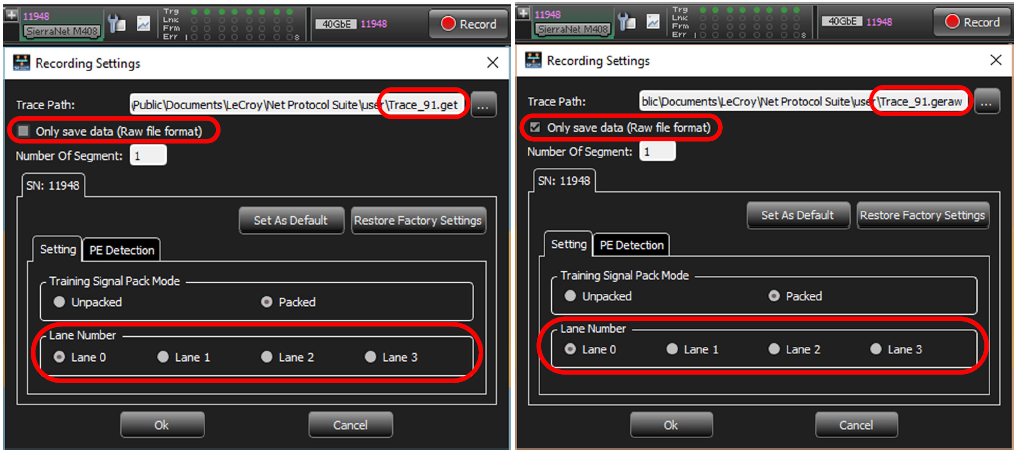
Recording Settings enables you to select the conditions on which the analyzer will trigger, including:
-
Trace Path: Location of Saved Trace
-
Number of Segments: 1 – 32
-
Setting
-
Training Sequence Pack Mode: Unpacked or Packed
-
Lane Number: 0 – 3
-
-
PE Detection: See below
-
Set As Default: Save the Recording Settings you’ve set as the default.
-
Restore Factory Settings: Click to revert to the Factory Settings.
PE Detection Tab: M408 40GbE
The PE Detection Tab allows you to select which Protocol Errors the analyzer will show and which will be ignored. Select one or more protocol errors or select the Check All box to select all. Enter the Number of Segments in the field. The M408 40GbE options are similar to the M408 10GbE options.
Recording Settings: M408 FC
Click the Recording Settings icon 
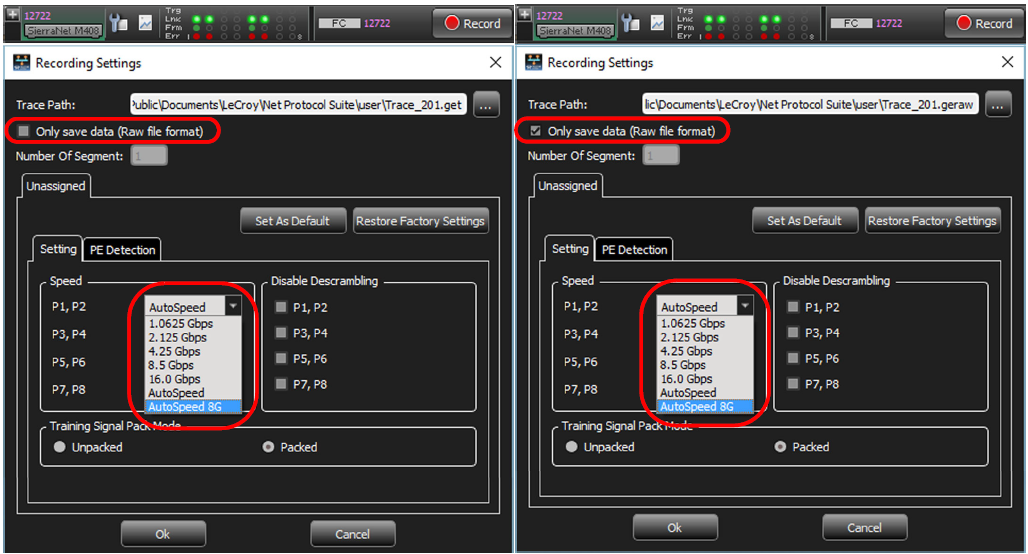
Recording Settings enables you to select conditions on which the analyzer trigger, including:
-
Trace Path: Location of Saved Trace
-
Number of Segments: 1 – 32
-
Setting
-
Speed: Port Pairs: P1, P2; P3, P4; P5, P6; P7, P8 > 1.0625 Gbps, 2.125 Gbps, 4.25 Gbps, 8.5 Gbps, 16.0 Gbps, AutoSpeed or AutoSpeed 8G
-
Disable Descrambling: By Port Pair > P1, P2; P3, P4; P5, P6; P7, P8
-
Training Sequence Pack Mode: Unpacked or Packed
-
PE Detection: See below.
-
Set As Default: You can save the Recording Settings you’ve set as the default.
-
Restore Factory Settings: Click to revert to the Factory Settings.
PE Detection Tab: M408 – FC
The PE Detection Tab allows you to select which Protocol Errors the analyzer will show and which will be ignored.
-
Select one or more protocol errors or click in the Check All box to select all.
-
Enter the Number of Segments in the field. The M408 FC options are similar to the M408 10GbE options.
Recording Settings: M168 – 10GbE
-
Click the Recording Settings icon

-
You can save the trace in two different formats:
-
Indexed and Decoded, which generates a .get file
-
Raw file format, which generates a .geraw file
-
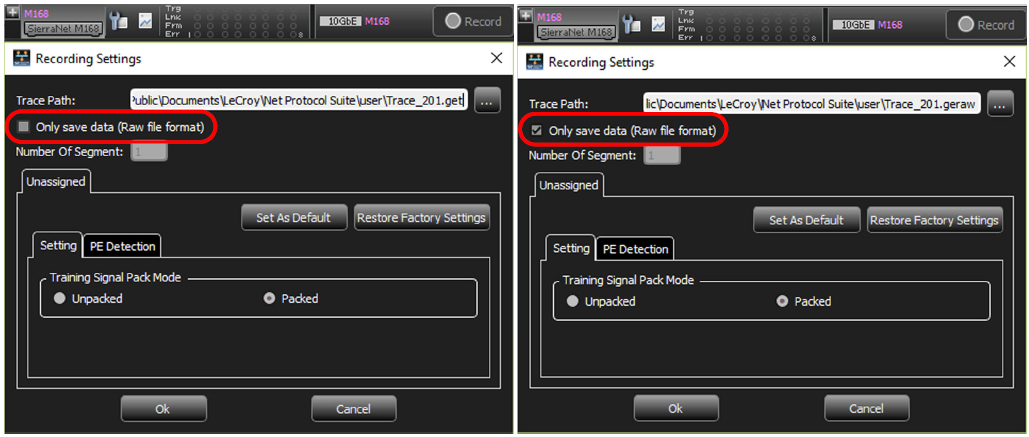
Recording Settings allows you to select conditions on which the analyzer will trigger, including:
-
Trace Path: Location of Saved Trace
-
Number of Segments: 1 – 32
-
Setting
-
Training Sequence Pack Mode: Unpacked or Packed
-
-
PE Detection: See below
-
Set As Default: You can save the Recording Settings you set as the default.
-
Restore Factory Settings: Click to revert to the Factory Settings.
PE Detection Tab: M168 – 10GbE
The PE Detection Tab allows you to select which Protocol Errors the analyzer will show and which will be ignored.
-
Select one or more protocol errors or select the Check All box to select all.
-
Enter the Number of Segments in the field. The M168 10GbE options are similar to the M408 10GbE options.
Recording Settings: M168 – FC
Click the Recording Settings icon 
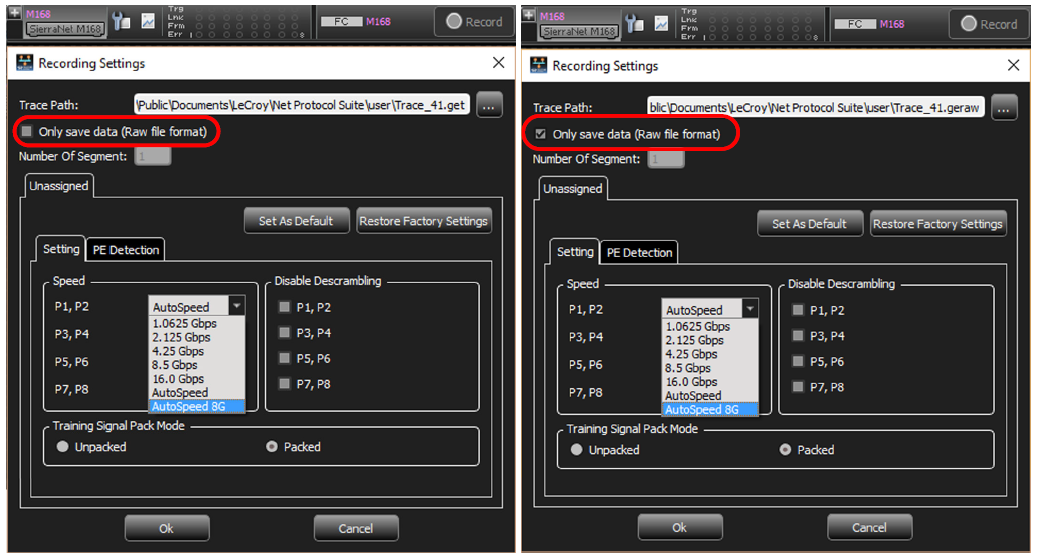
Recording Settings allows you to select conditions on which the analyzer will trigger, including:
-
Trace Path: Location of Saved Trace
-
Number of Segments: 1 – 32
-
Setting
-
Speed: Port Pairs: P1, P2; P3, P4; P5, P6; P7, P8 > 1.0625 Gbps, 2.125 Gbps, 4.25 Gbps, 8.5 Gbps, 16.0 Gbps, AutoSpeed, AutoSpeed 8G
-
Disable Descrambling: Port Pairs > P1, P2; P3, P4; P5, P6; P7, P8
-
Training Sequence Pack Mode: Unpacked or Packed
-
-
PE Detection: See below
-
Set As Default: Save the Recording Settings you’ve set as the default.
-
Restore Factory Settings: Click to revert to the Factory Settings.
PE Detection Tab: M168 – FC
The PE Detection Tab allows you to select which Protocol Errors the analyzer will show and which will be ignored.
-
Select one or more protocol errors or select the Check All box to select all.
-
Enter the Number of Segments in the field.
The M168 FC options are similar to the M408 10GbE options.
Recording Settings: T328 – 10/25GbE
Click the Recording Settings icon 
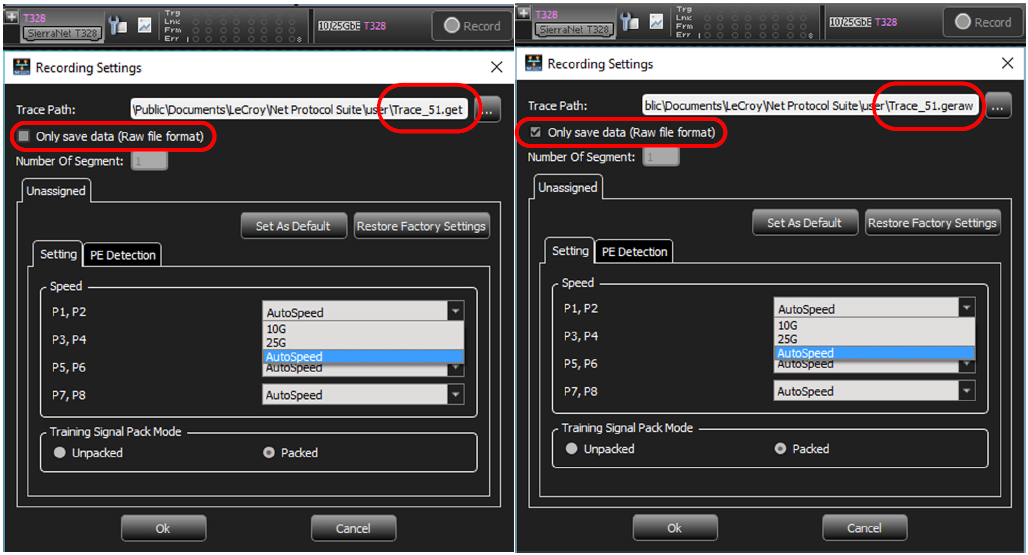
Recording Settings enables you to select conditions on which the analyzer will trigger, including:
-
Trace Path: Location of Saved Trace
-
Number of Segments: 1 – 32
-
Setting
-
Speed per Port Pair: 10G, 25G or AutoSpeed
-
Training Sequence Pack Mode: Unpacked or Packed
-
-
PE Detection: See below.
-
Set As Default: You can save the Recording Settings you’ve set as the default.
-
Restore Factory Settings: Click to revert to the Factory Settings.
PE Detection Tab: T328 – 10/25GbE
The PE Detection Tab allows you to select which Protocol Errors the analyzer will show and which will be ignored. Select one or more protocol errors or select the Check All box to select all. Enter the Number of Segments in the field. The T328 10/25GbE options are similar to the M408 10GbE options.
Recording Settings: T328 – 50GbE
Click the Recording Settings icon 
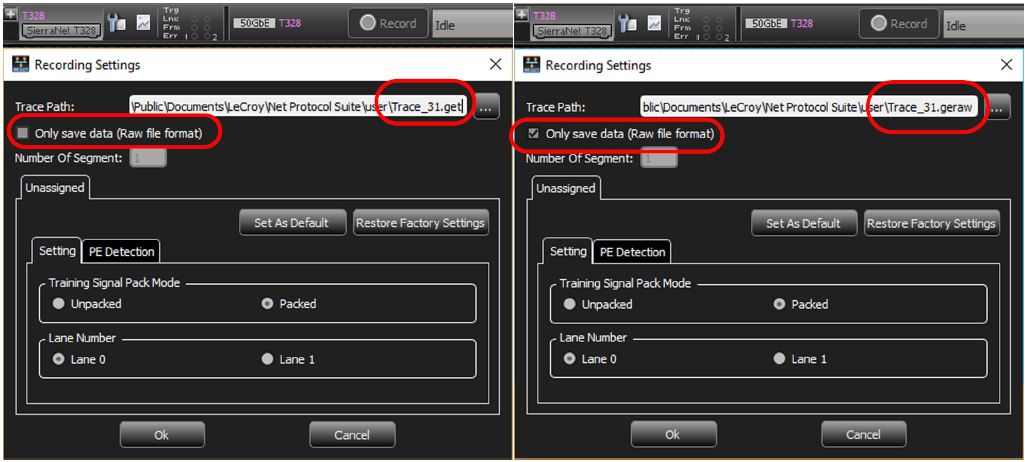
Recording Settings enables you to select conditions on which the analyzer will trigger, including:
-
Trace Path: Location of Saved Trace
-
Number of Segments: 1 - 32
-
Setting
-
Training Sequence Pack Mode: Unpacked or Packed
-
Lane Number: Lane 0 or Lane 1
-
-
PE Detection: See below.
-
Set As Default: You can save the Recording Settings you’ve set as the default.
-
Restore Factory Settings: Click to revert to the Factory Settings.
PE Detection Tab: T328 – 50GbE
The PE Detection Tab allows you to select which Protocol Errors the analyzer will show and which will be ignored. Select one or more protocol errors or select the Check All box to select all. Enter the Number of Segments in the field. The T328 50GbE options are similar to the M408 10GbE options.
Recording Settings: T328 – 40/100GbE
Click the Recording Settings icon 
Recording Settings allows you to select conditions on which the analyzer will trigger, including:
-
Trace Path: Location of Saved Trace
-
Number of Segments: 1 - 32
-
Setting
-
Training Sequence Pack Mode: Unpacked or Packed
-
Speed per Port Pair: 40G, 100G or AutoSpeed
-
Lane: 0 > 3
-
-
PE Detection: See below
-
Set As Default: You can save the Recording Settings you’ve set as the default.
-
Restore Factory Settings: Click to revert to the Factory Settings.
PE Detection Tab: T328 – 40/100GbE
The PE Detection Tab allows you to select which Protocol Errors the analyzer will show and which will be ignored. Select one or more protocol errors or select the Check All box to select all. Enter the Number of Segments in the field. The T328 40/100GbE options are similar to the M408 10GbE options.
Recording Settings: T328 – FC
Click the Recording Settings icon 
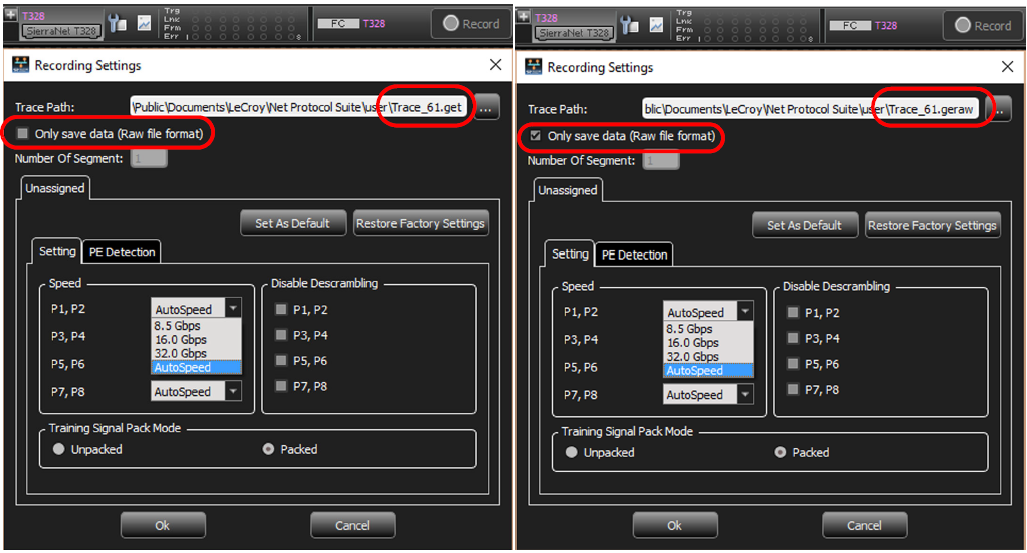
Recording Settings enables you to select conditions on which the analyzer will trigger, including:
-
Trace Path: Location of Saved Trace
-
Number of Segments: 1 – 32
-
Setting
-
Speed per Port Pair: P1/P2, P3/P4, P5/P6, P7/P8 > 8.5 Gbps, 16.0 Gbps, 32.0 Gbps or AutoSpeed
-
Disable Descrambling for Port Pairs: P1/P2, P3/P4, P5/P6, P7/P8
-
Training Sequence Pack Mode: Unpacked or Packed
-
-
PE Detection: See below.
-
Set As Default: You can save the Recording Settings you’ve set as the default.
-
Restore Factory Settings: Click to revert to the Factory Settings.
PE Detection Tab: T328 – FC
The PE Detection Tab allows you to select which Protocol Errors the analyzer will show and which will be ignored. Select one or more protocol errors or select the Check All box to select all. Enter the Number of Segments in the field. The T328 FC options are similar to the M408 10GbE options.
Recording Settings: M328 – 10/25GbE
Click the Recording Settings icon 
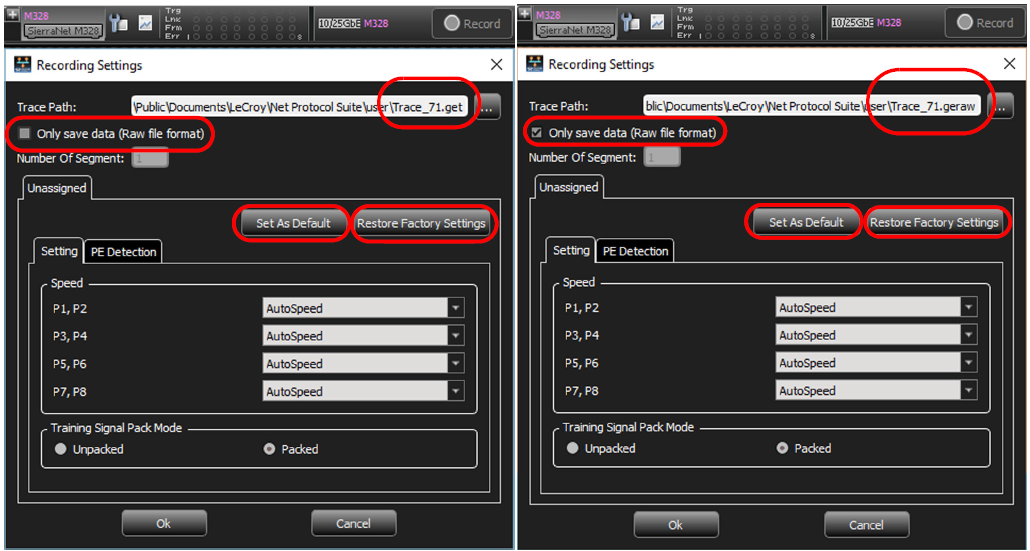
Recording Settings enables you to select conditions on which the analyzer will trigger, including:
-
Trace Path: Location of Saved Trace
-
Number of Segments: 1 - 32
-
Setting
-
Speed: P1/P2, P3/P4, P5/P6, P7/P8 > AutoSpeed
-
Training Sequence Pack Mode: Unpacked or Packed
-
-
PE Detection: See below
-
Set As Default: You can save the Recording Settings you’ve set as the default.
-
Restore Factory Settings: Click to revert to the Factory Settings.
PE Detection Tab: M328 – 10/25GbE
The PE Detection Tab allows you to select which Protocol Errors the analyzer will show and which will be ignored.
-
Select one or more protocol errors or click in the Check All box to select all.
-
Enter the Number of Segments in the field. The M328 10/25GbE options are similar to the M408 10GbE options.
Recording Settings: M328 – 40/100GbE
Click the Recording Settings icon 
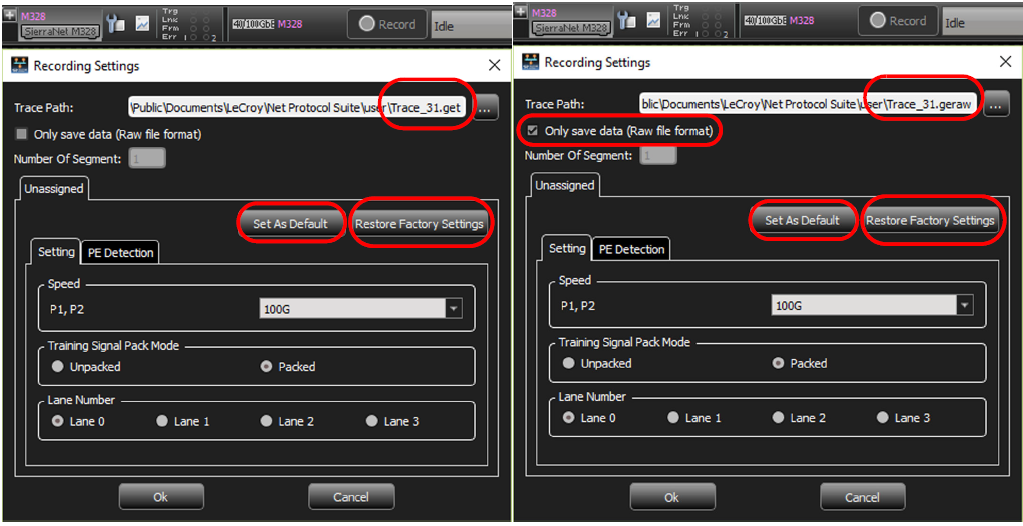
Recording Settings allows you to select conditions on which the analyzer will trigger, including:
-
Trace Path: Location of Saved Trace
-
Number of Segments: 1 – 32
-
Setting
-
Training Sequence Pack Mode: Unpacked or Packed
-
Speed per Port Pair: 100G
-
Lane: 0 > 3
-
-
PE Detection: See below
-
Set As Default: You can save the Recording Settings you’ve set as the default.
-
Restore Factory Settings: Click to revert to the Factory Settings.
PE Detection Tab: M328 – 40/100GbE
The PE Detection Tab allows you to select which Protocol Errors the analyzer will show and which will be ignored. Select one or more protocol errors or select the Check All box to select all. Enter the Number of Segments in the field. The M328 40/100GbE options are similar to the M408 10GbE options.
Recording Settings: M328 – FC
Click the Recording Settings icon 
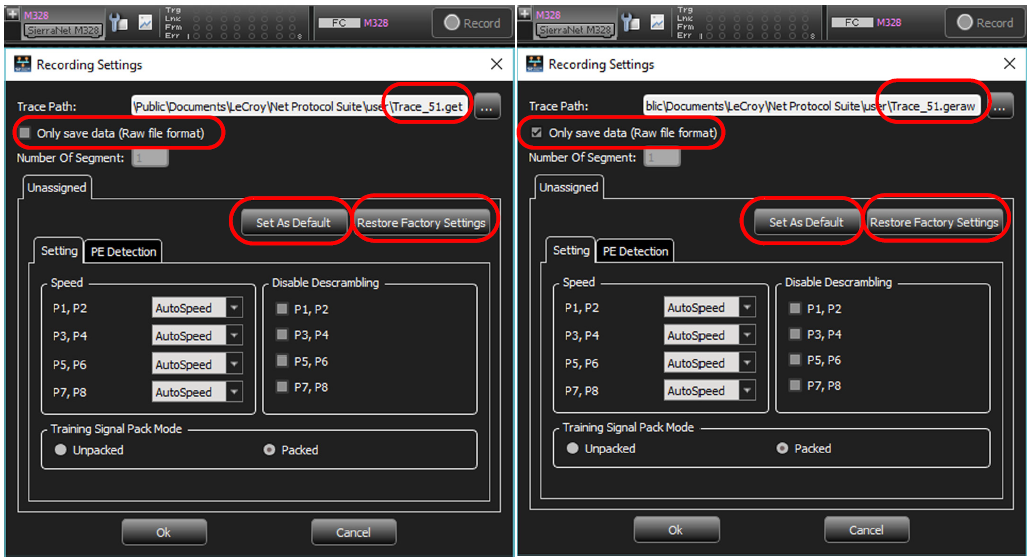
Recording Settings allows you to select conditions on which the analyzer will trigger, including:
-
Trace Path: Location of Saved Trace
-
Number of Segments: 1 - 32
-
Setting
-
Training Sequence Pack Mode: Unpacked or Packed
-
Speed per Port Pair: AutoSpeed
-
Lane: 0 > 3
-
-
PE Detection: See below
-
Set As Default: You can save the Recording Settings you set as the default.
-
Restore Factory Settings: Click to revert to the Factory Settings.
PE Detection Tab: M328 – FC
The PE Detection Tab allows you to select which Protocol Errors the analyzer will show and which will be ignored. Select one or more protocol errors or select the Check All box to select all. Enter the Number of Segments in the field. The M328 FC options are similar to the M408 10GbE options.