
Navigation
The Navigation menu option enables the user to navigate the application. You can go to the trigger, marker or where the cursor is located. Markers can also be added and removed. Find menu options are available as shown in the screen capture below.
Note: The menu options listed in the Navigation menu can also be selected when you right-click anywhere on the screen, see Markers.
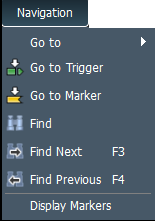
For more details on the Navigation Options, see Navigation Menu.
View
The View menu has the following options:
-
Zoom in: Allows you to zoom in the view.
-
Zoom out: Allows you to zoom out the view.
-
Hide/Show: Displays the Filter dialog box enabling you to configure filters applied to the trace view.
-
Hide/Show non-Frames: Shows/hides the Idles in the trace view.
-
Toolbars: Allow you to customize the toolbar display.
-
Menu Bar: Selecting and clearing this option toggles between showing and hiding the menu bar. Press the Alt key to do the same.
-
Restore Default View: Restores view so only Spreadsheet View and Frame Inspector View are displayed.
For more details about the View tab, see View Menu.
Window
The Window menu allows you to configure your display. It has the following options:
-
Window Cascade: Displays open Views in available Main Display window.
-
Window Tile: Displays open Views in Full Size Main Display window.
-
Close All Traces: Closes all open traces.