
After you set Display Options, the Trace View screen is re-drawn to display decoded transactions in the colors and format you selected.
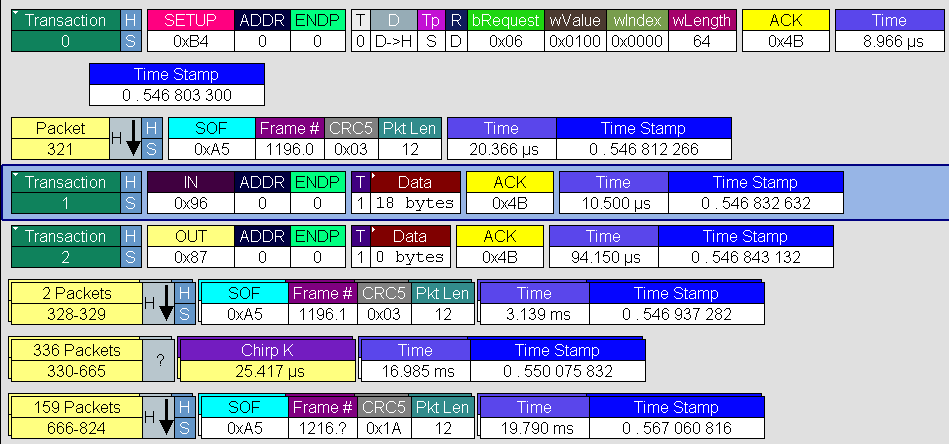
When you instruct the analyzer to display USB transactions, the components of each transaction are collected from the current recording and are grouped and indented below each decoded transaction. Each row shows a transaction with a unique numeration, a label, and color-coded decoding of important data.
NOTE: If CRC errors are found in a DATAx (2.0) packet or a DP (3.2) packet, the data in that packet will not be promoted to the Transaction, Transfer, and so on, levels above, since it is assumed that the data will be re-sent. The data count will show as 0 Bytes.
Expanded and Collapsed Transactions
You can expand a specific transaction to view its parts, which are grouped and indented below the transaction. To expand a transaction:
Right-click the transaction you wish to view to display the Expand Transaction menu.
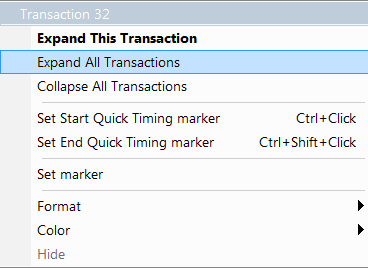
Select Expand This Transaction.
The screen displays the selected transaction in expanded format.
NOTE: The Expand/Collapse transaction feature operates as a toggle: when one format is active, the other appears as an option on the Expand/Collapse drop-down menu.
To collapse a transaction, perform the same operation and select Collapse This Transaction. Note that you can choose to expand or collapse:
-
Only the selected Transaction
OR
-
All Transactions
It is not necessary to use the Expand/Collapse Transactions menu to shift between expanded and collapsed views of a transaction. You can double-click the Transaction number field to toggle back and forth between collapsed and expanded views.