
You can expand a Data field to view it in greater detail or collapse it when you want a more compact view. The sizes for displaying in Collapsed or Expanded fields can be configured on the Display Options General Tab.
Using the Expand/Collapse Data Field Arrows
To expand or collapse a Data Field, click the small triangular arrow on the left side of the data field.


Double-Click to Expand/Collapse Data Fields
You can expand or collapse Data fields by double-clicking anywhere in the data field.
Expand or Collapse All Data Fields
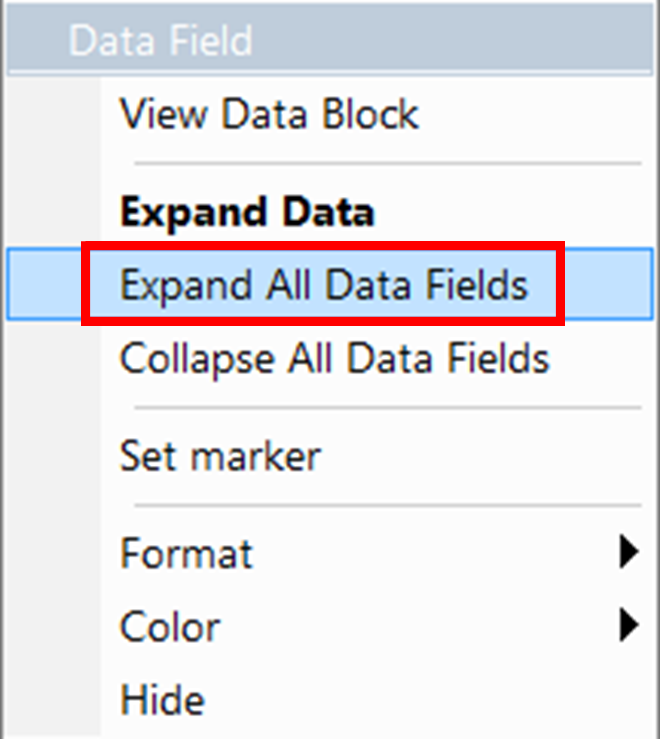
To expand or collapse all data fields, select Expand All Data Fields or Collapse All Data Fields
from the data field pop-up menus.
Data Field Pop-up Menus
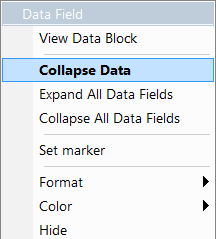
You can expand or collapse data fields by clicking a data field and selecting Expand Data or Collapse Data from the pop-up menu.
To expand and collapse data using the menu:
Right-click Data in the Data packet to expand or collapse to display the Data Field menu.
If your Data Trace View is currently expanded, you see the Collapse Data command:
If your Data Trace View is currently collapsed, you see the Expand Data command:
Select the Expand Data or Collapse Data menu item.
The Trace View repositions, with the selected packet(s) in the format that you specified.