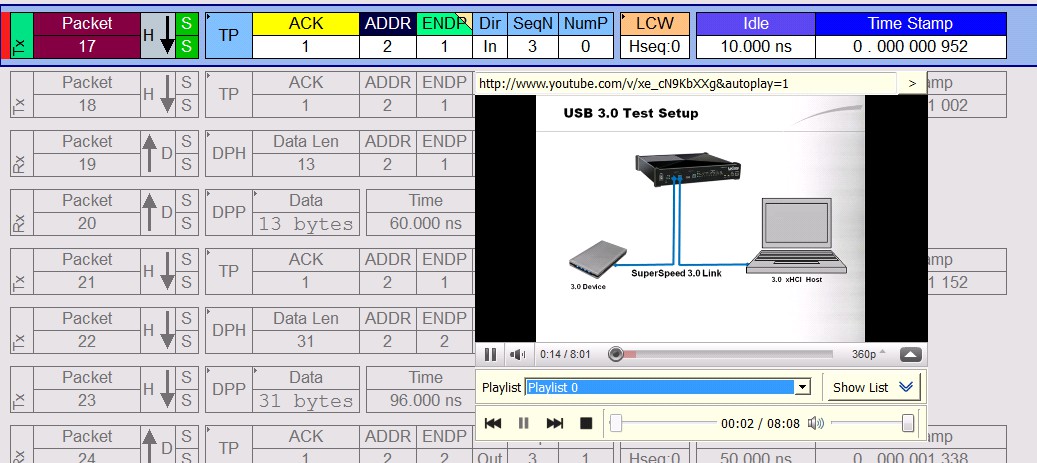
This feature allows users to configure sequences of attachments into playlists. Any arbitrary order of attachments are allowed, and there are no limits on the number of playlists supported. This feature can be used for collaborating among developers as well for training, support and marketing purposes.
To access a playlist click on the View menu in the top toolbar of application, select CATC Walk and then select Manage Playlists.
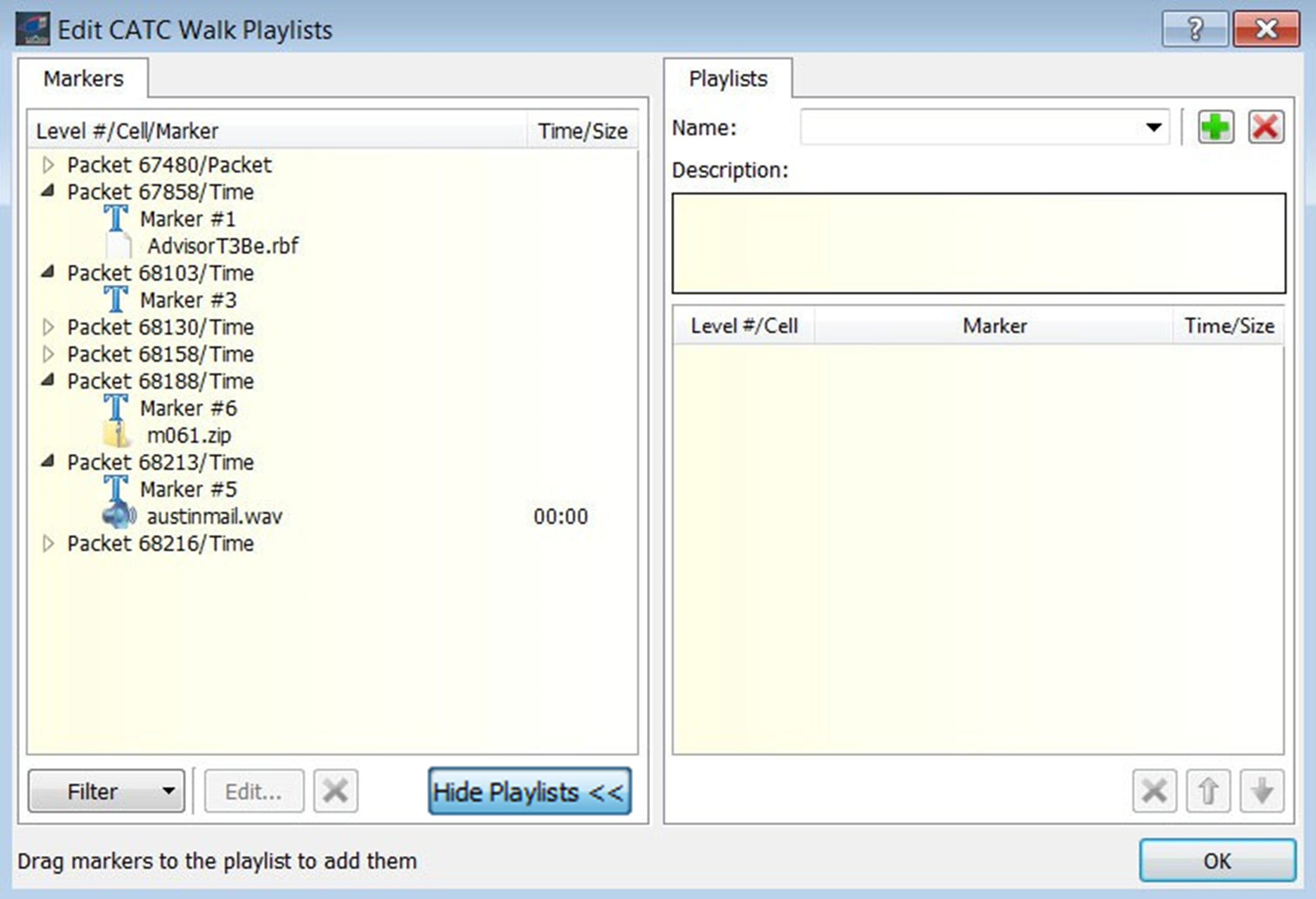
Playlist Functionality
You can do the following to manage playlists:
-
Remove or edit current playlists
-
Edit the playlist name
-
Edit the playlist description
-
List the sequence of attachments in current playlist
-
List of all available attachments and drag/drop to a playlist.
As shown in the previous figure, the Playlist window lists the markers with their attachments on the left and the playlist on the right.
-
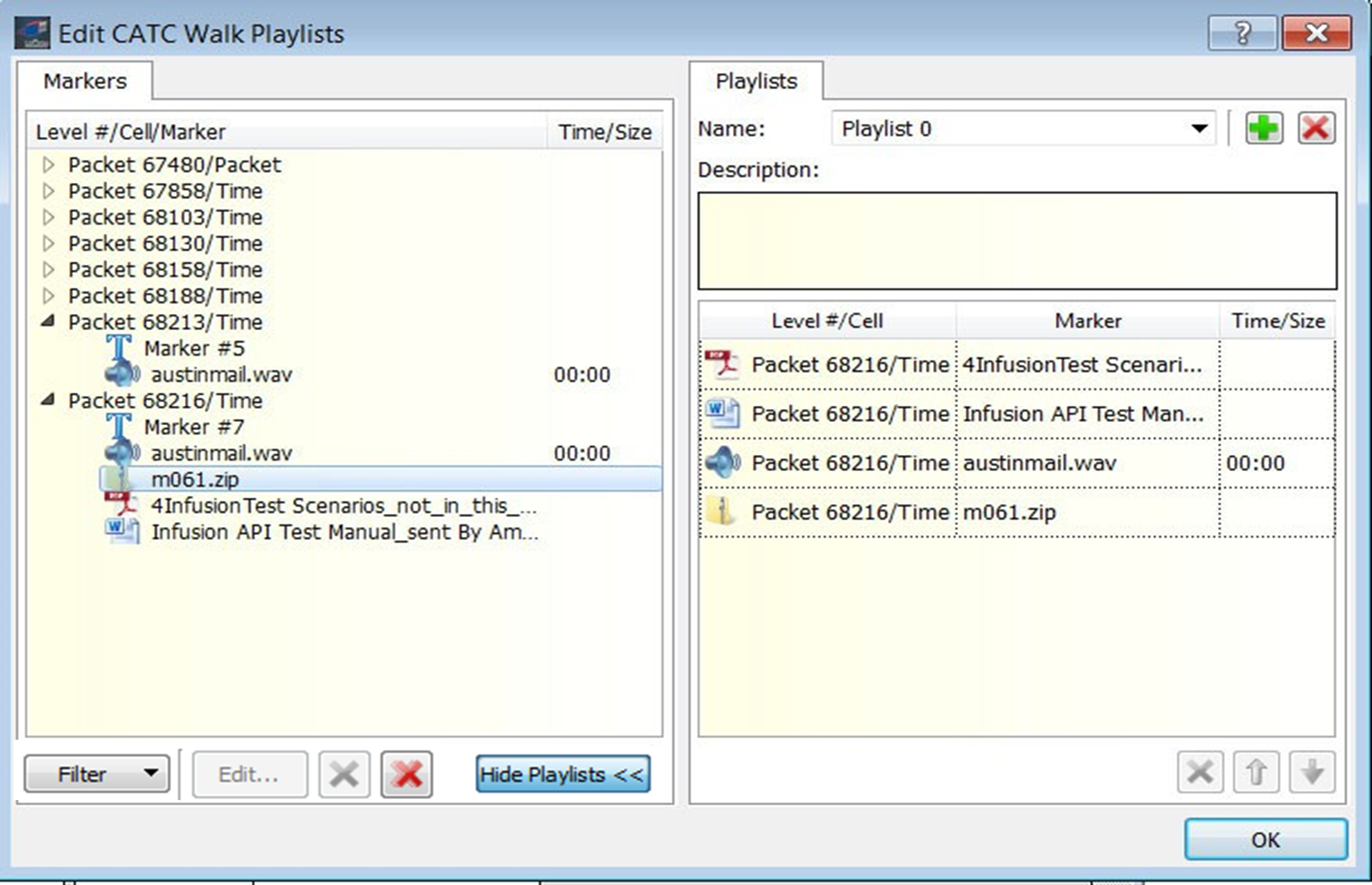
You can drag and drop and item or attachment from the Marker panel into the Playlist panel and build a story. Give a description of the playlist in the Description field and you can give a name to the playlist in the Name field.
-
You can add a new playlist by clicking on the green plus sign (+) on the right top corner of the Playlist panel, or delete a playlist by clicking the red (x) button.
-
If you have more than one playlist saved click on the Name drop-down arrow to select it. The drop-down menu lists all the available playlists.
Playback Window
To playback a playlist:
-
Click the View tab at the top of the application.
-
Select CATC Walk.
-
Select Play > Playlist 1 as.
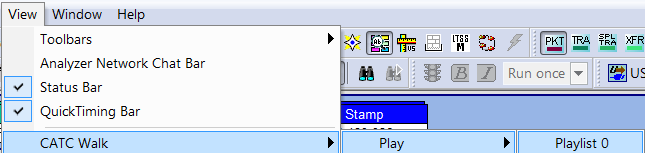
The select playlist starts in the playback window.
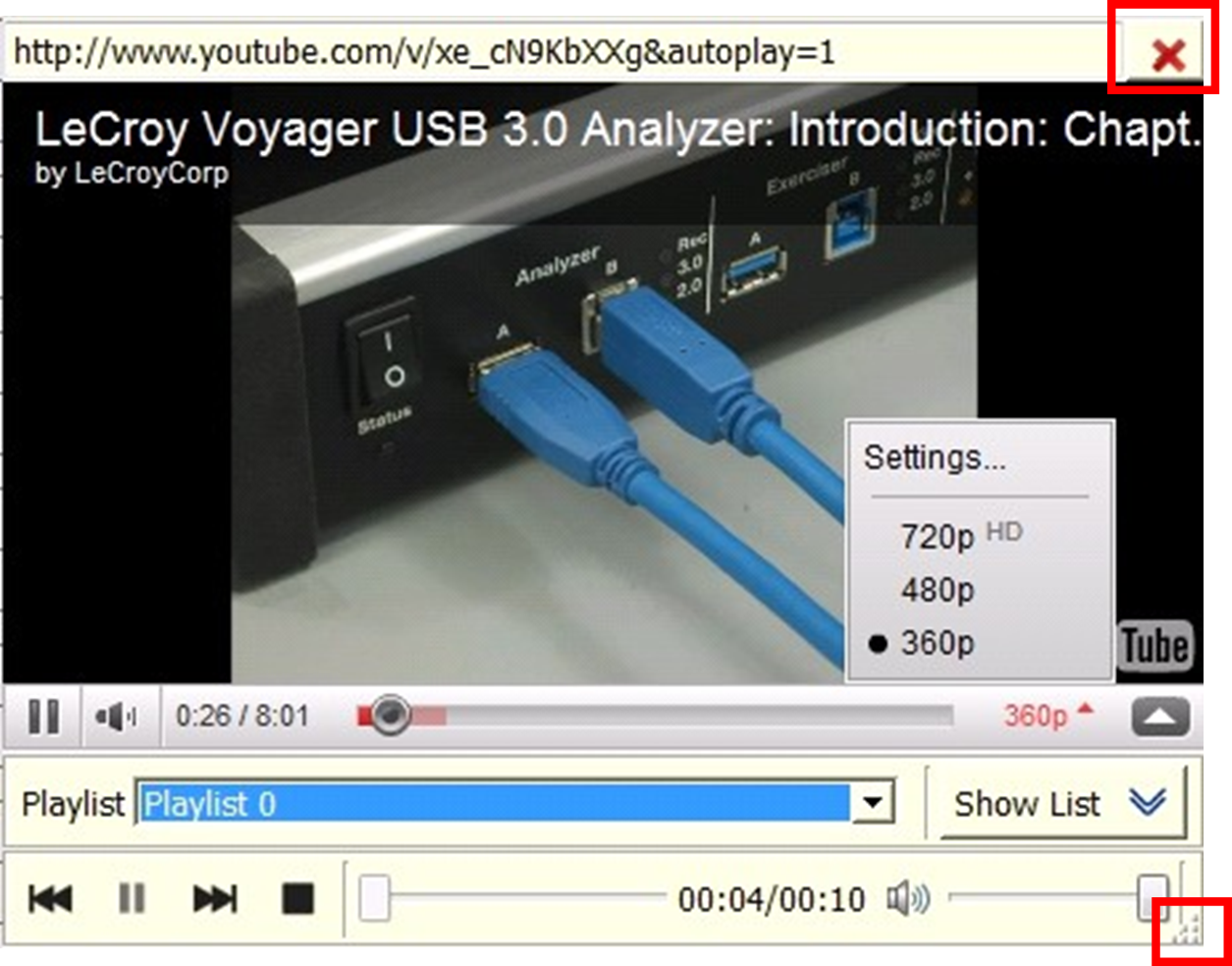
The playback window is resizable. The close button at the top right corner and the size grip for resizing at the bottom right corner automatically hide when you move the cursor out of the window.
You can provide commentary to a captured trace, converting it into a script or a story, and transfer this meta-information to others.
Playlist Playback Controls
The playlist playback control buttons are:
-
Play/Pause
-
Stop
-
Jump to Next attachment
-
Jump to Previous attachment
-
Seek slider for seeking to positions in media streams
-
Volume slider
-
Playback speed slider (for text attachments)
As a playlist is played back, the playback window is displayed in close proximity to the marked area, just like a regular tooltip window.
As the playback progresses, the view jumps to the element corresponding to the current attachment being played and the marked element is highlighted. During playback the user is prevented from interacting with the trace. To reinforce this restriction, the trace view is grayed out visually, and only the packet with the item corresponding to the current attachment is colorized.