For the examples in this section, a typical script from the Exerciser library has been loaded into the script text editor.
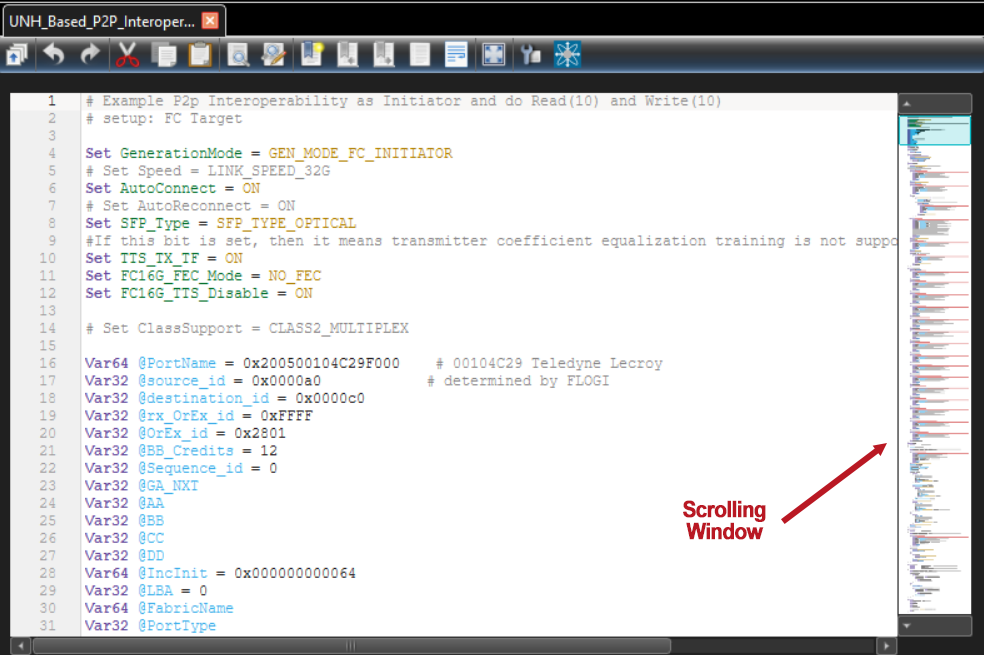
Script Editor
The Script editor has the following functionalities:
-
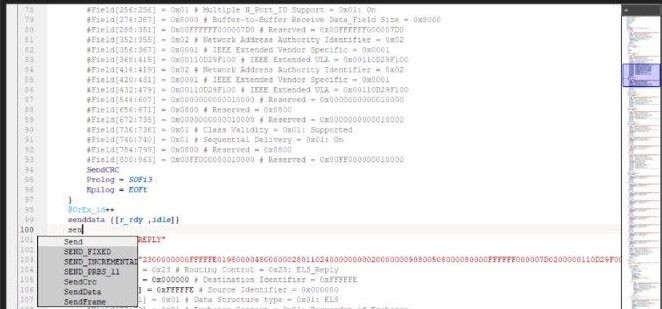
Code completion: Start typing in the script to get the suggestion list, shown below.
-
Syntax highlighting
-
Code Folding
-
Cut/Copy/Paste
-
Multiple Undo/Redo
-
Bracket Matching
-
Bookmark
-
Search/Replace
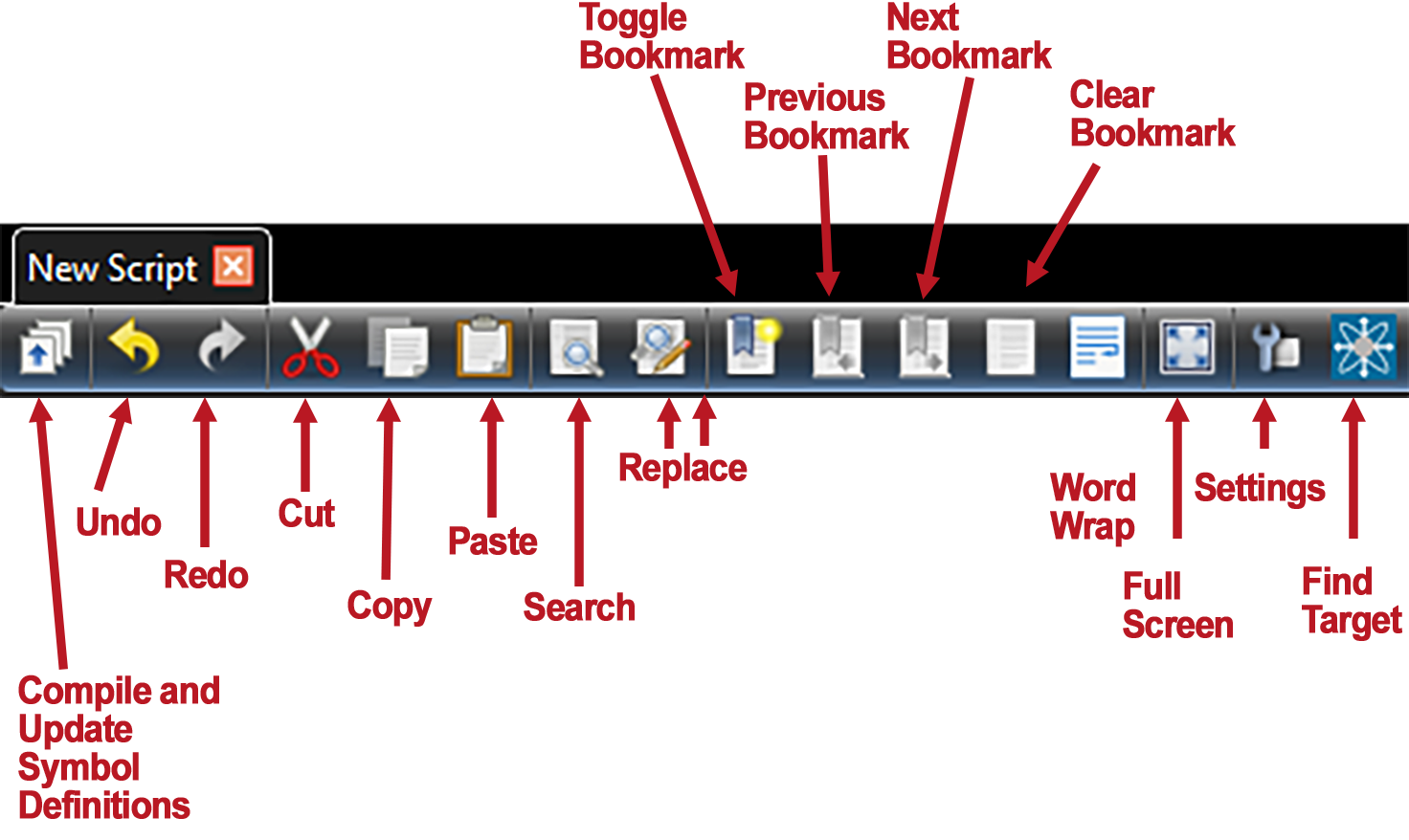
Script Editor Toolbar
-
Compile and update symbol definitions: Compile the current active script and update symbol definitions for code completion.
-
Settings
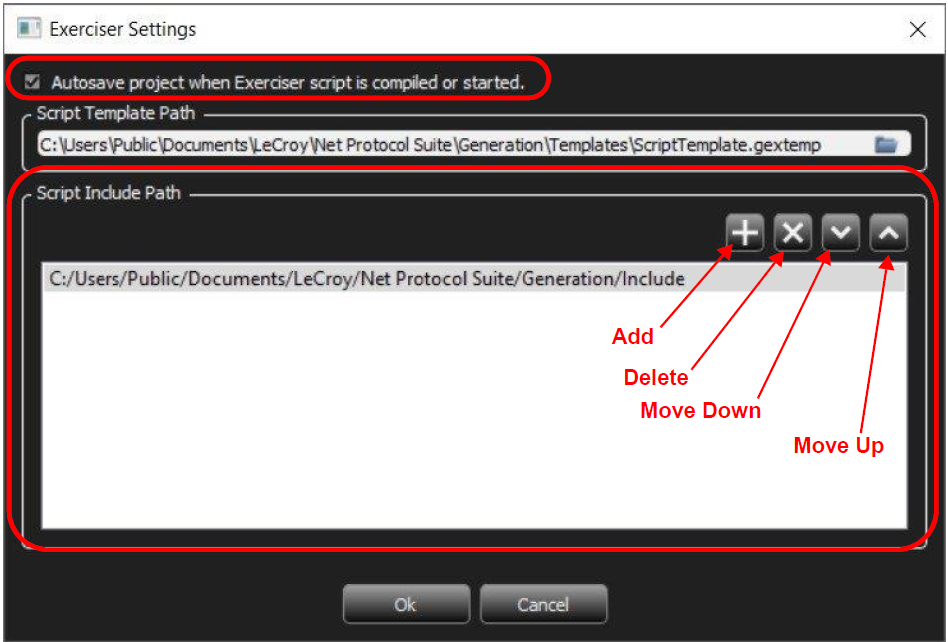
Note: The default include folder is "C:\Users\Public\Documents\LeCroy\NET Protocol Suite".
-
You can enable or disable Autosave.
-
You can set the User Template path to the installation path (as shown above)
-
You can manipulate the Include files loaded with the software. The Setting.inc file is described in more detail in Settings.inc File.
Exerciser Output Log Window
Output window
The Output window shows any error after compiling the script. It has a goto feature that can be triggered by double click on an error to show the error line.
Note: If there is an error in an unopened include file, it opens it then goes to the error line.
An example of the output log window below shows the results of compiling the sample script.
Errors in Script
If there is any error in the script, it will automatically switch to the Error output and shows all errors. Double-click on any error to jump to the line and show the exact error point in the script.

Snippet Window
Code Snippet
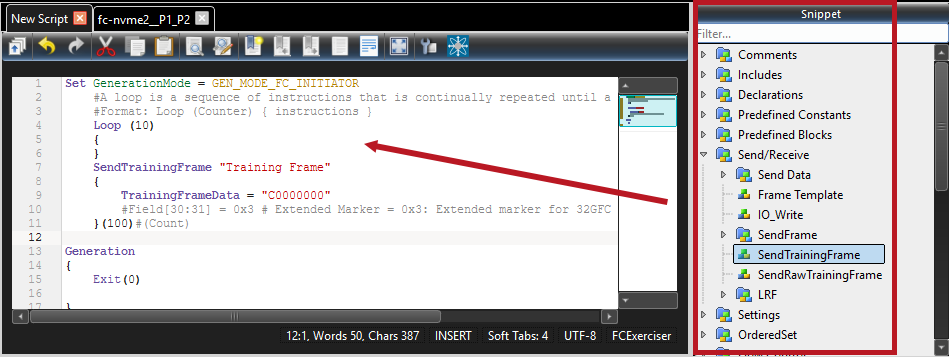
All available keywords will be grouped in a tree and user can drag and drop them to the script and see a small snippet of how it can be used. Also, there is a tool tip that explains each keyword.
From the “Snippet Window” you can select an example and drag it into the Script Editor window and it will show you the exact syntax to implement that construct.
Generation Options (Advance Wait Conditions)
Generation Options
You can predefine some events and bind them to 12 different actions (A – F in two categories). The Generation Options window is used if you want to use an “Advance Wait Condition”. There are twelve actions: 6 for frame events; 6 for symbol events.
Action A – Action F for both Frame and Symbol Events:
-
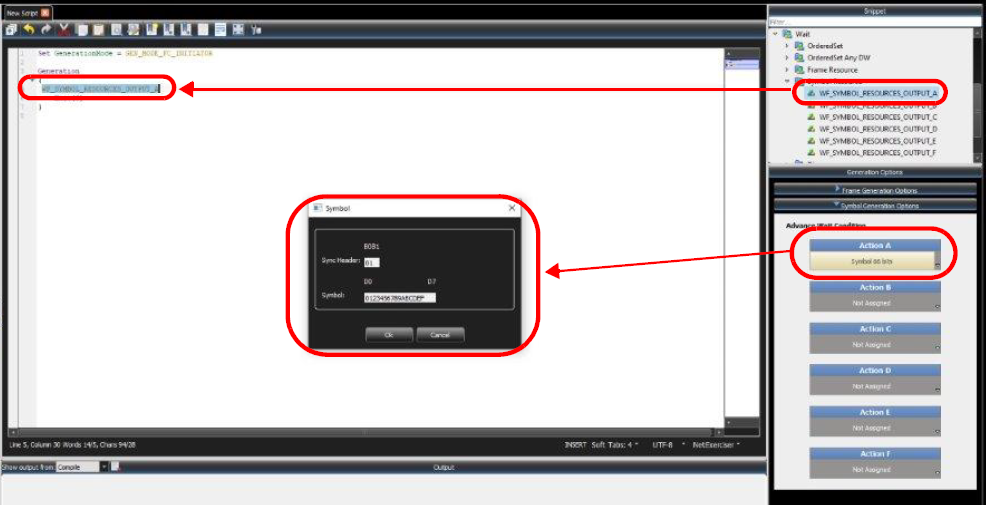
In the example shown below, the “Snippet” window is used to add a Wait Command to the script. In this case, when the script gets to the WF_ FRAME_RESOURCES_OUTPUT_A, the script pauses, waiting for ELS_REPLY frame, because that is the Advance Wait Condition defined for Action A. When the M648 finds the Frame, the script continues executing.
-
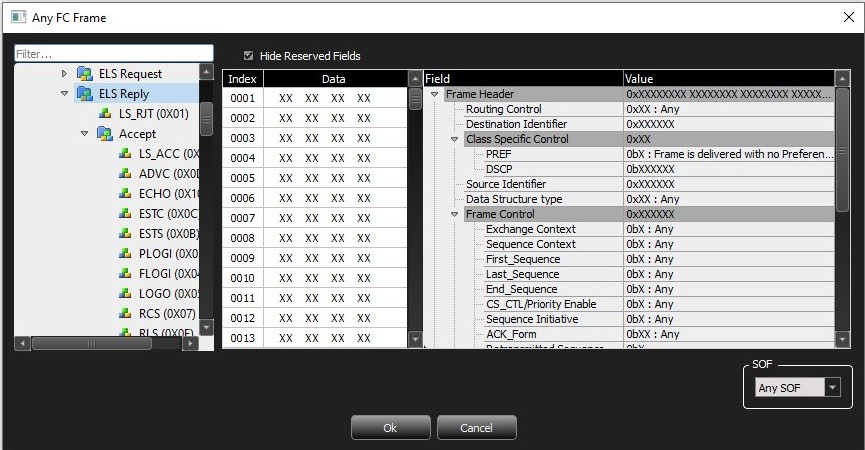
If you select Action B as a Symbol Event, the following options display.
-
From this menu, you can change the options to any Frame or any Command. Examples are shown below. These are the resource limitations for generation options:
-
Frame: Up to 32 DWORDs for each of the 6 resources.
-
Symbols: Up to 6 resources.
-
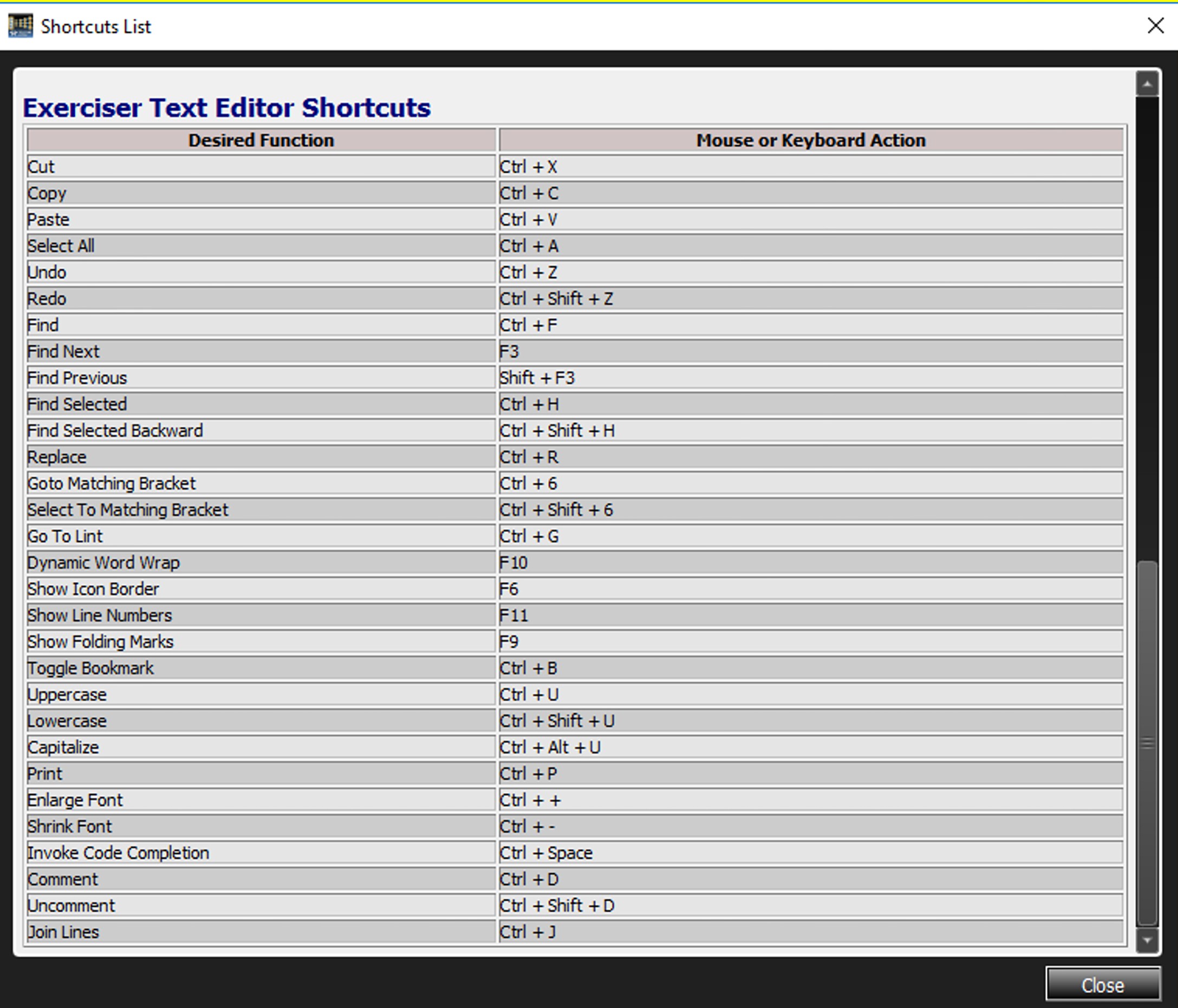
Exerciser Text Editor Shortcuts
The following list shows the Exerciser Text Editor Shortcuts.