The Project Library keeps scripts used in this project. It keeps scripts by saving the project library in the project. However, related include files won't be saved in the project.
Note: Discarding the Project will delete any changes in the exerciser script. To prevent this, enable Auto Save Project in the Exerciser Settings dialog.
Project Library Toolbar
-
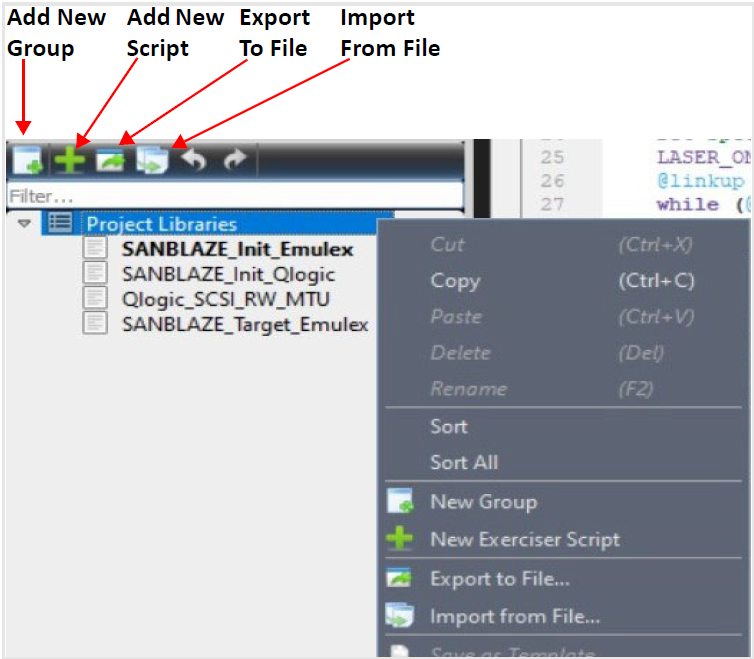
New Group: Creates a new group in project library.
-
New Exerciser script: Makes a new script which is created from a default template script. Users can change the default script from the Exerciser Setting.
-
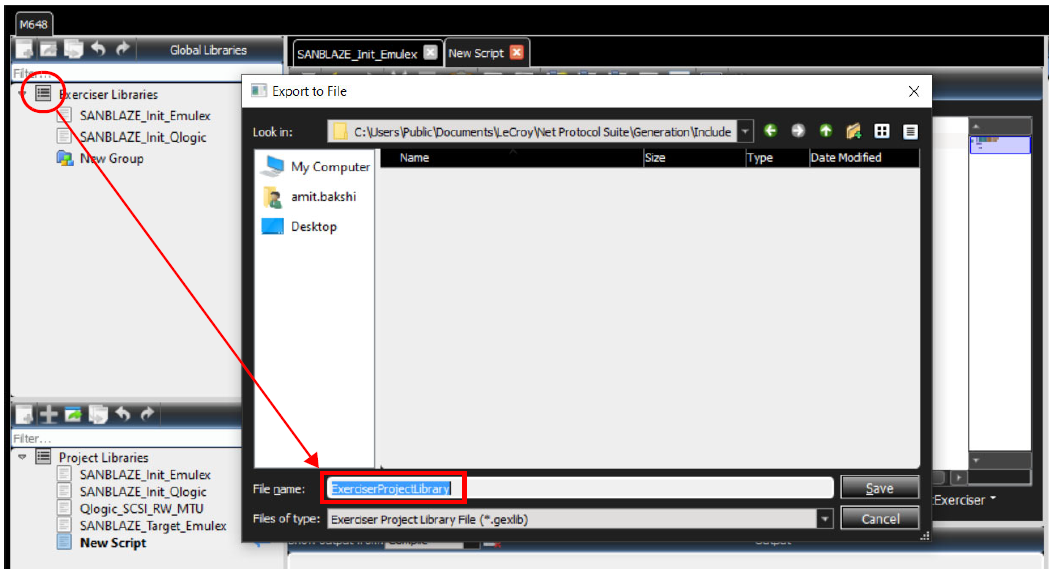
Export: users can export the scrip or the whole library (*.gexlib).
-
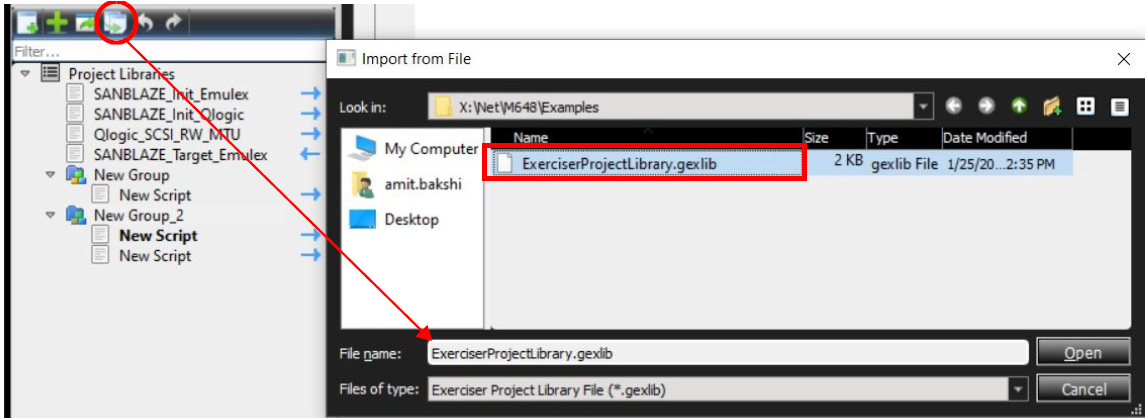
Import: users can import any FC Exerciser library (*.gexlib)
Project Library Tree
-
Each item keeps a group or an Exerciser script.
-
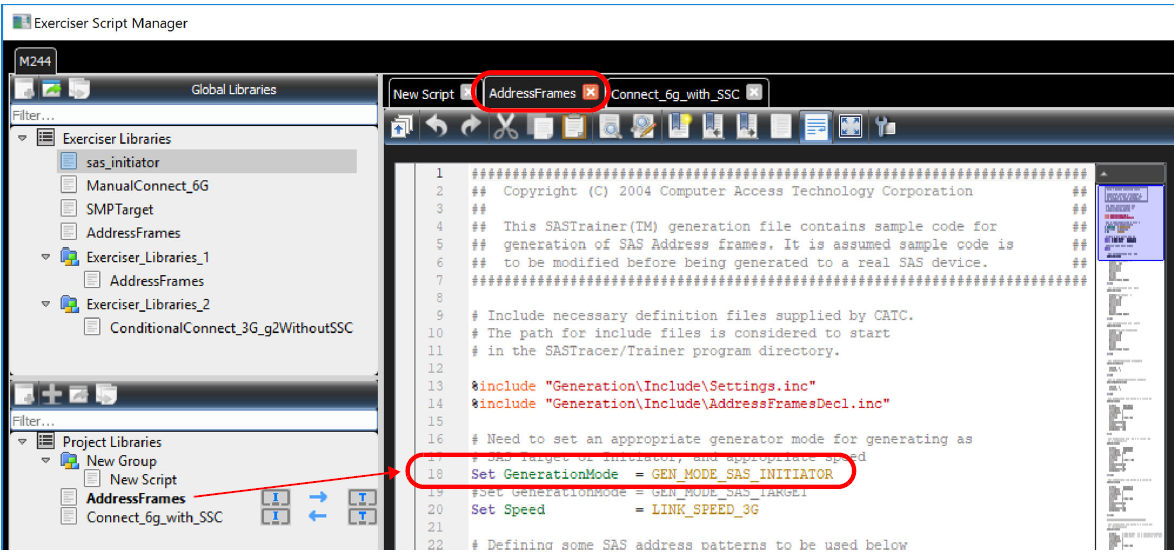
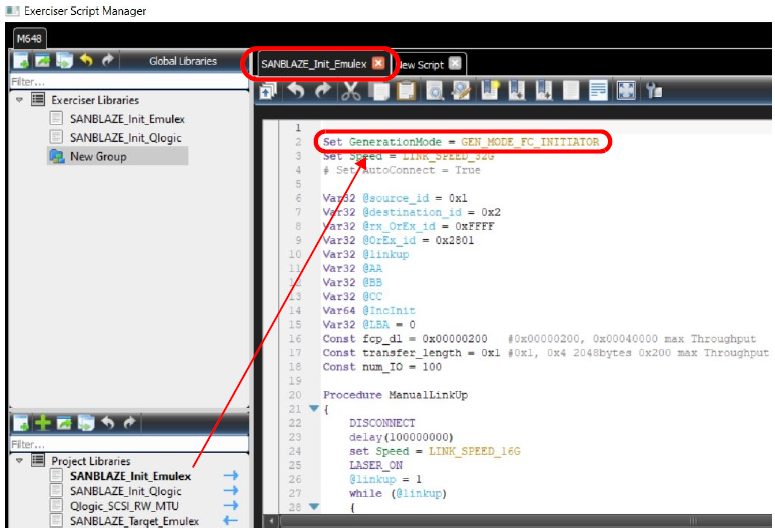
I or T will be shown in front of each script to identify the script generation mode (Initiator or Target).
The Project Library window (on the left) displays the project libraries. The Scripts saved in the Project Library are only available for the current project.
In the Project Libraries Panel at the Script Level (with a right click) you can:
-
Cut a Library
-
Copy a Library
-
Paste a Library
-
Delete a Library
-
Rename a Library
-
Sort Libraries
-
Sort All
-
Add New Group (or add New Project Library)
-
Add New Exerciser Script
-
Export to a file
-
Import from a File
Add New Library Group Icon
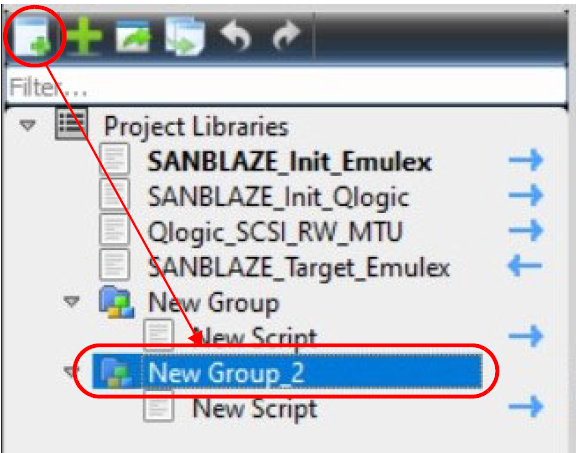
The New Group icon has a number of functions depending on how it is used:
-
If nothing in the tree list is selected, then New Group will add a new Project Library folder.
-
If a Project Library folder is selected, then New Group will add a New Group folder underneath that Project Library folder.
-
If a folder is selected, then New Group will add a New Group folder underneath the selected folder.
-
If a Script is selected, then New Group is disabled.
Selecting the Add New Library Group Icon will produce a new Project Library. Its primary function is to help you organize your Scripts and Project Libraries.
Add a New Exerciser Script to Project Library
Click on the New Script icon to open a blank script editor pane.
Note: Teledyne LeCroy recommends loading an existing script and modifying it to suit your needs. Examples script are located as part of the installation of the NET Protocol Suite software. Typically these example scripts are located at: C:\Users\Public\Documents\LeCroy\NET Protocol Suite\Generation\Samples
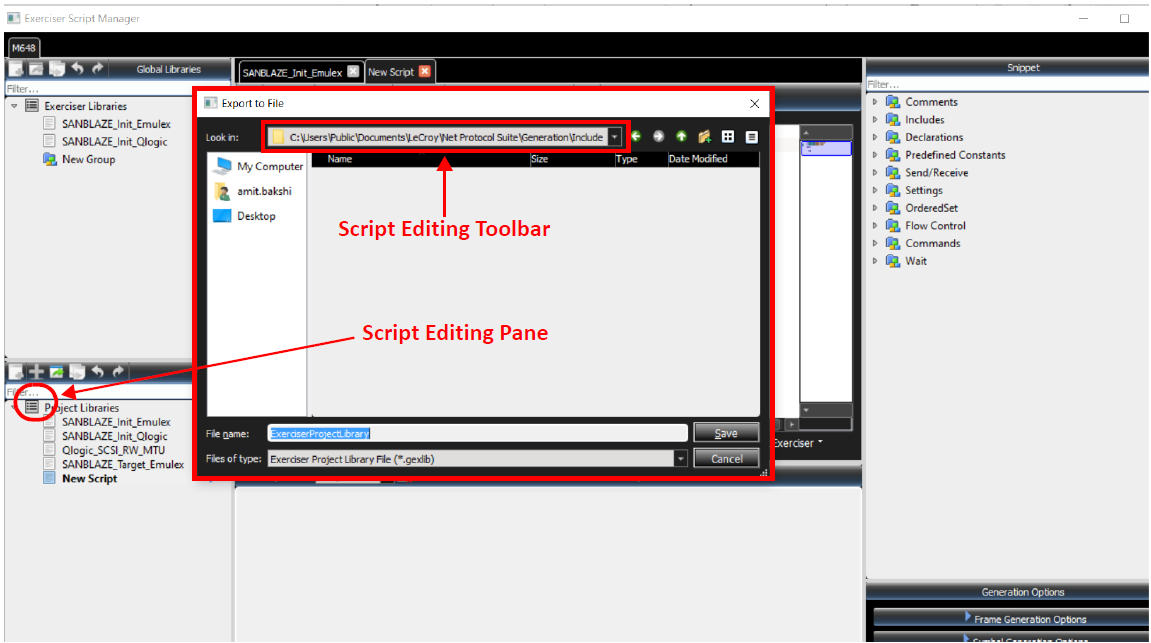
See Script Editor Toolbar for more details.
Export Exerciser Script Library to File
Selecting the Export Library Icon will pop up the following dialog, from which you can pick a library to Export.
Import Project Library
Selecting the Import Library Icon will pop up the following dialog:
Script Traffic Generation Mode
The Mode for traffic generation is shown on a global basis for the entire Script. In other words, the traffic will be generated as Initiator/Host or Target/Device based on defined “GenerationMode” in the script. The generation mode can be one of the following values:
-
GEN_MODE_FC_INITIATOR
-
GEN_MODE_FC_TARGET
See examples below: