This feature enables the conversion of Traces to Exerciser scripts. It converts the FC Trace to a ready-to-run script that is a closer match to the original data.
Accuracy depends upon external factors such as drive behavior and the starting point of the exported frames. For example, if the capture is started with a wait for a response frame, it could be stuck at that point indefinitely.
Note: A memory limitation in bus engine (BE) limits the number of packets that can be exported.
-
A few packets mightbe dropped at the beginning of the Trace before the first valid command packet.
-
Underlying bandwidth issues may miss some wait_for commands.
To regenerate captured traffic in the Exerciser:
-
Open a Trace file.
-
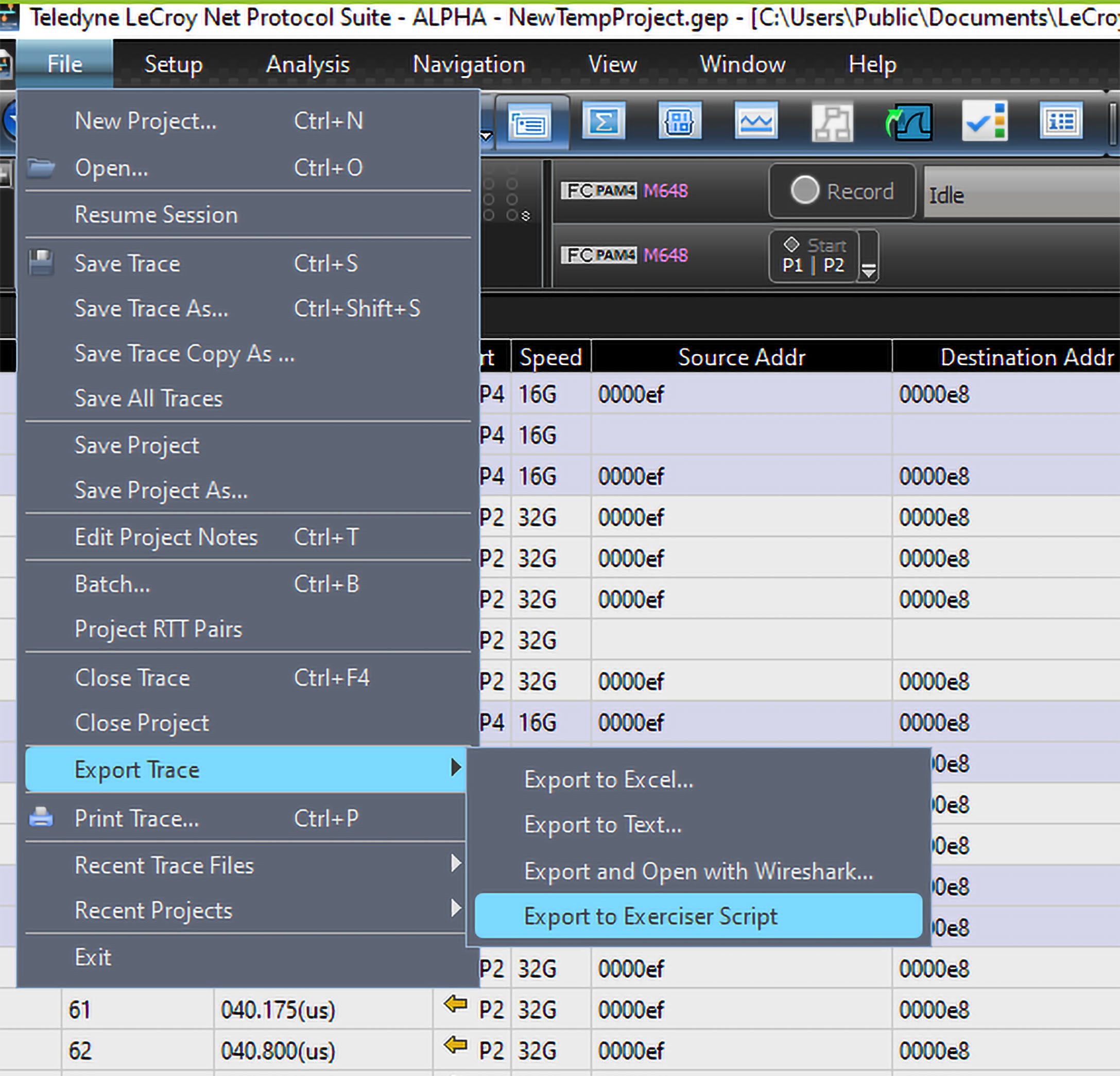
Select File > Export Trace > Export to Exerciser script, as shown below.
-
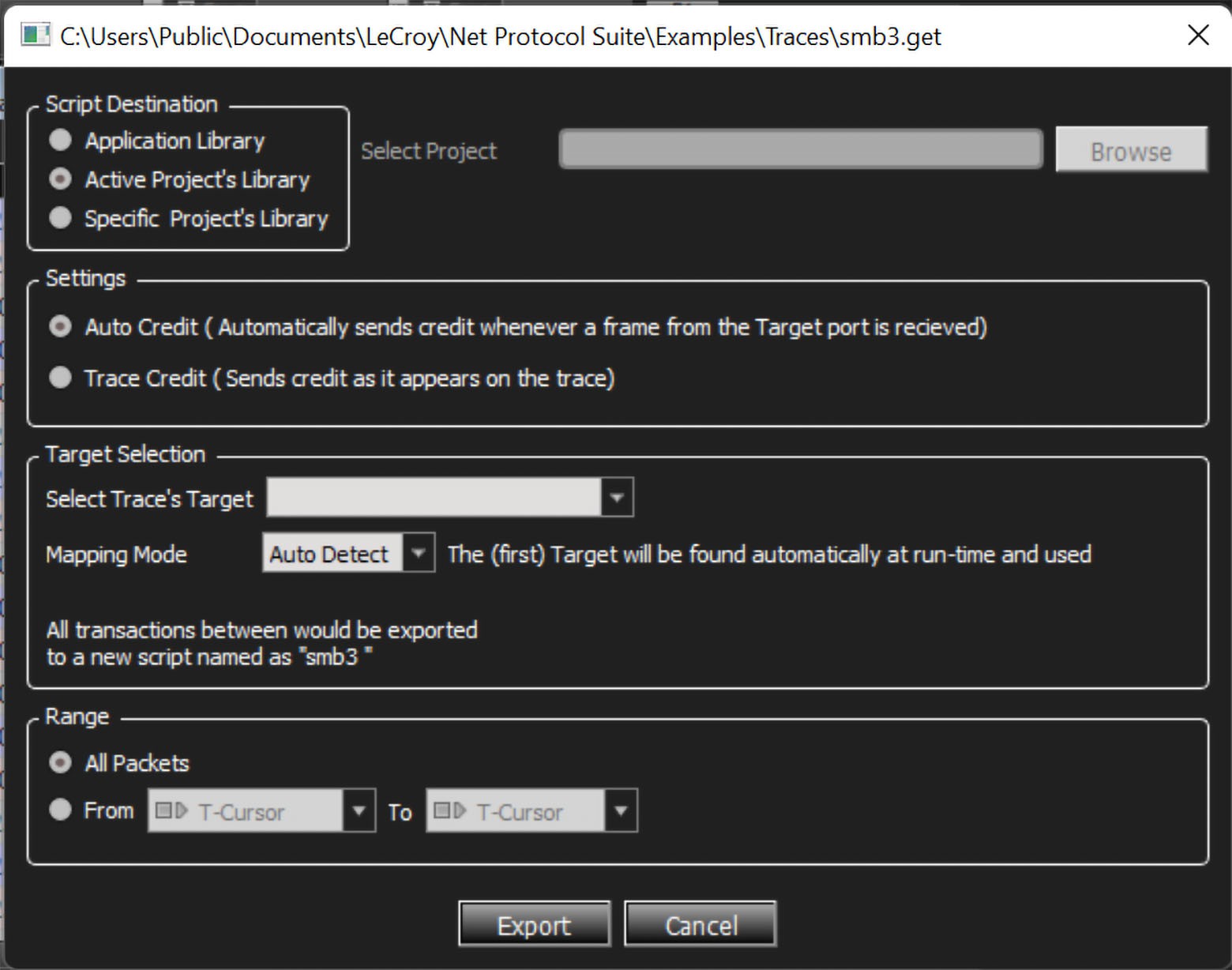
The Export to Exerciser Script Dialog displays.
-
To select the target, set the Mapping Mode to either Auto Detect or Wizard.
-
Auto Detect: Exports the trace to an exerciser script without mapping to any specific target.
-
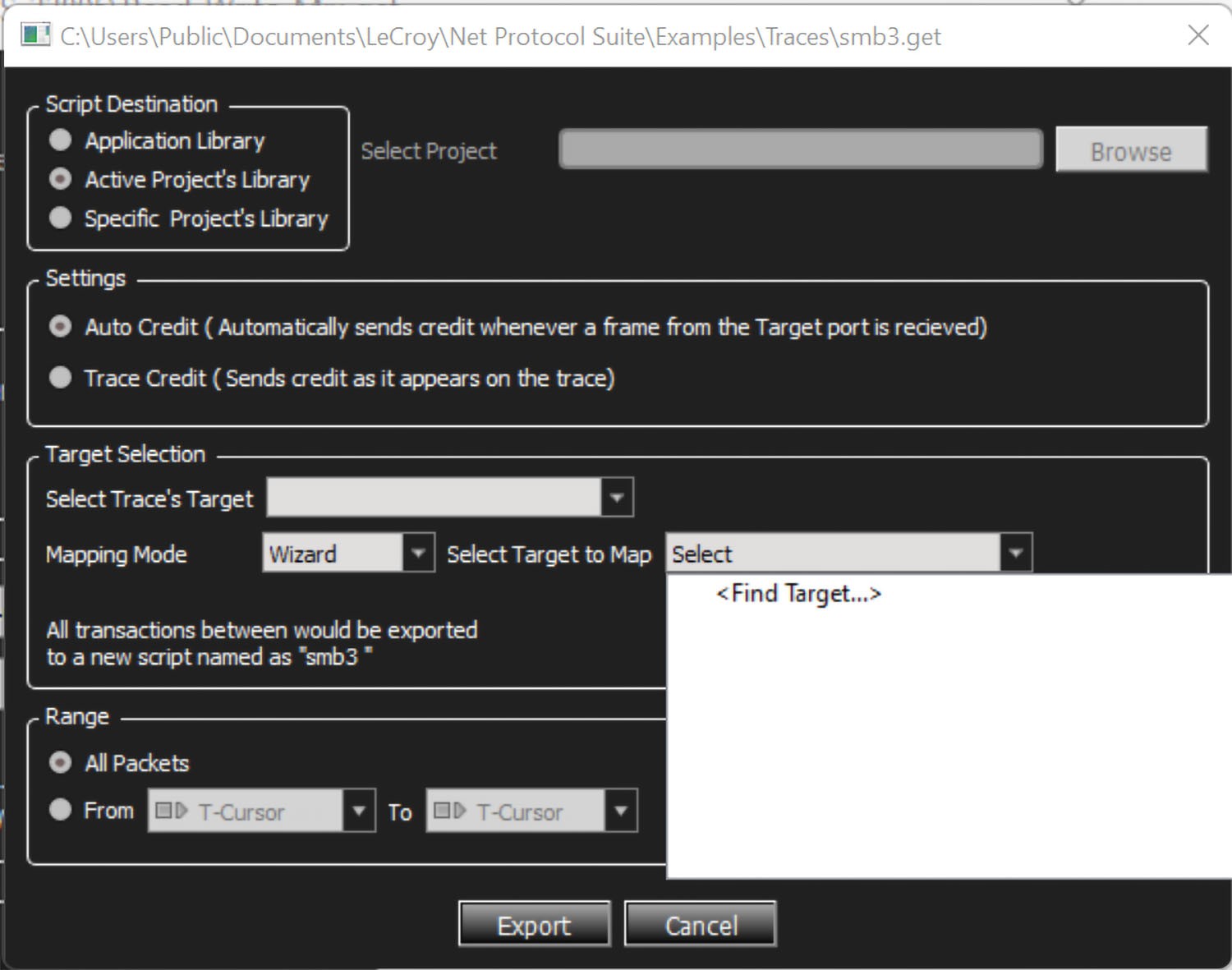
Wizard: Allows you to choose a currently existing target to export the trace.
-
Auto Detect
If you choose Auto Detect, the system automatically detects a target and pre-fills the Select Trace’s Target menu. Auto Detects returns the first detected targets. It detects targets on any topology, such as point to point/Fabric.
To execute the script, select the target from the Select Trace’s Target menu and click Export. The system creates a script.
Wizard
Select this option to map the trace's target to a currently existing target:
-
From the Mapping Mode drop down, select Wizard. This opens the Select Target to Map drop-down menu.
-
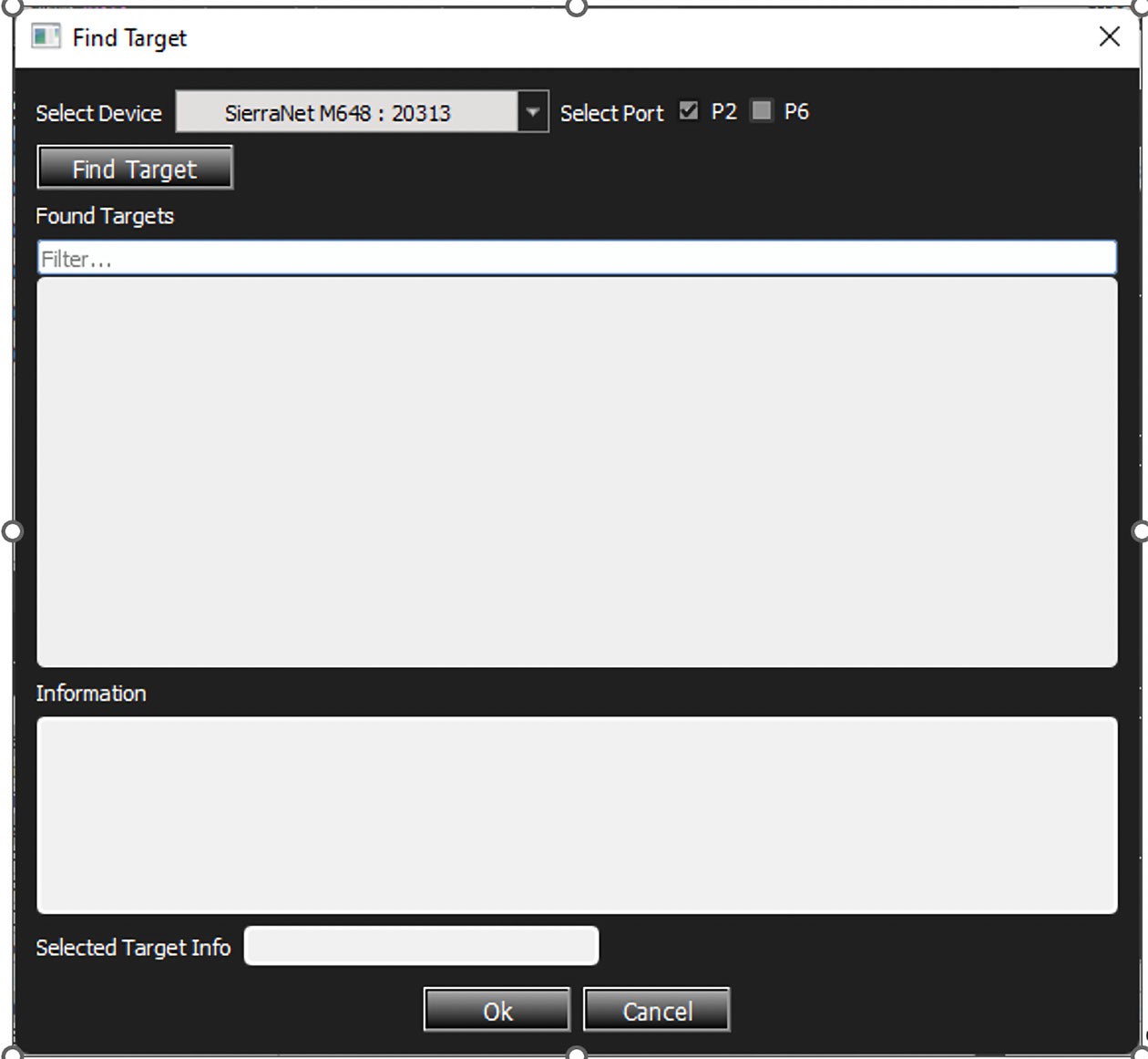
In the Select Target to Map drop-down menu, click Find Target. This opens the Find Target dialog box.
-
Select Device: Choose the analyzer from the drop down list.
-
Select Port: Check the specific ports to find the targets. For example, the image below shows P2 checked because there is a fabric connected only to P2.
-
Click Find Target to start the process.
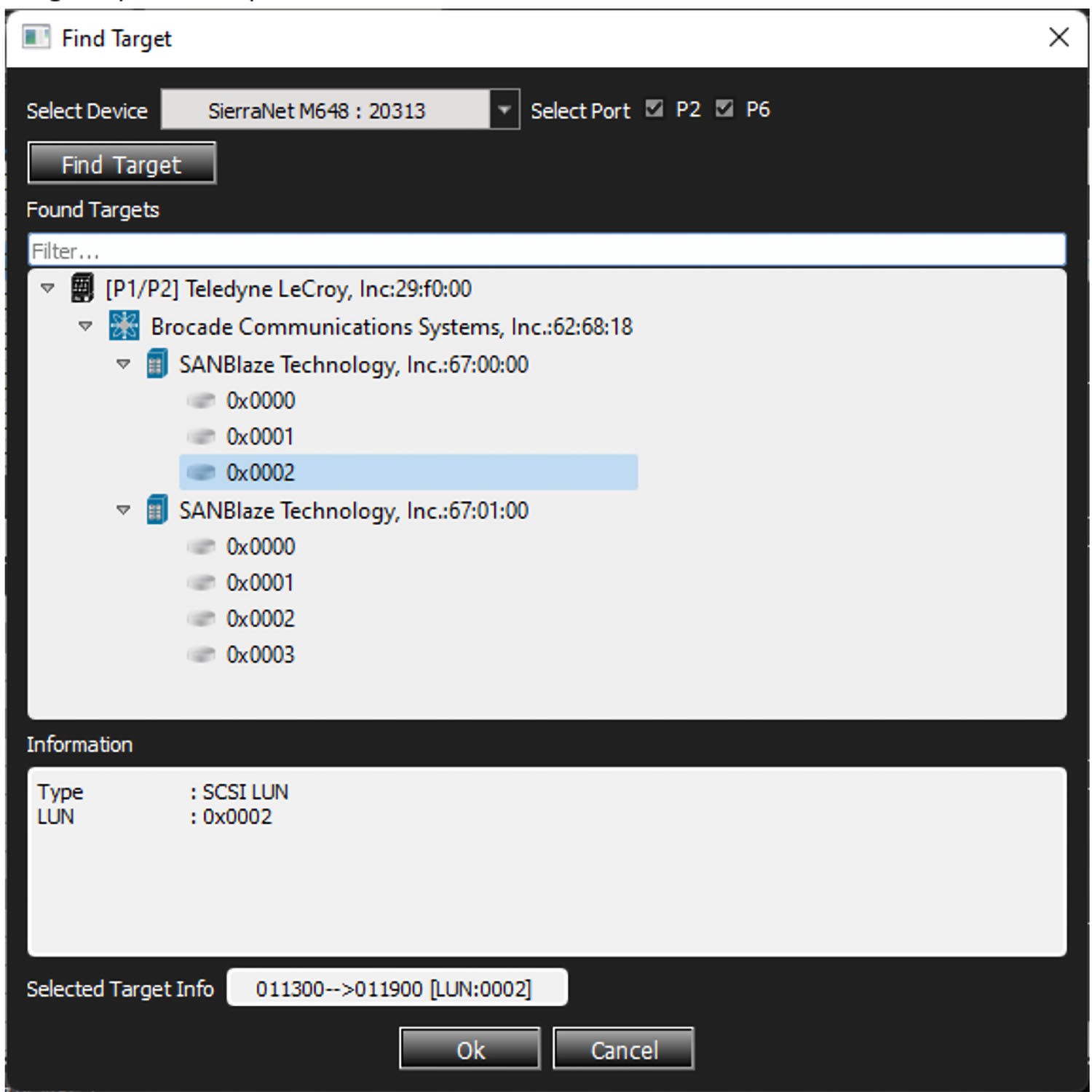
An example of a compete fabric connected to the P2 port is shown below. The P2 port is connected to a Fabric (Brocade) and 2 separate Targets (SANBlaze) are connected to the fabric with their own LUNs.
-
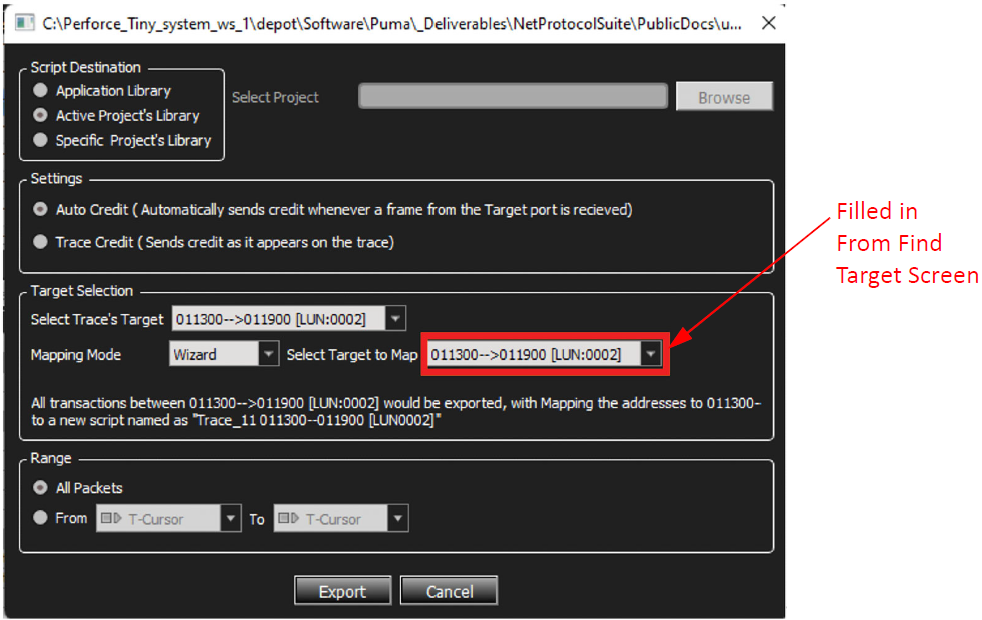
Select the desired target from the list and click OK. The system closes this dialog and populates the Export to Script dialog with the chosen target information.
Creating the Exerciser Script
-
Verify that the correct target is in the Select Target to Map field.
-
If desired, change the target using the drop down next to the Select Trace’s Target and the Select Target to Map fields.
-
To export the target to the exerciser script, click Export.
-
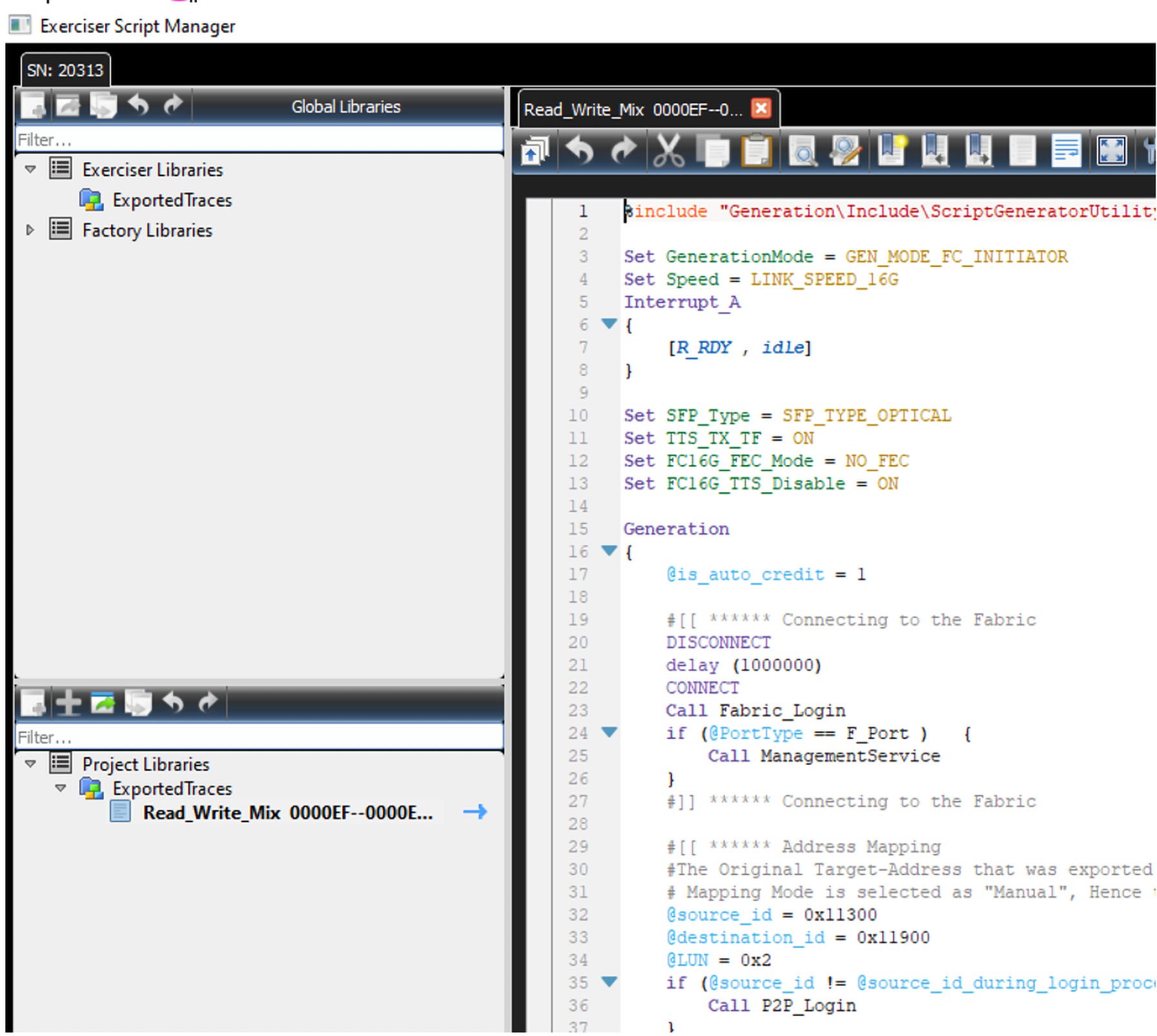
The Exerciser Script Manager window displays the script information for the selected target.
-
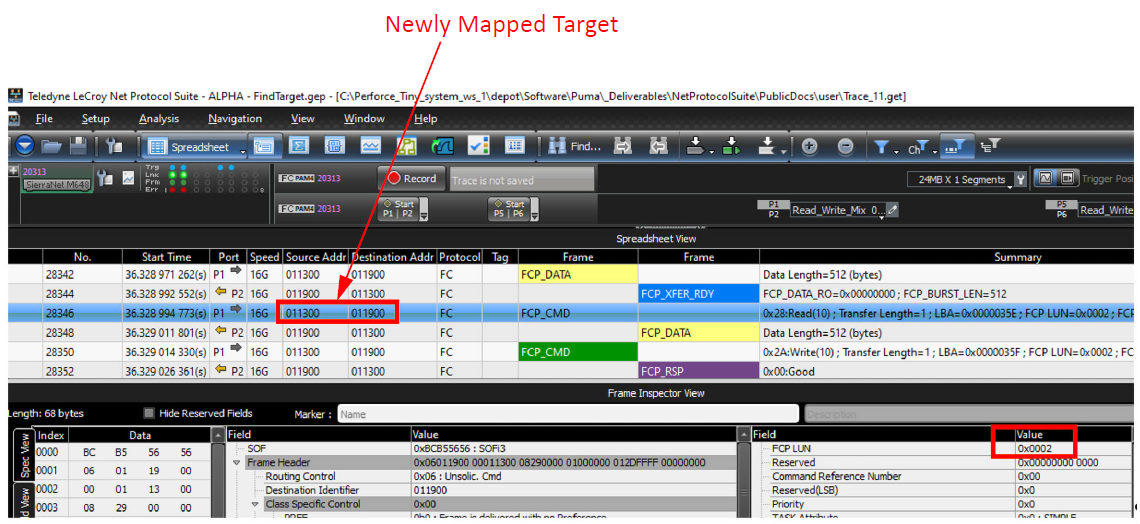
The trace to exerciser script is complete. To create a trace, similar to the one shown below, run the script and capture. The original trace's target is now mapped to the new target.
Additional Information
Some additional features of the Sierra Net Protocol Suite are the following:
-
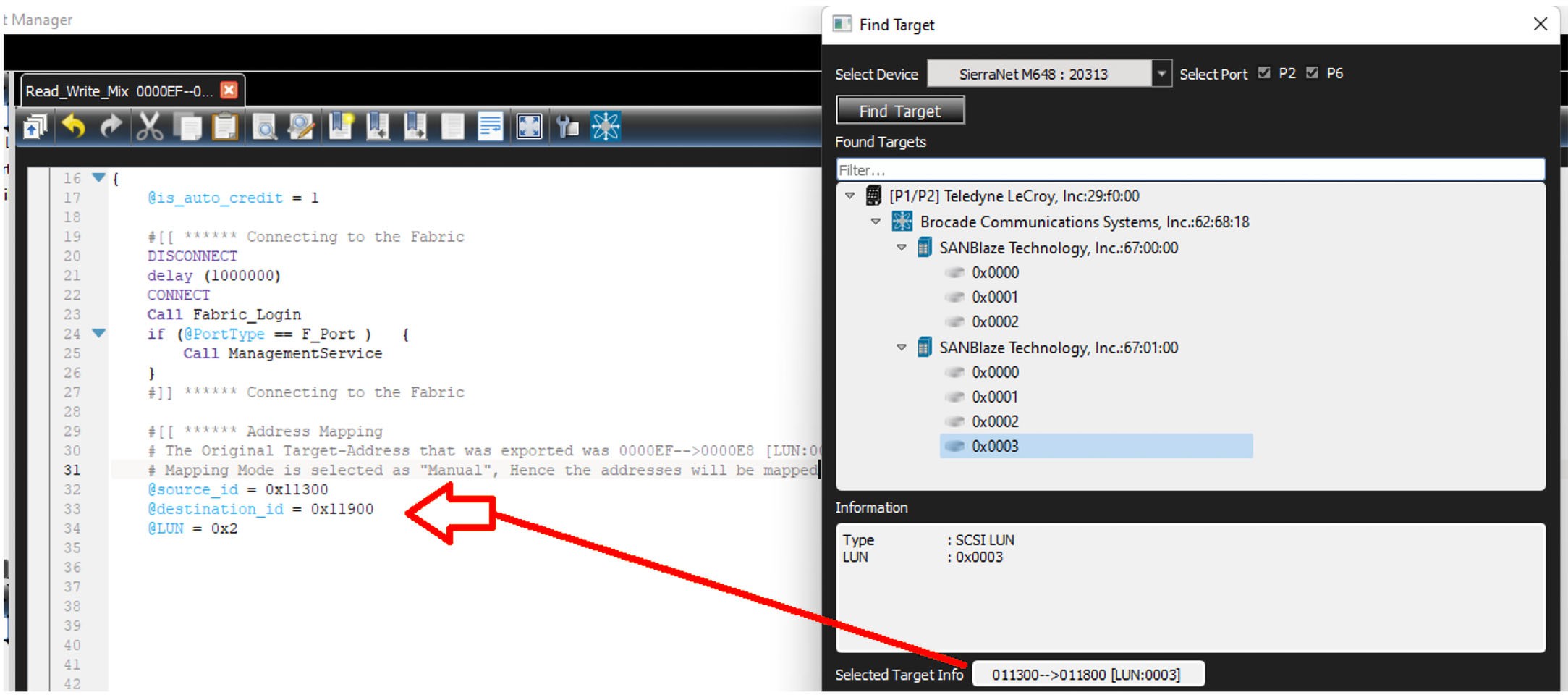
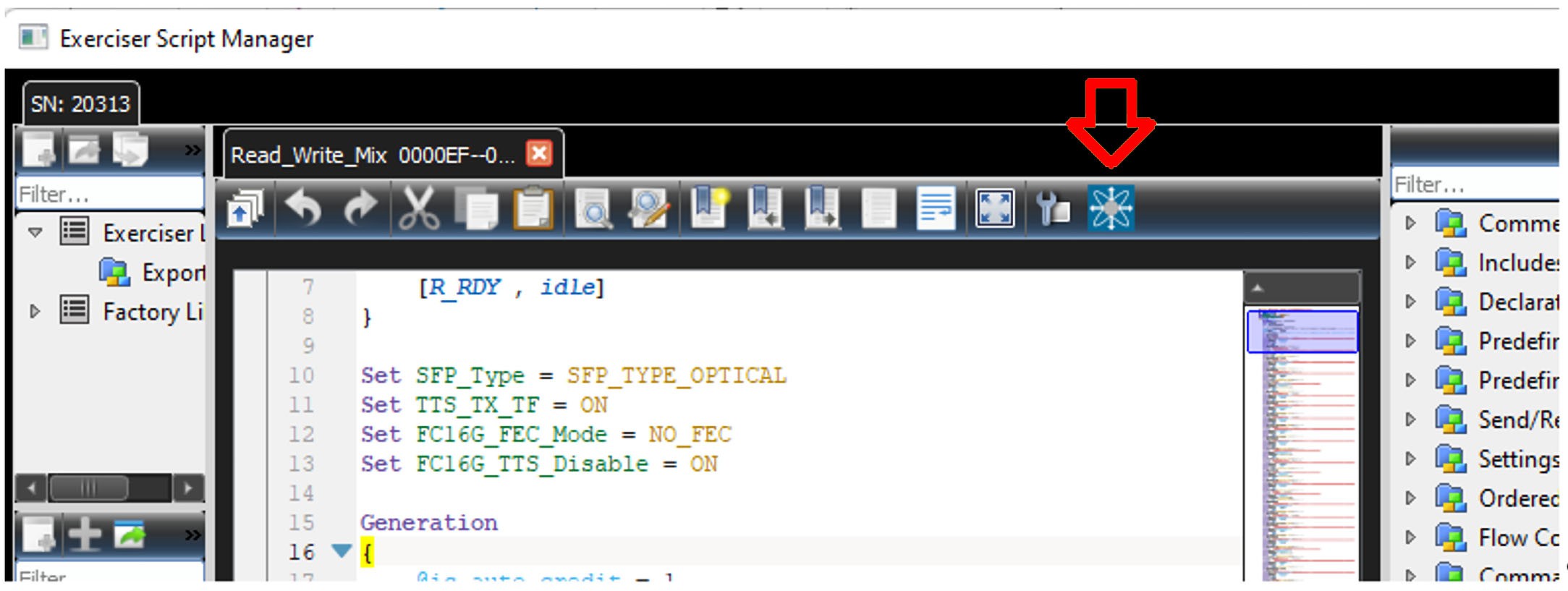
There is a Find Target icon on the Exerciser Script Manager. Using it launches the Find Target dialog form which you can easily select different targets to add to the Exerciser Script Manager.
-
You can edit the target in the Exerciser Script, as shown below. Change the variable's value to the newly mapped target. This feature helps to avoid exporting the trace again and again, if the intention is to just change the mapping of the target.