
The Global Library Panel keeps groups of scripts that can be used in other projects. This global library is saved in the preferences and not in the project.
The Main Library window (on the left) displays the available Exerciser Library Scripts. You can create a New Script, Open Containing Folder, Copy Container Folder Path, Add New Library, Rename Library or Remove Library. The Scripts saved on a specific platform in the Global Library are available in all projects for the same platform.
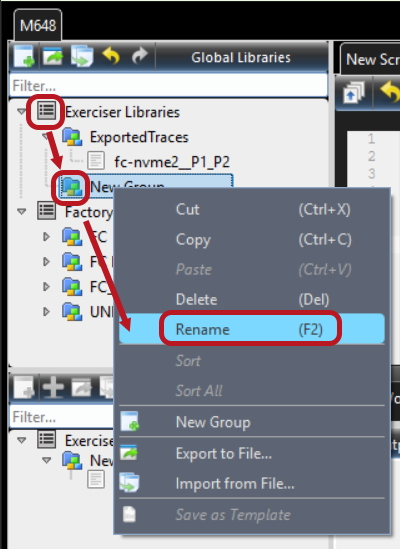
In the Global Libraries Panel at the Library Level, with a right click, you can:
-
Cut a Library
-
Copy a Library
-
Paste a Library
-
Delete a Library
-
Rename a Library
-
Sort Libraries
-
Sort All Libraries
-
Add a New Group
-
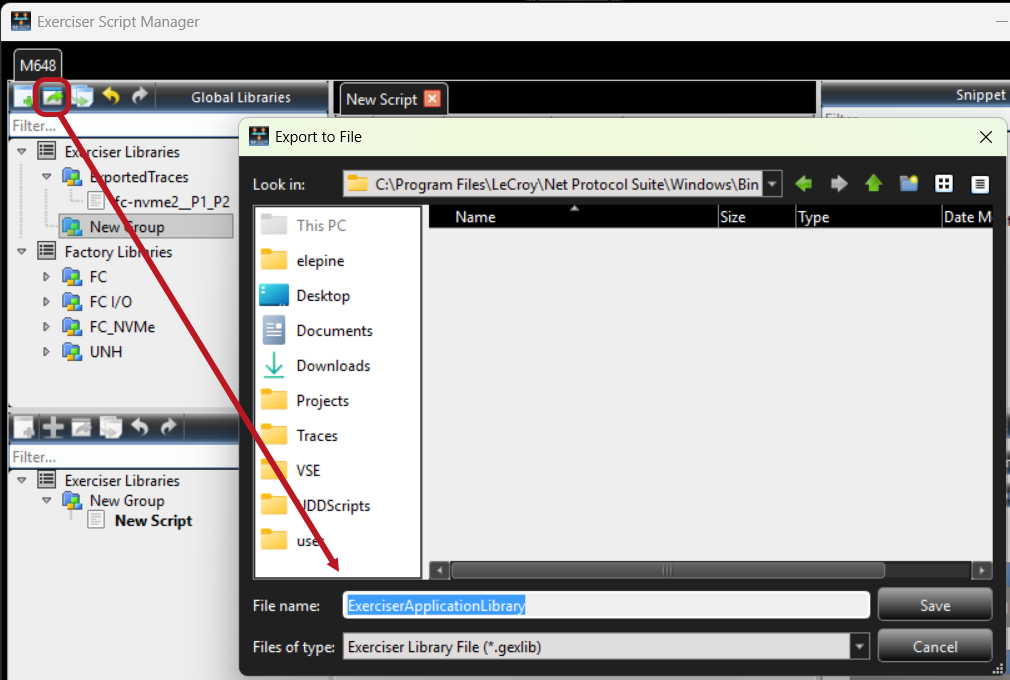
Export Libraries to a File
-
Import Libraries from a File
Exerciser Libraries – New Group
The New Group icon has a number of functions depending on how it is used:
-
If nothing in the tree list is selected, then New Group is disabled.
-
If Exerciser Libraries is selected, then New Group will add a New Group folder underneath Exerciser Libraries.
-
If a folder is selected, then New Group will add a New Group folder underneath the selected folder.
If you click New Group, a new Library called New Group appears in the Global Libraries pane. You can rename it by right clicking on it and changing the name to something that makes sense for your testing. Its primary function is to help you organize your Global Script Libraries.
Exerciser Libraries – Export to File
If you select Export to File the following menu displays. Navigate to the Project folder to export your Project Library to a File.
Exerciser Libraries – Import From Exerciser Script File
You can also Import Libraries from an Exerciser Script Library File.
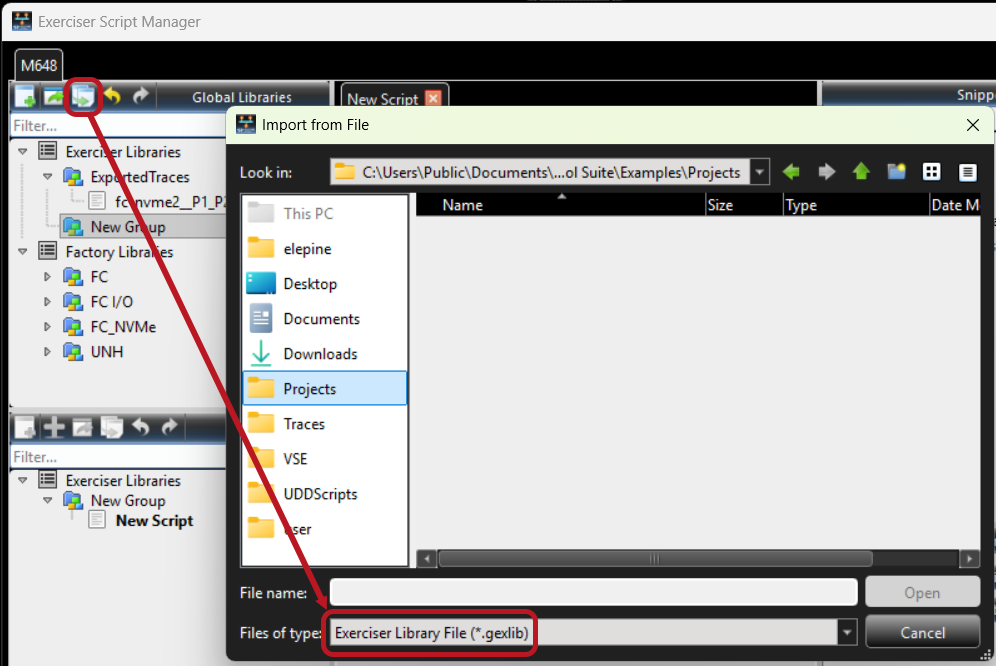
Import Exerciser Script from File
You can import an example file by clicking on that option and importing all of the scripts in the imported library.
Project
The Project stores and persists defined scripts under the Project Library. To keep any script changes, manually save the project or enable Auto Save in the Exerciser settings dialog.
Note: Include files are not persistent in the project. They are saved automatically if any change is applied by the Exerciser Editor.
Session
The Exerciser session has a three-state button to support Start, Stop, and Continue:
-
Start: Run a specific port Exerciser.
-
Stop: Stop currently running Exerciser in the port.
-
Continue: When the running script reaches a Pause command, it pauses. The Stop button changes to Cont. and starts blinking. Press Cont. to continue running the paused script.
Script Assignment
The Exerciser GUI works the same way as the Jammer GUI. When configured as an Exerciser, it shows a drop-down list to choose an existing script from the Project Library or create a new one.
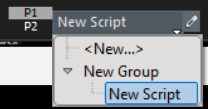
Exerciser Status
Note: Based on the Script mode (Initiator/Target), it will highlight Ix or Tx icons in the left side of the Script Assignment.
The Exerciser Status and Exit code of each port display in Device Output.
