
This section describes the Presets Ethernet patterns for SierraNet T328, SierraNet M328, SierraNet M408, and SierraNet M168.
Note: The example images used in this section are for M168, Ports P3/P4, GigE 10.
Basic
Loss of Sync
-
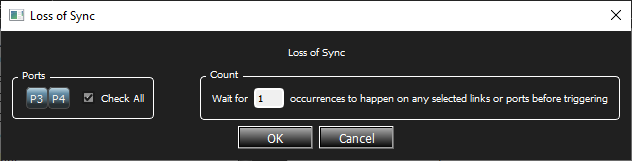
Double-click Loss of Sync to open the Loss of Sync dialog box. This event detects loss of sync on the Ethernet physical layer receiver.
-
Click inside the Check All box to select all available ports.
-
In the Count area, enter the expected number of occurrences.
Symbols
-
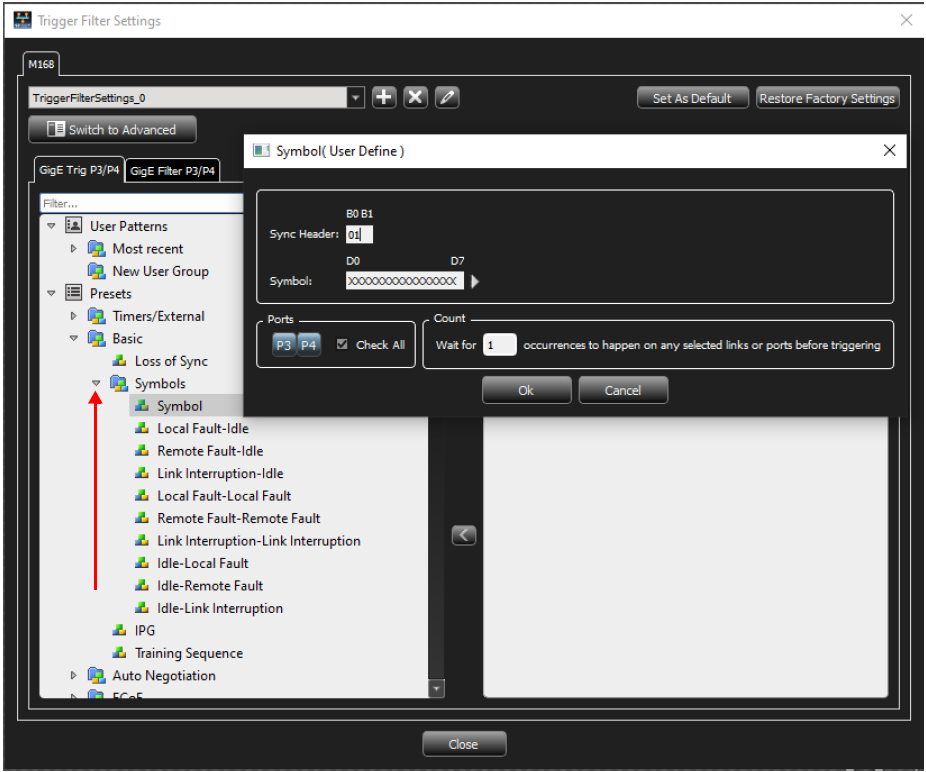
Click the arrow next to Symbols to expand the list of Symbols patterns.
-
Double-click on the pattern you need.
-
Enter the values for the Sync Header and Symbol.
-
In the Ports area, click inside the box for Check All to select all available ports, or use default.
-
Enter the expected number of occurrences in the Count field.
-
Click OK to add the Pattern. Two different order sets can exist in one 64 bits payload of a 66 bits block. The six examples of a remote and local fault given below demonstrate how to manually enter ordered set triggers.
-
0x0100000001000055 > local fault-local fault
-
0x000000000100004b > local fault-idle
-
0x010000000000002D > idle-local fault
-
0x0200000002000055 > remote fault-remote fault
-
0x000000000200004b > remote fault-idle
-
0x020000000000002D > idle-remote fault
-
IPG
-
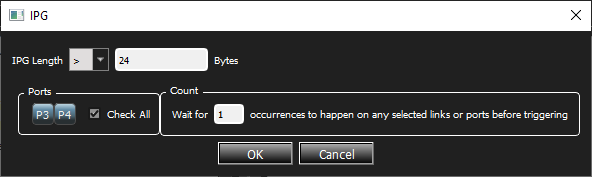
Double-click IPG to open the IPG dialog box.
-
Enter the IPG Length from the drop-down list, Bytes values, and the count of the expected number of occurrences.
-
Check the Check All box to select all available ports, or you can individually select ports.
Training Sequence
-
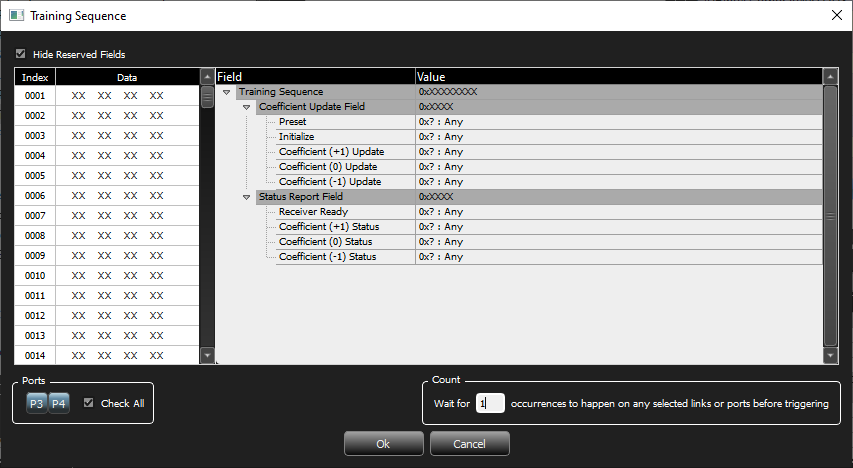
Double-click Training Sequence to open the Training Sequence window.
-
Enter the values for Control Field and Status Field, then enter the count for the expected number of occurrences.
-
Click inside the Check All box to select all available ports, or individually select ports.
Auto Negotiation
-
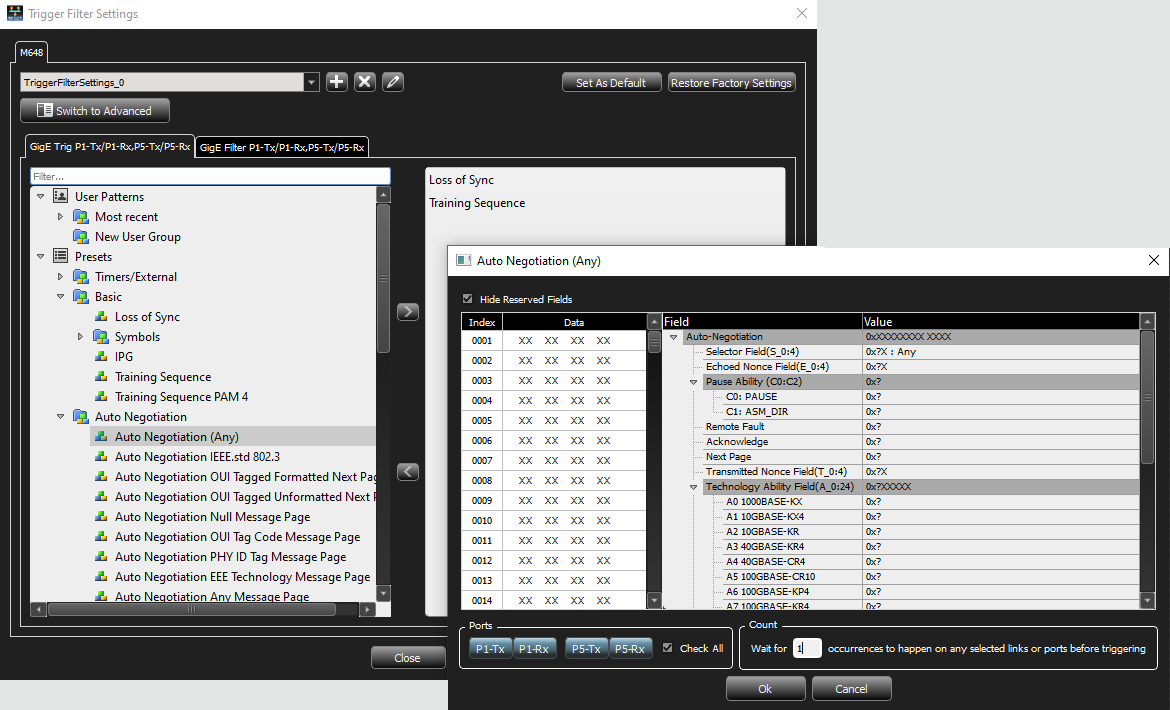
Click the arrow next to Auto Negotiation to expand the list of Auto Negotiation patterns.
-
Double click on the pattern you need.
-
Enter the values for the fields as appropriate.
-
Enter the expected number of occurrences.
-
Click inside the Check All box to select all available ports, or individually select ports.
FCoE Patterns
Basic
Basic Link Service
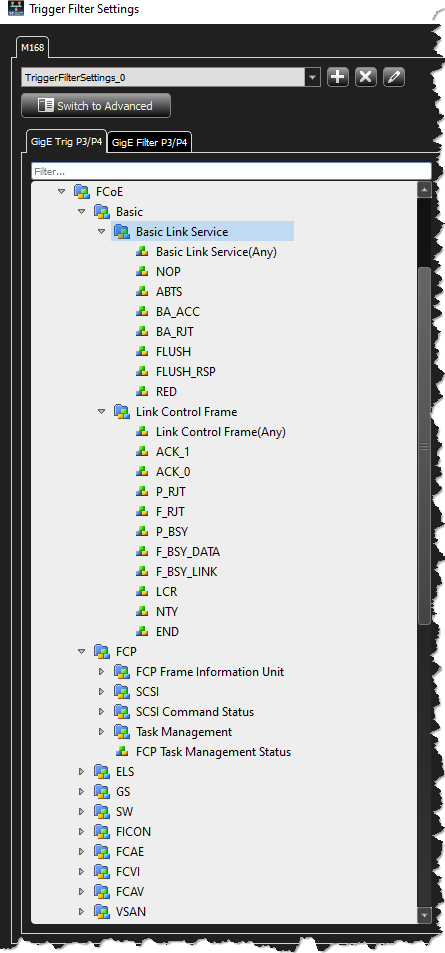
For any Ethernet pattern, double-click the pattern name. Click the arrow next to Basic Link Service to expand the list of patterns.
Note: Some screen captures for the Ethernet patterns are similar to the screen capture shown below.
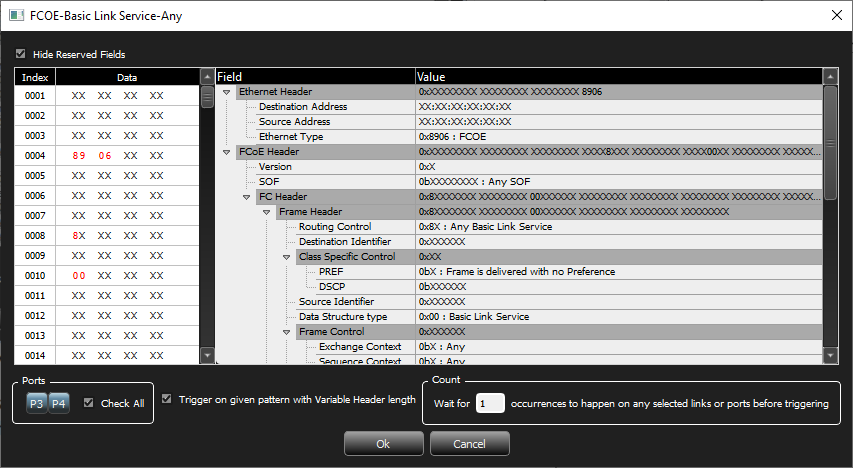
Enter the values for the Ethernet header, FCoE header, Frame header and the count of the expected number of occurrences. Check the Check All box to select ports P1 through P8 or individually select ports.
Check the Trigger on given pattern with variable header length box to automatically adjust the offset, if optional headers like VLAN tag, VNTag, etc. are present. Uncheck it, to trigger for a pattern at a specific offset from the start of the frame.
Note: Some patterns have additional options to select from drop-drown lists as shown in the figure above.
Link Control Frame
For any FCoE pattern, double-click the pattern name; for example, double-click Basic Link Service to open the Basic Link Service Pattern window.
Note: Some screen captures for the FCoE patterns are similar to the screen capture shown below.
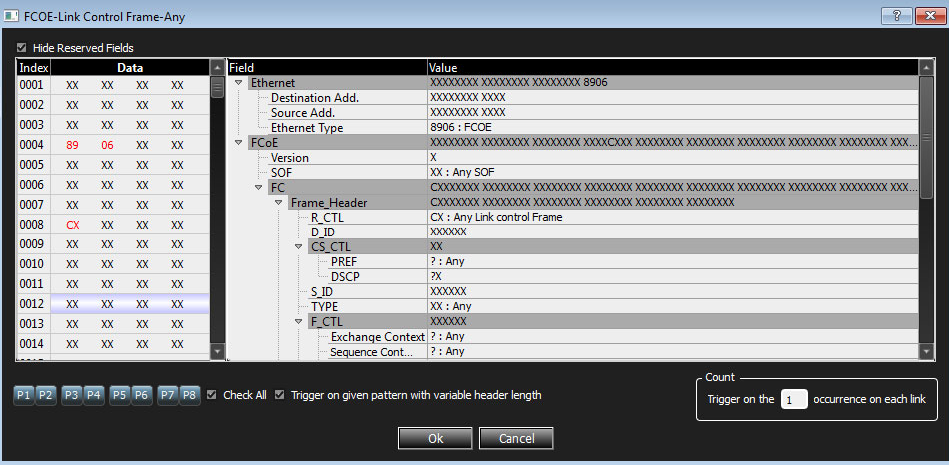
Enter the values for the Ethernet header, FCoE header, Frame header and the count of the expected number of occurrences. Check the Check All box to select ports P1 through P8 or individually select ports.
Check the Trigger on given pattern with variable header length box to automatically adjust the offset, if optional headers like VLAN tag, VNTag, etc. are present. Uncheck it, to trigger for a pattern at a specific offset from the start of the frame.
The following additional Ethernet patterns are available:
FCP Patterns
-
Frame Information Unit SCSI
-
Any SCSI Command
-
6-Byte Any SCSI Cmd
-
10-Byte Any SCSI Cmd
-
12-Byte Any SCSI Cmd
-
16-Byte Any SCSI Cmd
-
-
Long LBA 16-Byte Any SCSI Cmd
-
Variable Length Any SCSI Cmd
-
Variable Length for Long LBA 32-Byte Any SCSI Cmd
-
SPC4
-
SBC3
-
MMC6
-
SMC2
-
SSC (see Table 4.5 for latest version of SSC supported)
-
OSD2
-
ADC3
-
FCP Task Management ELS Patterns
-
ELS Request
-
ELS Reply
GS Patterns
-
Generic Link Service-Request
-
GS Reply
GS_RJT
GS Accept
-
FC-SW-5
-
Event Service
-
Key Distribution Service
-
Alias Service
-
Management Service
-
Fabric Configuration Service
-
Unzoned Name Server
-
Fabric Zone Server
-
Reserved for Performance Server
-
Security Policy Server
-
Security Information Server
-
Fabric Device Management Server
-
-
Time Service
-
Directory Service
-
Name Server
-
Directory Service - FC-4 Specific Servers
-
SW Patterns
-
SW Request
-
SW Reply
FICON Patterns
FCAE Patterns
-
FCAE_ASM
-
FCAE-1553
FCVI Patterns
FCAV Patterns
VSAN Patterns (all FC patterns listed above are available under VSAN as well)
FIP Patterns
For any FIP pattern, double-click the pattern name, for example, double-click Discovery Solicitation from ENode to open the window.
Note: All the screen captures for the FIP patterns are similar to the screen capture shown below.
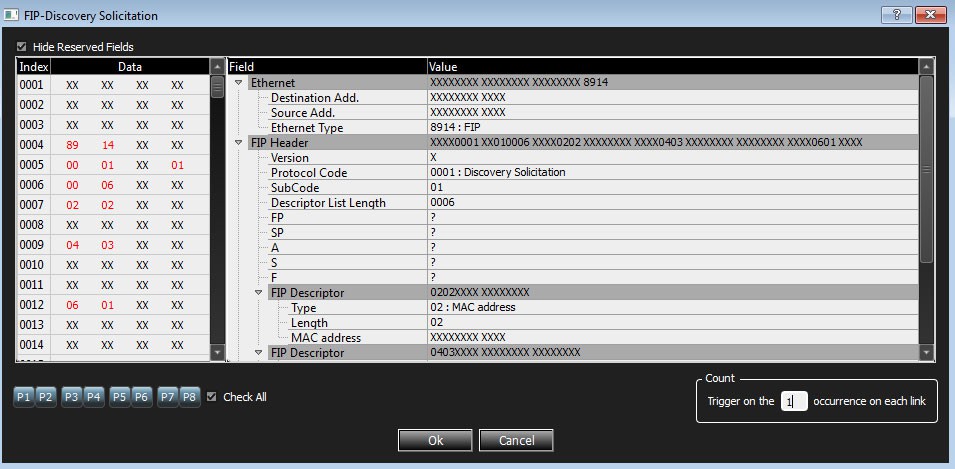
Enter the values for the Ether header, FIP Header and the count of the expected number of occurrences. Check the Check All box to select ports P1 through P8 or individually select ports.
The following FIP patterns are available:
-
Discovery Solicitation from ENode
-
Discovery Solicitation from FCF
-
Discovery Advertisement
-
FIP FLOGI Request
-
FIP FLOGI LS_ACC
-
FIP FLOGI LS_RJT
-
FIP NPIV FDISC Request
-
FIP NPIV FDISC LS_ACC
-
FIP NPIV FDISC LS_RJT
-
FIP Fabric LOGO
-
FIP Fabric LOGO LS_ACC
-
FIP Fabric LOGO LS_RJT
-
FIP ELP Request
-
FIP ELP SW_ACC
-
FIP ELP SW_RJT
-
FIP Keep Alive
-
FIP Clear Virtual Links-5DWORD Descriptor
-
FIP VLAN Request-2DWORD Descriptor
-
FIP VLAN Notification
MPCP Pattern
Double-click Multi control Protocol Frame to open the window.
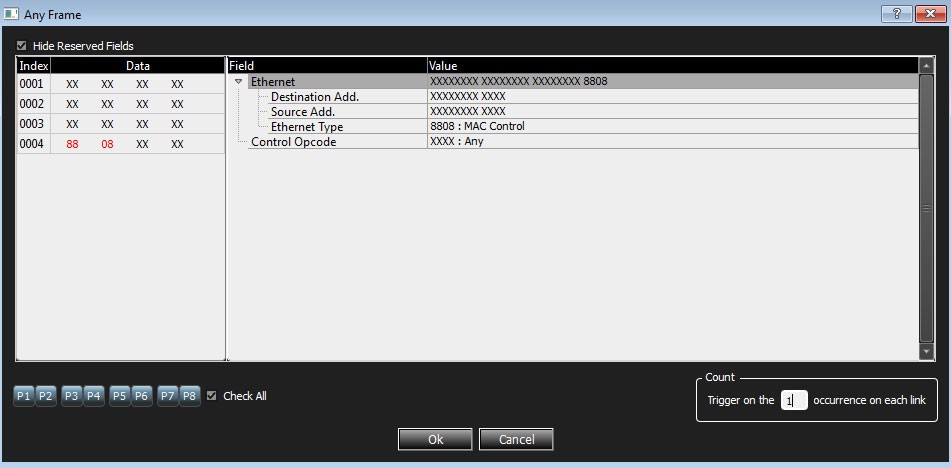
Enter the values for the Ether header and the count of the expected number of occurrences. Check the Check All box to select ports P1 through P8 or individually select ports.
Address Resolution Protocol Pattern
Double-click Address Resolution Protocol to open the window.
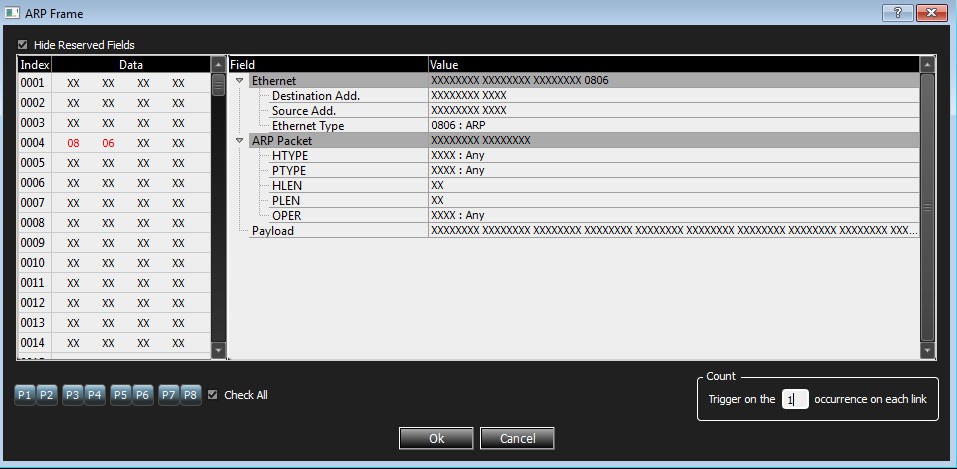
Enter the values for the Ether header, ARP Event and the count of the expected number of occurrences. Select Check All to select ports P1 through P8, or individually select ports.
Link Layer Discovery Protocol Pattern
Double-click LLDP Frame to open the window.
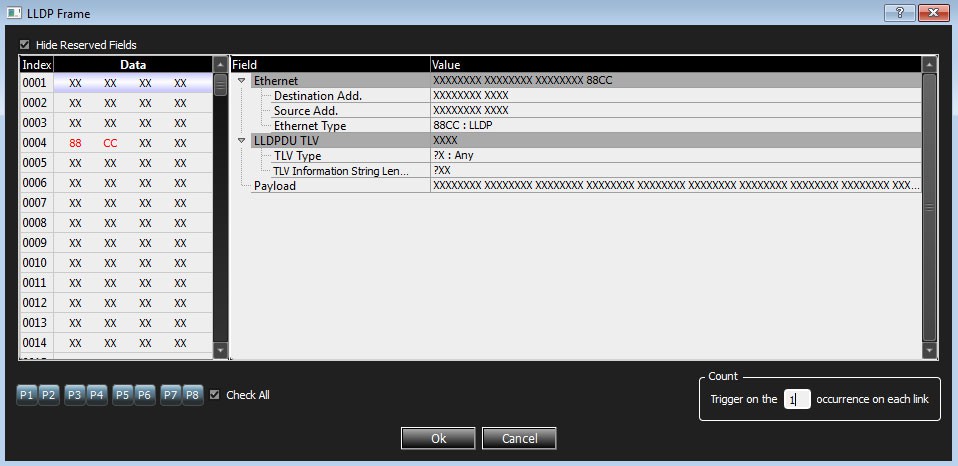
Enter the values for the Ether header, LLDPDU TLV and the count of the expected number of occurrences. Check the Check All box to select ports P1 through P8 or individually select ports.
Internet Protocol Pattern
Double-click Any IP Frame to open the window.
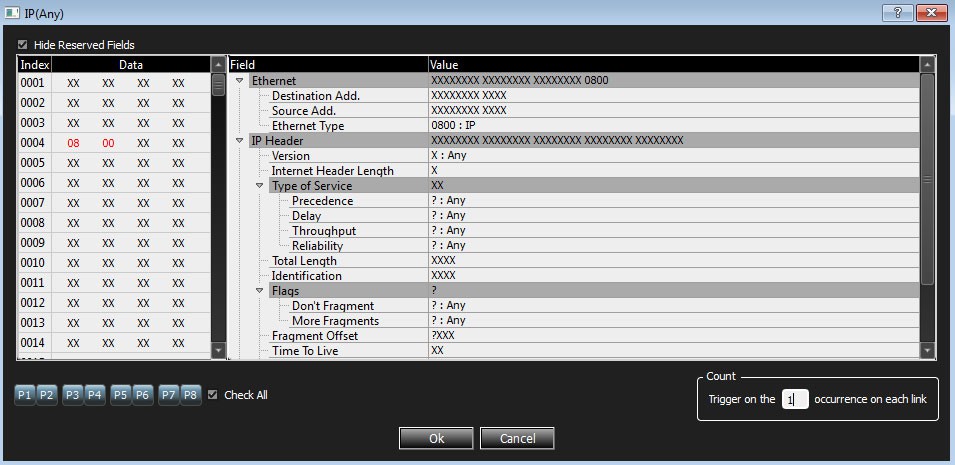
Enter the values for the Ether header, IP Header and the count of the expected number of occurrences. Check the Check All box to select ports P1 through P8 or individually select ports.
Other Internet Protocol patterns available are:
-
IP Frame (ICMP)
-
IP Frame (IGMP)
-
IP Frame (IPV6)
-
IP Frame (OSPF)
-
IP Frame (AH)
-
IP Frame (ESP)
-
IP Frame (PIM)
-
IP Frame (UDP)
-
IP Frame (TCP)
iSCSI Pattern
Initiator PDU
Double-click iSCSI Data-Out to open the window.
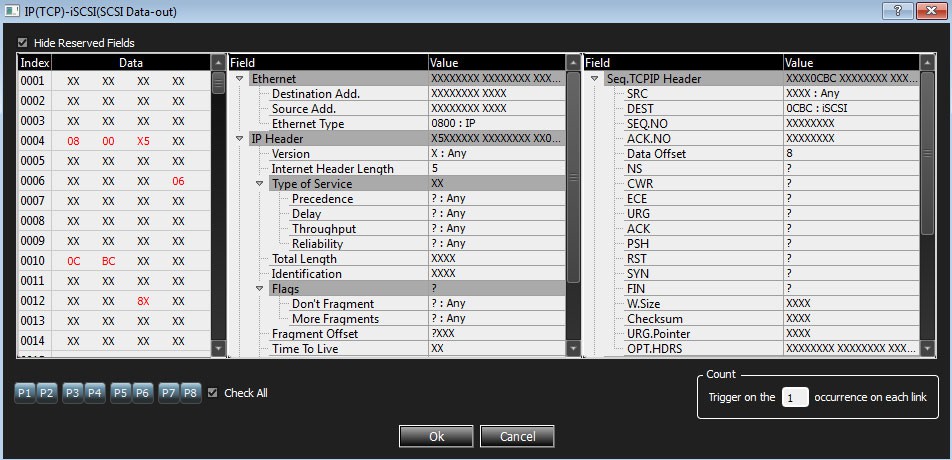
Enter the values for the Ether header, IP Header and the count of the expected number of occurrences. Check the Check All box to select ports P1 through P8 or individually select ports.
Other ISCSI patterns available are:
-
iSCSI Login Request
-
iSCSI Logout Request
-
iSCSI NOP-Out
-
iSCSI SNACK Request
-
iSCSI Task Mgmt Request
-
iSCSI Text Request
Target PDU
The dialogs are similar to the Initiator PDU above. The patterns available are:
-
iSCSI Asynchronous Message
-
iSCSI Response
-
iSCSI Data-In
-
iSCSI Login Response
-
iSCSI Logout Response
-
iSCSI Nop-In
-
iSCSI Ready to Transfer
-
iSCSI Reject
-
iSCSI Task Mgmt Request
-
iSCSI Text Request
ISCSI Cmd
Any SCSI Command
Double-click 6-Byte Any SCSI Cmd to open the window.
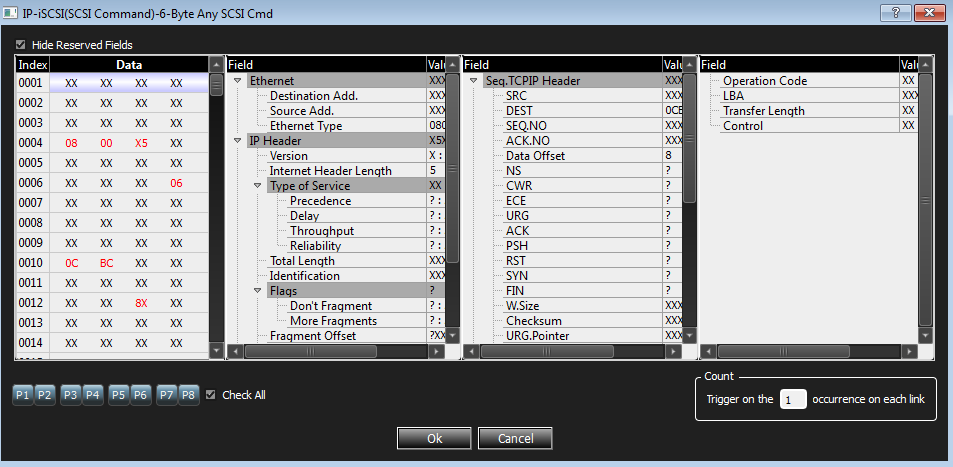
Enter the values for the Ether header, IP Header and the count of the expected number of occurrences. Check the Check All box to select ports P1 through P8 or individually select ports.
Other ISCSI patterns available are:
-
10-Byte Any SCSI Cmd
-
12-Byte Any SCSI Cmd
-
16-Byte Any SCSI Cmd
-
Long LBA16-Byte Any SCSI Cmd
-
Variable Length Any SCSI Cmd
-
Variable Length For Long LBA 32-Byte Any SCSI Cmd
-
SPC4
-
SBC3
-
MMC6
-
SMC2
-
SSC (see Supported Protocol Decoders for latest version of SSC supported)
-
OSD2
-
ADC3
-
iWARP Patterns
You may set patterns for the following iWARP RDMA operations:
-
Write
-
Read Request
-
Read Response
-
Send
-
Send with Invalidate
-
Send with SE
-
Send with SE and Invalidate
-
Terminate
VLAN Patterns
All Ethernet Patterns are available as VLAN Patterns as well. The only difference is that the Ethernet Type of the Ethernet header will be preset to “VLAN”, and you should specify the VLAN id value in the VLAN Tag header.
VXLAN Patterns
All Ethernet Patterns are available as VXLAN Patterns as well. The only difference is that the frame will be preset as an IP/UDP frame with the UDP destination port set to “VXLAN”, and you should specify the VXLAN Network Id in the VXLAN header.
NVGRE Patterns
All Ethernet Patterns are available as NVGRE Patterns as well. The only difference is that the frame will be preset as an IP frame with “GRE” protocol, and a GRE Header will be added set to “NVGRE” protocol type.
ISL Patterns
FCoE: All the ISL FCoE patterns are similar to Ethernet patterns. Refer to 4.2.4.3, FCoE Patterns.
FIP: All the ISL FIP patterns are similar to FIP patterns. Refer to 4.2.4.4, FIP Patterns.
MPCP: All the ISL MPCP patterns are similar to MPCP patterns. Refer to 4.2.4.5, MPCP Pattern.
Address Resolution Protocol: The ISL Address Resolution Protocol pattern is similar to Address Resolution Protocol pattern. Refer to 4.2.4.6, Address Resolution Protocol Pattern.
Link Layer Discovery Protocol: The ISL Link Layer Discovery Protocol pattern is similar to Link Layer Discovery Protocol pattern. Refer to 4.2.4.7, Link Layer Discovery Protocol Pattern.
ISL Internet Protocol: All the ISL Internet Protocol patterns are similar to Internet Protocol patterns. Refer to 4.2.4.8, Internet Protocol Pattern.
iSCSI Pattern: All the ISL ISCSI patterns are similar to ISCSI patterns. Refer to 4.2.4.9, iSCSI Pattern.
Initiator PDU: See Initiator PDU.
Target PDU: See Target PDU.
iSCSI Cmd: See ISCSI Cmd.
Note: For all ISL patterns, enter a value for the ISL Header.
InfiniBand Over Ethernet (IBXoE): See 4.2.4.18, InfiniBand Over Ethernet (IBXoE).
CN Tag Patterns
All the CN Tag patterns are similar to Ethernet patterns. Refer to 4.2.4.3, FCoE Patterns.
Note: For all CN Tag patterns enter a value for CN Tag.
VN Tag Patterns
All the VN Tag patterns are similar to Ethernet patterns. Refer to 4.2.4.3, FCoE Patterns.
Note: For all VN Tag patterns enter a value for VN Tag.
LLC
LLC-IEEE802.1D Frame
Double-click LLC-IEEE802.1D Frame to open the window.
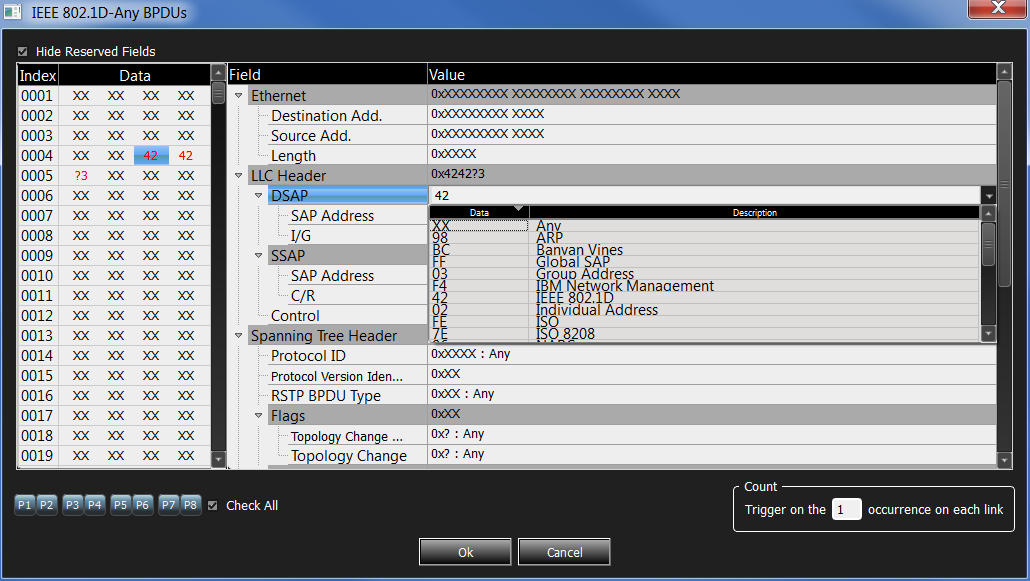
Enter the values for the Ethernet, LLC Header, Spanning Tree Header, GARP Header and select an option from the DSAP and SSAP pull -down menus. Enter the count of the expected number of occurrences. Check the Check All box to select ports P1 through P8 or individually select ports.
Other LLC-IEEE802.1D patterns available are:
-
Bridge Protocol Data Unit (BPDU)
-
Configuration BPDUs
-
Multiple Spanning Tree BPDUs (MSTP)
-
Rapid Spanning Tree BPDUs (RSTP)
-
Topology Change Notification BPDU (TCNP)
-
GARP Multicast Registration Protocol (GMRP)
-
GARP VLAN Registration Protocol (GVRP)
-
Generic Attribute Registration Protocol (GARP)
InfiniBand Over Ethernet (IBXoE)
Double-click InfiniBand Over Ethernet (IBXoE) to open the IBXoE Frame window.
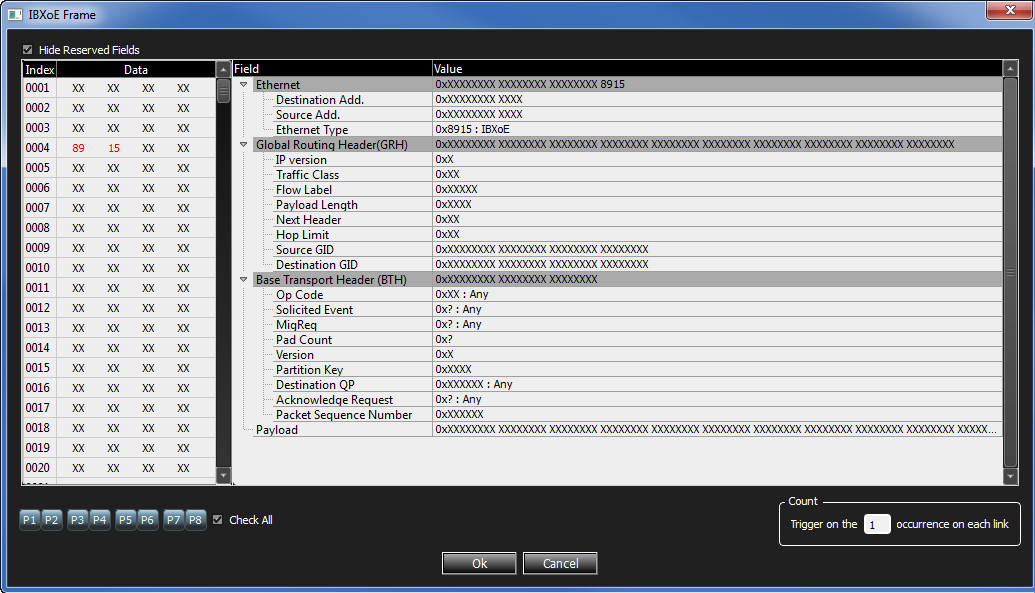
Enter the values for the Ethernet header, Global Routing Header (GRH), Base transport header (BTH) and the count of the expected number of occurrences. Check the Check All box to select ports P1 through P8 or individually select ports.
InfiniBand Over Ethernet: RDMA and NVMe Triggers
RDMA and NVMe events can also be set as triggers.
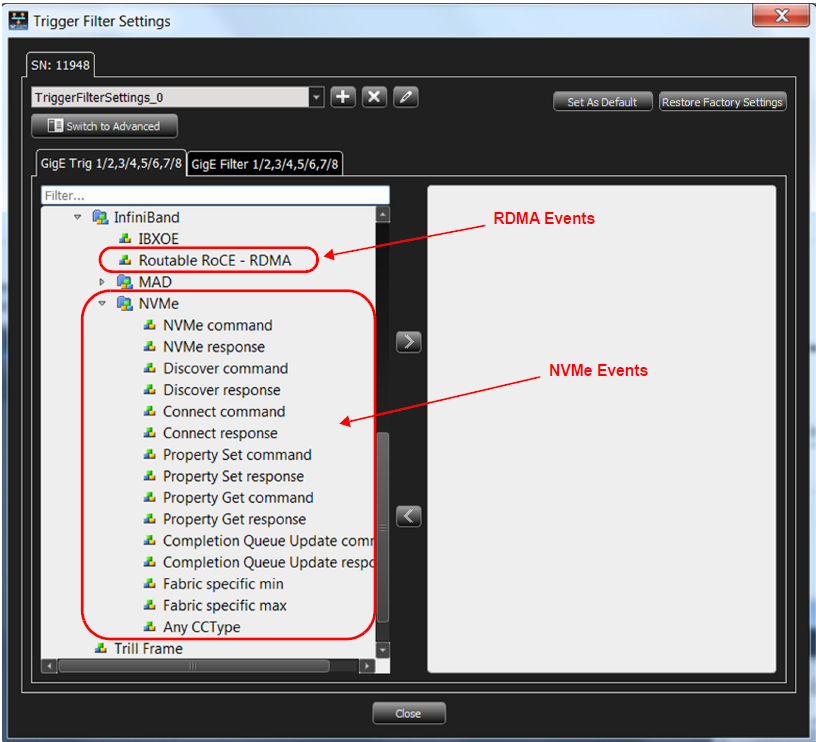
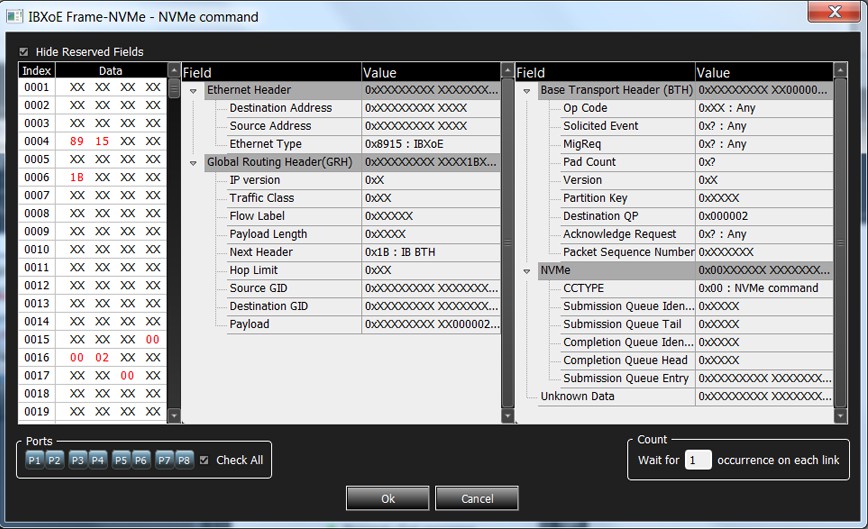
The Routable RoCE – RDMA triggering menu is shown above. A typical NVMe event triggering menu for commands is shown below.
Trill Frame
Double-click Trill Frame to open the window.
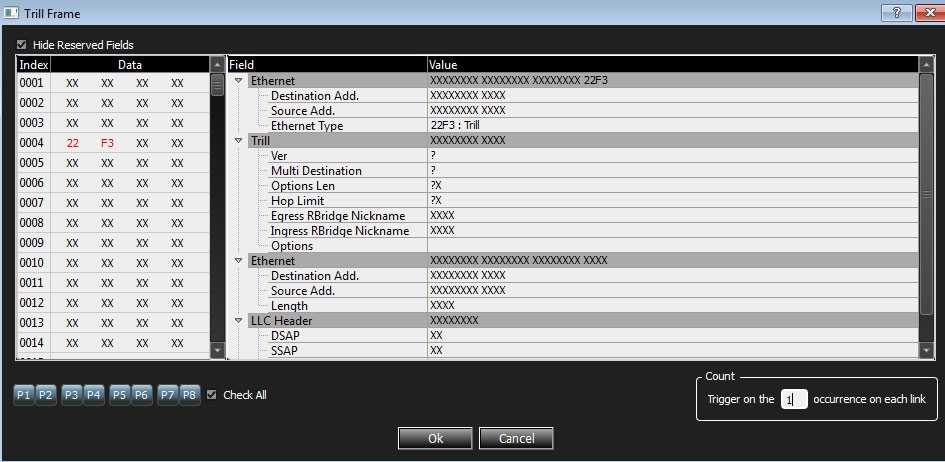
Enter the values for the Ethernet header, Trill and the count of the expected number of occurrences. Check the Check All box to select ports P1 through P8 or individually select ports.
Protocol Errors
Double-click Protocol Errors to open the window.
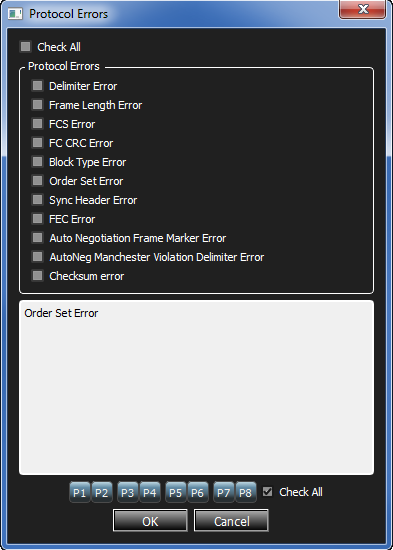
Select the protocol errors or click on the Check All box to select all. Enter the count of the expected number of occurrences. Check the Check All box to select ports P1 through P8 or individually select ports.
Any Ethernet Frame
Double-click Any Ethernet Frame to open the window.
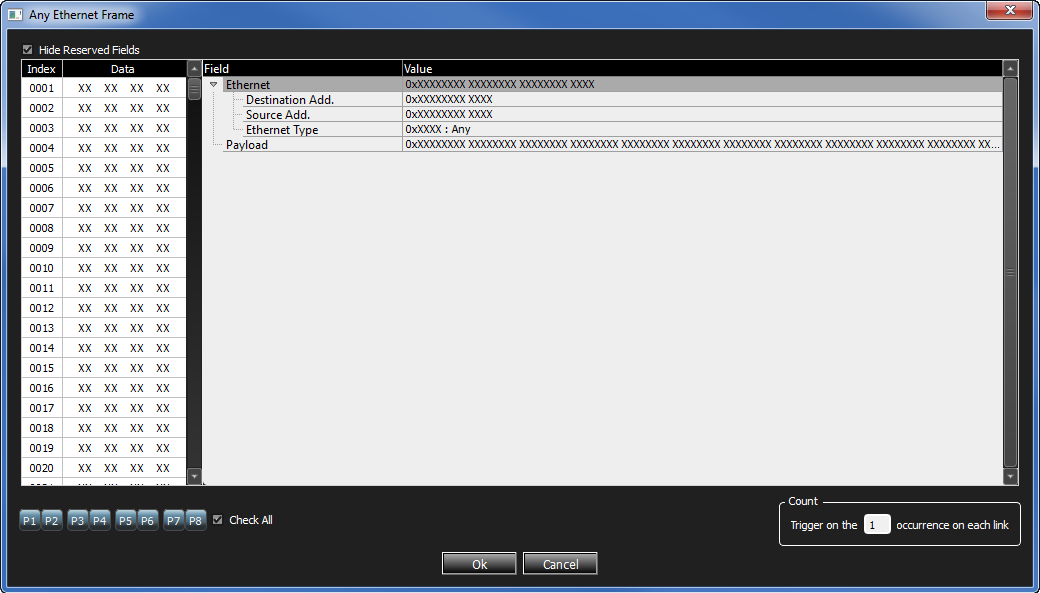
Enter the values for the Ether header and the count of the expected number of occurrences. Check the Check All box to select ports P1 through P8 or individually select ports.