For any analyzer to be connected to the network and to work correctly, there are a variety of components that must match the correct version supported by the revision of the Net Protocol Suite software.
This section describes how to update the device. It uses the SierraNet M408 model as an example. Other SierraNet models will have different components; however, the procedure will be similar. The Update Device dialog allows you to update the following components of the Analyzer:
-
Firmware
-
Net10G Analyzer x2
-
Net10G Infusion
-
Net40G Analyzer x2
-
Net FC Analyzer x2
-
Net FC Infusion
-
Net 10G_FC Analyzer x2
-
Net FC_10G Analyzer x2
-
Net 10G_FC Infusion
-
NetFC_10G Infusion
-
IOHub BusEngine
See image below.
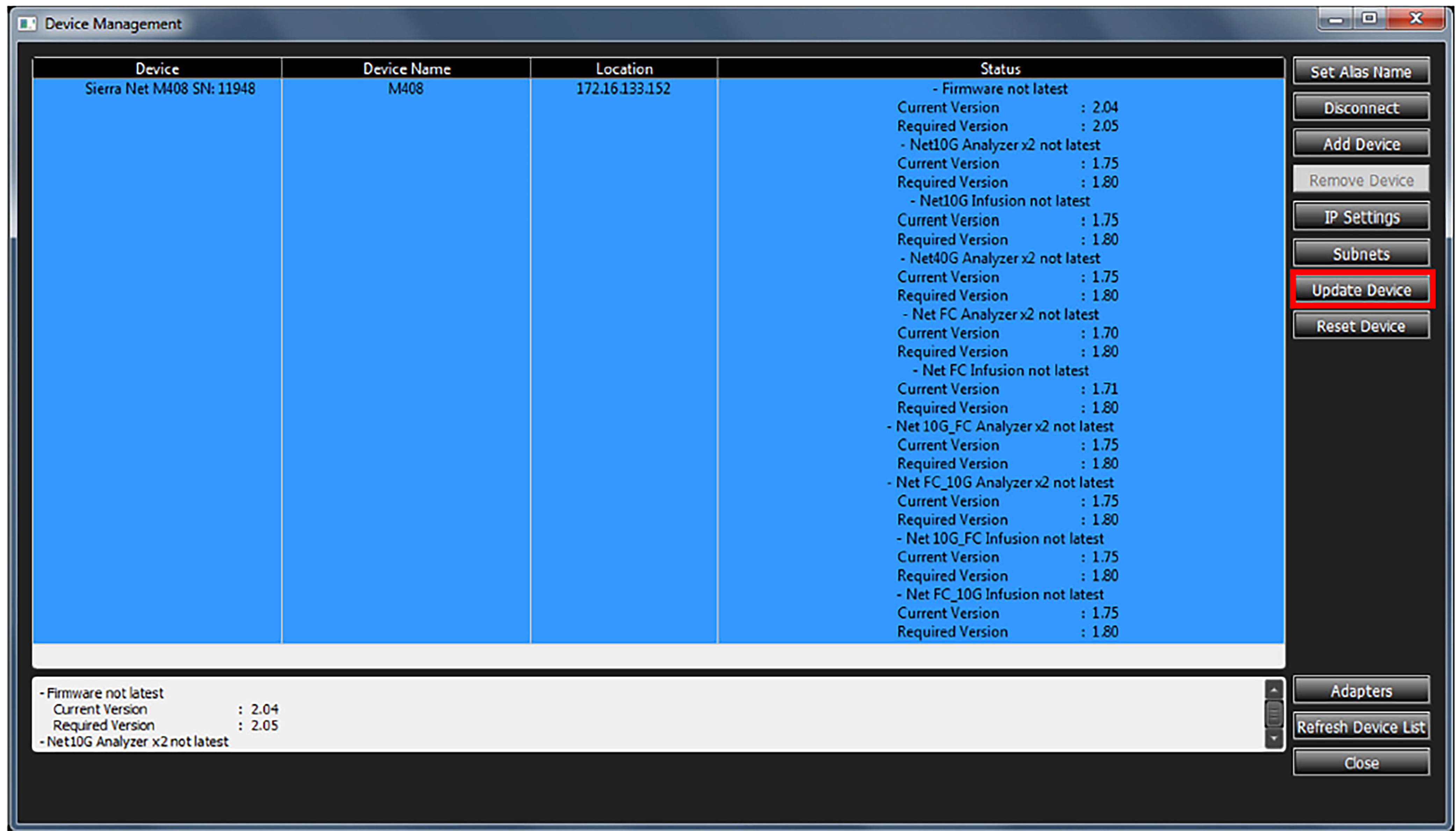
In this example, we have intentionally loaded each component to be a “down-rev” version that will need to be updated so that the current revision of the Net Protocol Suite Software will work correctly.
-
Click the Update Device button. This produces the Update Device dialog window that shows which components need to be updated. See below.
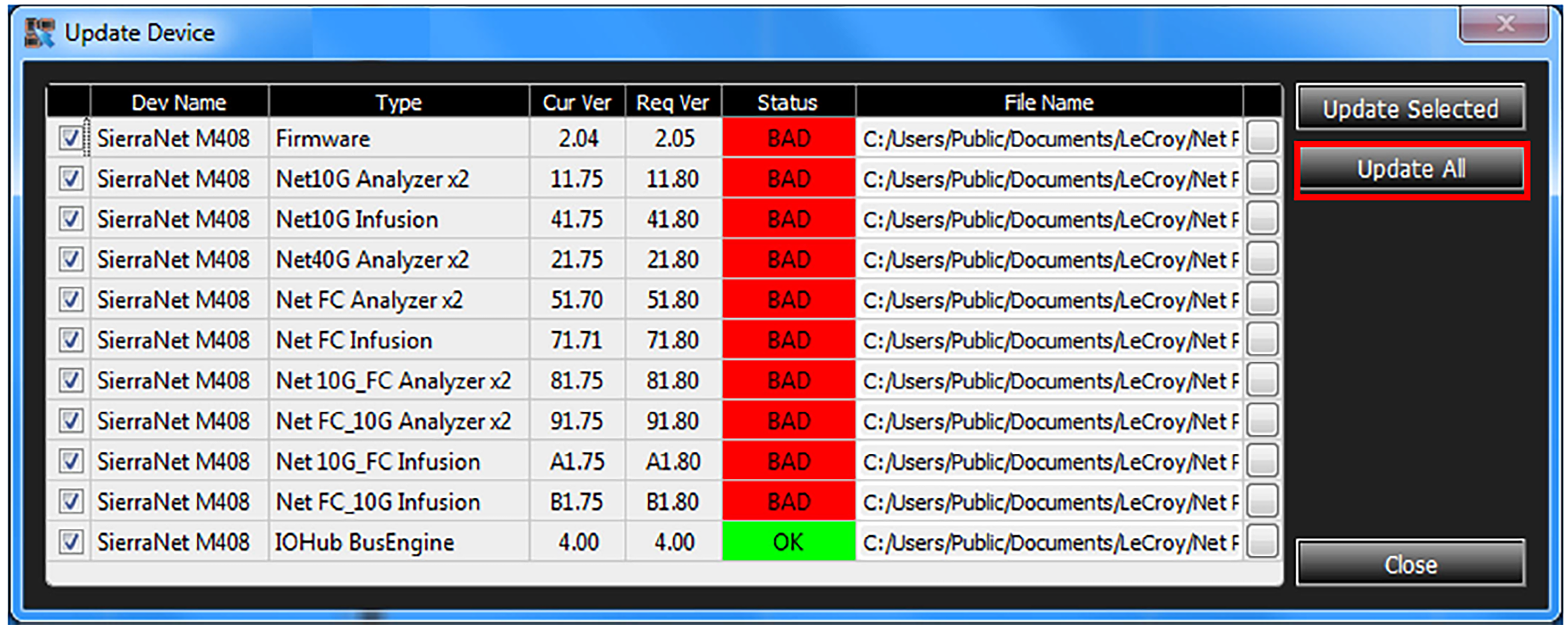
In this case, “Update All” is selected since “down-rev” versions were loaded.
-
Click Update All. Each component will be updated to the Required Version.
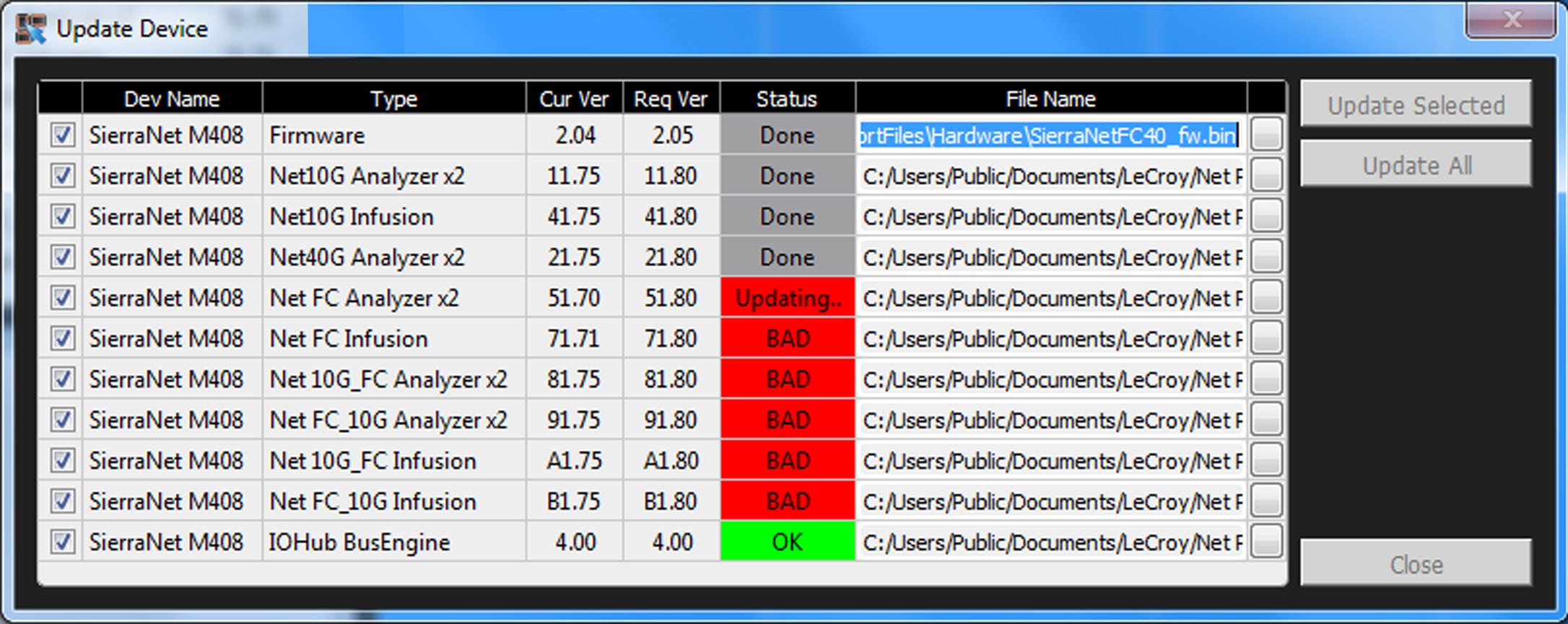
Note: You can click the ellipsis (...) at the end of a file path and name to display an Open dialog, in which you can browse for files.
When the system is updating the last component, the screen should resemble the image below.
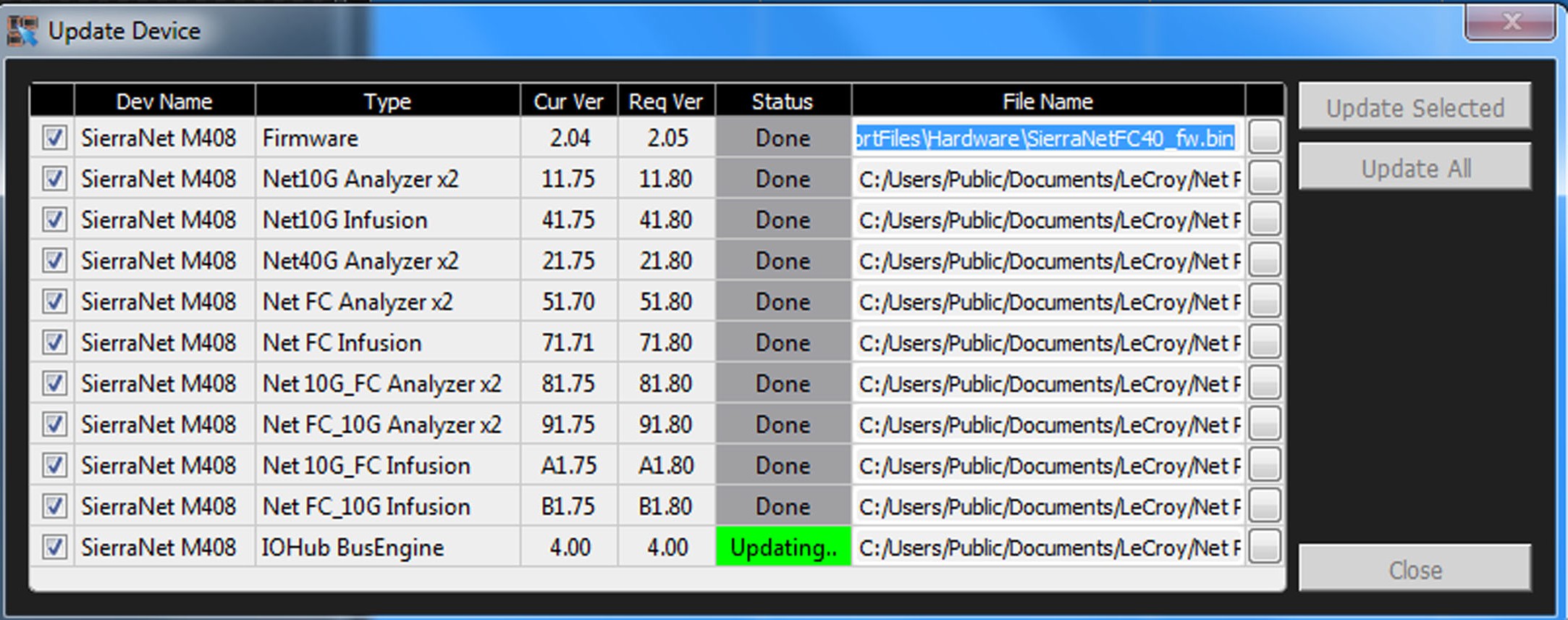
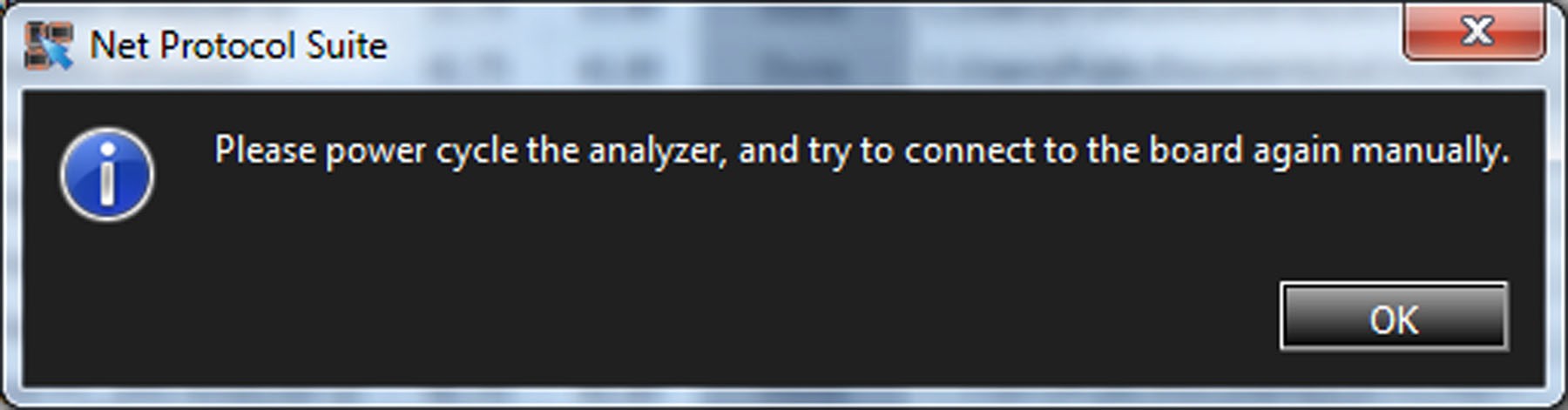
Once the update process is complete, the Analyzer may need to be power-cycled.
-
Be sure to follow the on-screen prompts to complete the update process successfully.
-
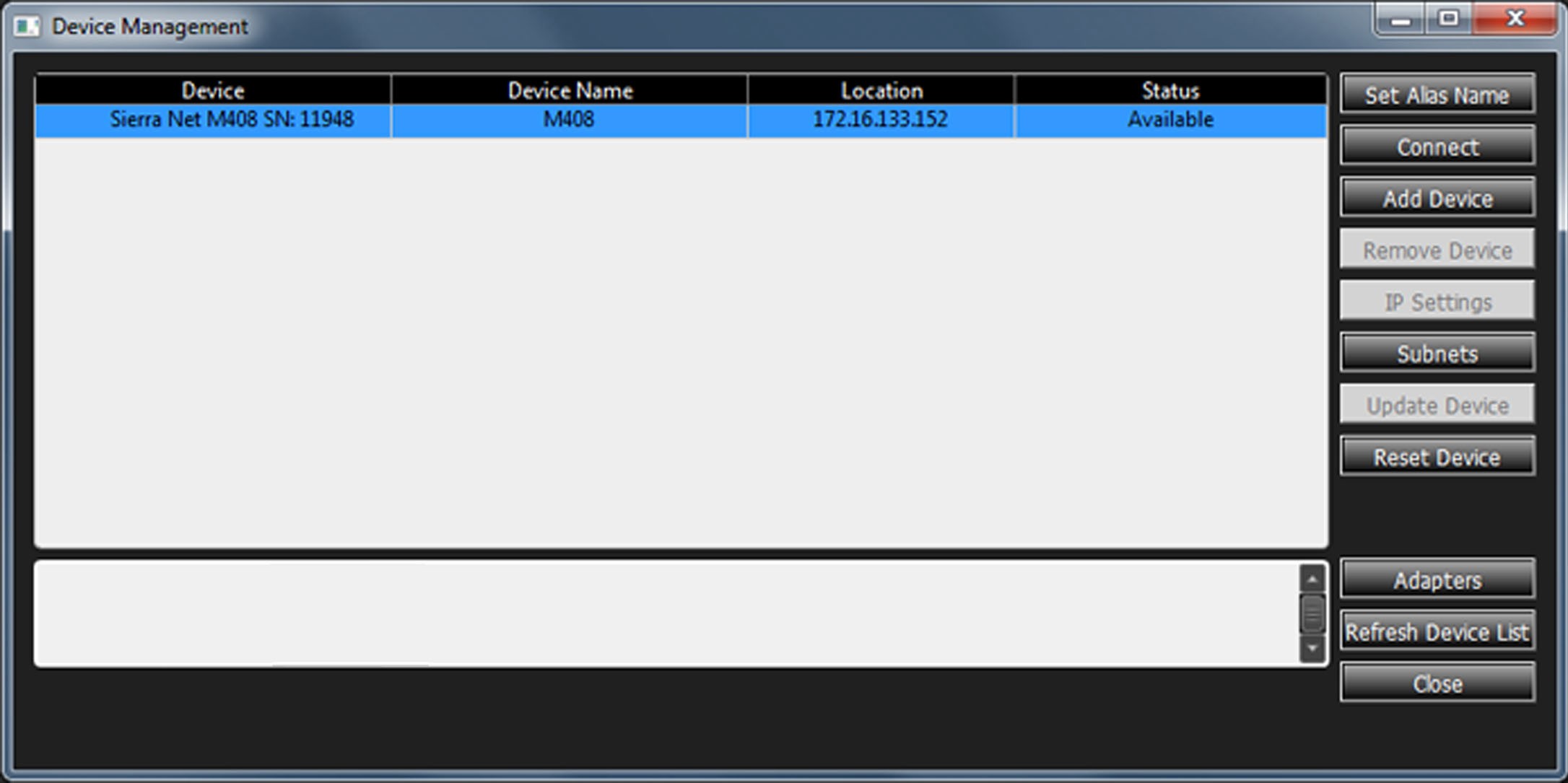
After power cycling, return to the Device Management dialog window. The Analyzer should be “Available”. See below.
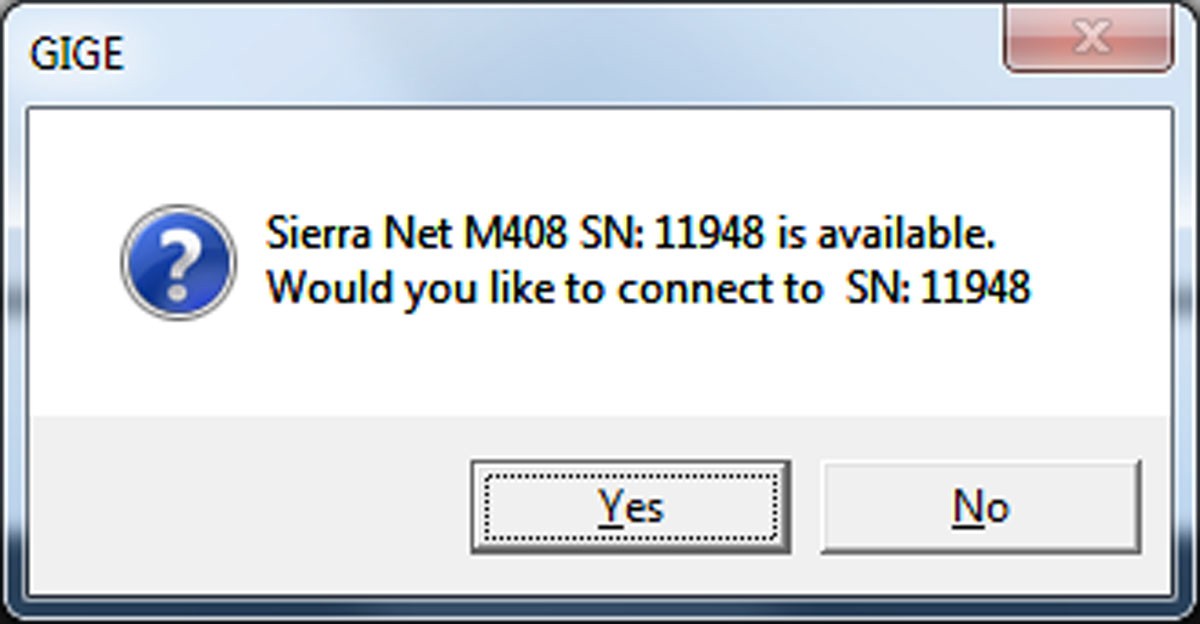
Once the components are updated, the system might prompt you to Connect.
-
Click Yes to connect the Analyzer.
-
Once the Analyzer is connected, you can proceed with a New Project. See New Projects.