
The analyzer requires a license to be used with the Wireless Protocol Suite software. All analyzers will be shipped with a license file already installed. Updated license files can be applied by the user on their own using the Manage License dialog.
Manage License Dialog
Viewing the details of a currently installed license file or updating the analyzer license file is done through a menu item accessed from the Analyzer Toolbar. With hardware connected, select Manage License... from the Analyzer Information dropdown menu.
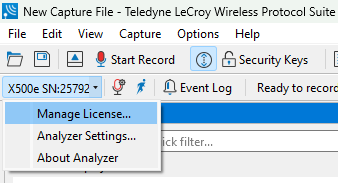
After selecting Manage License, the following window is presented:
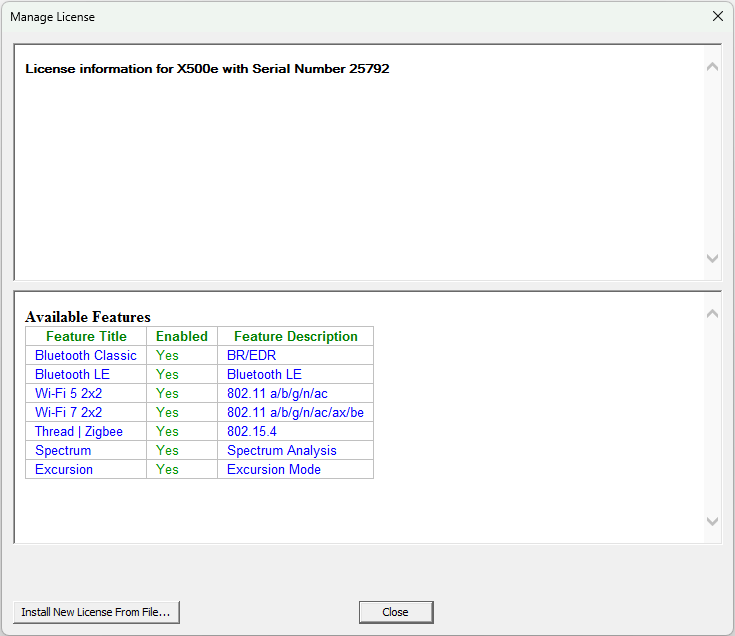
On this window, you will see the expiration of the currently loaded license at the top. Below that is a list of available features and whether they are included in your license.
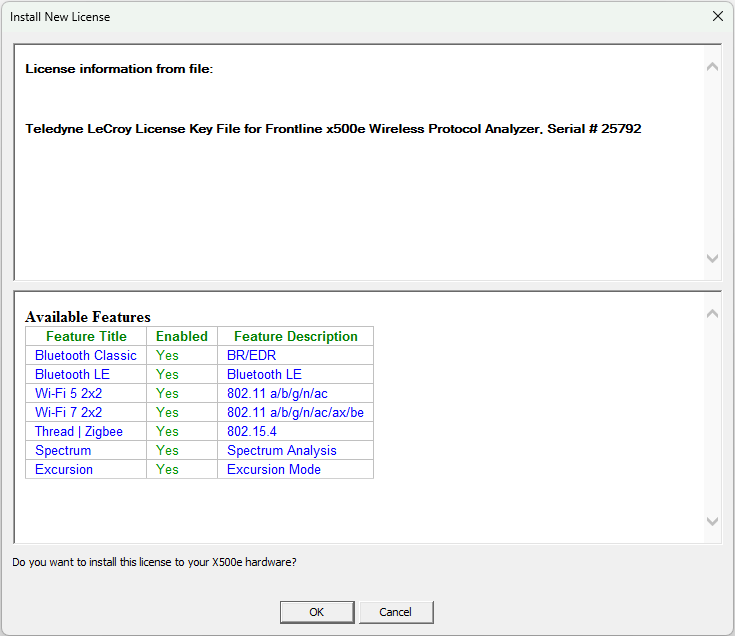
To add or update your license, you will need to click on the “Install New License From File…” button on the Manage License window. This will open a Windows Explorer window. After selecting the license file you’d like to update to, click Open. The “Install New License” window will appear showing you the details of both your old and new license.
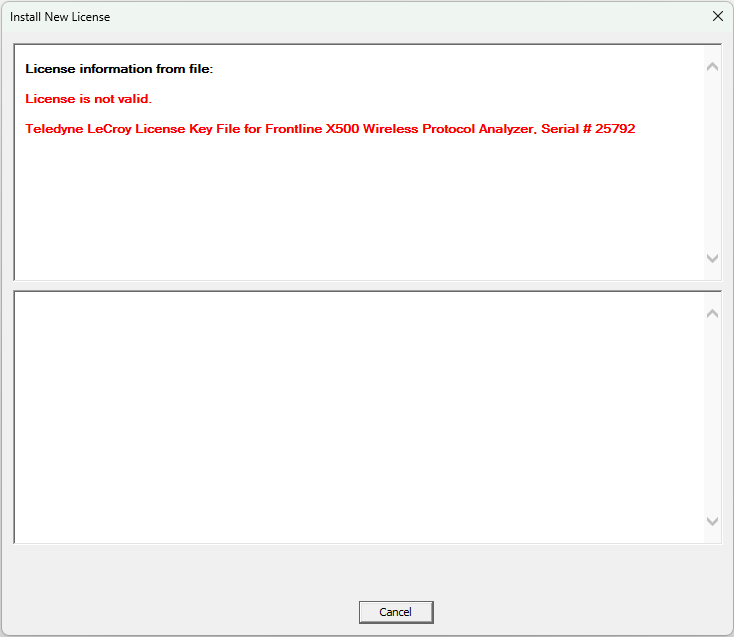
The license file must be for the specific analyzer hardware connected or you will see the following error:
With a valid license selected, clicking OK will present the following message.
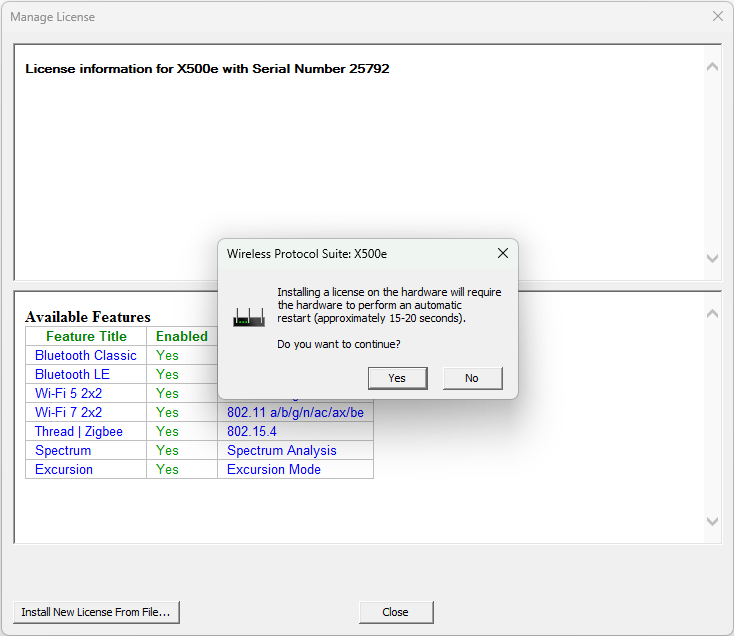
Clicking “Yes” will install the new license file and automatically restart your hardware. After the unit powers back up, the new license should be recognized, and the unit can be used.