
Starting InFusion
To start the InFusion program for the first time, do the following:
-
Select File New Project from the Main Net Protocol Suite Menu (see Figure 6.1). This brings up the Add Device to Project window. See Figure 6.2.

Figure 6.1: Starting InFusion
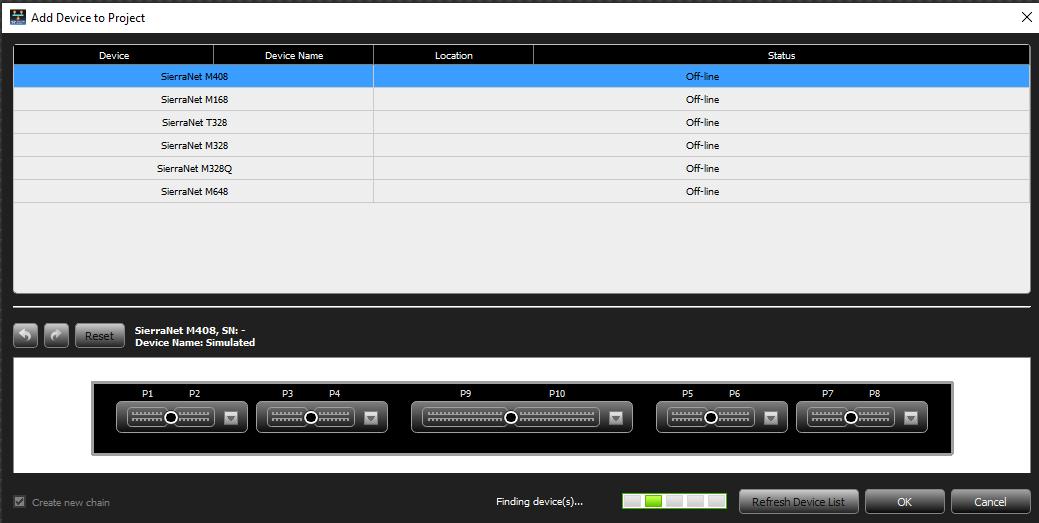
Figure 6.2: Add Device to Project
-
Select the Analyzer you plan on using (or the one you are connected to). In this example, the SierraNet M168 has been chosen.
Note: Although the figures show the SierraNetM408, the InFusion Scenario Manager works with all SierraNet Products including the M168/M328/ M328Q and M648.
Selecting the Configuration
-
Click the expansion icon

-
Select Analyzer, then click the radio button for the Speed you want (Figure 6.3).

-
Continue to configure the available port pairs, then click OK.
-
Scroll through the list and select the AJA (FC) on Ports 1/2 and AJA (FC) on Ports 5/6.
This configuration allows you to analyze and jam data traffic coming into and out of the analyzer on both Ports 1/2 and Ports 5/6. It also assumes you are targeting Fibre Channel devices.
-
Click OK. The Add Device to Project dialog returns with the selected configuration. See Figure 6.4.

Figure 6.4: Add Device to Project Dialog with Configuration Selected
Note: You can select only one Jammer port at a time when using the AJA configuration
-
To record traffic from other ports after the InFusion modifies (jams) them, select a combination of ports that have Jammer/Analyzer specified. The different configurations accommodate different possible user setups and requirements.
Bidirectional Jammer and Analyzer Operations
A Jammer intercepts and delays traffic on both directions simultaneously, so Originator sends to Jammer, Jammer delays and sends to Responder, Responder sends to Jammer, Jammer delays and sends to Originator.
For the SierraNet M408 40GbE Jammer and the SierraNet M328 Jammer, a single scenario can be configured to modify traffic on both directions of the link simultaneously.
However, on the SierraNet M408 10GbE/16GFC Jammer and the SierraNet M168 Jammer, a single scenario can modify traffic only in one direction at a time. For information on bidirectional jamming operation on these platforms, see , AJAJ – Bidirectional Jamming Operation .
Selection/Creation of an InFusion Scenario
Click OK in the “Add Device to Project” window. The Main Net Suite Protocol Menu appears with the Configuration you selected on the display. See Figure 6.5.

Figure 6.5: Main Net Suite Protocol Dialog with Chosen Configuration
A closer look at the configuration dialog is shown in Figure 6.6.

Start/Stop Scenario on Ports 1/2
Start/Stop Scenario on Ports 5/6
Create/Select Scenario to Run on Ports 1/2
Figure 6.6: InFusion Control Interface Menu
Create/Select Scenario to Run on Ports 5/6
Now we can start building an InFusion Scenario, which once completed, can then be used to generate traffic to drive and see the responses of the devices under test (DUTs).