
Example: Insert DWORD Matcher
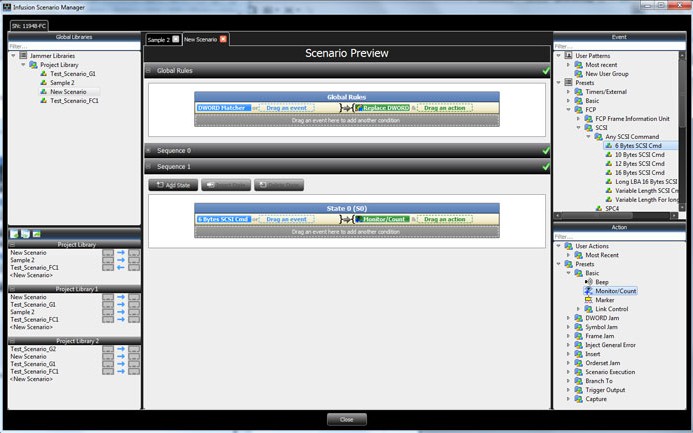
In this example, the Global Rules panel of the Scenario waits for a Custom Frame then inserts a DWORD inside the frame. In Sequence 0 and State 0 it waits for an FCP SCSI Command, SBC3; inserts a DWORD inside the frame, beeps for a duration of 50 ms and stops the Scenario.
Creating Global Rules
This section describes using the Global Rules panel of the Scenario for this example. Recall that the Global Rules panel defines a single test state. The Global Rules do not have the capacity for multiple states, so that area of a Scenario cannot change state.
In terms of InFusion testing, a state defines test “behavior.” In this context, behavior is “waiting” for an Event and responding with an Action or set of Actions that happen simultaneously.
Keep in mind that a test state you implement with the Global Rules operates in parallel with the active test state of each sequence in the Scenario.
In effect, InFusion lets you do up to three line tests at the same time. You can do one test with the Global Rules and a separate test with each sequence you create. You can have up to two sequences in a Scenario.
-
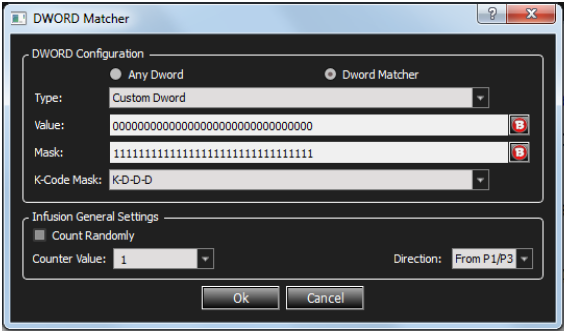
Select Traffic Direction from the drop-down list to trigger on the defined event or trigger from InFusion Jammer (the default is From P1/P3, which is selected for this example).
-
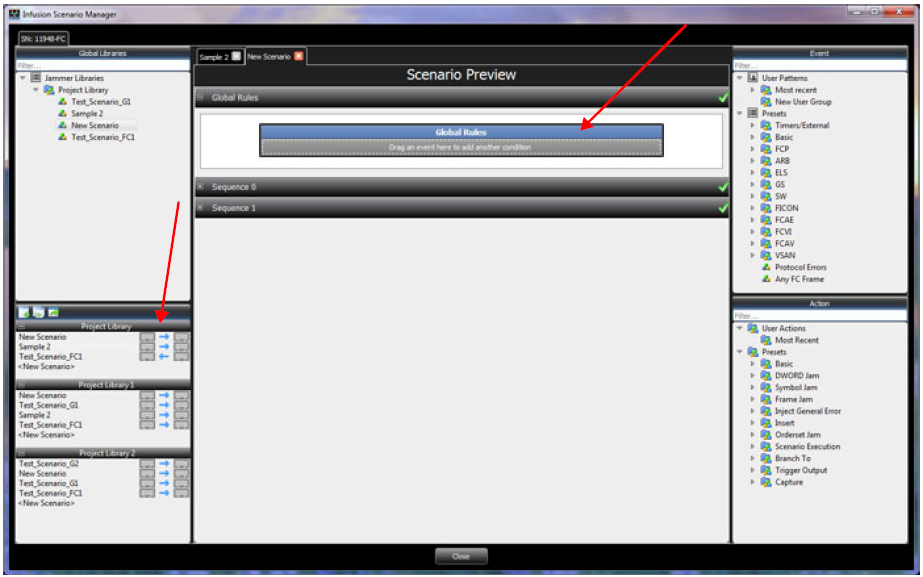
In the Global Rules panel, select DWORD Matcher in the Event panel and place it in the Global Rules panel.
-
The Event is added to the Global Rules panel.
-
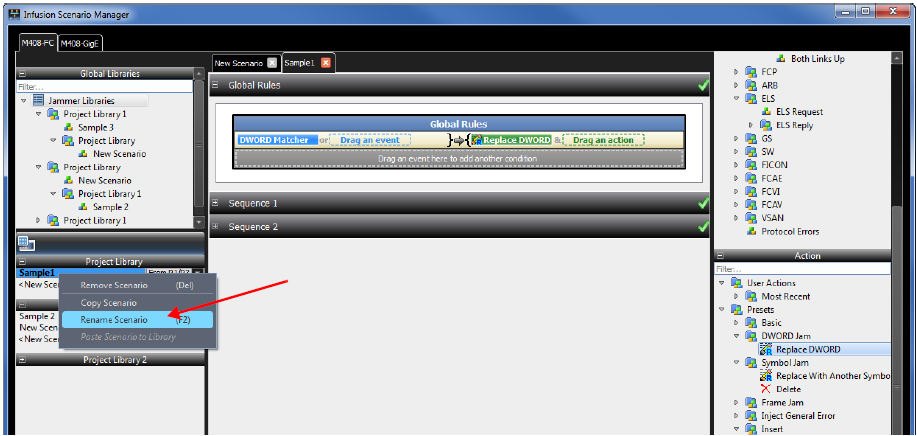
Select Replace DWORD in the Action panel and place it in the Global Rules panel.
-
Right-click the New Scenario tab and select Rename Scenario and enter the name in the Library panel.
Adding a Sequence
To add a Sequence click Add State in the Sequence 1 panel.
You create a sequence one state at a time. The application numbers states consecutively from 0 up (1, 2, 3, and so on).
By default, the name of the first sequence in a Scenario is Sequence 1. The name of the first state is State 0. To change the name of a sequence or state, or to associate a description with it, click the name of the sequence or state.
-
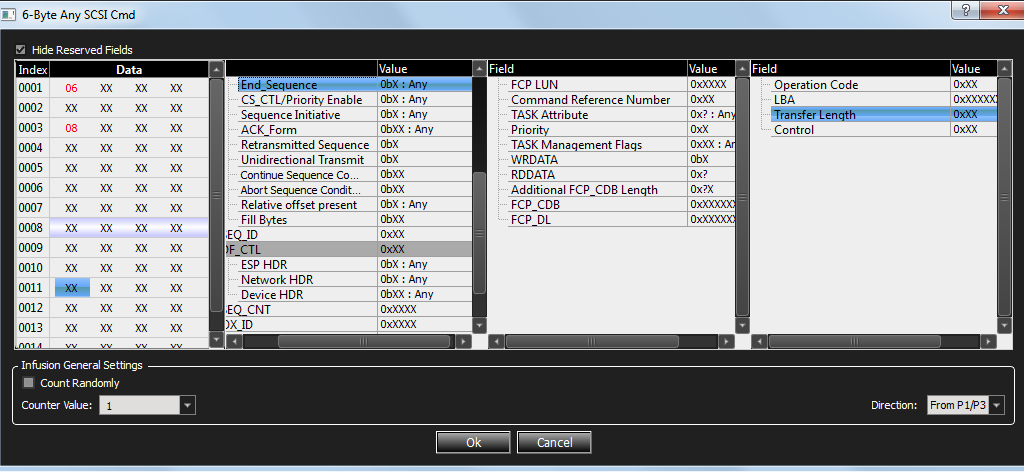
Drag 6-Byte Any SCSI Command under FCP as the Event to display the dialog.
-
Click OK to close the 6-Byte Any SCSI Command dialog box.
-
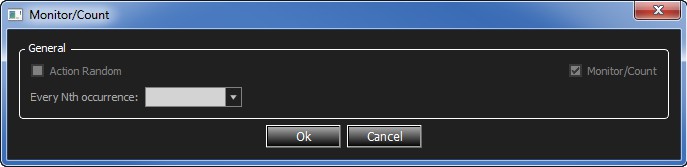
After adding an Event, to add an Action in the Sequence 1 panel, drag and drop Monitor/Count. The Monitor/Count dialog box displays.
-
Click OK to close the Monitor/Count dialog box.
-
Repeat step 4 to add another Action (if desired). The completed Scenario is shown below.
Sequence Creation
A sequence can have multiple states, but only one state is active at any time. In other words, at any point in time, a sequence “waits” for one Event (or Combined Event) and responds with the corresponding Action or set of Actions when the Event occurs.
A sequence is more powerful than Global Rules, because you can create branching or looping test logic with a sequence. You can include up to two sequences in a Scenario, but each is completely independent of the other. There is no branching or other interaction between the two, except through the Restart All Sequences Action.
You must follow some simple rules when creating sequences:
|
Rule |
Description |
|
You can use only two branch Actions per state. |
When you specify Actions for a state, you can only use two instances of Branch to an Existing State or Branch to a New State. If you try to use more than two, a red error message appears in the status area of the application that says “Too Many Actions.” |
|
You can use only one restart sequence Action per state. |
When you specify Actions for a state, you can only use one instance of Restart Current Sequence or Restart All Sequences. If you try to use more than one, a red error message appears in the status area of the application that says “Too Many Actions.” |
|
You can use a maximum of 255 states per sequence. |
If you try to use more than 255 states, a red error message appears in the status area of the application. |