
Jam Details
-
Jam Event: To set a Jam Event, drag an Event to the Global Rules or Sequence panel. The Events and their descriptions are listed in the Ethernet and Fibre Channel events tables.
-
Jam Action: To set a Jam Action, drag an Action to the Global Rules or Sequence panel. See Test State Actions table.
After the first Jam Action has been specified, you can set a consequent Jam Action by dragging more Actions to the Drag an Event here to add another condition area. The Jam Actions and their descriptions are listed in the table below.
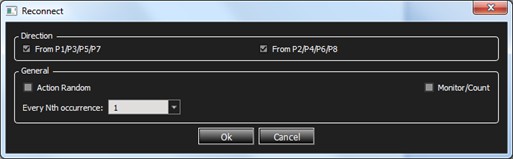
Reconnect Menu for Selecting Direction
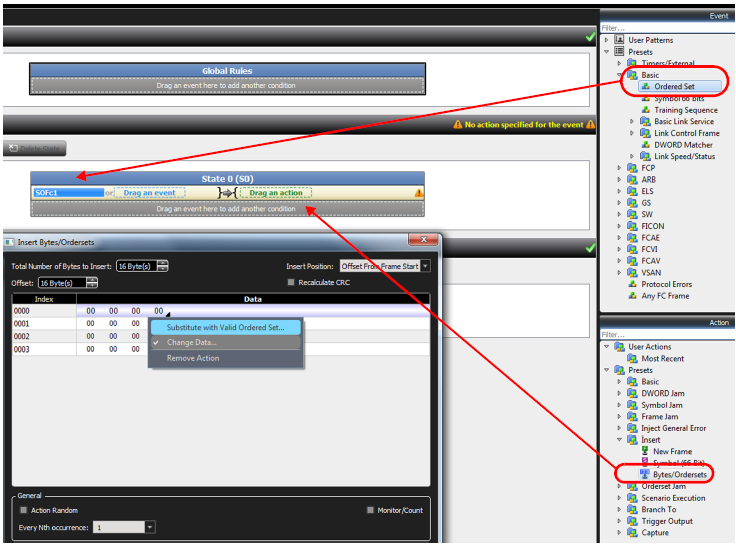
Insert Byte/Orderset
If you select Insert Byte/Orderset, you can select and drag the icon to the Scenario window and substitute an Ordered Set for a Byte.
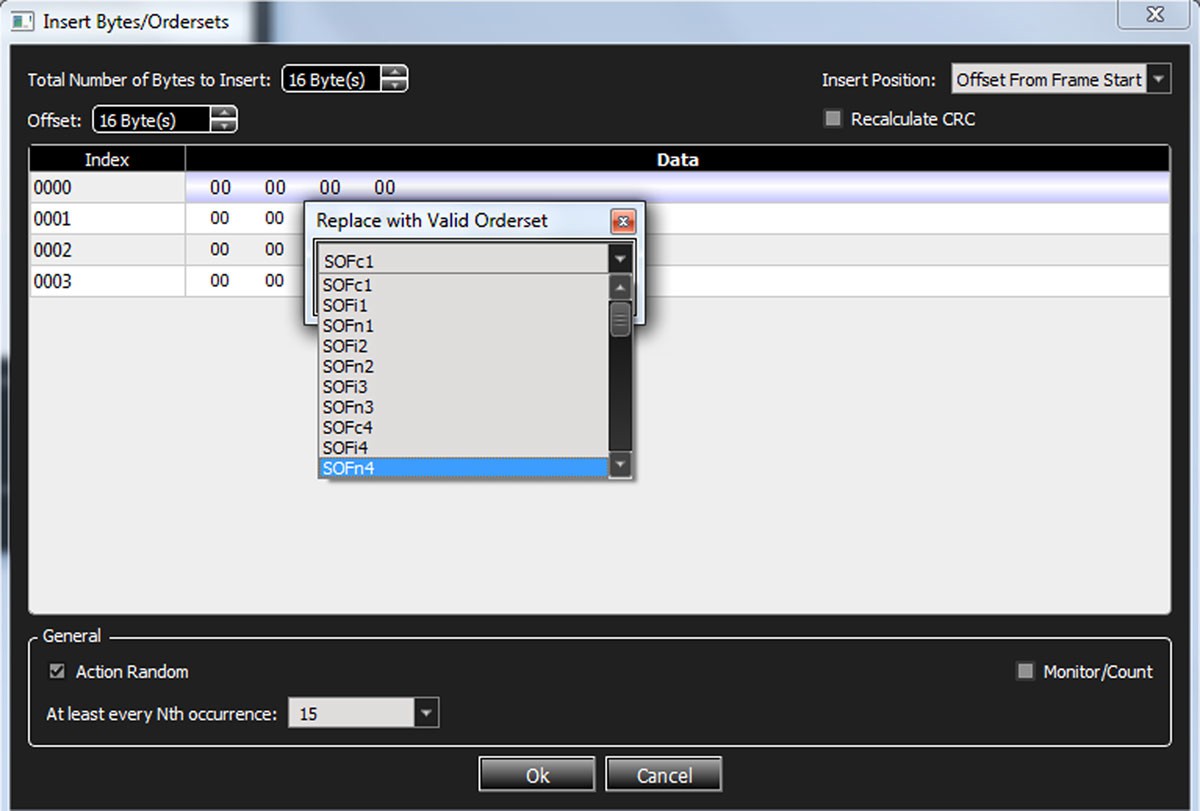
You can now define the Ordered Set
You can insert as many Ordered Sets as you have bytes defined.
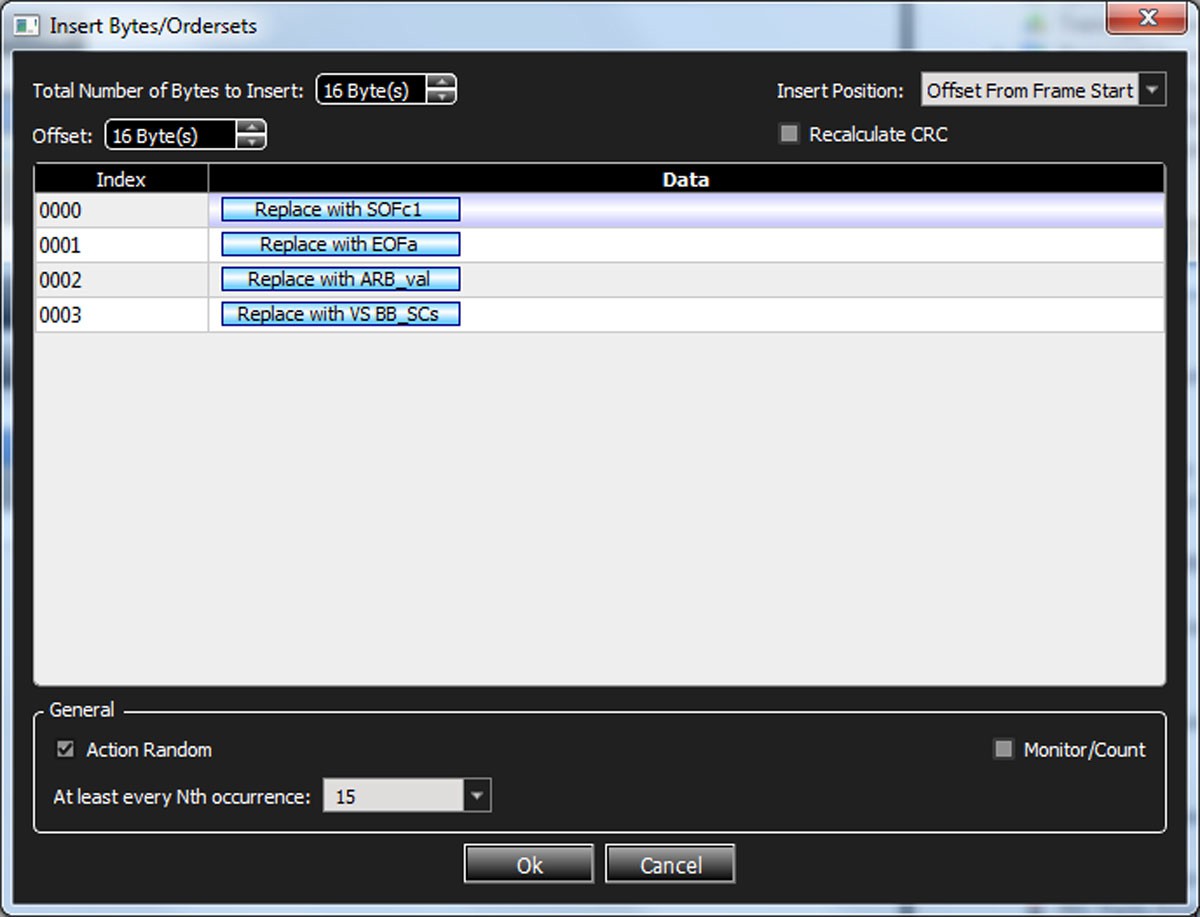
Now you can insert the defined Ordered Sets into the Jammer Scenario.

The following table lists the supported Actions. Note that some of these Actions only apply to creating sequences.
Test State Actions in Simple Mode
|
Action |
Description |
|
|
Basic |
Beep |
Emits audible sound of duration selectable via a drop-down list. |
|
Monitor Count |
Opens a window to count the number of Events that occur during a session. A session is a time interval during which a Scenario runs. |
|
|
Link Control |
Reconnect: Starts traffic pass-through immediately. This Action restarts traffic after a previous disconnect command. Once traffic is passing through, the originator and responder resume link bring up. Disconnect: Puts InFusion ports at electrical idle immediately. This action is only in effect while the scenario is running, and the Jammer will reconnect the line when the scenario is stopped. |
|
|
Reconnect/Disconnect can be applied in either direction separately: From P1/P3/P5/P7 direction: Reconnect/ Disconnect only the originator link. From P2/P4/P6/P8 direction: Reconnect/ Disconnect only the responder link. |
||
|
DWORD Jam |
Replace DWORD |
Replace DWORD. |
|
Symbol Jam |
Replace with Another Symbol |
Replaces the Symbol with the selected Symbol. |
|
Delete |
Deletes the Symbol Jam. |
|
|
Frame Jam |
Insert Bytes Inside Frame |
Allows to insert up to 60 Bytes inside the frame, at the specified offset or at the “current” DWORD, meaning the DWORD that caused the Event. |
|
Modify [Keep Length] |
Allows to manipulate each DWORD in the header, with the selected Action (click on Pass though to get a drop-down list). |
|
|
Replace |
Replaces the whole frame with the selected frame. |
|
|
Remove [Replace with IDLE] |
Removes the whole frame. |
|
|
Truncate |
Removes some of the payload, as specified in the Frame Length. |
|
|
Inject General Error |
FEC Parity Error |
Injects a FEC error into traffic. |
|
Sync Header Error |
Injects a Sync Header error into traffic. |
|
|
Invalid 10-bit-Error Code |
Injects invalid 10b code into the line (FC8 only). |
|
|
Running Disparity Error |
Injects a Running Disparity (RD) error into traffic (FC8 only). |
|
|
Insert |
Insert New Frame |
Allows to insert a whole frame as specified from the list of available frames. |
|
Symbol (66 Bit) |
Allows to insert a Symbol 66 bits. |
|
|
Insert Bytes/ Ordersets |
Allows to insert Bytes or Ordersets (FC 16 only). |
|
|
Ordered Set Jam |
Delete |
Delete an Ordered Set Jam. |
|
Remove [Replace with IDLE] |
Remove an Ordered Set Jam or Replace with another Ordered Set. |
|
|
Replace with Another Ordered Set |
Only replace with another Ordered Set. |
|
|
Scenario Execution |
Stop Scenario |
Stops the current Scenario. This Action should be the only Action in a State as it has higher priority over other Actions. |
|
Restart All Sequence |
Restart all sequences in the Scenario.1 |
|
|
Restart Current Sequence |
Restart the sequence that contains this Action definition. 1 |
|
|
Training Sequence Jam |
Modify |
Modify the Training Sequence Action Jam. |
|
Branch To |
Destination State |
Go to a state in this Sequence.1 |
|
Trigger Output |
Sends a signal out the trigger port to the device downstream. |
|
|
Analyzer Trigger |
|
|
|
External Trigger Output |
The Action is to cause an external trigger output. |
|
|
Internal Trigger Output |
The Action is to cause an internal trigger output. |
|
|
Marker Trigger |
Add a marker to captured data. |
|
|
Capture |
DWORD |
Capture DWORD. |
|
Reuse of Captured DWORDs. (See Reusing Captured DWORDS in Events.) |
||
|
Jammer Internal Triggers |
||
1 Only shown in Action Properties dialog box when creating a sequence.
Available Resources
You can specify Events, Combined Events and Actions and additional Events. The application automatically checks for the maximum number of terms (Events/Actions). When you exceed the limit, an error is flagged, prompting you to jump to the place that caused the error.
Ethernet on SierraNet M168
-
Symbol Detector (each has its own Embedded counter) X 4
-
Auto-Neg Detector X 4
-
Counter X 12
-
Frame Detector X 8
-
Timer X 8
-
Frame Jammer X 8
-
Symbol Substitute X 16
-
Aut-Neg Jammer X 4
-
Capture DWORD slot X 8
-
Insert/Save frame slot (up to 16K bytes) X 7
-
Insert BYTEs/Symbols inside frame (up to 128 bytes) X 8
-
Global Action Register X 8
-
State per sequencer X 256
-
Action Register per state X 8
Usage of Action Register
-
Each Counter in Global Rules = 2
-
Each Counter in State = 3
-
Each Timer in Global Rules = 2
-
Each Timer in State = 3
-
Other Actions = 1
Fibre Channel
-
Symbol Detector (each has its own Embedded counter) X 4
-
Ordered-set Detector (each has its own Embedded counter) X 8
-
Pattern (32bit) Detector (each has its own Embedded counter) X 12
-
Training Sequence Detector X 4
-
Counter X 12
-
Frame Detector X 8
-
Timer X 8
-
Frame Jammer X 8
-
Symbol Substitute X 4
-
Pattern/Ordered-set Substitute X 12 (shared with Pattern detectors)
-
Training Sequence Jammer X 4
-
Capture DWORD slot X 8
-
Insert frame slot (up to 4K bytes) X 1
-
Insert DWORD inside frame (up to 64 bytes) X 8
-
Global Action Register X 8
-
State per sequencer X 256
-
Action Register per state X 8
Usage of Action Register
-
Each Counter in Global Rules = 2
-
Each Counter in State = 3
-
Each Timer in Global Rules = 2
-
Each Timer in State = 3
-
Other Actions = 1
Using Counters in Events and Actions
Many of the Events and Actions supported by InFusion also support counters that can control functions.
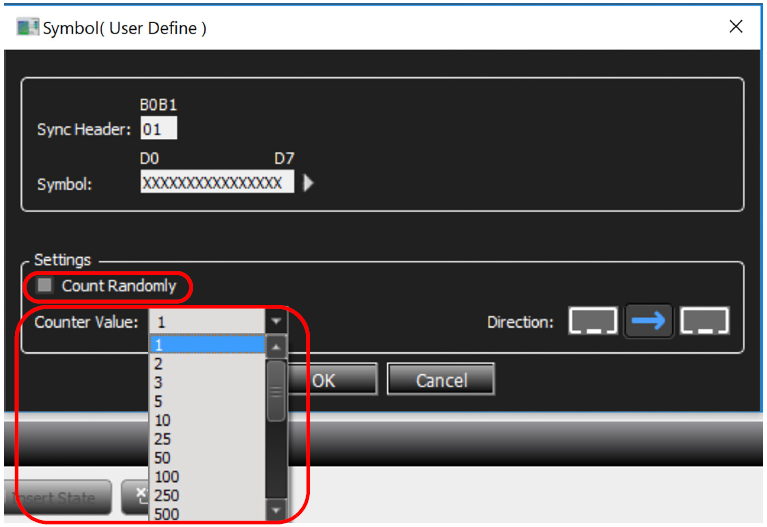
Within Events, counters determine how many times the Event must occur before the associated Actions are triggered. Event counters typically have two properties:
-
Count Randomly: Can be set to Yes or No (default value is No). If Count Randomly is checked, the Event repeats a random number of times (between 1 and the value set in the property Max Random Count, which replaces the property Counter Value when Yes is selected), before the Action is triggered.
-
Counter Value: Number of repeats required when the Count Randomly check box is not selected. The default value is 1 but the range is from 1 to 500,000,000.
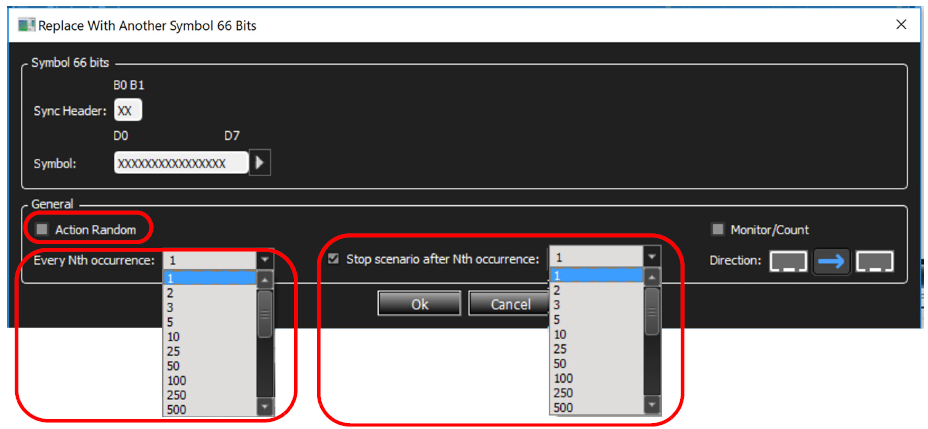
Within Actions, counters determine how many times the Event happens before it executes the Action. Note that an Event can be defined for a number of occurrences, so in total, the Event will have to occur for Event counter multiplied by the Action counter times before the Action gets executed. For example, if the Event is defined with a counter of 5, and Action with a counter of 10 such Events, the Event looked at will have to occur 50 times before the Action is taken.
Note: Some deleteable symbols (e.g., Alignment Markers and others) are stripped by the logic before reaching the jammer, then reinserted as needed. Therefore, these symbols cannot be jammed.
Typical Action Counter Properties
-
Action Random: Can be set to “Yes” or “No” (default value is “No”). If the Action Random check box is selected, the Action triggers a number of occurrences before the Action takes place. That number ranges randomly between 1 and the value set in the property Every Nth occurrence, which replaces the property Every Nth occurrence when the Action Random check box is selected.
-
Every Nth occurrence: Number of times the system calls the Action before it acts (from 1 to 500,000,000).
-
Stop Scenario after Nth occurrence: Stops the Jammer action after the number of actions you specify (from 1 to 500,000,000).
There is some overlap in the way these counters can be used. For example, in the simple case of a single Event leading to a single Action, it makes no difference whether you specify the Event to require five repeats before triggering the Action, or the Action to require five occurrences before it acts.
However, in the case of combined Events and/or Actions, the separate counters provide flexibility in designing test cases. For example, consider the case where Event_1 OR Event_2 leads to Action. If Event_1 has a counter of 5, then the Action triggers either when Event_1 has repeated five times or when Event_2 happens the first time, whichever occurs first.
But if the Event counters are set to 1 and the Action counter is set to 5, then the Action happens after five occurrences of EITHER Event_1 or Event_2.
Capturing a Data DWORD
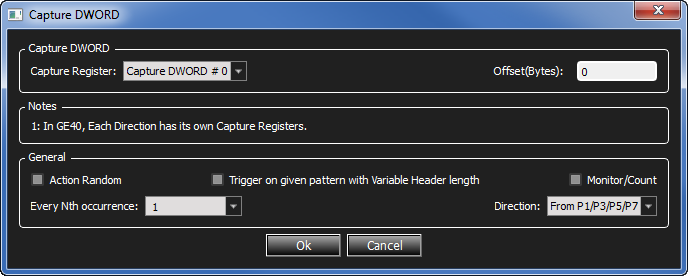
InFusion provides the ability to capture individual data DWORDs and provides different registers to store captured DWORDs. When your detector is DWORD Matcher, you can use DWORD #0, #1, #2, and #3. When your detector is Pattern Detector you can use DWORD #4, #5, #6 and #7. When trying to use the captured DWORD, for example in Replace DWORD Action, you can actually select from 8 captured DWORDs, numbered 0 through 7.
-
To capture a data DWORD, select Capture DWORD from the Action Properties screen.
-
Select the location you would like the captured DWORD to be stored in, where it can be used in a later replacement or insertion.
Using Captured Data DWORDs
Captured data DWORDS can be used in creating Events for data that match the captured DWORD(s), or in creating Actions to substitute or insert the captured DWORD(s) into the data stream.
-
To create an Event using the captured DWORD, in the Add Event dialog, select DWORD Matcher and change the Type to the desired Captured DWORD number.
Note that choice of a mask and an offset are still available.
-
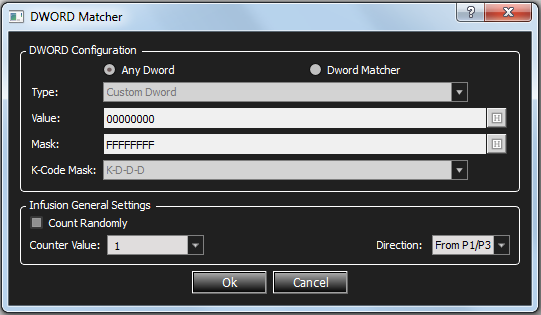
Select the code mask from the drop-down menu.
Captured data DWORDs can also be used in the Substitute Data DWORD Action:
-
From the Action Properties screen, click the DWORD Jam icon.
-
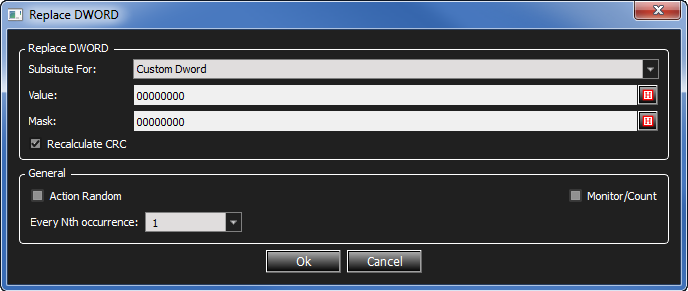
Click Replace DWORD, then choose Property from the Substitute For drop-down list.
The drop-down list is provided (see below) to allow the choice of a custom DWORD or any of the four captured DWORD registers.
DWORD Matcher
DWORD Matcher is a DWORD pattern matcher that presents match and mask fields and a K-Code Mask field. K-Codes are control characters that are always used in the first byte of a four-byte ordered-set. Of the K-Code masks listed in the menu, D-D-D-D is used for data bytes, and K-D-D-D is used for all ordered-sets.
When you create a DWORD match, keep the following in mind:
-
The pattern can be inside or outside of frames (it does not matter if the pattern is inside a frame or not).
-
Because the pattern can be inside or outside of frames, there is no offset.
-
You can make user-defined ordered-sets. (This is the reason this feature was created.)
-
You can use any K/D pattern.
Reusing Captured DWORDS in Events
This feature enables you to reuse previously captured data inside a Frame event; therefore, some parts of the frame event can be changed during the jammer running period in real time.
To use a captured DWORD in a Frame Event:
-
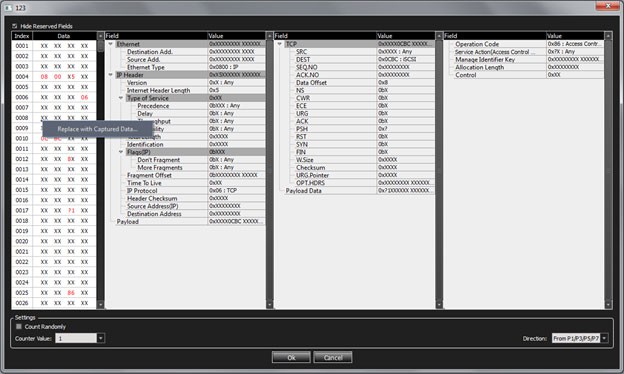
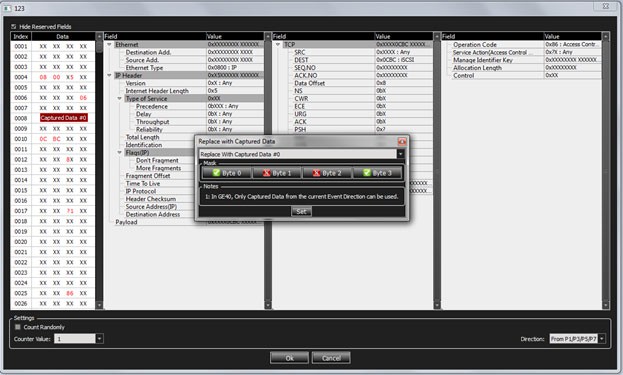
Right click in the Data pane of the Frame Event Properties dialog and choose Replace with Captured DWORD. A new dialog box pops up.
-
Specify which captured DWORD (Capture DWORD#0 to Capture DWORD#3) to use to replace the selected DWORD at run time.
You can mask any of the bytes of the captured DWORD by using the Mask buttons provided in Replace With Captured Data.
-
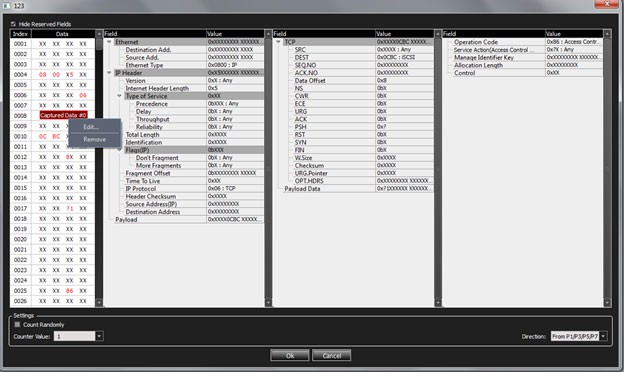
To remove or edit the existing captured DWORD in an event, right-click on the desired DWORD and choose Remove or Edit.
Traffic Modification Direction
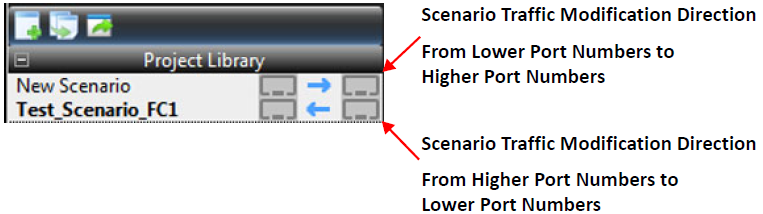
The direction for traffic modification is defined on a global basis for the entire Scenario. In other words, any Scenario Action that modifies line traffic only affects the traffic flowing in the direction established at the top of the Scenario, in the Scenario Properties. Scenario Events can be monitored in either direction, and therefore the parameters for Events provide the ability to specify the intended direction for monitoring traffic for that Event.
Copy and Paste
You can use copy and paste to add Events, Actions, States, and other components to Scenarios.
Events and Actions
-
To copy an Event or Action, right-click on the Event or Action and select Copy.
-
Right-click and select Paste.
You can also remove, cut or copy a selected Event or Action; and double-click the State name and edit it.
Scenarios
You can copy and paste scenarios from one project to another project. Perform the following steps to do so:
-
To select the scenario you want to copy, do one of the following:
-
In the scenario name tab, select Copy.
OR -
In the Library pane, right-click and select Copy Scenario from the context menu.
-
-
Place the cursor in the area below <New Scenario> in the Library pane of the project you want to paste in, then right-click and select Paste Scenario.
Libraries
You can copy and paste libraries from one project to another project. Perform the following steps to do so:
-
Select the library you want to copy, then right-click and select Copy Library from the context menu.
-
Place the cursor on the Jammer libraries icon in the Global Libraries panel, right-click and select Paste.
States
You can copy and paste states from Global Rules to Sequences. You can also copy/cut and paste states between Sequences. You cannot cut a state from nor paste a state into Global Rules.
-
Right-click in the blue title area of the State you want to copy and select Copy State (or Cut State if applicable).
-
Right-click in the white workspace of the desired target Sequence and select Paste State.
Conditions in States
You can copy and paste Conditions within and between States.
-
Right-click in the empty yellow space of the Condition you want to copy and select Copy Condition (or Cut Condition if applicable).
-
Right-click in the gray placeholder area (i.e., in the area that says “Drag an event here...”) of the desired target State and select Paste.
Events in States
You can copy and paste Events within and between States.
-
Right-click on the Event you want to copy and select Copy (or Cut if applicable).
-
Right-click in the empty yellow space of the desired target Condition or in the gray placeholder area (i.e., in the area that says “Drag an event here...”) of the desired target State and select Paste.
Marker Trigger
The main purpose of this feature is enabling the user to mark specific parts of the captured traffic for better tracking.
Solution
The Marker Trigger action will be added to Jammer under Trigger Output category. Also, for differentiating various markers, the action will has an Index parameter that will be shown in the captured traffic as well. Therefore 8 Marker actions will be as below:
-
Jammer Marker 1
-
Jammer Marker 2
-
Jammer Marker 3
-
Jammer Marker 4
-
Jammer Marker 5
-
Jammer Marker 6
-
Jammer Marker 7
-
Jammer Marker 8
Adding above markers can be used as an action in the Jammer. When the Jammer runs this action, the result is adding a marker (bookmark) in captured trace in analyzer. The added markers will be shown as a normal marker (bookmark) in trace and you can see list of marker in book mark dialog.
Note: The limitation for adding markers is 10,000, it means you can add up to 10,000 marker to a trace.
GUI
The image below shows the Marker trigger added under the Trigger output node in the action tree.
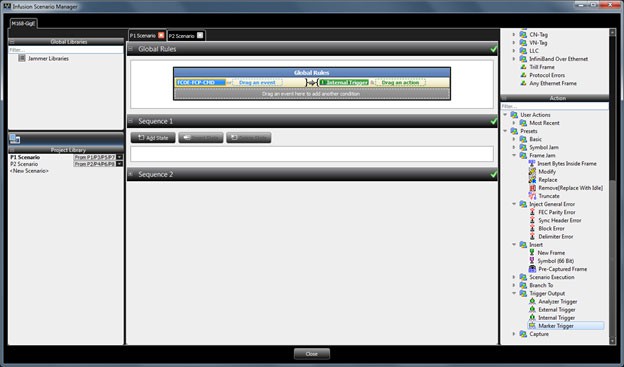
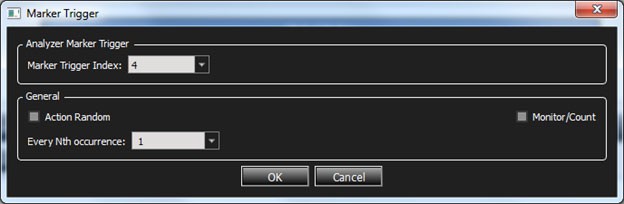
There is a dropdown list in Marker Trigger dialog to choose which marker user wants to insert to analyzer trace. (Marker 1 to Marker 8).
Sync Jammer Scenarios with Jammer Internal Triggers
By design, each Jammer port pair runs its own independent scenario, and each one can be controlled independently. However, there may be advanced cases where you would need to synchronize the Jammer operation of 2 or more port pairs.
M408/M168
With the M408/M168 analyzers, you might want to create a setup in which you jam both directions of a single link; you can achieve this by looping the link through the P1/P2 port pairs and the P5/P6 port pairs or P3/P4 and P7/P8 with external cabling, running separate scenarios on each of P1/P2 and P5/P6 as well as the P3/P4 and P7/P8 and synchronizing those scenarios with the Jammer Internal Triggers.
M164/M8-4
With these analyzers (and fewer port pairs), you might want to create a setup in which you jam both directions of a single link; you can achieve this by looping the link through P1/P2 port pairs and P3/P4 port pairs with external cabling, running separate scenarios on each of P1/P2 and P3/ P4, and synchronizing those scenarios with the Jammer Internal Triggers. For information on bidirectional jamming operation with the M164 see Appendix C, AJAJ – Bidirectional Jamming Operation.
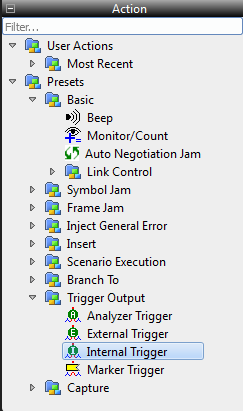
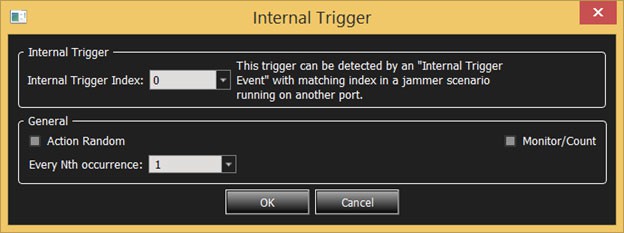
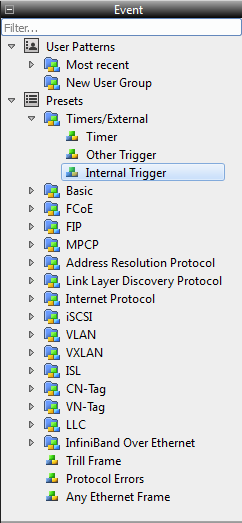
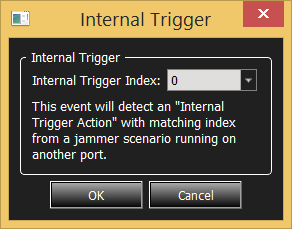
Jammer Internal Triggers are pairs of events and actions that enable cross-port signaling; these events and actions are manipulated like any other event and action. The Internal Trigger Action allows one port pair to signal an Internal Trigger Event on a different port pair. Note that the Internal Trigger Action will NOT signal an Internal Trigger Event on the same port pair. There are four independent Jammer Internal Trigger event/action pairs available.
For supporting this feature, a specific signal between different paths should be added, such that one scenario will be able to notify the scenarios of other paths.
Thus, firstly, it is needed to add a new Action for notifying other paths and secondly, adding a new event for waiting on any notify signal that is raised on other paths. This will be implemented as below:
-
Adding ‘Internal Trigger’ action to notify all other paths:
-
Internal Trigger Action 0
-
Internal Trigger Action 1
-
Internal Trigger Action 2
-
Internal Trigger Action 3
-
-
Adding ‘Internal Trigger’ event to wait for others’ notifications:
-
Internal Trigger Event 0 which is corresponded to Internal Trigger Action 0
-
Internal Trigger Event 1 which is corresponded to Internal Trigger Action 1
-
Internal Trigger Event 2 which is corresponded to Internal Trigger Action 2
-
Internal Trigger Event 3 which is corresponded to Internal Trigger Action 3
-
Example
For example, the user would like to insert a new frame on P1/P2 path (ACTION1) when there is a specific symbol on P3/P4 path (EVENT1), this scenario will be implemented in 2 different scenarios as below:
-
In the first scenario for P1/P2, in the global state define a condition that waits for EVENT1 and then raise ‘Internal Trigger’ action.
-
In the second scenario for P3/P4, in the global state define a condition that waits for the same ‘Internal Trigger’ event and the does ACTION1.
Scenario 1

Scenario 2

Import/Export Jammer Libraries
Jammer libraries can be imported and exported.
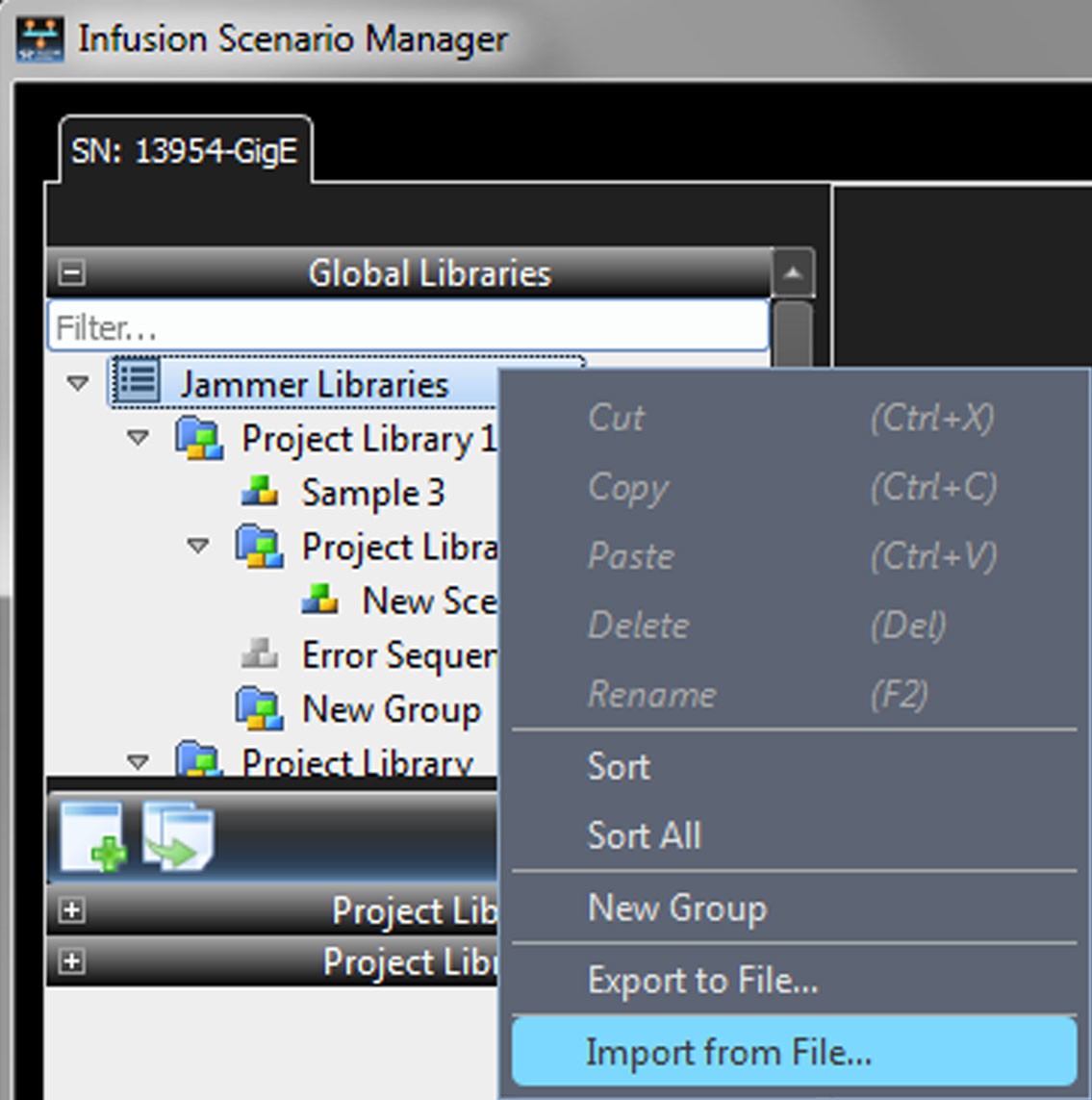
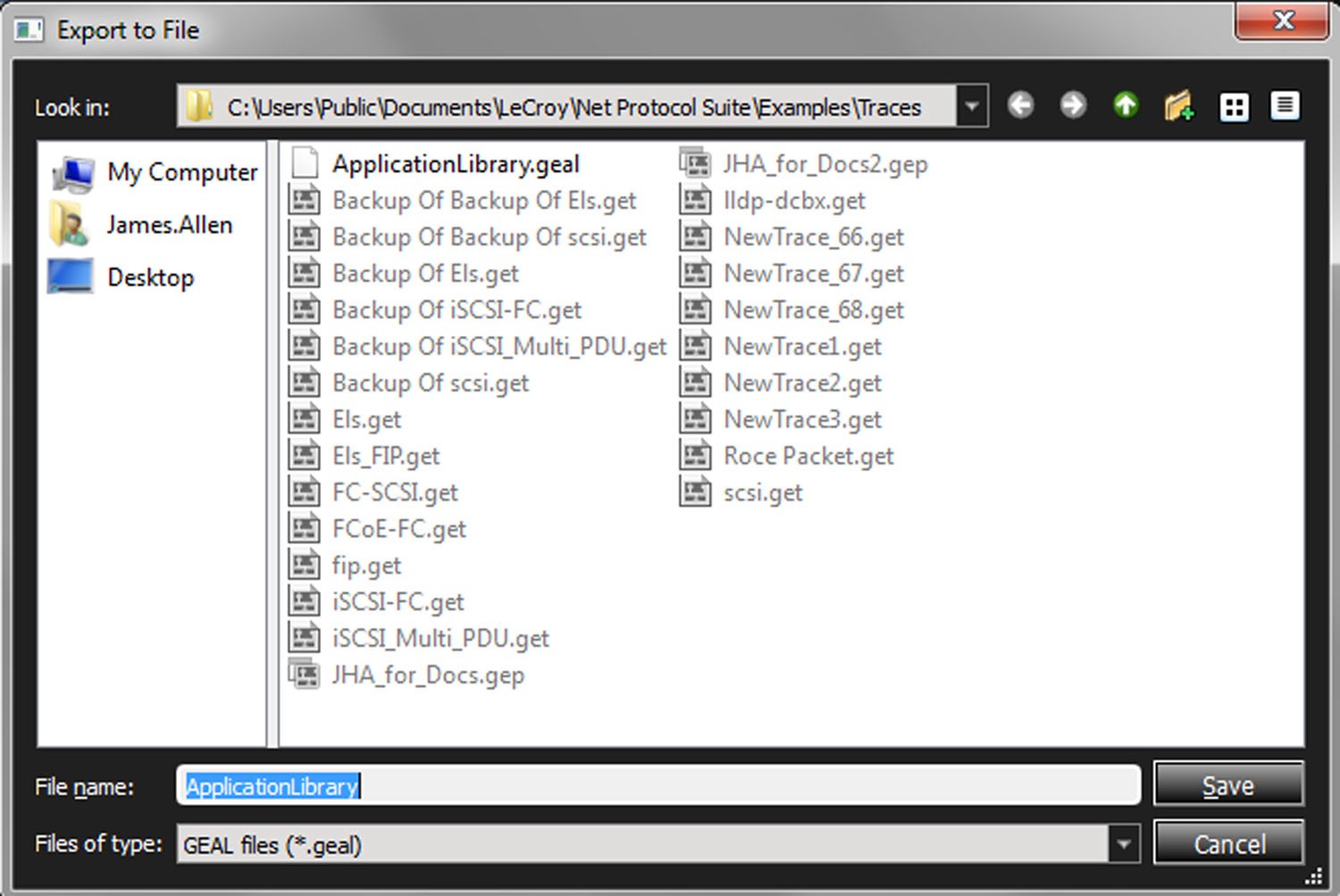
To export a jammer file, click on Export to File and the following dialog pops up.
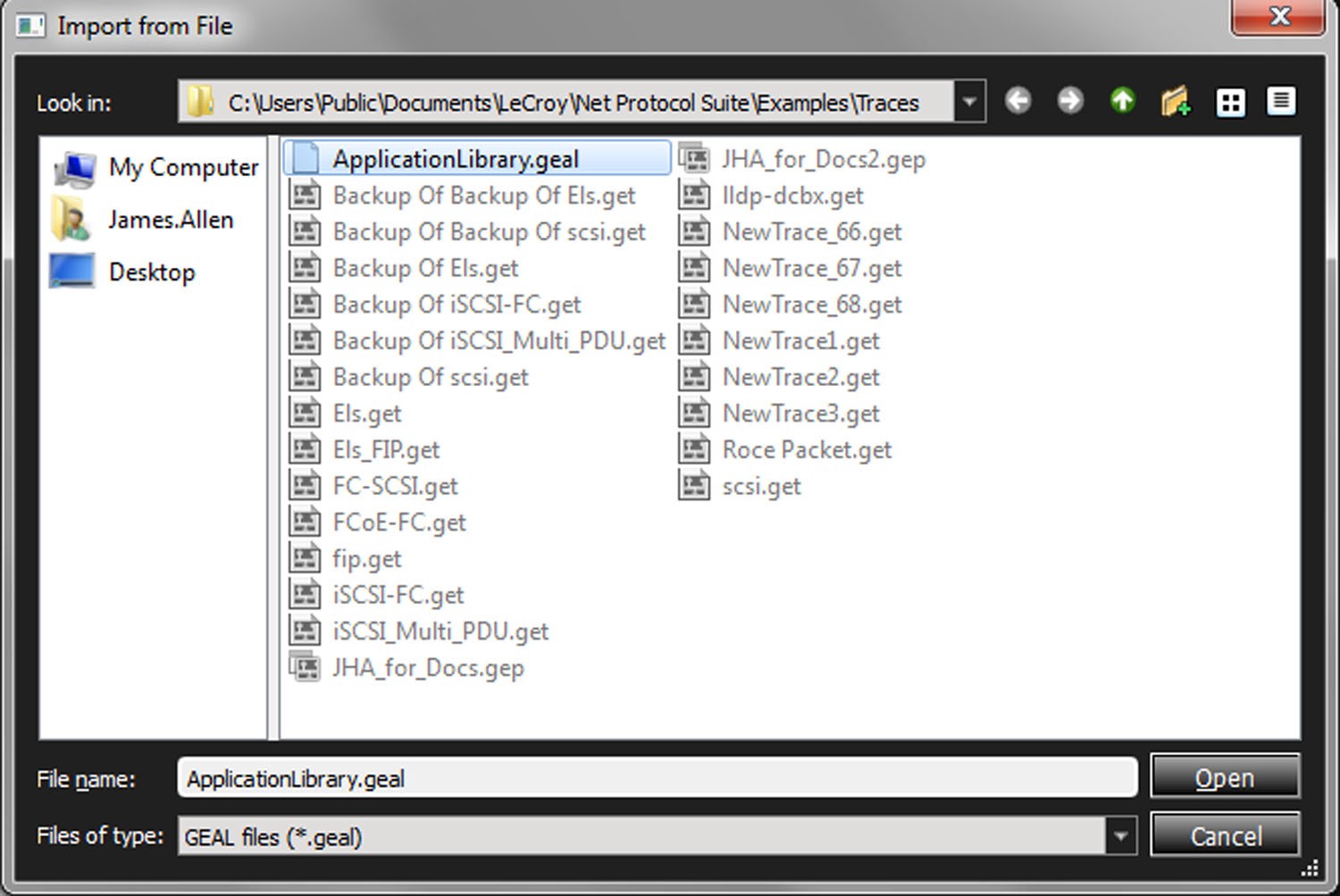
To import a jammer file, click on Import from File and the following dialog pops up.
Infusion Error Messages/Corrective Action
Detailed Error Message Descriptions/Corrective Action
|
Error Message |
Detected Event/ Action |
Reason |
Corrective Action |
|---|---|---|---|
|
Only Captured DWORD #4-#7 are allowed to be used with frame detector events |
Capture DWORD Action |
Invalid Parameter Setting |
Change capture setting to Frame Detect |
|
Only Captured DWORD #0-#3 are allowed to be used with non-frame detector events |
Capture DWORD Action |
Invalid Parameter Setting |
Change capture setting to Non-Frame Detect |
|
Capture DWORD action is not allowed when frame detection events are combined with other events |
Capture DWORD Action |
Operation Limitation |
Remove Non-Frame OR Frame Detect according to Action Capture Setting |
|
Too many Insert Actions |
Insert Error/ Bytes/Symbol Action |
Resource Limitation |
Reduce Action Max is 8 for GE & FC |
|
Too many Frame insert Actions |
Frame Insert Actions |
Resource Limitation |
Reduce Action Max is 7 for GE & FC |
|
Too many Frame Detection events |
Frame Detect Event |
Resource Limitation |
Reduce Event, Max is 8 for GE10 & FC, 6 for GE40 |
|
Selected Action is only valid after Frame Detect Events. |
Frame Jam Actions |
Operation Limitation |
Remove the Non-Frame Event or choose other action for the Non Frame Event |
|
Frame Length in Frame Truncate Action cannot be less than 3. |
Frame Truncate Action |
Invalid Parameter Setting |
Frame length setting should be more than 3 |
|
Selected Action is not valid after “Frame Detect” Events, Use “Frame Jam” action after Frame Detectors. |
Non Frame Actions |
Operation Limitation |
Select actions from Frame Jam category |
|
Events for this action are in different Directions. |
Frame Actions |
Operation Limitation |
Change all Events to same direction |
|
Direction of Events for this action should be same as Scenario Direction. |
Frame Event |
Parameter Setting |
Change Scenario OR Frame Event direction |
|
Selected Action is not valid after “Training Frame Detect” Events. Use “Training Frame Jam” action after Frame Detectors. |
Training Sequence Event |
Operation Limitation |
Remove the incompatible Action |
|
Selected Action is only valid after Training Frame Detect Events. |
Training Frame Action |
Operation Limitation |
Use action only for Training Sequence Events |
|
Selected Action is only valid after Auto Negotiation Detect Events. |
Auto Negotiation Jam Action |
Operation Limitation |
Use action only for Auto Negotiation Events |
|
Selected Action is not valid after Auto Negotiation Detect Event. |
Auto Negotiation Events |
Operation Limitation |
Remove the incompatible Action |
|
Selected Action is not valid after Both Link Up Event. |
Both Link Up Event |
Operation Limitation |
Remove the incompatible Action |
|
Selected Action is not valid after Link Speed. |
Link Speed Event |
Operation Limitation |
Remove the incompatible Action |
|
Too many Auto Negotiation Jam Actions |
Auto Negotiation Jam Action |
Resource Limitation |
Reduce Action, Max is 4 |
|
Too many Frame Jam Action |
Frame Jam Action |
Resource Limitation |
Reduce Action, Max is 8 |
|
“Insert Position” of Insert Action should be set to “Offset from frame start” for Frame Detect events. |
Insert Symbol/ Bytes/Ordersets Action |
Invalid Parameter Setting |
Change the insert position to Offset from Frame |
|
“Insert Position” of Insert Action should be set to “After Current Symbol\DWORD” for Non-Frame Detect events. |
Insert Symbol/ Bytes/Ordersets Action |
Invalid Parameter Setting |
Change the insert position to after symbol/DWORD |
|
Whether all or none of events should be Frame Detect |
Insert Symbol Action |
Operation Limitation |
Remove all Frame Detect Patterns from Event |
|
Variable Header is allowed for selected Action if and only if all Events are FCOE Frame Detect |
Frame Actions |
Operation Limitation |
Uncheck Trigger on given pattern with Variable header length from the FCOE Frame Detector OR Remove the non-FCOE Frame Detect from Event |
|
Combination of Variable and Fixed Header is only allowed when all Events are FCOE Frame Detect |
Frame Events |
Operation Limitation |
Uncheck Trigger on given pattern with Variable header length from the FCOE Frame Detector OR Remove the non-FCOE Frame Detect from Event |
|
Selected Action is only valid after Frame Detect Events with Same Direction |
Frame Events |
Invalid Parameter Setting |
Change the Action direction setting to match Events |
|
Selected Action is only valid after Auto Negotiation Detect Events with Same Direction |
Auto Negotiation Events |
Invalid Parameter Setting |
Change the Action direction setting to match Events |
|
Frame Delimiter OrderSet Can only Be Replaced By the Primitive Sequence OrderSet at the Speed of 8G or Less Than 8G. |
Ordered Set Jam Action |
Invalid Parameter Setting |
User must select a compatible Primitive type |
|
“Nth Occurrence” is not supported for Actions corresponding to Symbol Detect. Define the counter in event dialog instead. |
Symbol Detect Event |
Operation Limitation |
Action counter Not supported when using this Pattern Event. Consider using pattern event counter. |
|
“Nth Occurrence” is not supported for Actions corresponding to Ordered Set. Define the counter in event dialog instead. |
Ordered Set Event |
Operation Limitation |
Action counter Not supported when using this Pattern Event. Consider using pattern event counter. |
|
“Nth Occurrence” is not supported for Actions corresponding to DWORD Matcher. Define the counter in event dialog instead. |
DWORD Matcher Event |
Operation Limitation |
Action counter Not supported when using this Pattern Event. Consider using pattern event counter. |
|
Frame Detect Event with Variable Header is not valid for Replace Action. |
Frame Jam Replace Action |
Operation Limitation |
Uncheck Trigger on given pattern with Variable header length from the FCOE Frame Detector. |
|
Too many “Replace with Captured Data” Events. |
Replace with Captured Data Action |
Resource Limitation |
Reduce Action placement, Max is 4. |
|
Invalid parameters for “Replace with Captured Data”. |
Frame Events |
Invalid Parameter Setting |
User must enable at least one byte mask. |
|
Stop Scenario Action should be the only action in a condition of the state. |
Stop Scenario Action |
Operation Limitation |
User must create a new condition for this action OR remove other actions from this condition. |