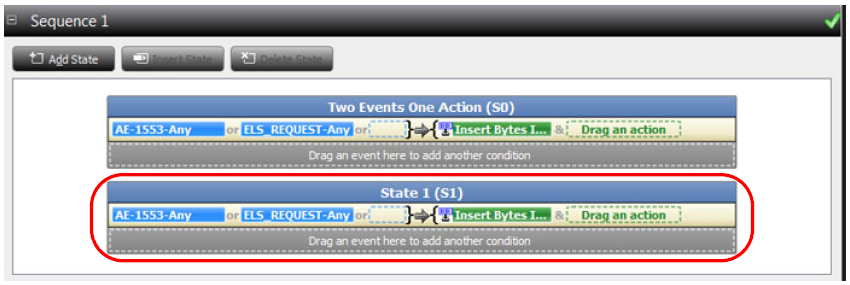
The suggested process of creating and executing a Scenario is as follows:
-
Create a Scenario in the library.
-
Drag and drop to create Global Rules Events and Actions and/or to create Sequence and State Events and Actions.
-
Complete the Scenario and Save it.
-
Select the Scenario in the Library that you want to run on the device.
-
To run the Scenario, click the Start Session button. The device starts to monitor/modify traffic.
Generating an InFusion Scenario
Click the New Scenario 
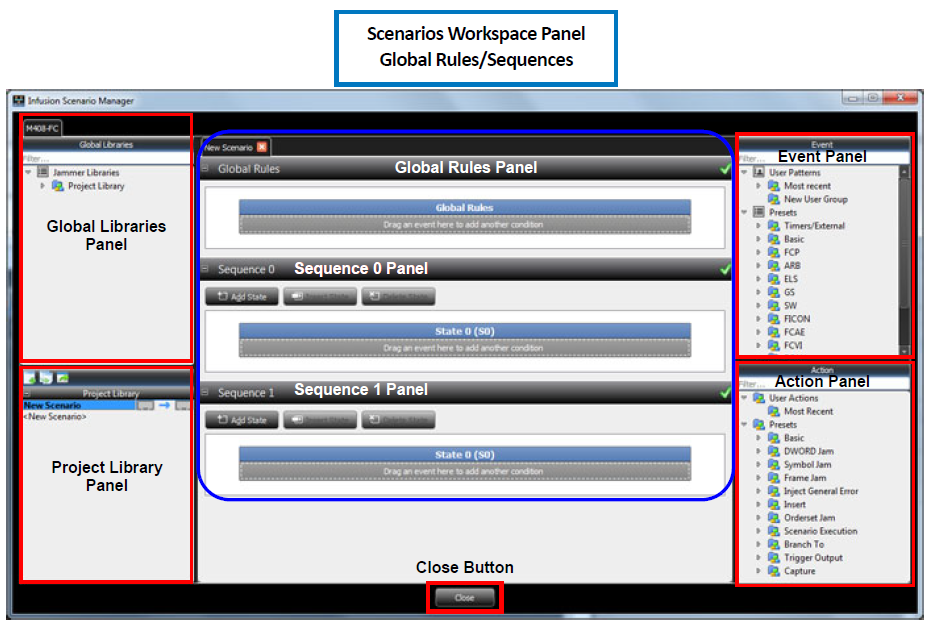
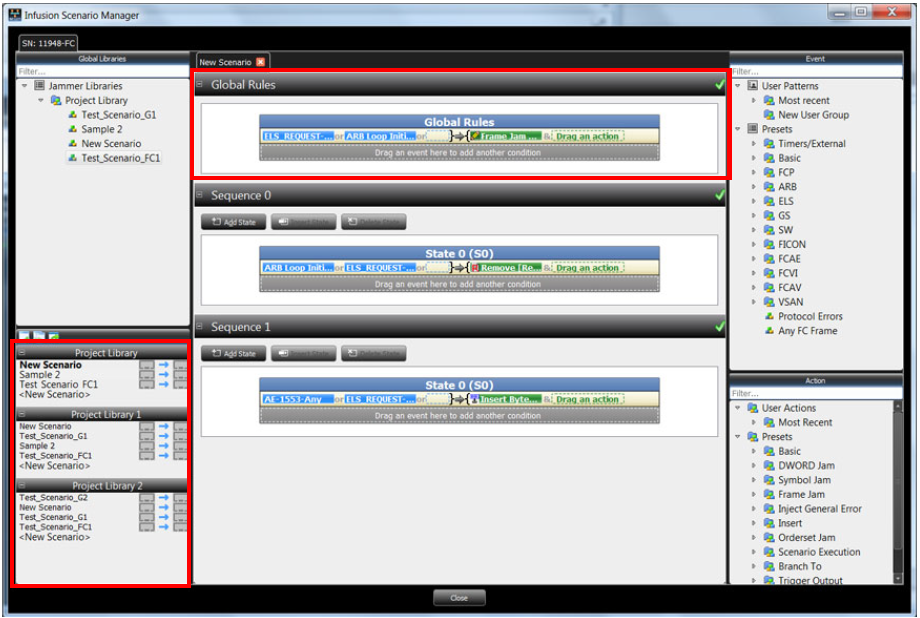
The InFusion Scenario Manager includes the following sections:
-
Scenario Elements (Global Rules/Sequence 0/Sequence 1)
Global Libraries Panel
The Main Library window (on the left), which displays the available Scenarios. You can create a New Scenario, Open Containing Folder, Copy Container Folder Path, Add New Library, Rename Library or Remove Library. The scenarios saved on a specific platform in the Global Library are available in all projects for the same platform.
Right-click inside the Global Libraries Panel at the Scenario Level to do the following:
-
Cut a Scenario
-
Copy a Scenario
-
Paste a Scenario
-
Delete a Scenario
-
Rename a Scenario
-
Sort Scenarios
-
Sort All Scenarios
-
Export Scenarios to a File
-
Import Scenarios from a File
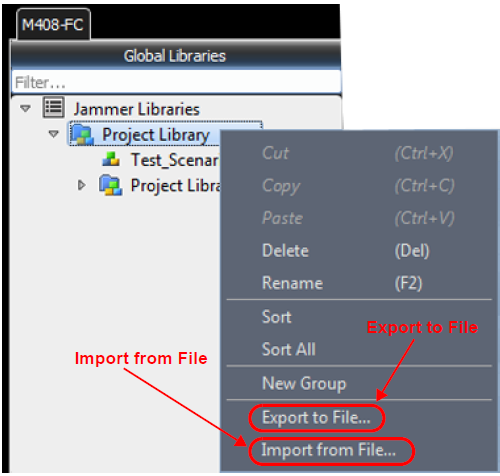
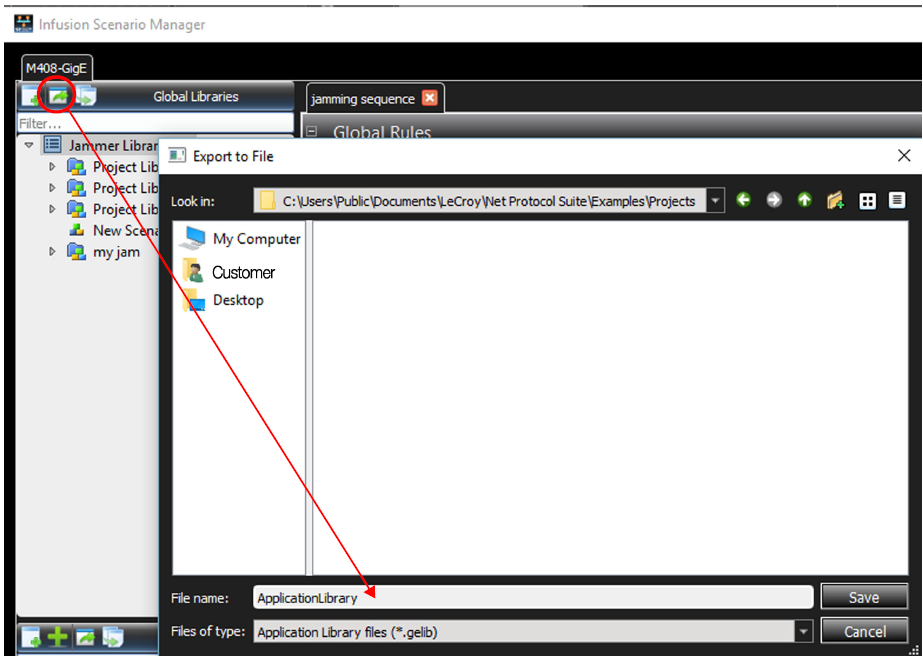
If you select Export to File, the window shown below opens. This allows you to navigate to the Project folder where you can export your Project Library to a File.
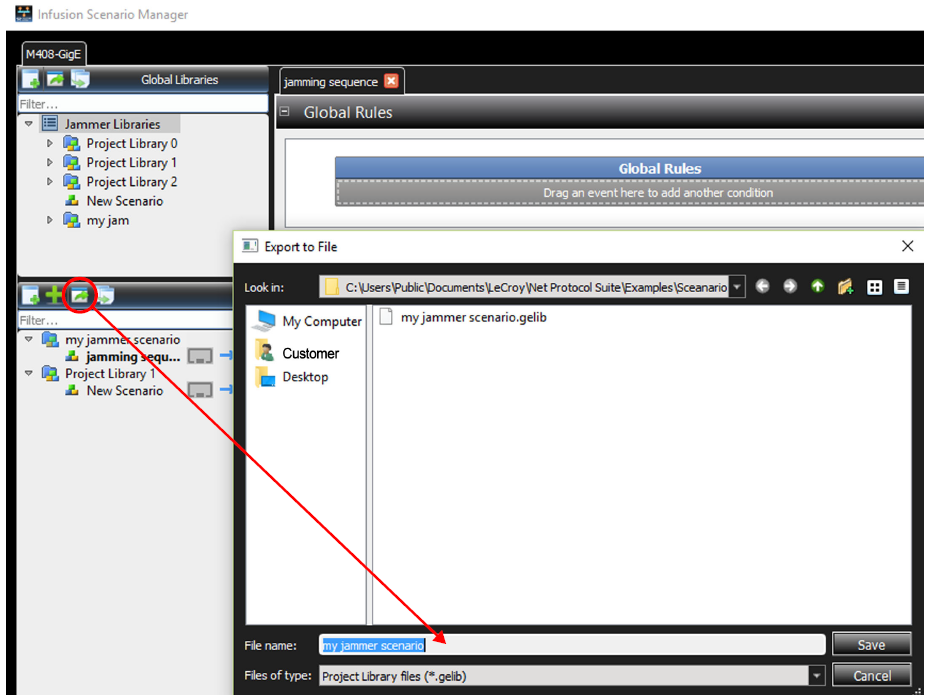
You can also Export a Scenario to a File.
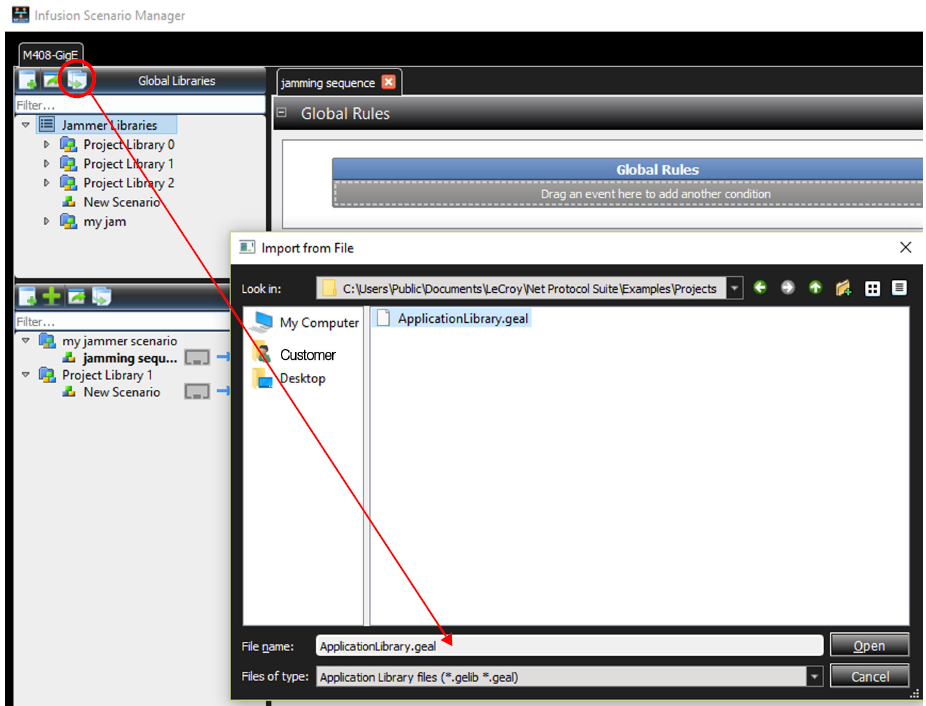
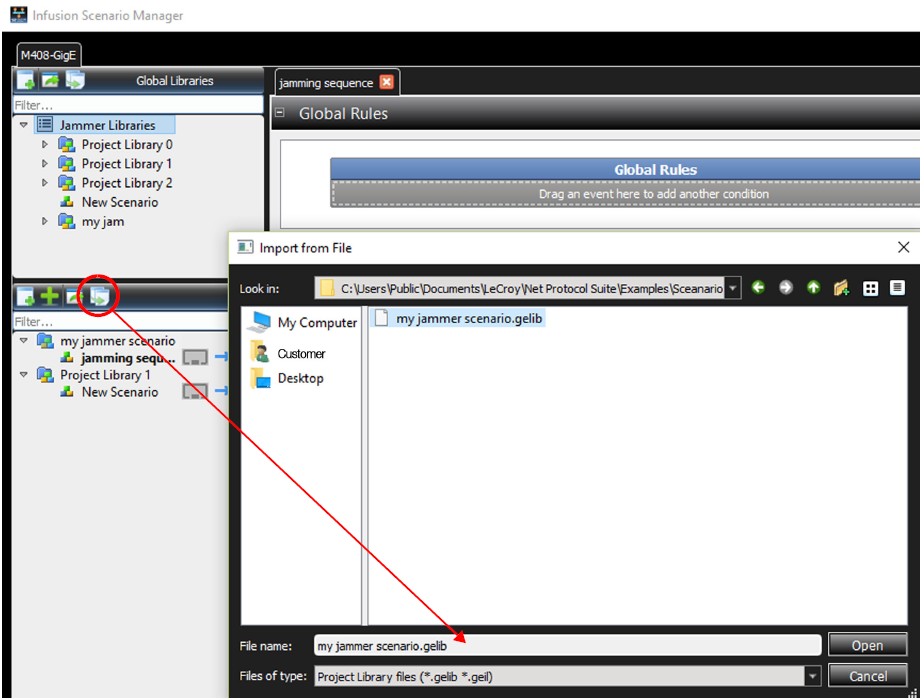
You can also Import Libraries and Scenarios from a File.
Project Library Panel
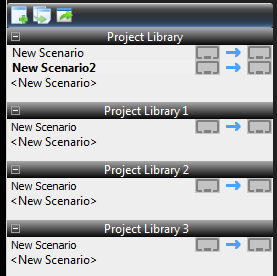
The Project Library window (on the left) displays the project libraries. The scenarios saved in the Project Library are only available for the current project.
In the Project Libraries Panel at the Scenario Level (with a right-click) you can:
-
Cut a Library
-
Copy a Library
-
Delete a Library
-
Rename a Library
-
Add a New Library
-
Export a Library
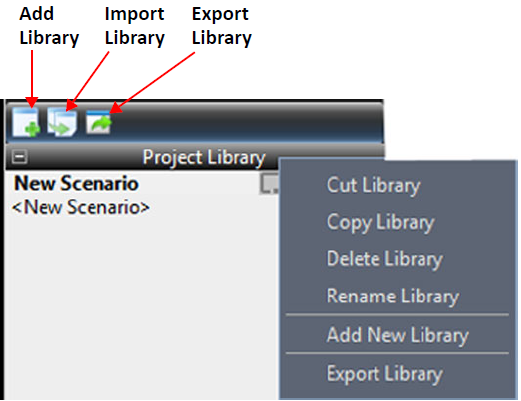
Add New Library
Select the Add New Library Icon to produce a new Project Library.
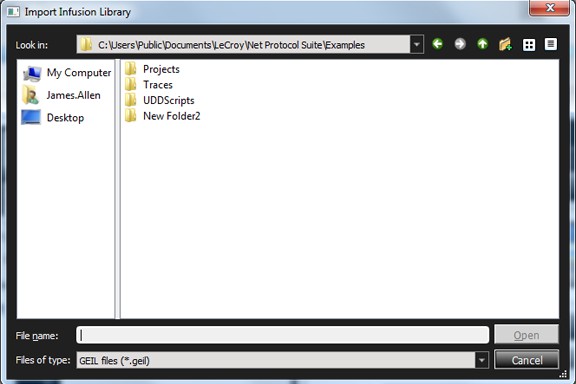
Import Library
Click the Import Library icon. The window shown below appears.
Export InFusion Library
-
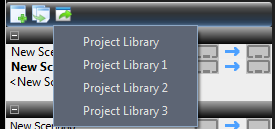
Click the Export Library icon to view the Project Library menu. Use this to choose a library to Export.
-
Select the Project Library you need. A window containing the contents of the selected library opens.
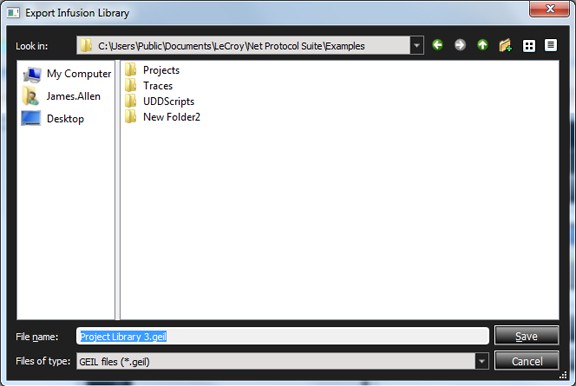
-
Choose the Projects Folder, then click Save. The selected Project Library is stored under the Projects Folder.
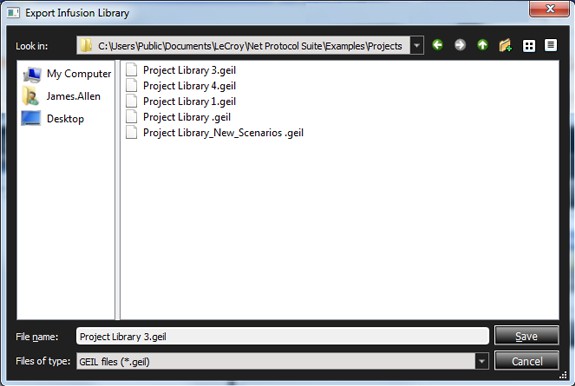
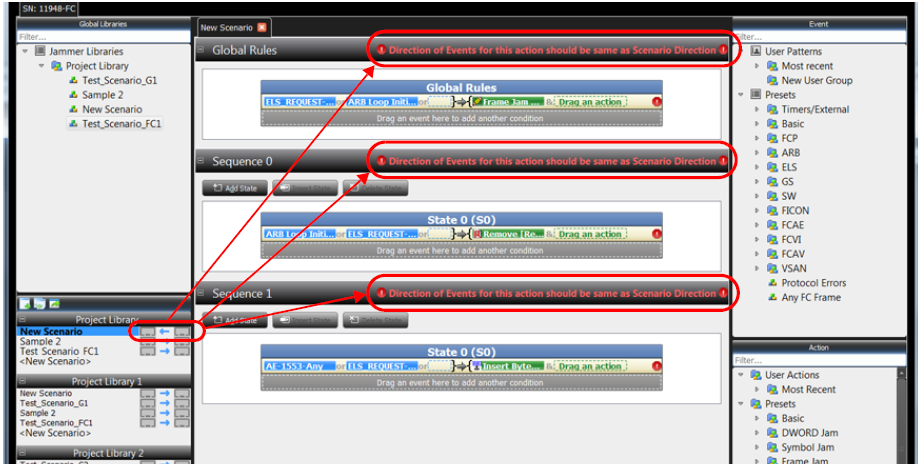
Scenario Traffic Modification Direction
You can select the Scenario Traffic Direction in the Project Library Panel.
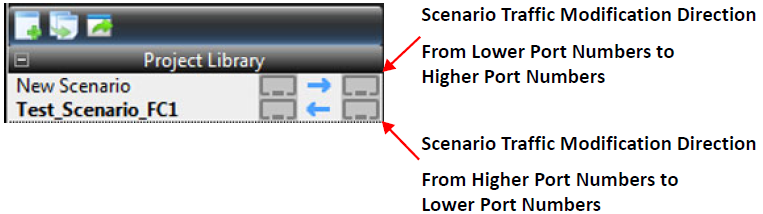
Note: The Scenario Traffic Modification Direction sets the direction in which traffic may be modified for the Scenario. If you define an Event with a direction property that doesn’t match the Scenario Traffic Modification Direction the system will pop up a Warning message to change the direction of traffic of the event.
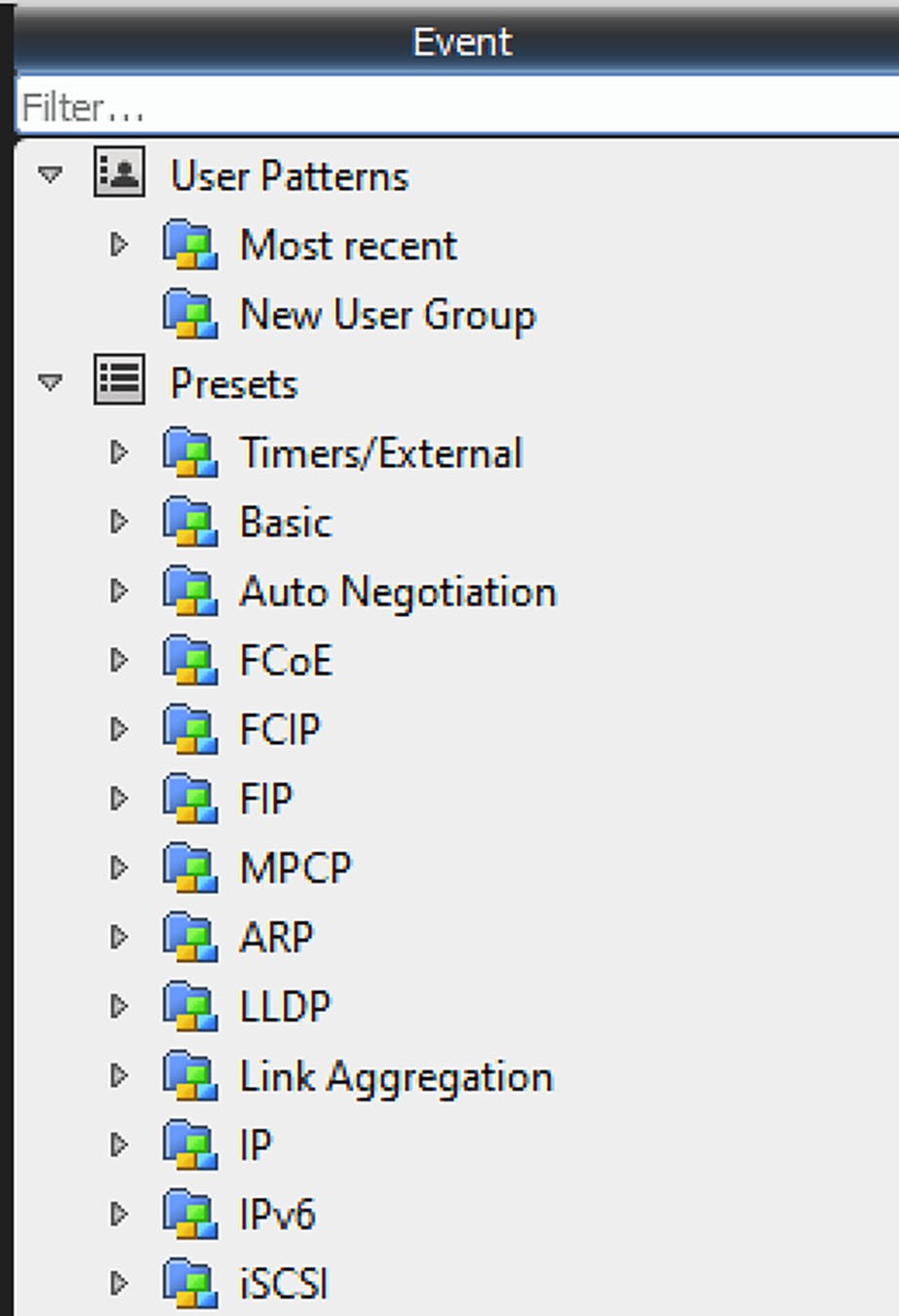
Event Panel
Lists all the available events to be used in the Scenarios Workspace.
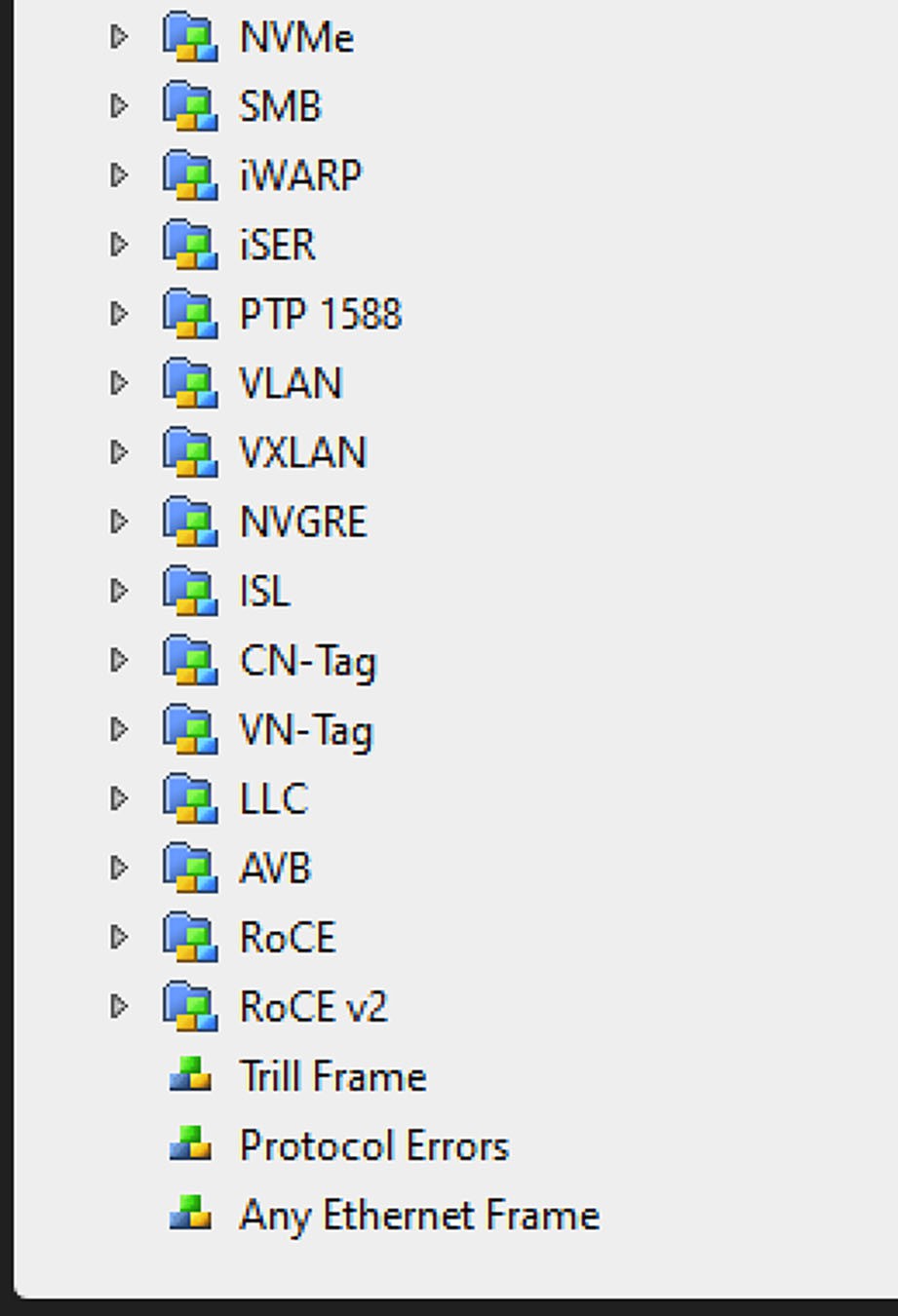
Ethernet Events
|
|
The following table describes the Presets that can be used as FCoE (Ethernet) Events
Note: You can have multiple Events and Actions in Global Rules and in each State.
Events & Their Descriptions (Ethernet)
|
Event |
Description |
|
User Patterns |
|
|
Most Recent |
Lists the most recent Events. |
|
New User Group |
Lists the new user groups. |
|
Presets |
|
|
Timers/External |
|
|
Timer |
The Event occurs when the timer expires. |
|
Other Trigs |
Analyzer: the Event occurs when the Analyzer triggers. External: the Event occurs when the external Trigger In is asserted. |
|
Basic |
|
|
Basic Link Service |
Refer to Section 4.2.5.2, Basic Link Service. |
|
Link Control Frame |
Refer to Link Control Frame in Chapter 4. |
|
Link Speed |
The Event occurs when the link is at the specified speed. |
|
Both Linkup |
The Event occurs when both ports are out of electric idle. |
|
DWORD Reuse |
Refer to Section 6.5.7, Using Captured Data DWORDs. |
|
DWORD Matcher |
Refer to Section 6.5.8, DWORD Matcher. |
|
Training Sequence |
Inject Error on Control: Generates Manchester Coding violation on Control field bits corresponding to the defined mask: One means violation, and zero means no error. Inject Error on Status: Generates Manchester Coding violation on Status field bits corresponding to the defined mask: One means violation, and zero means no error. Frame Marker Error: Generates training sequence with an invalid frame marker. Recode Manchester Coding: Forces jammer to recalculate Manchester Coding for each bit of training frame. |
|
Auto Negotiation |
|
|
Auto Negotiation (Any) |
Refer to Auto Negotiation |
|
Auto Negotiation IEEE.std 802.3 |
|
|
Auto Negotiation OUI Tagged Formatted Next Page |
|
|
Auto Negotiation OUI Tagged Unformatted Next Page |
|
|
Auto Negotiation Null Message Page |
|
|
Auto Negotiation OUI Tag Code Message Page |
|
|
Auto Negotiation PHY ID Tag Message Page |
|
|
Auto Negotiation EEE Technology Message Page |
|
|
Auto Negotiation Any Message Page |
|
|
FCP |
|
|
FCP SCSI Command |
Refer to FCP Patterns in Chapter 4.
|
|
FCP Frame Information Unit |
|
|
SCSI Command Status |
Refer to SCSI under FCP Patterns in Chapter 4. |
|
FCP Task Management |
Refer to FCP Task Management in Chapter 4. |
|
ELS |
|
|
Extended Link Service – Request |
Refer to ELS Patterns in Chapter 4. |
|
Extended Link Service – Request, Reply |
Refer to ELS Patterns in Chapter 4. |
|
Extended Link Service – Reply |
Refer to ELS Patterns in Chapter 4. |
|
GS |
|
|
Generic Link Service – Request |
Refer to Generic Link Service-Request in Chapter 4. |
|
Generic Link Service – Request, Reply |
Refer to GS Reply in Chapter 4.
|
|
Generic Link Service – Reply |
|
|
SW |
|
|
Switch Internal Link – Request |
Refer to SW Request in Chapter 4. |
|
Switch Internal Link – Request, Reply |
|
|
Switch Internal Link – Reply |
|
|
FICON |
|
|
FICON (Any Data Information Block Type) |
Refer to FICON Patterns in Chapter 4. |
|
FICON (Data) |
|
|
FICON (Command) |
|
|
FICON (Status) |
|
|
FICON (Control) |
|
|
FICON (Command-Data) |
|
|
FICON (Link-Control) |
|
|
FCAE 1553 |
|
|
FCAE – ASM |
|
|
FCAE 1553 (Any) |
|
|
FCAE 1553 (Data) |
|
|
FCAE 1553 (Command) |
|
|
FCAE 1553 (Status) |
|
|
FCVI |
|
|
FCVI(Any) |
Refer to FCVI Patterns in Chapter 4. |
|
FCVI(SEND_RQST) |
|
|
FCVI(WRITE_RQST) |
|
|
FCVI(READ_RQST) |
|
|
FCVI(SEND_RESP) |
|
|
FCVI(WRITE_RESP) |
|
|
FCVI(READ_RESP) |
|
|
FCVI(CONNECT_RQST) |
|
|
FCVI(DISCONNECT_RQST) |
|
|
FCVI(CONNECT_RESP1) |
|
|
FCVI(CONNECT_RESP2) |
|
|
FCVI(CONNECT_RESP3) |
|
|
FCVI (DISCONNECT_RESP) |
|
|
FCAV |
|
|
FCAV(Simple) |
Refer to FCVI Patterns in Chapter 4.
|
|
FCAV(Extended) |
|
|
VSAN |
|
|
Basic |
|
|
VSAN-Basic Link Service |
Refer to VSAN Patterns in Chapter 4. |
|
VSAN-Link Control Frame |
|
|
FCP |
|
|
VSAN-FCP SCSI Command |
Refer to VSAN Patterns in Chapter 4. |
|
VSAN-FCP Frame Information Unit |
|
|
VSAN-SCSI Command Status |
|
|
VSAN-FCP Task Management |
|
|
ARB |
|
|
VSAN-ARB Loop Initialization |
Refer to VSAN Patterns in Chapter 4. |
|
ELS |
|
|
VSAN-Extended Link Service-
|
Refer to VSAN Patterns in Chapter 4. |
|
VSAN-Extended Link Service-Reply |
|
|
GS |
|
|
VSAN-Generic Link Service-Request |
Refer to VSAN Patterns in Chapter 4. |
|
VSAN-Generic Link Service-Reply |
|
|
SW |
|
|
VSAN-Switch Internal Link-Request |
Refer to VSAN Patterns in Chapter 4. |
|
VSAN-Switch Internal Link-Reply |
|
|
FICON |
|
|
VSAN-FICON (Any Data Information Block Type) |
Refer to VSAN Patterns in Chapter 4. |
|
VSAN-FICON (Data) |
|
|
VSAN-FICON (Command) |
|
|
VSAN-FICON (Status) |
|
|
VSAN-FICON (Control) |
|
|
VSAN-FICON (Command-Data) |
|
|
VSAN-FICON (Link-Control) |
|
|
VSAN-FCAE-ASM |
|
|
VSAN-FCAE 1553 |
|
|
VSAN-FCAE 1553 (Any) |
Refer to VSAN Patterns in Chapter 4. |
|
VSAN-FCAE 1553 (Data) |
|
|
VSAN-FCAE 1553 (Command) |
|
|
VSAN-FCAE 1553 (Status) |
|
|
FCVI |
|
|
VSAN-FCVI(Any) |
Refer to VSAN Patterns in Chapter 4. |
|
VSAN-FCVI(SEND_RQST) |
|
|
VSAN-FCVI(WRITE_RQST) |
|
|
VSAN-FCVI(READ_RQST) |
|
|
VSAN-FCVI(SEND_RESP) |
|
|
VSAN-FCVI(WRITE_RESP) |
|
|
VSAN-FCVI(READ_RESP) |
|
|
VSAN-FCVI(CONNECT_RQST) |
|
|
VSAN-FCVI(DISCONNECT_RQST) |
|
|
VSAN-FCVI(CONNECT_RESP1) |
|
|
VSAN-FCVI(CONNECT_RESP2) |
|
|
VSAN-FCVI(CONNECT_RESP3) |
|
|
VSAN-FCVI(DISCONNECT_RESP) |
|
|
FCAV |
|
|
VSAN-FCAV(Simple) |
Refer to VSAN Patterns in Chapter 4. |
|
VSAN-FCAV(Extended) |
|
|
FIP |
Refer to 4.2.4.4, FIP Patterns. |
|
MPCP |
Refer to 4.2.4.5, MPCP Pattern. |
|
Address Resolution Protocol |
Refer to Section 4.2.4.6, Address Resolution Protocol Pattern. |
|
Link Layer Discovery Protocol |
Refer to Section 4.2.4.7, Link Layer Discovery Protocol Pattern. |
|
Internet Protocol |
Refer to Section 4.2.4.8, Internet Protocol Pattern. |
|
iSCSI |
Refer to Section 4.2.4.9, iSCSI Pattern. |
|
iWARP |
Refer to Section 4.2.4.10, iWARP Patterns |
|
VLAN |
Refer to Section 4.2.4.11, VLAN Patterns. |
|
VXLAN |
Refer to Section 4.2.4.12, VXLAN Patterns |
|
ISL |
Refer to Section 4.2.4.14, ISL Patterns. |
|
CN-Tag |
Refer to Section 4.2.4.15, CN Tag Patterns. |
|
VN-Tag |
Refer to Section 4.2.4.16, VN Tag Patterns. |
|
LLC |
Refer to Section 4.2.4.17, LLC. |
|
InfiniBand |
|
|
RDMA |
Refer to InfiniBand Over Ethernet: RDMA and NVMe Triggers in Chapter 4. |
|
NVMe |
Refer to InfiniBand Over Ethernet: RDMA and NVMe Triggers in Chapter 4. |
|
Trill Frame |
Refer to Section 4.2.4.19, Trill Frame. |
|
Protocol Errors |
Refer to Section 4.2.4.20, Protocol Errors. |
|
Jammer Internal Triggers |
Refer to Section 6.5.18, Synch Jammer Scenarios with Jammer Internal Triggers. |
Fibre Channel Events
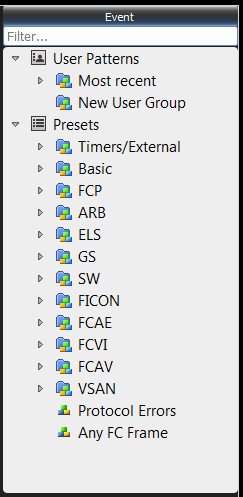
The following table describes the Presets that can be used as Fibre Channel (FC) Events.
Fibre Channel (FC) Events & Their Descriptions
|
Event |
Description |
|
User Patterns |
|
|
Most Recent |
Lists the most recent Events. |
|
New User Group |
Lists the new user groups. |
|
Presets |
|
|
Timers/External |
|
|
Timer |
The Event occurs when the timer expires. |
|
Other Trigs |
Analyzer: the Event occurs when the Analyzer triggers. External: the Event occurs when the external Trigger In is asserted. |
|
Basic |
|
|
Ordered Set |
Refer to Ordered Set in Chapter 4. |
|
Basic Link Service |
Refer to 4.2.5.2, Basic Link Service. |
|
Link Control Frame |
Refer to Link Control Frame in Chapter 4. |
|
Link Speed |
The Event occurs when the link is at the specified speed. |
|
Both Linkup |
The Event occurs when both ports are out of electric idle. |
|
Training Sequence |
Inject Error on Control: Generates Manchester Coding violation on Control field bits corresponding to the defined mask: One means violation, and zero means no error. Inject Error on Status: Generates Manchester Coding violation on Status field bits corresponding to the defined mask: One means violation, and zero means no error. Frame Marker Error: Generates training sequence with an invalid frame marker. Recode Manchester Coding: Forces jammer to recalculate Manchester Coding for each bit of training frame. Refer to Training Sequence in Chapter 4. |
|
FCP |
|
|
FCP SCSI Command |
|
|
FCP Frame Information Unit |
Refer to FCP Task Management in Chapter 4. |
|
SCSI Command Status |
|
|
FCP Task Management |
Refer to FCP Task Management in Chapter 4. |
|
ELS |
|
|
Extended Link Service – Request |
Refer to ELS Patterns in Chapter 4. |
|
Extended Link Service – Request, Reply |
|
|
Extended Link Service – Reply |
|
|
GS |
|
|
Generic Link Service – Request |
Refer to Generic Link Service-Request in Chapter 4. |
|
Generic Link Service – Request, Reply |
|
|
Generic Link Service – Reply |
|
|
SW |
|
|
Switch Internal Link – Request |
Refer to SW Request in Chapter 4. |
|
Switch Internal Link – Request, Reply |
|
|
Switch Internal Link – Reply |
|
|
FICON |
|
|
FICON (Any Data Information Block Type) |
Refer to FICON Patterns in Chapter 4. |
|
FICON (Data) |
|
|
FICON (Command) |
|
|
FICON (Status) |
|
|
FICON (Control) |
|
|
FICON (Command-Data) |
|
|
FICON (Link-Control) |
|
|
FCAE 1553 |
|
|
FCAE – ASM |
|
|
FCAE 1553 (Any) |
|
|
FCAE 1553 (Data) |
|
|
FCAE 1553 (Command) |
|
|
FCAE 1553 (Status) |
|
|
FCVI |
|
|
FCVI(Any) |
Refer to FCVI Patterns in Chapter 4. |
|
FCVI(SEND_RQST) |
|
|
FCVI(WRITE_RQST) |
|
|
FCVI(READ_RQST) |
|
|
FCVI(SEND_RESP) |
|
|
FCVI(WRITE_RESP) |
|
|
FCVI(READ_RESP) |
|
|
FCVI(CONNECT_RQST) |
|
|
FCVI(DISCONNECT_RQST) |
|
|
FCVI(CONNECT_RESP1) |
|
|
FCVI(CONNECT_RESP2) |
|
|
FCVI(CONNECT_RESP3) |
|
|
FCVI (DISCONNECT_RESP) |
|
|
FCAV |
|
|
FCAV(Simple) |
Refer to FCAV Patterns in Chapter 4. |
|
FCAV(Extended) |
|
|
VSAN FCP |
|
|
VSAN-FCP SCSI Command |
Refer to VSAN Patterns in Chapter 4. |
|
VSAN-FCP Frame Information Unit |
|
|
VSAN-SCSI Command Status |
|
|
VSAN-FCP Task Management |
|
|
ARB |
|
|
VSAN-ARB Loop Initialization |
|
|
ELS |
|
|
VSAN-Extended Link Service-Request |
|
|
VSAN-Extended Link Service-Reply |
|
|
GS |
|
|
VSAN-Generic Link Service-Request |
Refer to VSAN Patterns in Chapter 4.
|
|
VSAN-Generic Link Service-Reply |
|
|
SW |
|
|
VSAN-Switch Internal Link-Request |
Refer to VSAN Patterns in Chapter 4. |
|
VSAN-Switch Internal Link-Reply |
|
|
FICON |
|
|
VSAN-FICON (Any Data Information Block Type) |
Refer to VSAN Patterns in Chapter 4. |
|
VSAN-FICON (Data) |
|
|
VSAN-FICON (Command) |
|
|
VSAN-FICON (Status) |
|
|
VSAN-FICON (Control) |
|
|
VSAN-FICON (Command-Data) |
|
|
VSAN-FICON (Link-Control) |
|
|
VSAN-FCAE-ASM |
|
|
VSAN-FCAE 1553 |
|
|
VSAN-FCAE 1553 (Any) |
Refer to VSAN Patterns in Chapter 4. |
|
VSAN-FCAE 1553 (Data) |
|
|
VSAN-FCAE 1553 (Command) |
|
|
VSAN-FCAE 1553 (Status) |
|
|
FCVI |
|
|
VSAN-FCVI(Any) |
Refer to VSAN Patterns in Chapter 4. |
|
VSAN-FCVI(SEND_RQST) |
|
|
VSAN-FCVI(WRITE_RQST) |
|
|
VSAN-FCVI(READ_RQST) |
|
|
VSAN-FCVI(SEND_RESP) |
|
|
VSAN-FCVI(WRITE_RESP) |
|
|
VSAN-FCVI(READ_RESP) |
|
|
VSAN-FCVI(CONNECT_RQST) |
|
|
VSAN-FCVI(DISCONNECT_RQST) |
|
|
VSAN-FCVI(CONNECT_RESP1) |
|
|
VSAN-FCVI(CONNECT_RESP2) |
|
|
VSAN-FCVI(CONNECT_RESP3) |
|
|
VSAN-FCVI(DISCONNECT_RESP) |
|
|
FCAV |
|
|
VSAN-FCAV(Simple) |
Refer to VSAN Patterns in Chapter 4.
|
|
VSAN-FCAV(Extended) |
|
|
FIP |
Refer to 4.2.4.4, FIP Patterns. |
|
MPCP |
Refer to Section 4.2.4.5, MPCP Pattern. |
|
Address Resolution Protocol |
Refer to Section 4.2.4.6, Address Resolution Protocol Pattern. |
|
Link Layer Discovery Protocol |
Refer to Section 4.2.4.7, Link Layer Discovery Protocol Pattern. |
|
Internet Protocol |
Refer to Section 4.2.4.8, Internet Protocol Pattern. |
|
iSCSI |
Refer to sections 4.2.4.9, iSCSI Pattern and ISCSI Cmd in Chapter 4. |
|
VLAN |
Refer to Section 4.2.4.11, VLAN Patterns. |
|
ISL |
Refer to Section 4.2.4.14, ISL Patterns. |
|
CN-Tag |
Refer to Section 4.2.4.15, CN Tag Patterns. |
|
VN-Tag |
Refer to Section 4.2.4.16, VN Tag Patterns. |
|
Trill Frame |
Refer to Section 4.2.4.19, Trill Frame. |
|
Protocol Errors |
Refer to Section 4.2.4.20, Protocol Errors. |
|
Jammer Internal Triggers |
Refer to Section 6.5.18, Synch Jammer Scenarios with Jammer Internal Triggers. |
Note: You can specify additional Sequences and States. The application automatically checks for the maximum number of terms (sequences/ states). When you exceed the limit, an error is flagged, prompting you to jump to the place that caused the error.
Action Panel
After you enter the set of Events for a test state, the menu-driven interface prompts you for the corresponding Action or set of Actions. If you define multiple Actions, the Actions occur simultaneously.
Lists all the available actions to be used in the Scenarios Workspace.
Note: The Actions displayed are dependent on the Events selected.
Actions in Simple Mode (Ethernet)
The following figure displays the options for a set of Actions in Simple Mode (Ethernet).
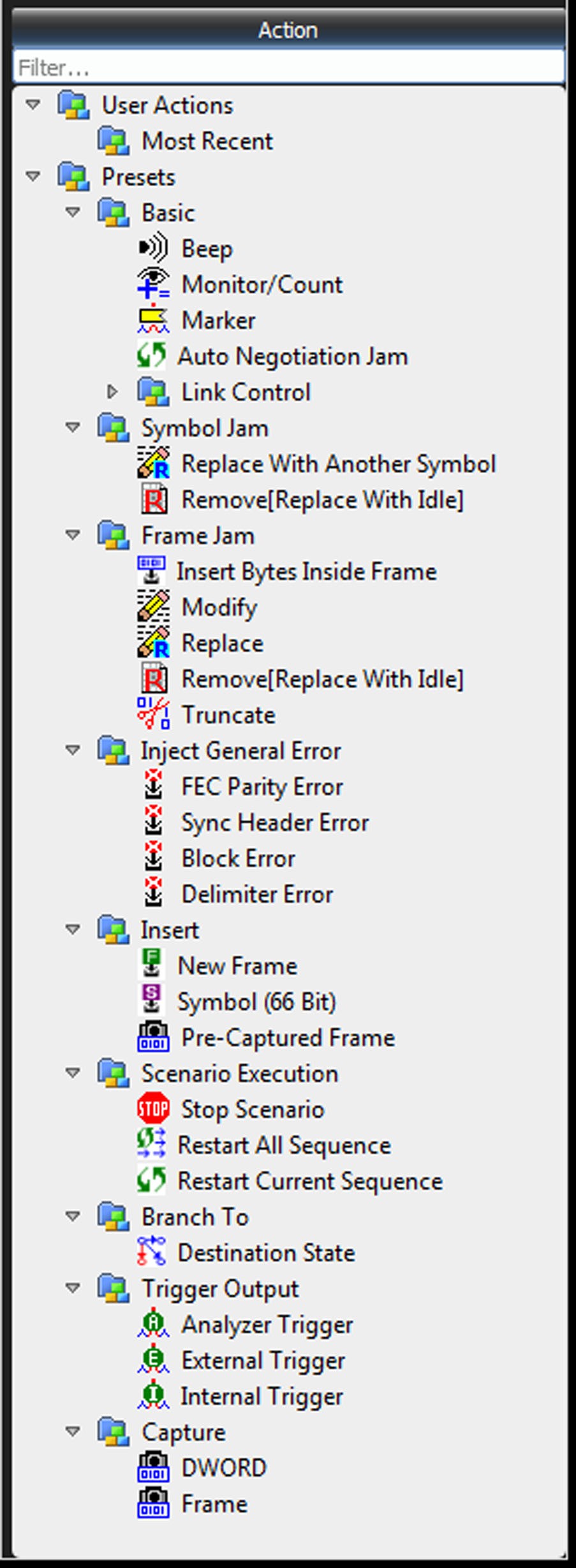
Test State Actions in Simple Mode
The following table lists the supported Actions. Note that some of these Actions only apply to creating sequences.
Test State Actions in Simple Mode
|
Action |
Description |
|
|
Basic |
Beep |
Emits audible sound of duration selectable via a drop-down list. |
|
Monitor Count |
Opens a window to count the number of Events that occur during a session. A session is a time interval during which a Scenario runs. |
|
|
Marker |
Adds jammer marker to the recorded trace file. (See 6.5.17.1, Solution for more information) |
|
|
Training Sequence Jam |
Modifies the training sequence event and provides a different jam based on the TS and TS PAM4 events. |
|
|
Auto Negotiation Jam |
Opens a window to set Code Values, Code Settings and General parameters (Ethernet only). |
|
|
Link Control |
Reconnect: Starts traffic pass-through immediately. This Action restarts traffic after a previous disconnect command. Once traffic is passing through, the originator and responder resume link bring up. Disconnect: Puts InFusion ports at electrical idle immediately. This action is only in effect while the scenario is running, and the Jammer will reconnect the line when the scenario is stopped. |
|
|
Reconnect/Disconnect can be applied in either direction separately:
|
||
|
Symbol Jam |
Replace with Another Symbol |
Replaces the Symbol with the selected Symbol. |
|
Remove [Replace with Idle] |
Removes the Symbol. |
|
|
DWORD Jam |
Replace DWORD |
Replace DWORD (FC 16 only). |
|
Frame Jam |
Insert Bytes Inside Frame |
Allows to insert up to 60 Bytes inside the frame, at the specified offset or at the “current” DWORD, meaning the DWORD that caused the Event. |
|
Modify [Keep Length] |
Allows to manipulate each DWORD in the header, with the selected Action (click on Pass though to get a drop-down list). |
|
|
Replace |
Replaces the whole frame with the selected frame. |
|
|
Remove [Replace with IDLE] |
Removes the whole frame. |
|
|
Truncate |
Removes some of the payload, as specified in the Frame Length. |
|
|
Inject General Error |
Invalid 10-bit-Error Code |
Injects invalid 10b code into the line (FC8 only). |
|
Running Disparity Error |
Injects a Running Disparity (RD) error into traffic(FC8 only). |
|
|
FEC Parity Error |
Injects a FEC error into traffic. |
|
|
Sync Header Error |
Injects a Sync Header error into traffic. |
|
|
Block Error |
Injects a Block error into traffic. |
|
|
Order Set Error |
Injects a Order Set error into traffic, (Not available with 40GigE). |
|
|
Insert |
Insert New Frame |
Allows to insert a whole frame as specified from the list of available frames. |
|
Symbol (66 Bit) |
Allows to insert a Symbol 66 bits. |
|
|
Pre-captured Frame |
Allows to insert a Pre-captured Frame (Ethernet only). |
|
|
Insert Bytes/ Ordersets |
Allows to insert Bytes or Ordersets (FC 16 only). See 6.5.3, Insert Byte/Orderset. |
|
|
Ordered Set Jam |
Delete |
Delete an Ordered Set Jam. |
|
Remove [Replace with IDLE] |
Remove an Ordered Set Jam or Replace with another Ordered Set. |
|
|
Replace with Another Ordered Set |
Only replace with another Ordered Set. |
|
|
Scenario Execution |
Stop Scenario |
Stops the current Scenario. This Action should be the only Action in a State as it has higher priority over other Actions. |
|
Restart All Sequence |
Restart all sequences in the Scenario.1 |
|
|
Restart Current Sequence |
Restart the sequence that contains this Action definition.1 |
|
|
Branch To |
Destination State |
Go to a state in this Sequence.1 |
|
Trigger Output |
Sends a signal out the trigger port to the device downstream. |
|
|
Analyzer Trigger |
|
|
|
External Trigger Output |
The Action is to cause an external trigger output. |
|
|
Marker Trigger |
Add a marker to captured data. |
|
|
Capture |
DWORD |
Capture DWORD. |
|
Reuse of Captured DWORDs. (See 6.5.9, Reusing Captured DWORDS in Events.) |
||
|
Frame |
Capture Frame (applies to both Ethernet and FC frames). |
|
1Only shown in Action Properties dialog box when creating a sequence.
Changes made in the gray area in the screen below when modifying events do not take effect and will not be jammed.
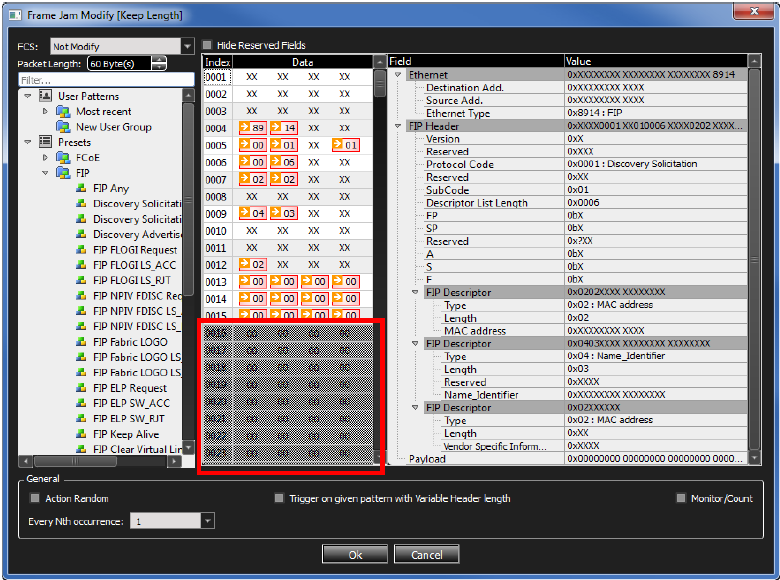
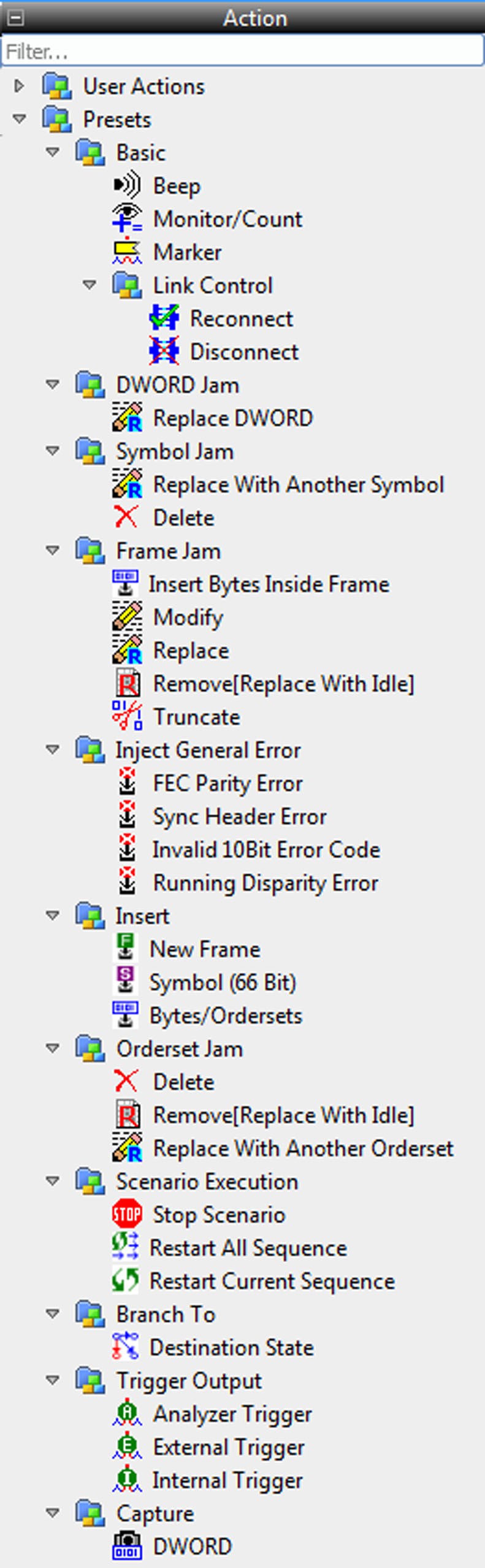
Actions in Simple Mode – Fibre Channel (FC)
The following figure displays the options for a set of Actions in Simple Mode (FC).
Scenarios Workspace Panel
This is the middle section of the Infusion Scenario Manager, where you will construct and manipulate the logic of the scenario by defining Events and Actions.
-
You can drag and drop events in the Global Rules panel and assign actions to them.
-
You can also drag and drop events into Sequence 0 or Sequence 1 states and assign actions to them.
Global Rules
Global Rules are a portion of the Scenario that can define only one test state. To create the Global Rules, you use the menu-driven interface to enter an Event or Combined Event and the corresponding Action or set of Actions (the response of InFusion hardware to the Event).
In the case of a Combined Event, the Action is taken upon occurrence of any of the Events stated for the Event combination. It is a logical OR association, meaning any of the Events can trigger the Action.
After you enter the Event or Combined Event, the interface prompts you for Actions. An Action might be, for example, injecting a particular ordered-set or error into the traffic stream. You can enter multiple Actions, which take place simultaneously. If one of the Actions is Stop Scenario, the other Actions will NOT be carried out. To stop the Scenario after the requested Actions have been carried out, you should branch to a new state which stops the Scenario.
After defining the Event and Actions within the Global Rules panel, you can save the Scenario and run it.
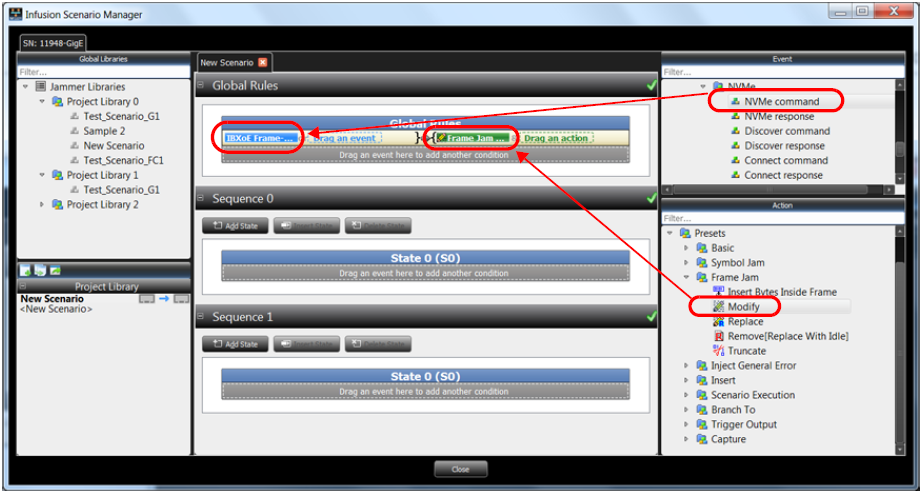
As an example, an NVMe Command is dragged over as the Event and a Modify Frame is dragged over as the Action.
NVMe Command in Global Rules
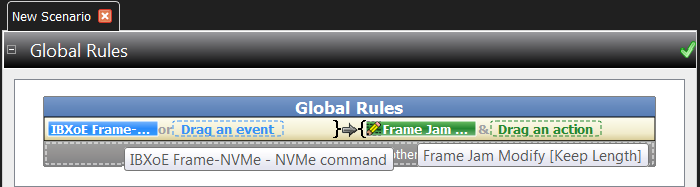
A close-up view of the Global Rules Event and Action shows more detail and the context windows that pop up.
Sequences
The Global Rules are all you need for simple test Scenarios. However, a Scenario also can contain one or two sequences, which can define multiple states and allow branching between states. With a sequence, you also can do looping, which allows you to repeat a test state or to execute a test for a specified period of time.
As with Global Rules, the menu-driven interface guides you in building a sequence. Some of the prompts are different, however, because you now are encapsulating groups of Events and Actions as distinct states. Recall that a state is a combination of Events and Actions at a specific point in time. If the Event or Combined Event defined by a state occurs, the corresponding Action or set of Actions follows. You can enter multiple Actions, which take place simultaneously. If one of the Actions is Stop Scenario, the other Actions are carried out. To stop the Scenario after the requested Actions have been carried out, you should branch to a new state that stops the Scenario.
InFusion hardware provides the capacity to have up to two sequences co-existing in a Scenario in addition to the Global Rules. Recall that both the Global Rules and any sequences are active at all times. Each is a separate “state machine,” having the behavior of a particular test state at any point in time. Because the Global Rules has the capacity for only one state, you can view it as a “degenerative state machine.”
Scenario Libraries
Libraries are repositories that hold Scenarios. This section describes the ways that you can manipulate Scenarios within Libraries.
Scenario Library Item Multi-Selection
The Scenario Library lists support conventional multi-selection via mouse-clicks and keyboard modifiers. The Copy Scenario item from the right-click context menu will operate on all selected items:
-
Hold down the Ctrl key on the keyboard and click on items to toggle their selection state.
-
Select a first item, then hold down the Shift key and select a second item; all items from the first item to the second item will be selected.
Global and Project Libraries
The scenarios saved in the Global Library are available to reuse for all projects. The scenarios saved in the Project Library are only available for the current project. You may transfer Scenarios between these libraries by drag-n-drop or copy/paste.
Adding Scenarios from Global to Project can only work if the protocol is similar, else it will be grayed out and unselectable.
Import/Export of Scenarios
Users can export a scenario (or multiple scenarios) to a file. Export is available via right click pop up menu. Scenarios can then be archived on your host machine’s hard drive.
There are two ways to import a library, if the user wants to import file into a existing library, they have to right click on the existing library and select import library. If the user wants to make a new library, there is an icon to import a library in library pane toolbar.
Creating InFusion Scenarios is easy, but it requires an understanding of the following terms defined in the table below.
Key Scenario Terms
|
Term |
Definition |
|
Action |
InFusion response to an Event. See Action Panel. |
|
Event |
Condition that is detectable by InFusion. See Actions in Simple Mode (Ethernet). |
|
Combined Event |
Logical OR association of Events (for example, Event A OR Event B). |
|
Global Rules |
Portion of a Scenario that can define a single InFusion test state. You can think of the Global Rules and each Sequence as a separate test routine or program operating within the Scenario. Each operates independently and in parallel with the others. The purpose of each is to detect Events and then respond with the appropriate Action or set of Actions. In essence, you can operate up to three test states simultaneously within InFusion – one is the Global Rules, and the other two are the 2 active states, one in each Sequence. See 6.5.10, Traffic Modification Direction. |
|
Sequence |
Portion of a Scenario that can define multiple InFusion test states. More flexible than the Global Rules, a Sequence allows more powerful Scenarios that include branching and looping between test states (Global Rules can define only a single test state, so there is no branching). See Sequences. |
|
State |
“Behavior” of the Global Rules or a Sequence at any point in time. In terms of InFusion testing, behavior is “waiting” for a set of Events and responding with a set of Actions. |
Add a State to a Sequence
Click Add State to drag and drop events in the Sequence 0 and Sequence 1 panels and assign actions to them.
If Actions are not assigned a yellow Caution message displays. If invalid actions are assigned then a red Warning icon displays.
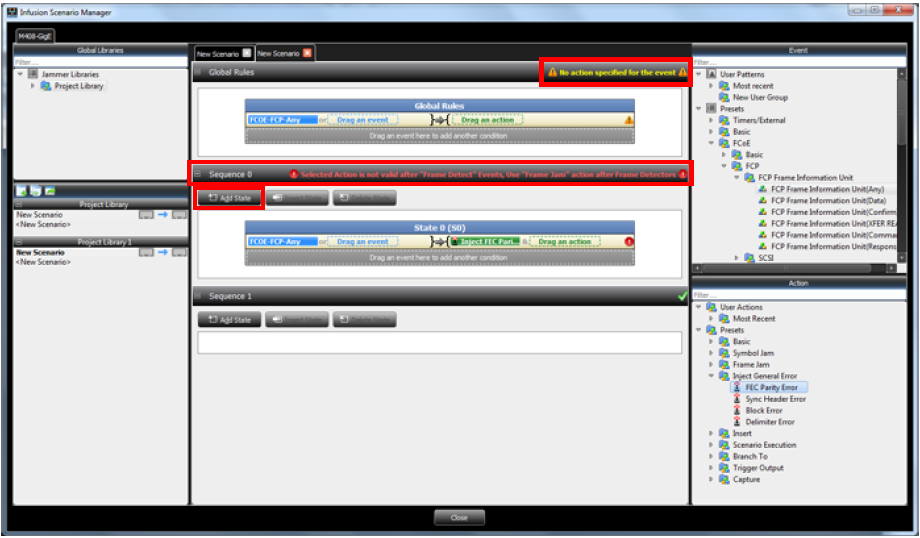
Note: Insert State inserts a new state after the current state. Plan carefully while creating scenarios or you might have to insert a state after state 0, copy and paste from state 0 to the new state, and clear out state 0, in order to accomplish what Insert State does.
Global Rules and States
The Global Rules and States are part of the new Scenario.
-
Once the scenario is created, right-click the New Scenario tab and select Rename to name it in the Project Library panel.
-
Click Close to save it in the Library for later use.
All the Scenarios that are created are displayed in the Library panel.
Scenario and Event Data Traffic Directions Conflict
If the Scenario and Event Data Traffic directions conflict you will see the messages shown below.
Edit State Name
You can change a state name by doing the following:
-
Right-click inside the blue State box. The dialog box shown below appears.
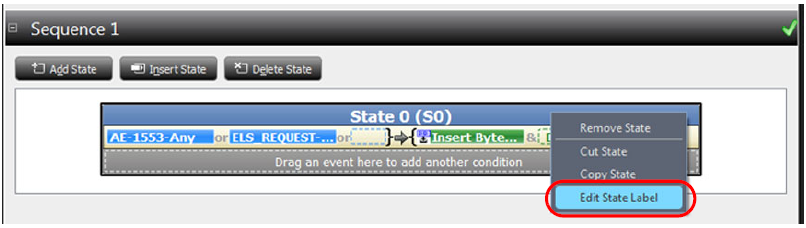
-
Select the Edit State Label. The State Label slides over to the left of the blue box where you can edit it.
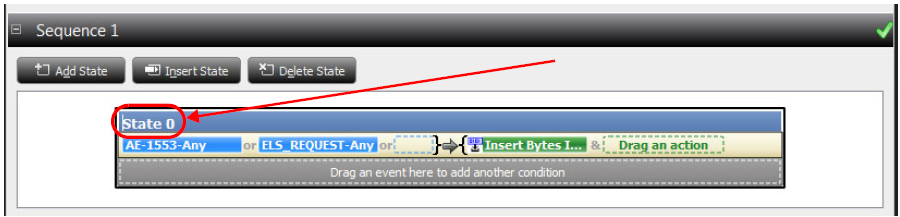
-
Edit the State Label and then hit Return. The State displays the new name.
Copy State
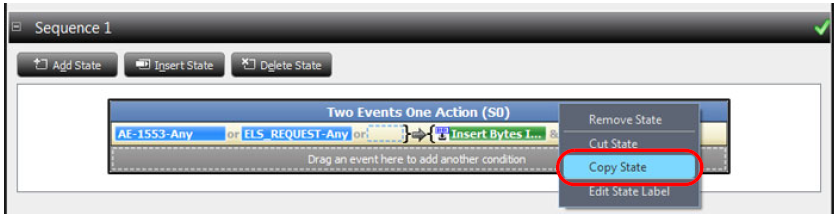
To copy a State:
-
Right-click inside the blue State label box.
-
Select Copy State.
-
Right-click inside the white area below the current state. The Paste State option appears.
-
Release the mouse button. The new state appears below the current state.