
Loading a Capture File
From the Main Window:
-
Go to the File menu.
-
Choose a file from the recently used file list.
-
If the file is not in the File menu list, select Open… from the File menu or simply click on the Open icon

-
Capture files have a .cfax extension. Older capture files created in previous versions have a .cfa extension. Browse if necessary to find your capture file.
-
Click on your file and then click Open.
Importing Capture Files
-
Select File on the Toolbar then click on the Open option in the drop-down menu.
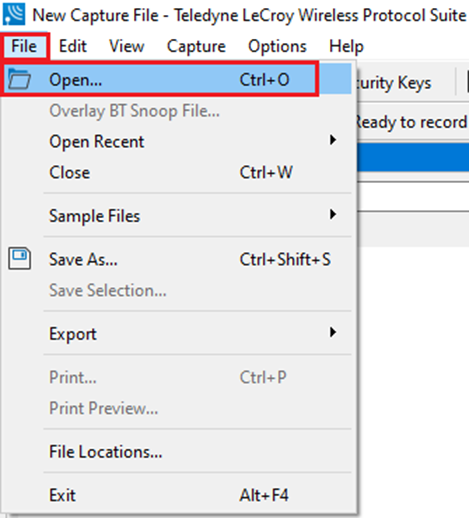
-
On the left of the File name text box, select from the drop-down list Supported File Types box to All Importable File Types or All Supported File Types (*.cfa, *.cfax, *.cap, *.pcap, *.log, *.txt, *.csv). Select the file and click Open.
The analyzer automatically converts the file to the analyzer's format while keeping the original file in its original format. You can save the file in the analyzer's format, close the file without saving it in the analyzer's format, or have the analyzer automatically save the file in the analyzer's format (see the System Settings to set this option). All of these options keep your original file untouched.
When you first open the file, the analyzer brings up the Protocol Stack window and ask you what protocol decodes, if any, you want to use. You must choose a protocol decode at this point for the analyzer to decode the data in the file. If you open a file without using any decodes, and decide later that you want to apply a decode, choose Reframe from the File menu on the Main window.