
The Notes feature allows you to add comments to a CFA file. These comments can be used for many purposes. For example, you can list the setup used to create the capture file, record why the file is useful to keep, or include notes to another person detailing which frames to look at and why. (Bookmarks are another useful way to record information about individual frames.)
-
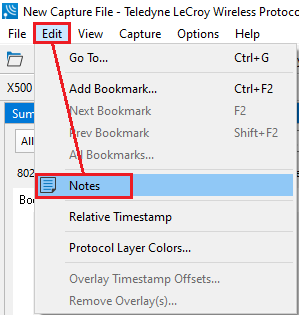
Click the Edit tab on the toolbar, then select Notes option.
-
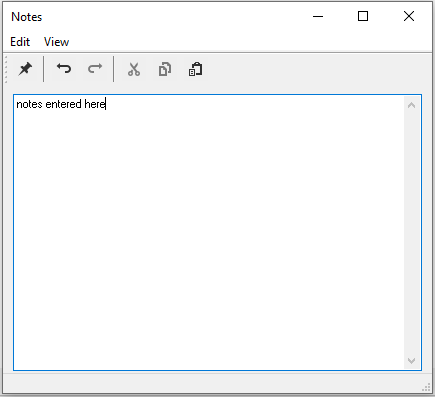
Another way to bring up the Notes Editor is to select the Notes icon in the toolbar and click on it.

-
Type your comments in the large edit box on the Notes window. The Cut, Copy, Paste features are supported from Edit menu and the toolbar.

When text is selected, Undo and Redo features are all supported from Edit menu and the toolbar at the current cursor location. 
-
When you're done adding comments, close the window.
-
When you close the capture file, you are asked to confirm the changes to the capture file. See below for more information.
Confirm Capture File (CFA) Changes
This dialog appears when you close a capture file after making changes to the notes, the protocol stack, or bookmarks. The dialog lists information that was added or changed and allows you to select which information to save, and whether to save it to the current file or to a new one.
Changes made to the file appear in a list in the left pane. You can click on each item to see details in the right pane about what was changed for each item. You simply check the boxes next to the changes you want to keep. Once you decide what changes to keep, select one of the following.
-
Save To This File – Saves the changes you have made to the current capture file.
-
Save As – Saves the changes to a new file.
-
Cancel the Close Operation – Closes the file and returns you back to the display. No changes are saved.
-
Discard Changes – Closes the file without saving any of the changes made to the notes, bookmarks, or protocol stack.