
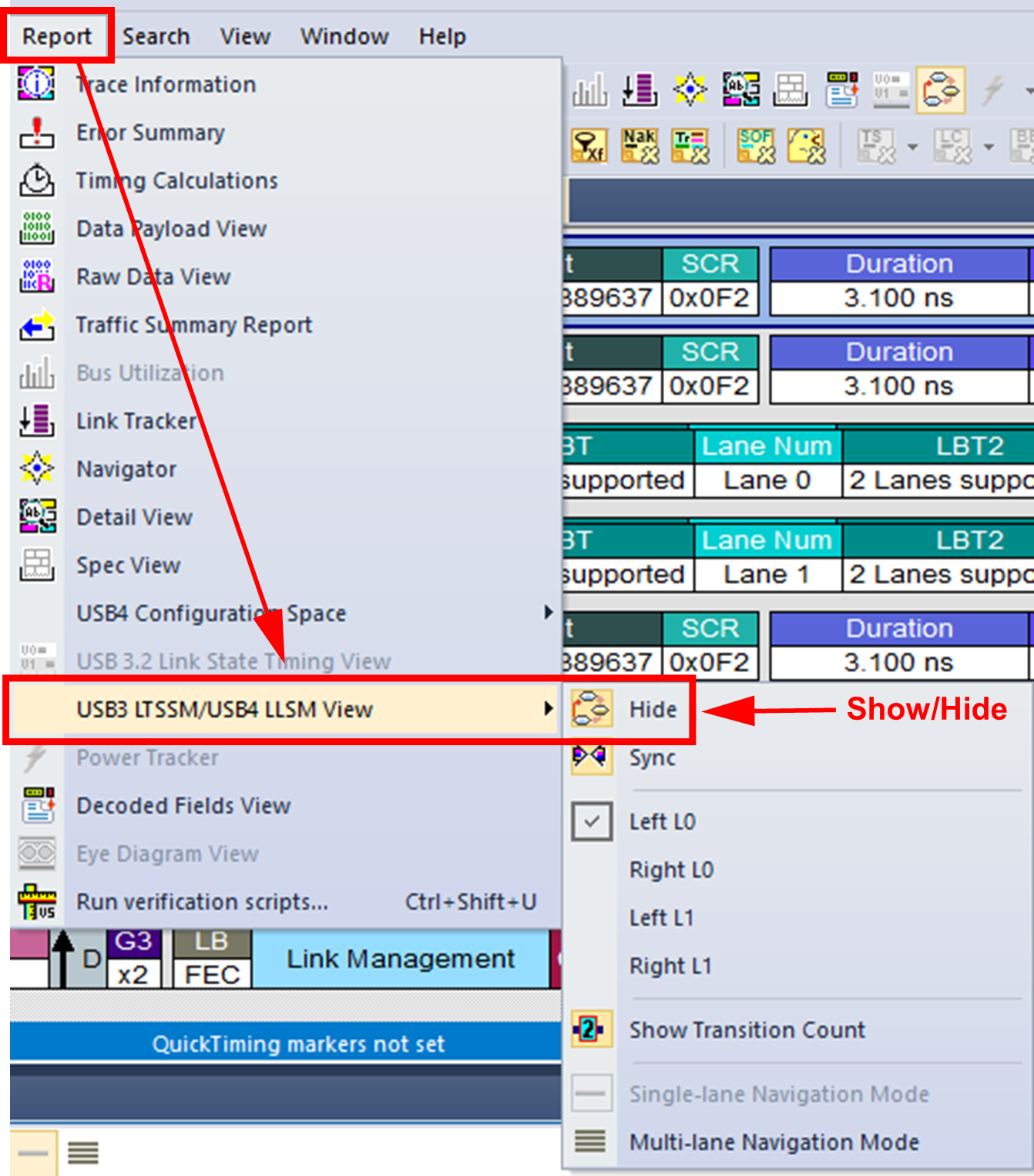
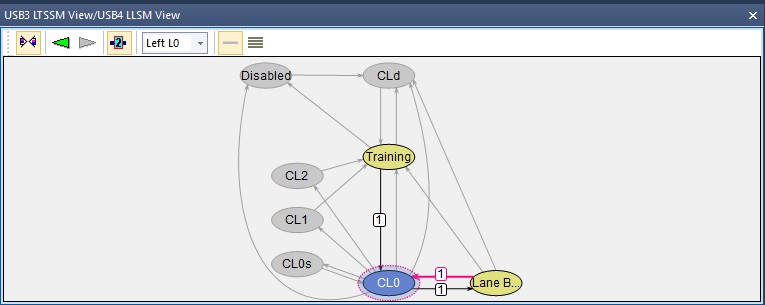
The LLSM View displays the LLSM diagram depicted in the USB4 specification. To access the LLSM View:
Click the 
OR
From the application menu, select Report > USB3 LTSSM/USB4 LSSM View > Show/Hide.
Navigation Between LLSM & CATC Trace Views
-
Click

-
Click the left arrow

-
Click the right arrow

-
Click

USB4 LSSM View—Working Modes
The USB4 LSSM view has two working modes, which can be selected through Navigation buttons on the View toolbar:
-
Single-Lane Navigation Mode

-
Multi-Lane Navigation Mode

Single-Lane Navigation Mode
When you enable Single-Lane Mode, you can select a target lane from the list box 
Multi-Lane Navigation Mode
When Multi-Lane Mode is enabled, the lane selection list is disabled and LSSM view shows the LSSM diagram for the specific lane to which the CATC trace is currently navigated. When you scroll in CATC trace view, the LSSM diagram switches between different lanes.
Next/previous navigation buttons in LSSM view will work for all lanes and the CATC trace view will move to a packet that reflects the next/previous state transition for any lane.