Hardware Setup
Connect the Ethernet cable from the digital re-timed port (P1, P2, P5, or P6) of the analyzer to an available port on the device under test.
Software Setup for Traffic Generation
To start the Exerciser and set it up, do the following:
-
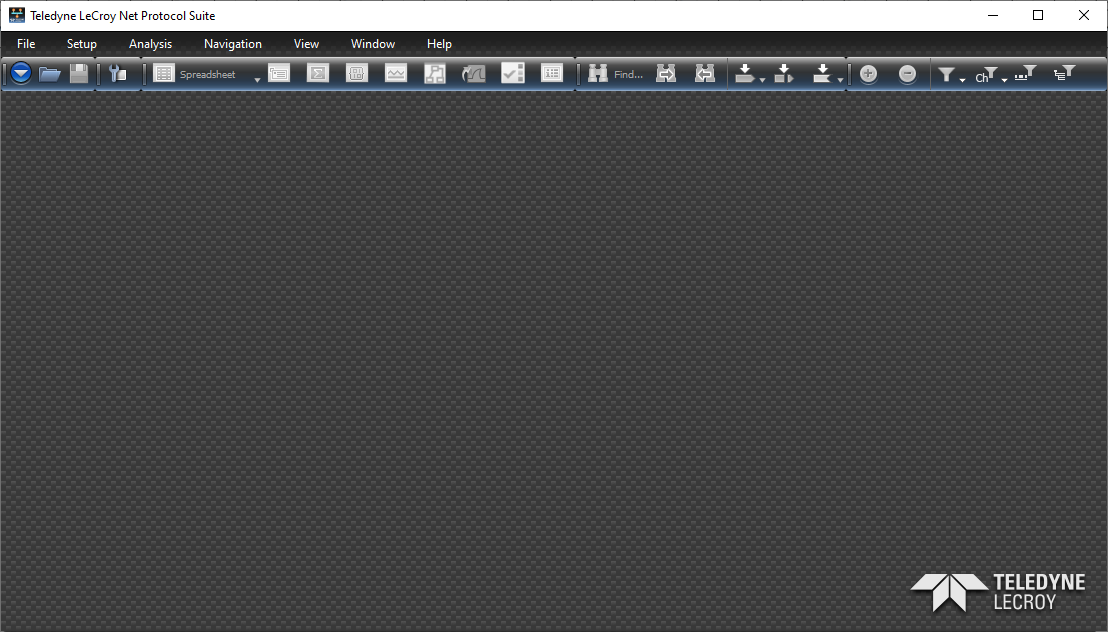
Launch the Net Protocol Suite.
-
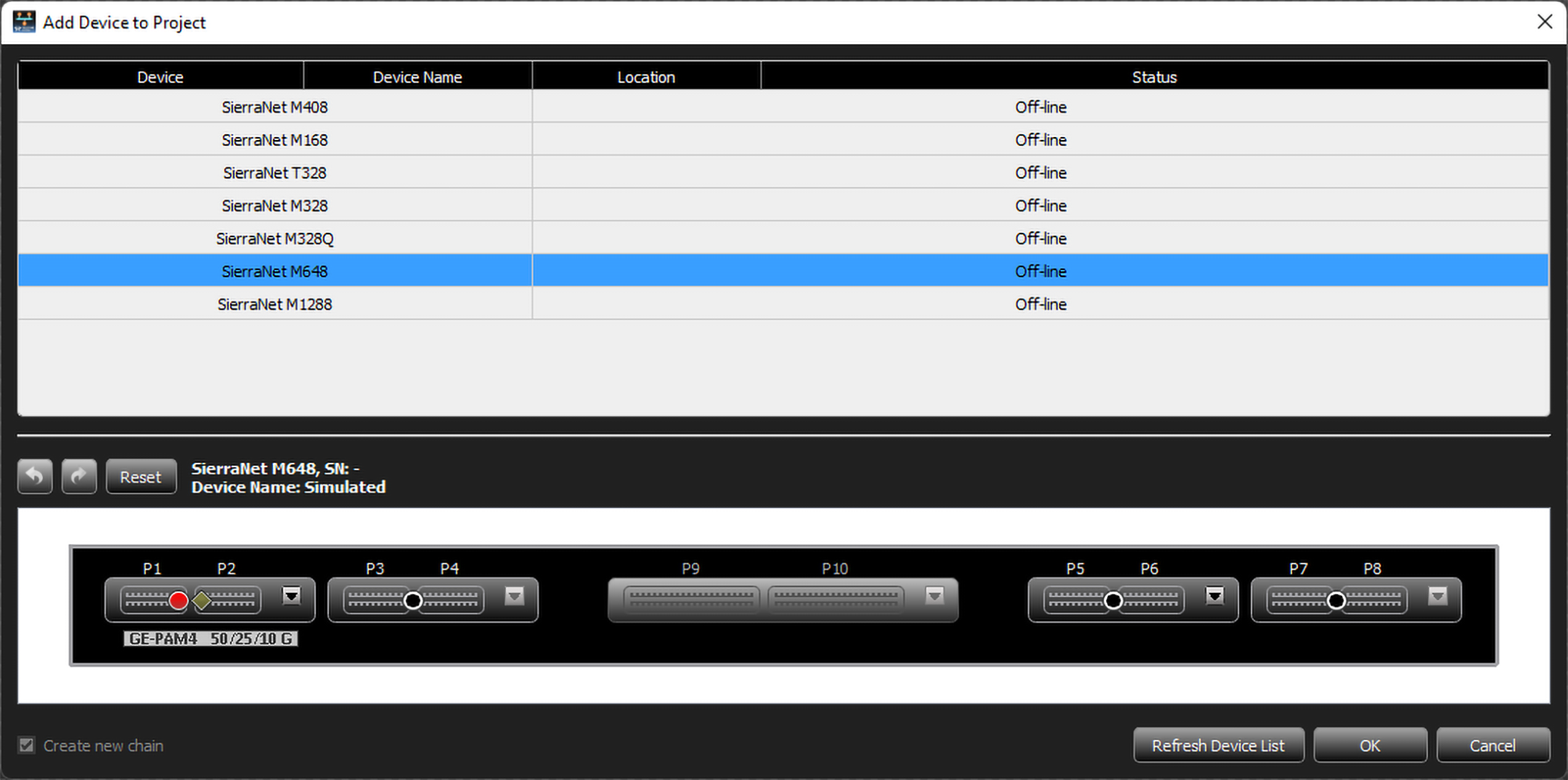
Select File > New Project. The Add Device to Project dialog appears with the list of devices and available ports for the selected device.
-
From the Add Device to Project window, click once on the device to highlight it.
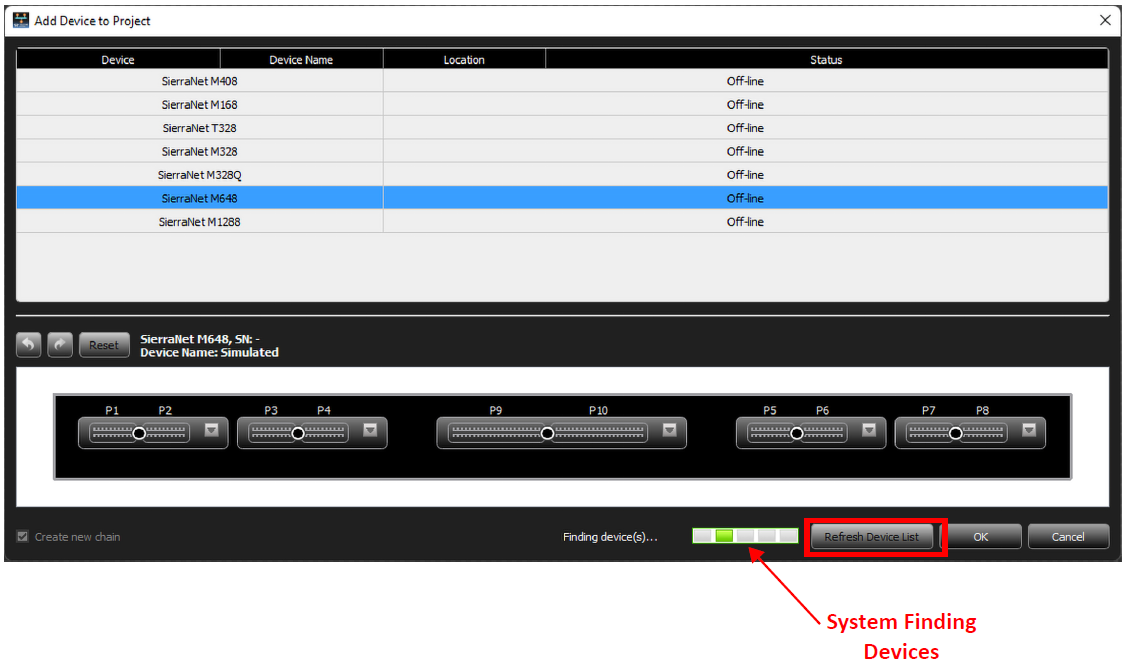
Note: If the device you want to use is not on the list, click the Refresh Device List button to refresh the list at any time. A progress bar displays and, once the system finds all devices, the list updates.
-
To configure a port pair (shown with SierraNet M648 selected), do the following:
-
If needed, click

-
Click the down arrow for P5/P6 (as shown in the example) to open the drop-down menu.
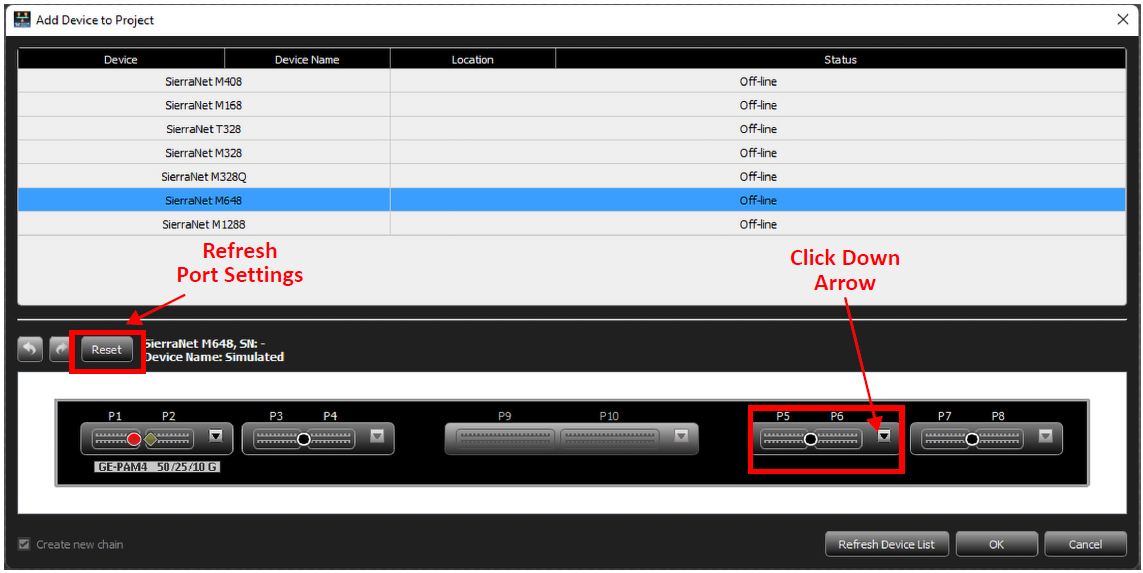
M648 Port Pairs -
From the drop-down menu, click the radio buttons for an Analyzer – Exerciser on the desired port.
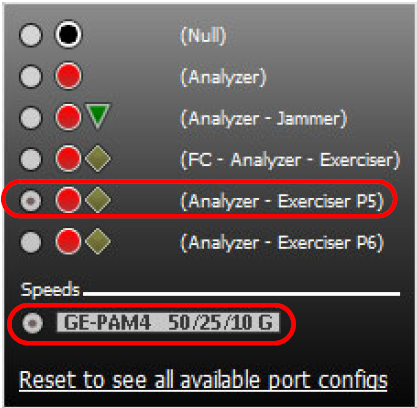
M648 Port Pair Drop-Down Menu -
Select the Speed.
-
Once all options are selected in the port pair drop-down menu, the menu closes.
-
Click OK in the Add Device to Project dialog to save your selections.
-
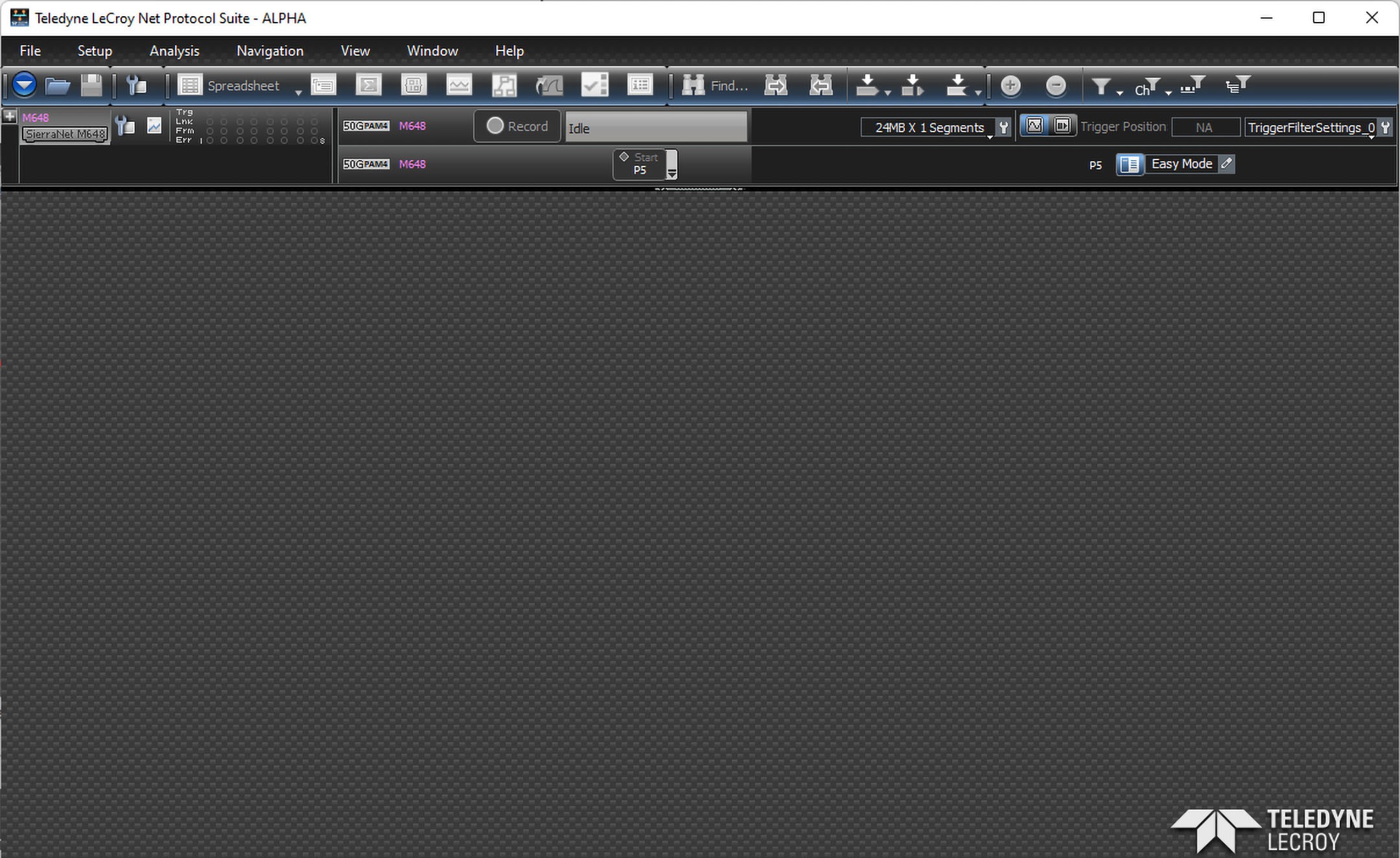
The Main Screen now shows the configured ports as ready to be started.