
You can hide, display, or reset toolbars by selecting View > toolbars from the menu bar.
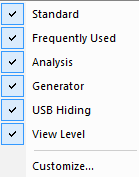
Resetting the Toolbar
From time to time (such as following a software upgrade), it is possible for the buttons on the toolbar not to match their intended function.
To reset the toolbar:
-
Select View > toolbars from the menu bar.
-
Select Customize from the submenu to display the Customize dialog box.
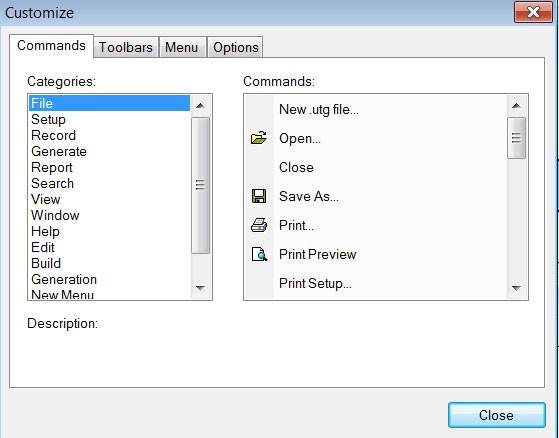
Customize Dialog -
Select the Toolbars tab to display the Toolbars page of the Customize dialog box (see the following figure).
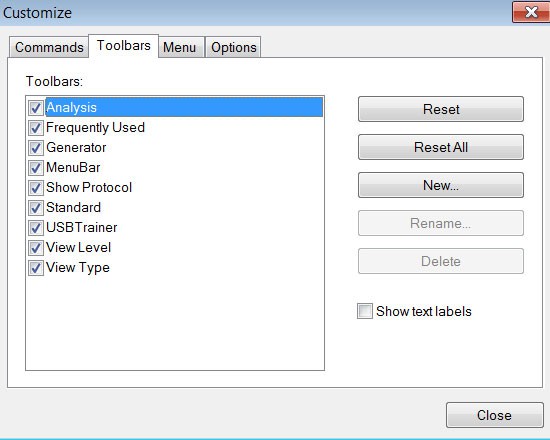
Toolbars Dialog -
Click the Reset All button. The toolbar resets to the factory default settings.