
You can zoom in and out, and wrap packets/transactions/transfers to fit within the screen, using the following buttons:
Zoom In
Zoom In increases the size of the displayed elements, allowing fewer (but larger) packet fields per screen.
Click 
Zoom Out
Zoom Out decreases the size of the displayed elements, allowing more (but smaller) packet fields per screen.
Click 
Wrap
Select Wrap to adjust the Trace View so that packets fit onto one line. If a packet is longer than the size of the window, the horizontal scroll bar can be used to see the hidden part of the packet.
Click 
CrossSync Control Panel
The CrossSync Control Panel allows you to select analyzers for synchronization and manage the recording process.
Launching the CrossSync Control Panel
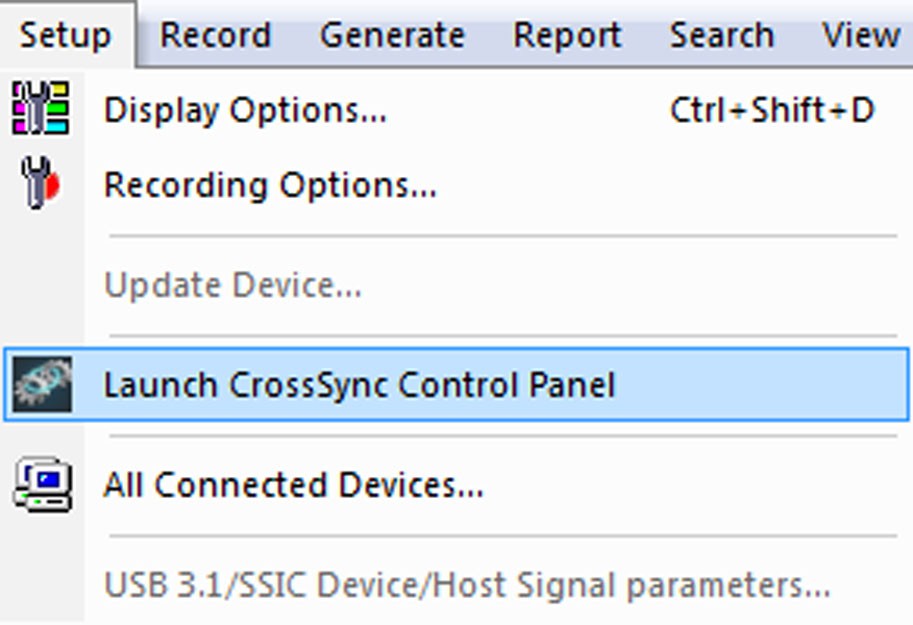
To launch CrossSync from the USB Protocol Suite software application, select the Setup >
Launch CrossSync Control Panel. Or, you can launch CrossSync from the Start menu.
For more information, refer to the CrossSync Control Panel User Manual.
NOTE: If you are using CrossSync, USB Compliance Suite, or any application that uses the Automation Interface to the USB Protocol Suite, and the system prompts you that it cannot write a trace file to disk:
-
Make sure that the trace-file destination folder has write/create permissions. (For example, the target directory might be the network file system, which typically does not have write/create permissions.)
-
2. Make sure that the Windows (or other) Firewall Settings for USB Protocol Suite are set to Public.