
Click
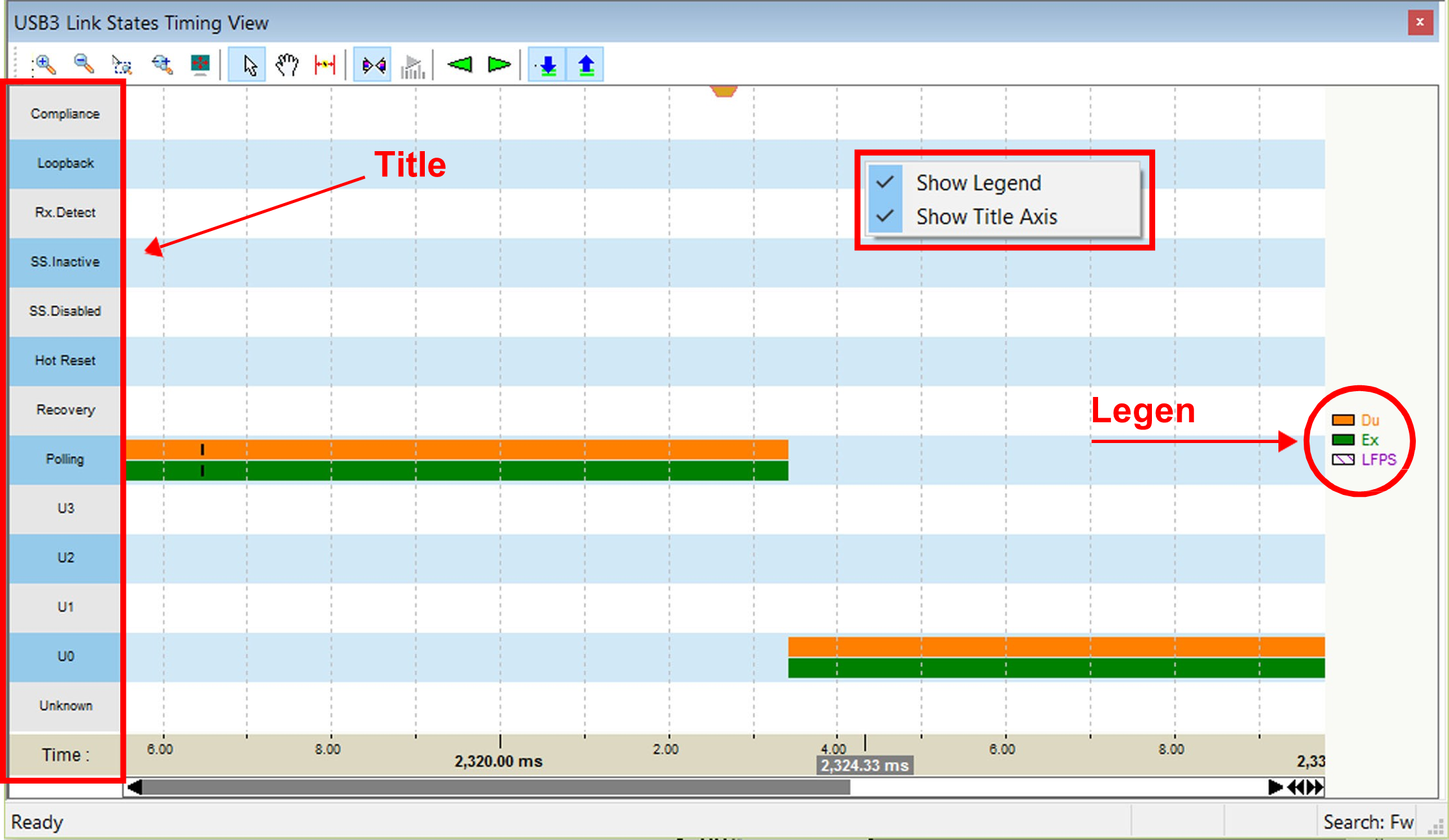
The States are:
-
Compliance
-
Loopback
-
Rx.Detect
-
SS.Inactive
-
SS.Disabled
-
Hot Reset
-
Recovery
-
Polling
-
U3, U2, U1,U0, and Unknown
Time is displayed along the bottom in microseconds.
If you right-click in the graph area, a small dialog box will popup. You can turn the following attributes on or off:
-
Show Legend
-
Show Title Axis
USB 3.2 Link State Timing View Toolbar

The buttons have the following functions:
|
Button |
Functionality |
|
Button |
Functionality |
|---|---|---|---|---|
|
|
Vertical zoom in |
|
|
Insert Time markers. After clicking, click in the display to make a red vertical line. Select and drag the line to indicate a time interval between two lines. |
|
|
Vertical zoom out |
|
|
Sync by Time. Synchronize the USB 3.2 Link State Timing States View and the Trace View. |
|
|
Zoom by Selection |
|
|
Monitor |
|
|
Zoom by Horizontal Drag |
|
|
Go to previous link state |
|
|
Full Screen |
|
|
Go to next link state |
|
|
Pointer Mode |
|
|
Show Downstream port link states. |
|
|
Hand Panning |
|
|
Show Upstream port link states. |


USB 3.2 LTSSM View
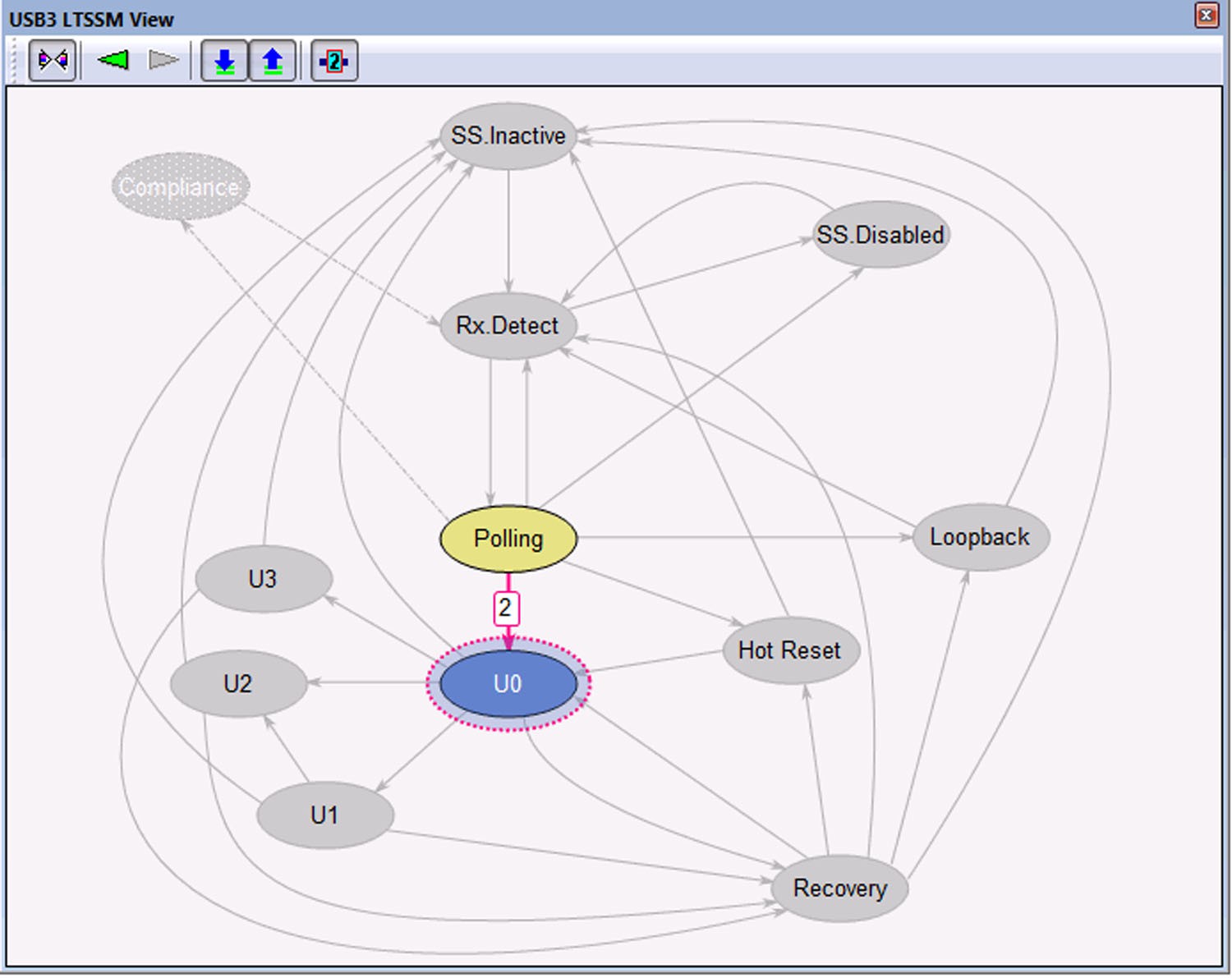
The LTSSM View displays the LTSSM diagram depicted in the USB 3.2 specification.
-
Click

-
Click

-
Click the left arrow

-
Click the right arrow

-
Click the down arrow

-
Click the up arrow

-
Click

NOTE: To enable LTSSM buttons, open the Display Options dialog. In the General tab, check the Process USB 3.2 LTSSM checkbox. Click Save As Default. Reopen the trace file.