
You can perform custom post-process analysis of the open trace by running a verification script over the trace. A verification script instructs the application to send trace and analysis information to the script. A verification script also contains script code (written using Teledyne LeCroy Script Language) used to process trace data and output that data in different formats.
NOTE: You can write your own verification scripts to perform custom verification and analysis. For information on how to write a verification script, see the Verification Script Engine Reference Manual.
To run a verification script over a trace, do one of the following:
-
Select the main menu item Report > Run verification scripts
OR
-
Press Ctrl+Shift+U
OR
-
Click the Run verification scripts button

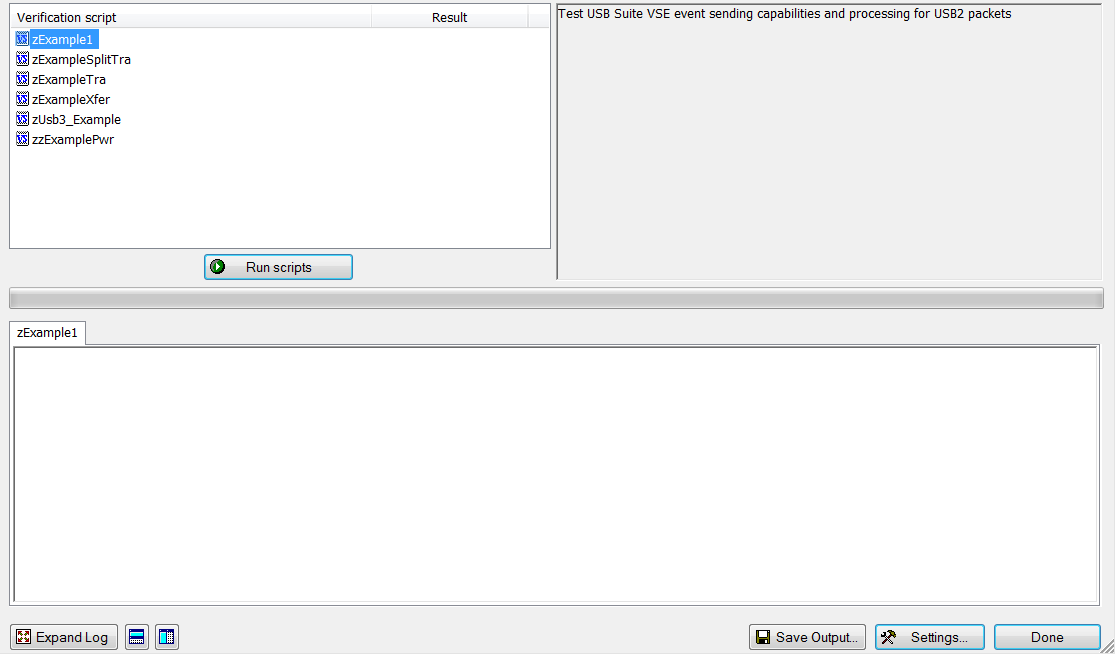
The Run verification scripts dialog opens.
-
To expand the log, click the Expand Log button
-
To find a view related to the verified trace, and place the window under it, click

-
To find a view related to the verified trace, and place the window to the right, click

-
To save the output, click Save Output .
-
Choose scripts to run and click Run scripts. VSE starts running the selected scripts, shows script report information in the output windows, and presents the results of verifications in the script list.
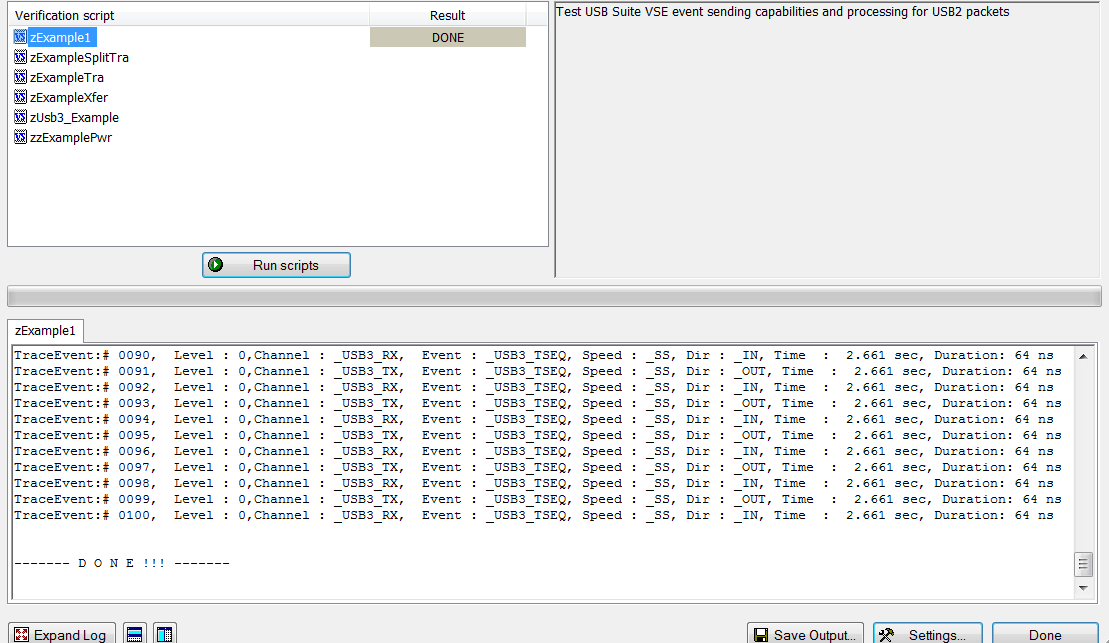
Right-click in the script list to display additional operations.
-
Run verification script(s): Start running selected script(s).
-
Edit script: Edit selected scripts in the editor application specified in Editor settings.
-
New script: Create a new script file using the template specified in Editor settings.
-
Show Grid: Show/hide a grid in the verification script list.
-
Show Description window: Show/hide the script description window (Shortcut F2).
-
Show Output: Show/hide the script output windows (Shortcut F3).
-
Settings: Specify different settings for VSE.
Choose Settings from the drop-down list or the button to open the following dialog:
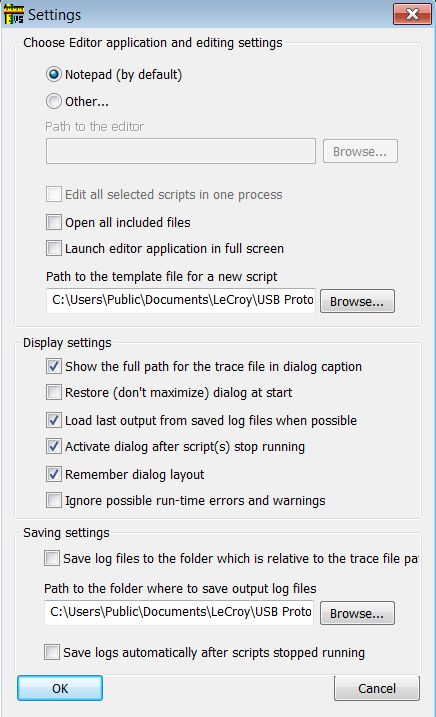
Settings options include:
-
Choose editor application and editing settings: Notepad or other.
-
Path to the editor: If you choose other above, then this enabled.
-
Edit all selected scripts in one process: If the editor supports multiple documents, you can edit all scripts in the editor.
-
Open all included files: Edit included files, as well as the main script.
-
Launch editor application in full screen: You can use whole screen.
-
Path to template file for a new script: Use a template.
-
Display Settings: Show full trace-file path, restore dialog at start, load last output from save log files, activate dialog after scripts have run, remember dialog layout, and ignore errors and warnings.
-
Saving Settings: Save log files to relative file folder, indicate output log file path, and save logs automatically.