
Once a new Project is defined (see New Projects), you can use the Batch Scenario feature: Select File > Batch to display the Batch Scenario Manager dialog. Batch Scenarios are part of a Project and are saved as such. Each Project file can have a unique set of different Batch Scenarios.
A batch scenario can be repeated up to 10,000 times. To prevent infinite loops, branching to previous states is not permitted.
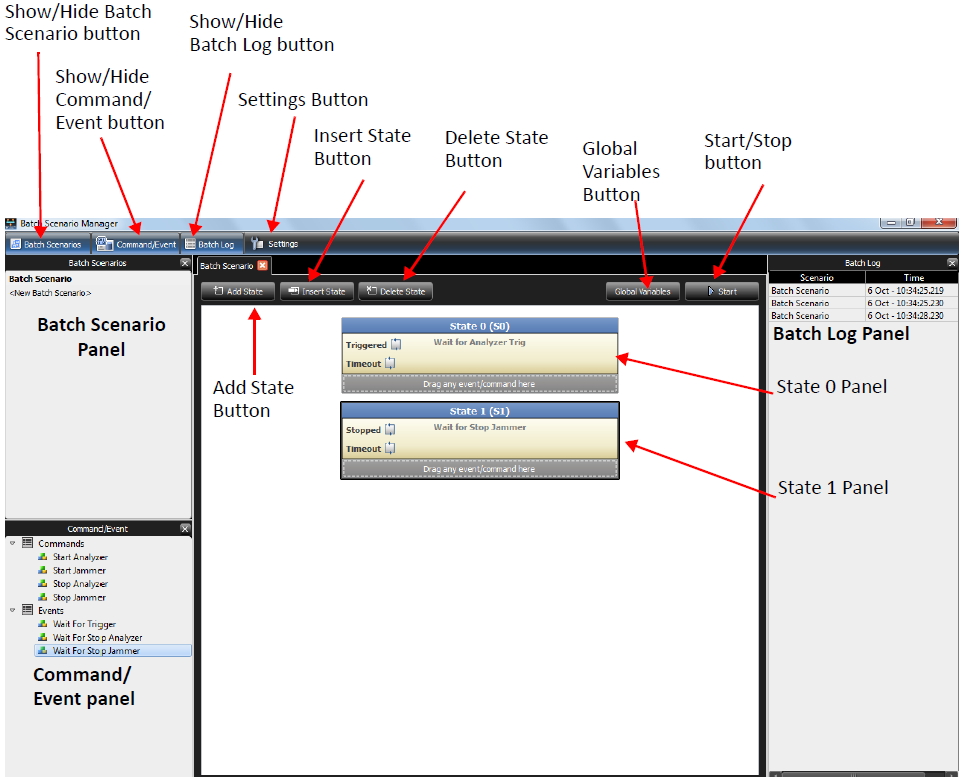
Batch Scenario Manager
Interface
The following buttons and panels are available to use the Batch Scenario functions:
-
Show/Hide Batch Scenario Button: Toggles between showing/hiding the Batch Scenario pane.
-
Show/Hide Command/Event Button: Toggles between showing/hiding the Command/Event pane.
-
Show/Hide Batch Log Button: Toggles between showing/hiding the Batch Log pane.
-
Add State Button: Click to add a new state.
-
Insert State Button: Click to insert a state after the selected state.
-
Delete State Button: Click to delete the selected state.
-
Start Button: Click to start the scenario.
-
Batch Scenario Panel: Lists all the available Batch Scenarios. Double-click New Batch Scenario to create a new scenario. The following operations are available through a right-click context menu:
-
Remove Scenario
-
Rename Scenario
-
Copy Scenario
-
Paste Scenario
-
-
Command/Event Panel: Lists all the available Commands and Events.
-
Batch Log Panel: Displays the scenario name, date and time run and description of the scenario.
Note: The log viewer reads up to 1000 entries, but when you save a batch log, it contains the last 500,000 internal entries.
To save the Jammer log from batch mode, enable Automatic log in the Jammer log settings.