
The Time Stamp field displays the time in “Seconds.Nanoseconds” (decimal).
The Time Stamp is at the beginning of the packet or bus condition. However, the Time Stamp is at the end of Sync for Low and Full Speed packets.
In the General tab of the Display Options, you can set the Time Stamp Position to be At the end, At the beginning, or Merge with Packet/Transaction/Transfer. See General Display Options. This only effects where the timestamp is shown in the CATC View, it does not change the point in time in the packet that the timestamp represents.
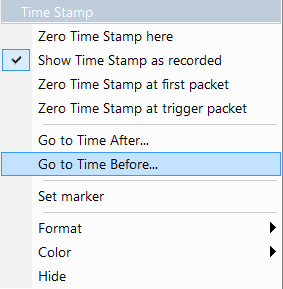
To change the time stamp, right-click the Time Stamp field to display the Time Stamp menu. You can:
-
Place the Zero Time Stamp at this packet.
-
Show the recorded Time Stamp.
-
Place the Zero Time Stamp at the first packet.
-
Place the Zero Time Stamp at the trigger packet.
-
You can also select Set marker to create a new marker.
NOTE: You cannot place the Zero Time Stamp at a packet when in the Calendar.
You can go to the Time After in seconds, or the Time Before in seconds.
NOTE: Timestamps are corrected to match our more accurate 2.5 ppm clock.
After the error due to calculating via 2 ns nominal timing of symbols reaches 8 nsec, the system will correct the next time stamp by using the value obtained from the 2.5 ppm time stamp clock. This can result in “jumps” either forward or backward by this amount of time in captures, and may result in “blank” locations in the Link Tracker view. These should not be construed as mistakes in the traffic, but as a modification necessary for us to provide the most accurate time stamps over the range of a trace.