Click the USB/PD Exerciser 
USB/PD Exerciser Menus
|
Menu |
Function |
|
File |
|
|
New USB3 Graphic Scenario |
Creates a new, empty, graphic traffic generation file. |
|
New USB3 Text Scenario |
Creates a new, empty, text traffic generation file. |
|
New PD Text Scenario |
Creates a new, empty, text traffic generation file. |
|
New USB4 TextScenario |
Creates a new, empty, text traffic generation file. |
|
Open |
Opens a file. |
|
Save |
Saves the current file. |
|
Save As |
Saves all or a range of packets from the current file. |
|
Close |
Closes the current file. |
|
|
Prints part or all of the current traffic data file. |
|
Print Preview |
Produces an on-screen preview before printing. |
|
Print Setup |
Sets the options for the current or new printer. |
|
Exit |
Exits the program. |
|
Edit |
|
|
Undo |
Undoes previous command. |
|
Redo |
Redoes undone command. |
|
Cut |
Deletes selected text. |
|
Copy |
Copies selected text |
|
Paste |
Pastes copied text. |
|
Toggle Bookmark |
Moves back and forth between bookmarks (scripts only). |
|
Next Bookmark |
Goes to the next bookmark (scripts only). |
|
Previous Bookmark |
Goes to the previous bookmark (scripts only). |
|
Clear All Bookmarks |
Removes all bookmarks (scripts only). |
|
Find |
Displays the Find dialog (scripts only). You can match case, find whole word only, and search up or down. |
|
Replace |
Opens the Replace dialog to find text and replace it (scripts only). You can match case, find whole word only, and search up or down. |
|
Find Next |
Finds the next text entered in the Find dialog (scripts only). |
|
Go to |
Opens the Go To Line dialog, in which you can enter a line number (scripts only). |
|
Select All |
Select all text in the current file (scripts only). |
|
Generation |
|
|
Run Scenario |
Starts traffic generation. |
|
Stop Scenario |
Stops traffic generation. |
|
Preview Trace |
Checks script for errors and displays trace. |
|
Build (scripts only) |
|
|
Compile |
Starts traffic generation (scripts only) |
|
View |
|
|
Main Toolbars |
Switches display of the Main toolbar on or off. |
|
Graphical Toolbar |
Switches display of the Graphical toolbar on or off (graphics only). |
|
Views Toolbar |
Switches display of the Views toolbar on or off (scripts only). |
|
Script Toolbar |
Switches display of the Script toolbar on or off (scripts only). |
|
Window |
|
|
Cascade |
Displays all open windows in an overlapping arrangement. |
|
Tile |
Displays all open windows in a above-below arrangement. |
|
Arrange Icons |
Arranges minimized windows at the bottom of the display. |
|
Close All |
Closes all open windows. |
|
Help |
|
|
About |
Displays version information about the analyzer and the USB Protocol Suite. |
Main Exerciser Toolbar
The Main Exerciser toolbar contains buttons for saving your edits, navigating, searching, and other functions.
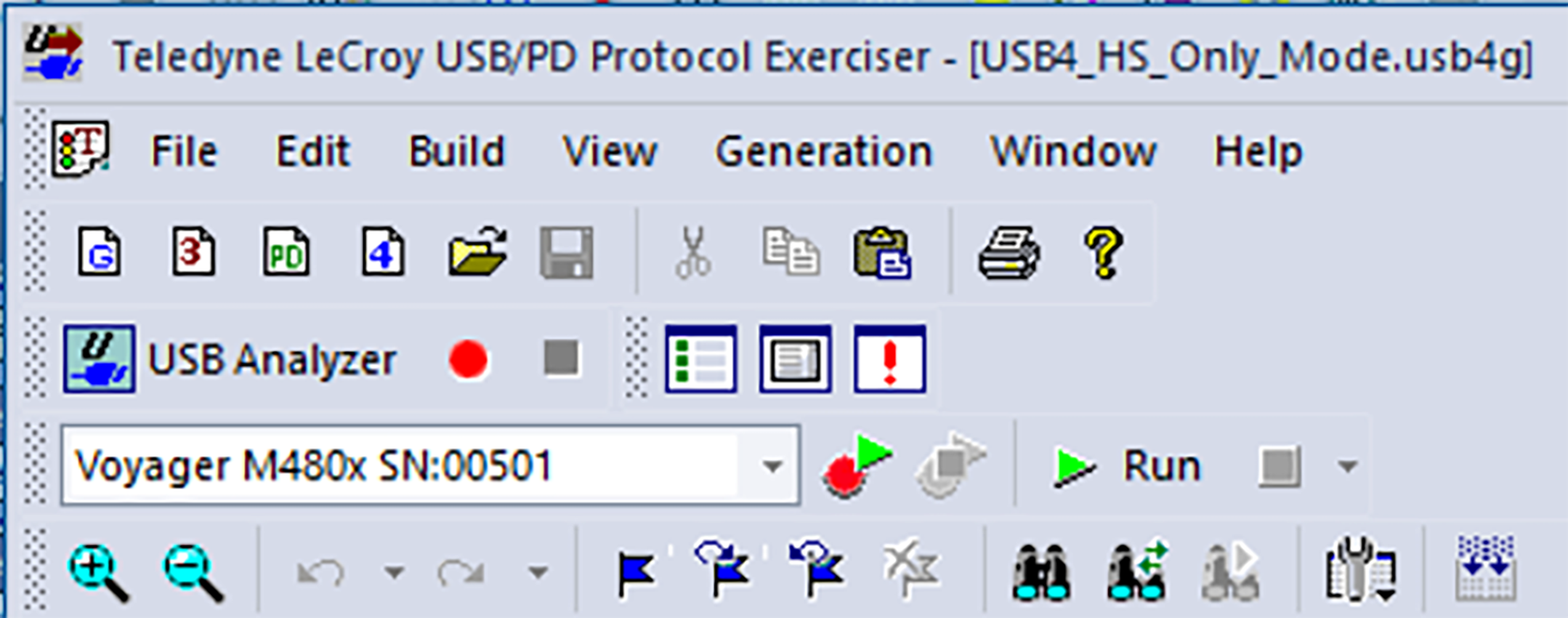
The buttons have the following functions:
|
Button |
Functionality |
|
Button |
Functionality |
|---|---|---|---|---|
|
|
New USB3 Graphic Scenario |
|
|
New USB3 Text Scenario |
|
|
Creates a new PD exerciser script |
|
|
Creates a new USB4 exercise script |
|
|
Open file |
|
|
Save. Saves your edits and immediately updates the setting bars and Frames shown in the trace window. |
|
|
Cut |
|
|
Copy |
|
|
Paste |
|
|
|
|
|
About |
|
|
Lists all connected units and allows user to choose target unit for running the Exerciser |
|
|
Start recording and exerciser generation with one click |
|
|
Stop recording and exerciser generation with one click |
|
|
Run Scenario |
|
|
Stop Scenario |
|
|
Go to USB Analyzer window |
|
|
Start Recording |
|
|
Stop Recording |
|
|
View Toolbox |
|
|
View Output |
|
|
View Error Output |
|
|
Zoom In |
|
|
Zoom Out |
|
|
Undo |
|
|
Redo |
|
|
Toggle Bookmark |
|
|
Next Bookmark |
|
|
Previous Bookmark |
|
|
Clear All Bookmarks |
|
|
Find |
|
|
Replace |
|
|
Find Next |
|
|
Options |
|
|
Compile |
|
|
|