The Search feature provides several options for searching through recorded traffic, which allows you to find specific packets based on triggering status, packet number, marking, or content.
Search Menu
To view the Search options, click the Search tab in the Menu bar.
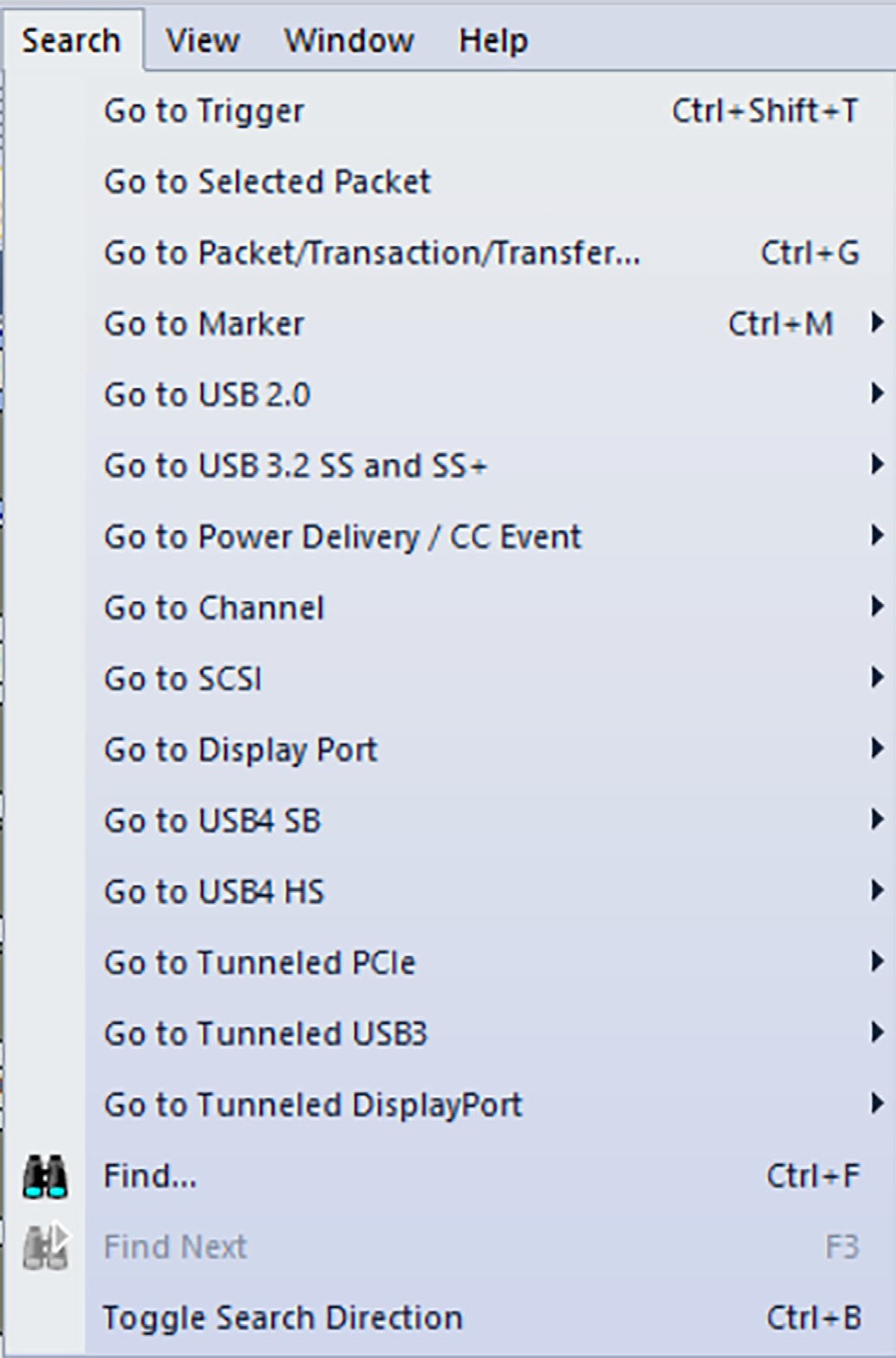
Search options are described in the table below.
|
Option |
Description |
|
Go to Trigger |
NOTE: Go to Trigger is enabled only when a trigger has created the traffic file.
|
|
Go to Selected Packet |
Choose Search > Go to Selected Packet from the Menu Bar. |
|
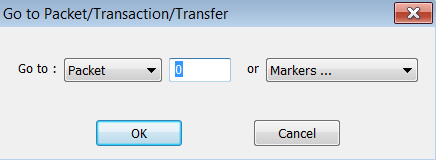
Go to Packet/Transaction/ Transfer |
To display a specific packet:
|
|
Go to Marker |
To instruct the analyzer to display a marked packet:
NOTE: Go to Marker functions in conjunction with Set Marker. The comments within the parentheses following each marked packet are added or edited with the Set Marker feature. See Markers to learn more.
|
|
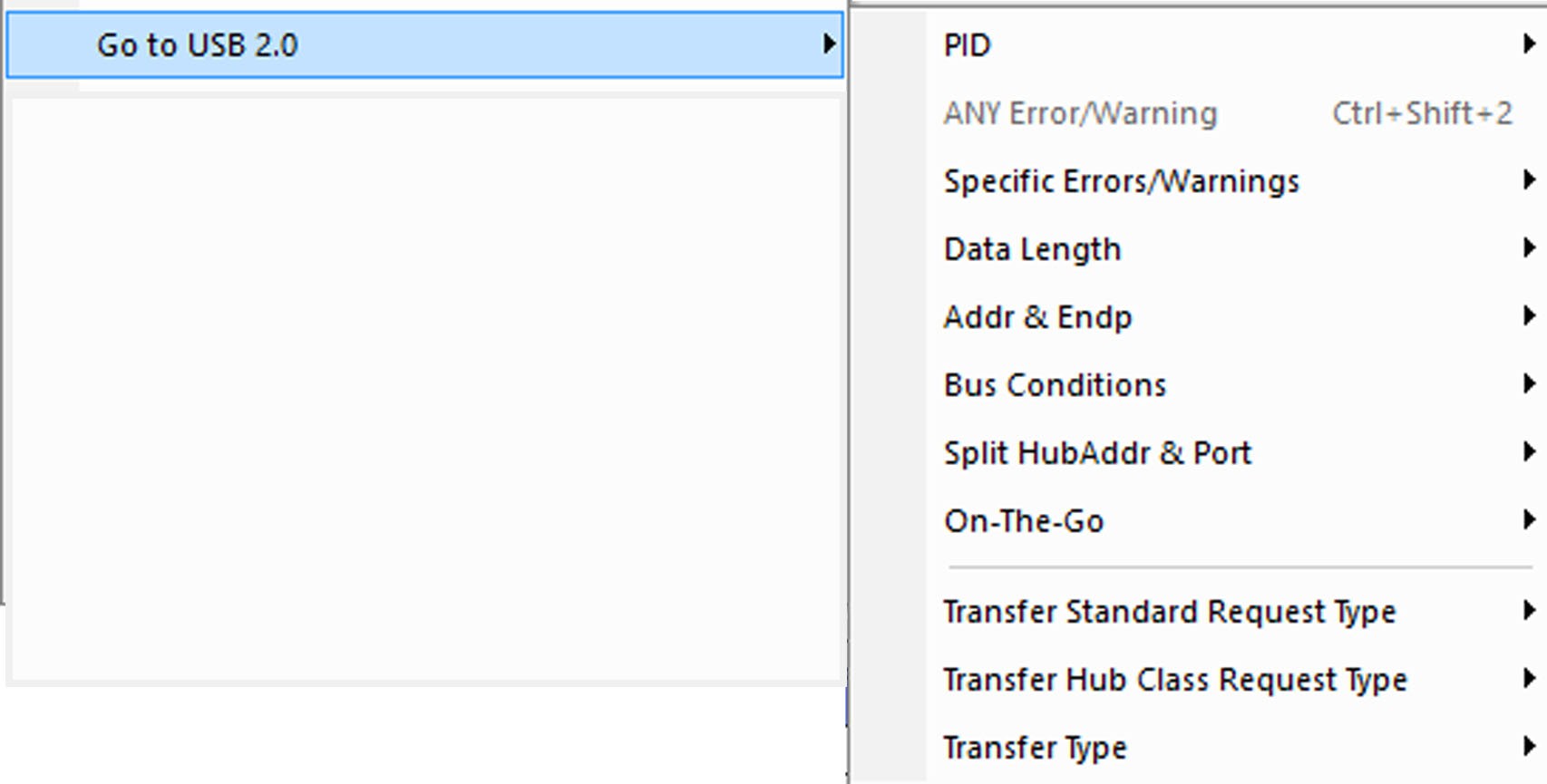
Go to USB 2.0 |
Takes you directly to an event in a Trace.
|
|
Select the type of packet to view. |
|
Repositions the trace to show the next instance of any error. Press Ctrl+Shift+2 to go to the first error of any type. |
|
The Errors menu allows you to search for five different types of error: PID, CRC5, CRC16, Packet Length, and Stuff Bits. Menu items appear in bold if they are present in the trace or are grayed out if not present in the trace. Press Shift+E to go to the first error of any type. |
|
Allows you to search for data packets of particular lengths. Lengths are displayed in bytes in a drop-down menu. Selecting a length causes the display to move to the next instance of that packet length. |
|
The Addr & Endp feature allows you to search for the next packet that contains a particular address and endpoint. All available address endpoint combinations are displayed in the drop-down menu. |
|
Allows you to search by bus conditions such as traffic speed, reset, and suspend. All available bus conditions are displayed in the drop-down menu. |
|
Allows you to go to a split hub address and port. |
|
Allows you to search for On-the-Go attributes. The On-the-Go submenu contains entries for:
|
|
Allows you to go to a split hub address and port. |
|
Allows you to search for Transfer Hub Class Request Type attributes. |
|
Allows you to search for Transfer Type attributes. |
|
Go To USB 3.2 SS and SS+ |
The Go To USB 3.2 feature takes you directly to an event in a Trace.
USB 3.2 SS and SS+ menu options are described below. |
|
Select from a variety of Packet Types. |
|
Select from a variety of LFPS Types. |
|
Jump to the next Deferred Packet request in the trace view. |
|
Repositions the trace to show the next instance of any Error or Warning. Press Ctrl+Shift+3 to go to the first error of any type. |
|
Select the specific Error or Warning to view from the drop-down list. NOTE: Seq Number Error refers to Transaction Sequence Numbers (0 to 31), not to Link Control Word (LCW) sequences. |
|
Select an appropriate data length from the drop-down list. |
|
Provides a list of Addresses and Endpoints. The image below shows a partial list of Addresses and Endpoints. 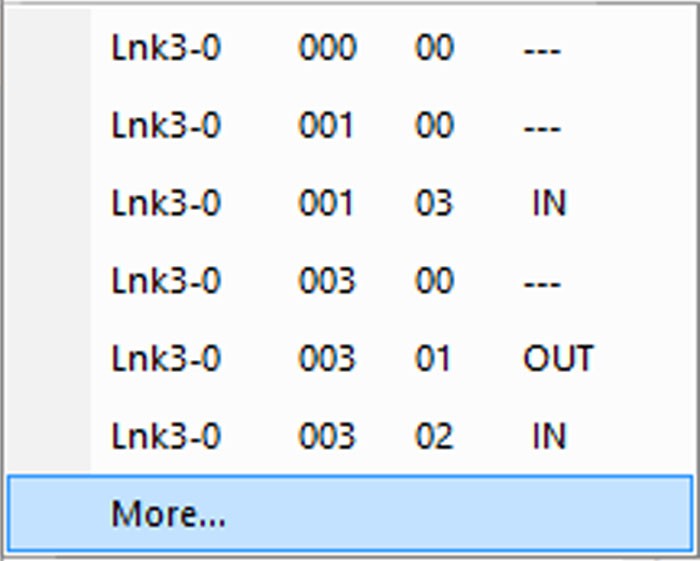
|
|
Select the header packet type to view. |
|
Select the link command to view. |
|
Select the LMP Subtype to view. |
|
Select the Transaction Packet Type to view. |
|
Select the PHY Transaction Type to view. |
|
Select the LGO Transaction Type to view. |
|
Allows you to search for Transfer Standard Request Type attributes. |
|
Allows you to search for Transfer Hub Class Request Type attributes. |
|
Allows you to search for Transfer Type attributes. |
|
Go To Power Delivery/CC Event |
The USB Protocol Suite software allows you to search for the types of packets listed below. |
|
Search for specific types of power delivery control messages. |
|
Search for specific types of power delivery data messages. |
|
Search for specific types of power delivery extended messages. |
|
Search for specific types of power delivery resets. |
|
Search for other types of power delivery events. |
|
Search for specific types of power delivery transaction types. |
|
Search for a wide variety of power delivery transfer types. |
|
Search for any type of power delivery error. |
|
Search for a specific type of Power Delivery error or warning. |
|
Search for a specific configuration channel event. |
|
Go to Channel |
Search for traffic by 1 (Classic-Speed) or 0 (Hi-Speed). You can search for the types of packets shown below: 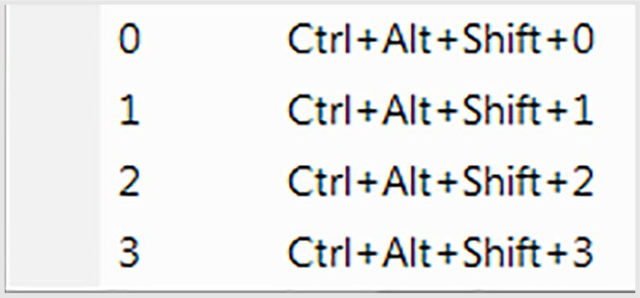
|
|
Go to SCSI |
Takes you to an SCSI Operation, Command Status, Task Management, Task Management Response, Error or SCSI Logical Unit Number. These options are described below. |
|
The following image displays a partial list of search options: 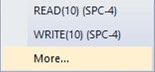
|
|
Search for SCSI command status of GOOD or UNDEFINED. |
|
Jump to the next Task Management request in the trace view. |
|
Jump to the next Task Management response in the trace view. |
|
Search for:
|
|
Search for unit number 0x0. |
|
Use the drop-down list to select an appropriate data length to search. |
|
Go to Display Port |
You can use the USB Protocol Suite software to search for a variety of packet types. |
|
Search for packets. |
|
Displays a drop-down list of available Transaction Types to search. |
|
Select a Transfer Type to search for from the drop-down list. |
|
Go to USB4 SB |
Search for a variety of USB4 SB packets. |
|
|
|
Jumps to the next IPS in the trace view. |
|
|
|
Go to USB4 Rx/Tx |
Search for different packet types. |
|
|
|
Inter-Packet Symbols |
|
Low Frequency Periodic Signaling |
|
Go to Tunneled PCIe |
|
|
|
|
Go to Tunneled USB3 |
|
|
|
|
Go to Tunneled DisplayPort |
|
|
|