
The USB Traffic Generation files are scripts that instruct the analyzer how to generate USB traffic. A traffic generation file contains text in special format and is named with a *.utg extension. These files can be created by any text editor, or using the File > Export > Packets to 2.0 Host Traffic Generator Text File (.utg), menu selection when viewing a Trace File. There are several examples of Traffic Generation files included with the installation of the software.
To load a generation file:
-
Select File > Open from the menu to display the Open dialog.
-
Select Generation Files (*.utg) from the drop-down menu marked All USB Protocol Suite Files to display a list of Traffic Generation files.
-
Select a Traffic Generation file (*.utg) and click Open.
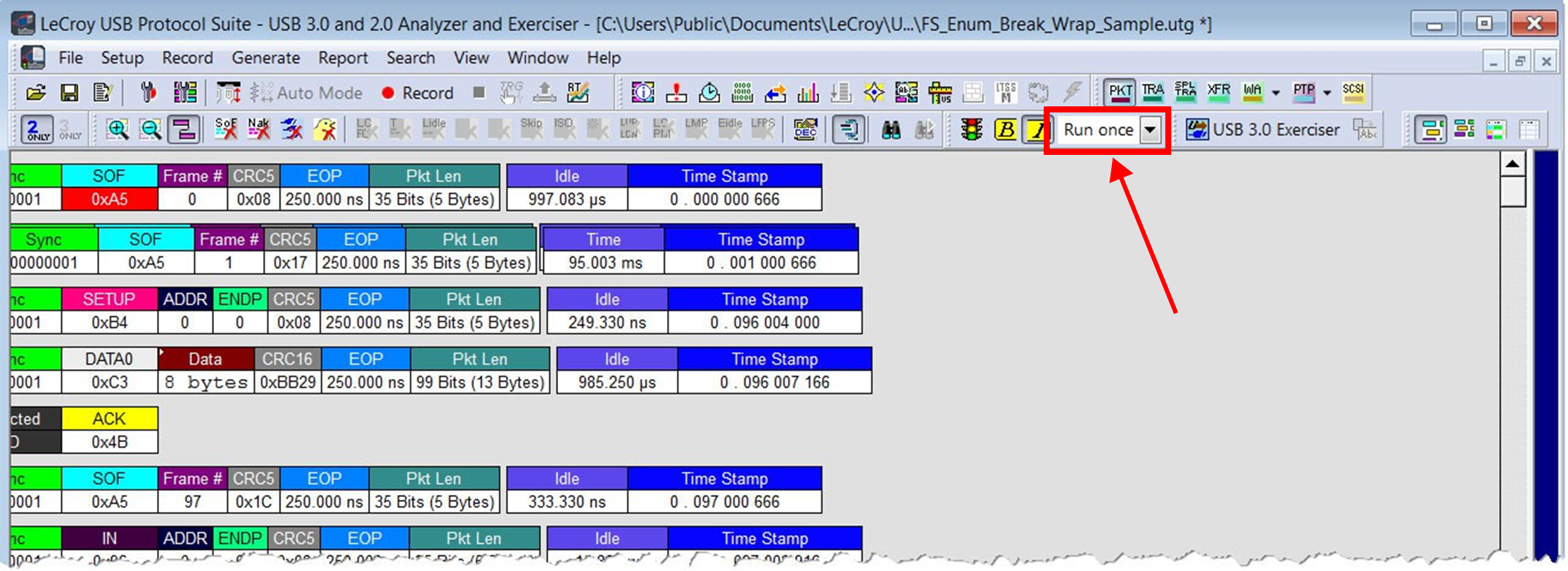
Traffic Generation File -
Select a value from the Repeat drop-down menu
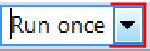
The Repeat mode allows for a single pass through the generation file, looping forever, or looping 1 to 65,534 times, as desired by the user. If a wrap = HERE location is found in the .utg file, that location is where the looping portion begins. The loop end is at the end of the .utg file or up to the stop = HERE statement in the file. -
To select Generation mode in which to generate traffic (see below for an explanation), click the IntelliFrame button

-
Active = IntelliFrame
-
Not Active = Bitstream
-
To deactivate IntelliFrame, click the IntelliFrame button again.
Traffic Generation Modes—Bitstream vs. Intelliframe
IntelliFrame and Bitstream are modes that control how the generator interacts with other devices when it is generating traffic.
-
Bitstream Mode: In Bitstream Mode, the generator constructs a bitstream of traffic based on the UTG file and assumes that packets start at pre-calculated times. For example, after an IN packet, the generator waits a calculated fixed time before presenting an ACK. The time between them is determined by the idle= time statement in between the IN and ACK packets in the .utg file. In this mode, every bit time of a generation stream (including idles and SE0s) is represented by 4 bits of data, so the file to be downloaded to the Generator can be very large.
-
IntelliFrame Mode: In IntelliFrame mode, the generator can wait for Device responses to complete before it continues generating more host packets. For example, after issuing an IN, the Generator looks for the DATAx packet issued by the device to finish, and then issues an ACK. This way, the data length can vary and does not need to be pre-calculated. Also, using the idle = TO_EOF statement allows the generator to calculate where the end of the frame occurs, so that a subsequent frame = AUTO statement creates a Start of Frame at the correct time.
Moreover, the generator can be made to retry transactions that are NAK’d automatically, and to use the PING protocol where appropriate. Retries can be made to occur within the same frame or in the next frame. For further information on the flexible behavior that can be instituted during the generation, see the syntax descriptions for the generation files here. An additional advantage of IntelliFrame mode is that it creates an image in the fenerator’s memory that is MUCH smaller than that of Bitstream mode, so it downloads much faster.
NOTE: Device emulation works in IntelliFrame mode only.
NOTE: In IntelliFrame mode, the hardware generates SOFs and Pings, so these cannot be altered (force CRC value, explicit frame number, etc). If you want to explicitly corrupt or manage these PID types, you must use Bitstream mode.