
If you choose to write a script with a text editor, a good way to start is to edit an example generation file.
For Windows 10 and 11, see FS_Enum_Break_Wrap_Sample.utg, HS_Hub_Sample.utg, or SampleDeviceEmulationThumbDriveFS.utg, in the examples directory (see Examples) under \2.0 Host Emulation and \2.0 Device Emulation, respectively.
You can open a generation file with Notepad or other editor and then add or remove text as needed.
Create a Traffic Generation File with the Export Command
The Export command offers an easy alternative method of creating a generator file. This command converts the trace to a *.utg file, removes all device traffic, and leaves only the traffic from the host device. You can then use this file to emulate the host and determine whether the device under test is generating the correct traffic.
When creating a .utg file through the Export Packets to Text (Generator Text File Format) menu selection, it is suggested that you use the default values presented. Adding NAK transactions clutters the .utg file, and including the device side packets creates a .utg file which does not work with a real device attached.
To use the Export command:
-
Start the application.
-
Open a trace that has the pattern of traffic that you would like to generate.
-
Select File > Export from the menu bar to display the File Export menu.

File Export Menu -
Select Packets to Host Traffic Generator Text File from the Export drop-down menu. The Export to Generator Text dialog box (below) appears.
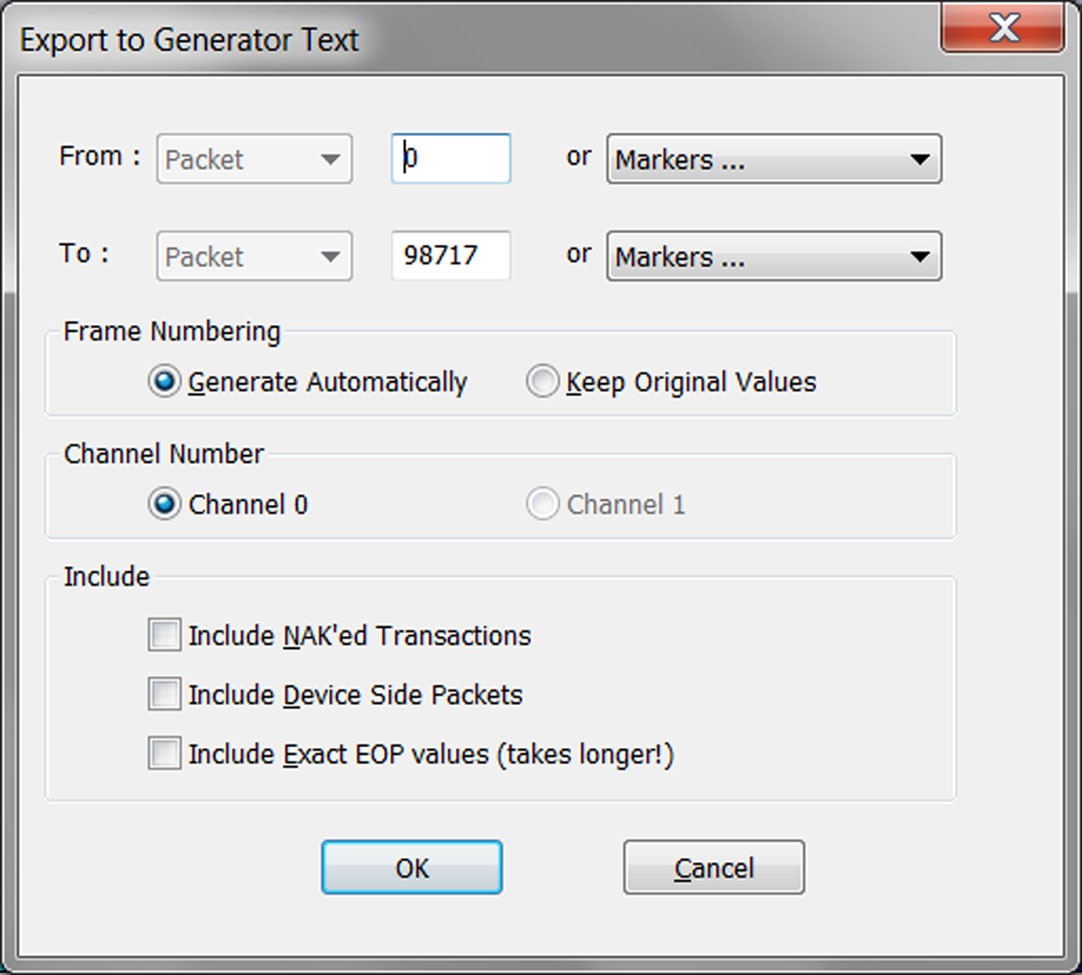
Export to Generator Dialog Box -
Enter the numbers of the first and last packets in the series.
NOTE: The device packets are removed from the exported generator text. This is essential in creating a generator text file that can be used to handshake with your device.
You can opt to regenerate the frame numbers and remove the NAK’d transactions. Once the generator text file is exported, you may need to edit the file and adjust idle time to properly anticipate the responses from your device.
Since there is limited memory for generating traffic, the export function will look to see if space is “wasted” on Empty Frames. These are USB Frames which contain no host or device traffic. If the source file had locations where lots of empty frames occurred, the software will inform you so they can be reduced by editing the .utg output file once export is complete.
-
To search for empty frames, enter empty_frames = nnn and look for any location where nnn is >102. In most cases, this value can be reduced to a very small value.
Refer to the documentation for the empty_frames key later in this chapter.