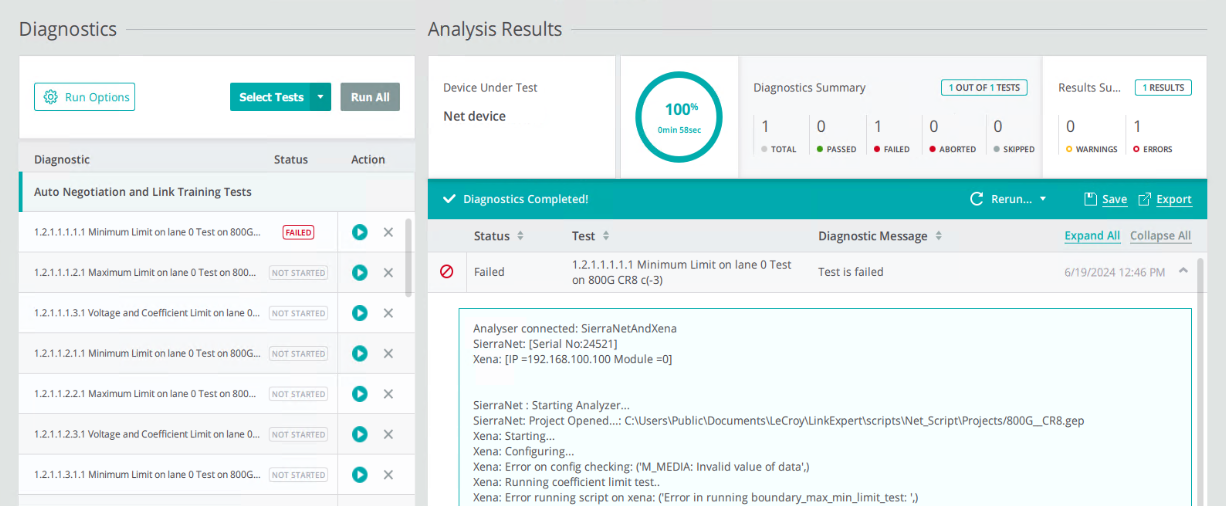
Analysis Results
The results of the tests that have been run on the DUT are shown in the Analysis Results Pane.
Results
The first test was run and the results are shown below.
Analysis Results: Test Results Summary
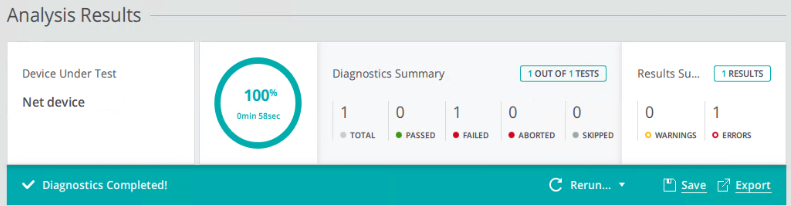
The Test Results Summary is shown below.
-
The progress meter shows 100% complete: 0 min 58 seconds
-
Diagnostic Summary: 1 out of 1 tests were executed
-
Total Number of Tests: 1
-
Number of Tests Passed: 0
-
Number of Tests Failed: 1
-
Number of Tests Aborted: 0
-
Number of Tests Skipped: 0
-
Warnings: 0
-
Errors: 1
-
Note: Some tests do not have Pass or Fail criteria, they simply need to be executed before other tests can be run.
Analysis Results: Test Results Details
The detailed results of the test are shown below.
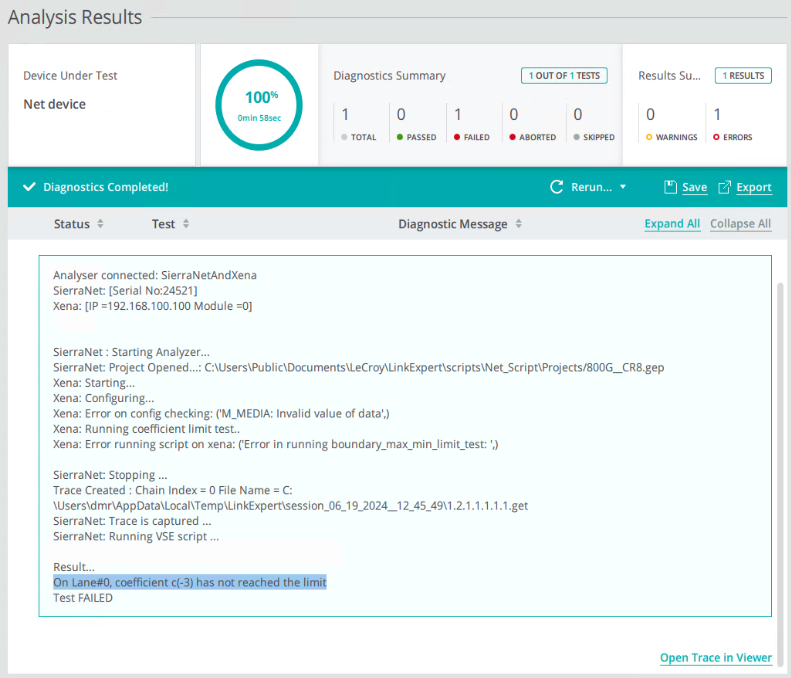
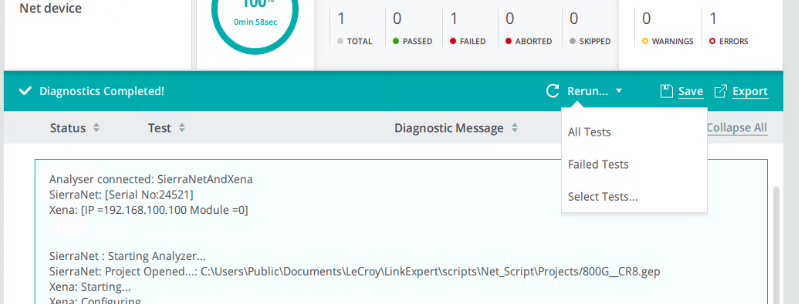
After the selected set of tests has been executed, there are several options for how to continue.
-
Rerun:
-
All Tests
-
Failed Tests
-
Select Tests
-
-
Save
-
Export
If you select Save, the following dialog appears. You can save:
-
All Tests
-
Failed Tests
-
Warning Tests.
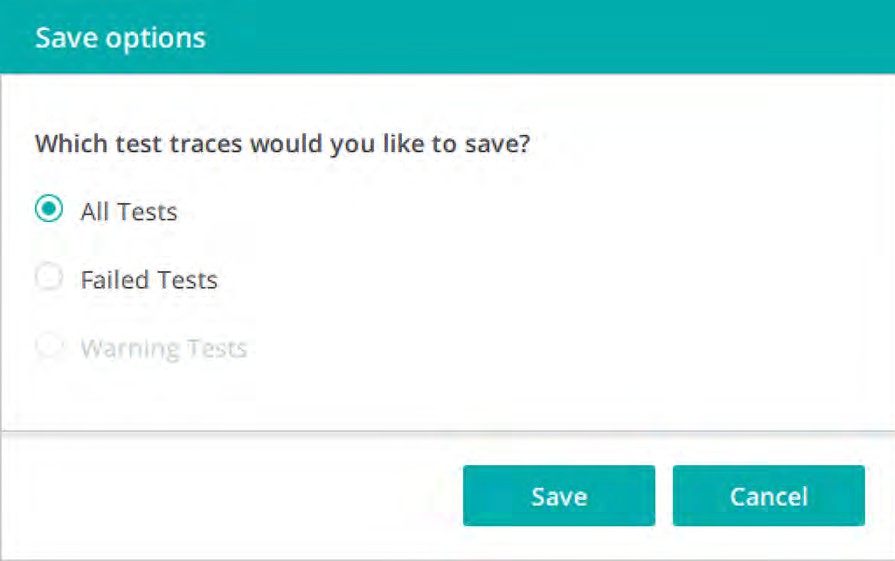
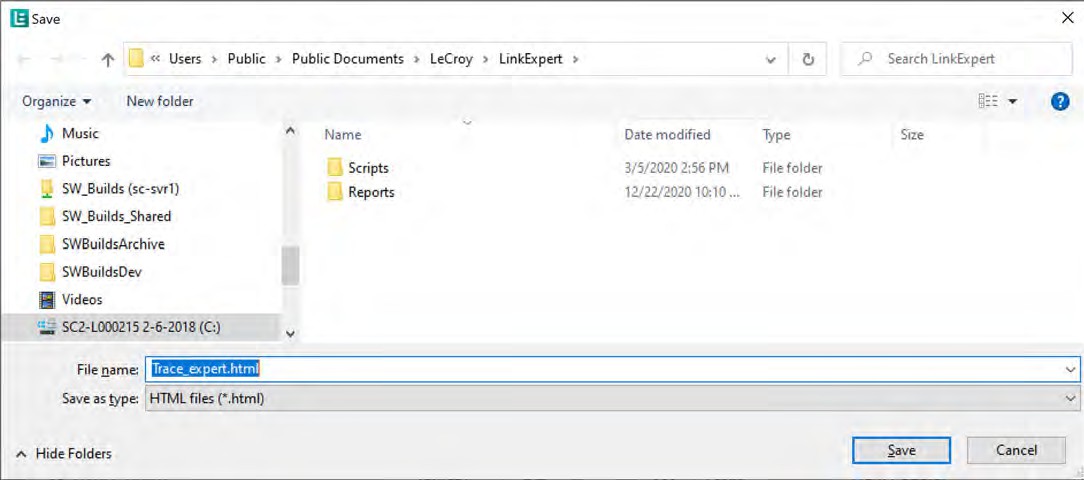
After selecting the tests, click Save to save your test result to a file, shown below.
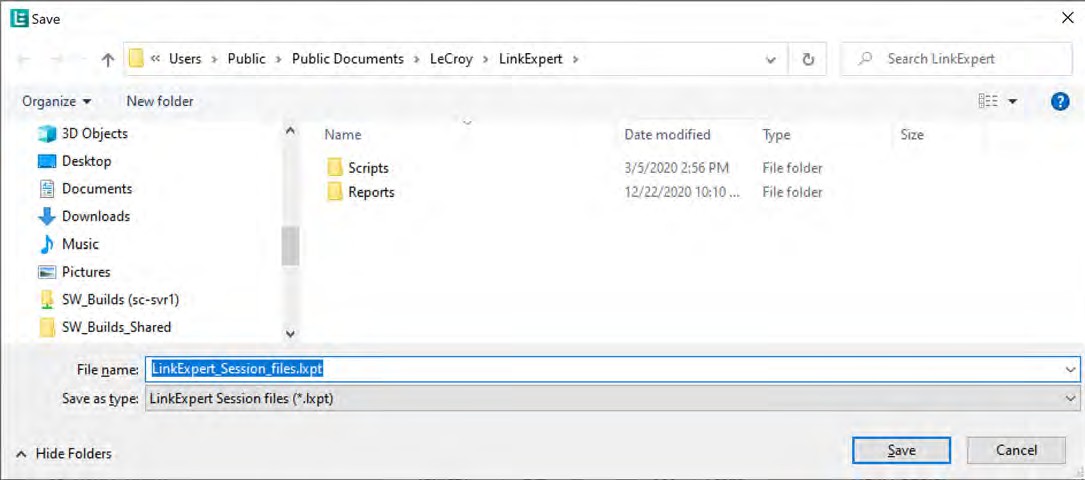
A similar dialog appears if you select Export (you can save your test results to a Trace Expert file).