
A client application may be run from any operating system that supports applications that can establish a TCP socket connection with the server machine. In this scenario, the client application would communicate using the Automation Server ASCII protocol.
An example could be a Python based client application running on Linux. No special Python packages are needed to communicate using the Automation Server ASCII protocol over a TCP socket (Figure 1). Any captures or exported data generated by the analyzer product from the automation commands will be saved to the server file system. The Linux system running the Python script can then access those files if the file system is either:
-
A networked file share such as a Samba share
-
A shared folder if the Python script is being run from a Linux VM on the Windows host
-
Is accessible through a file transfer service if the Windows machine is running a SFTP/SCP server or a local web server
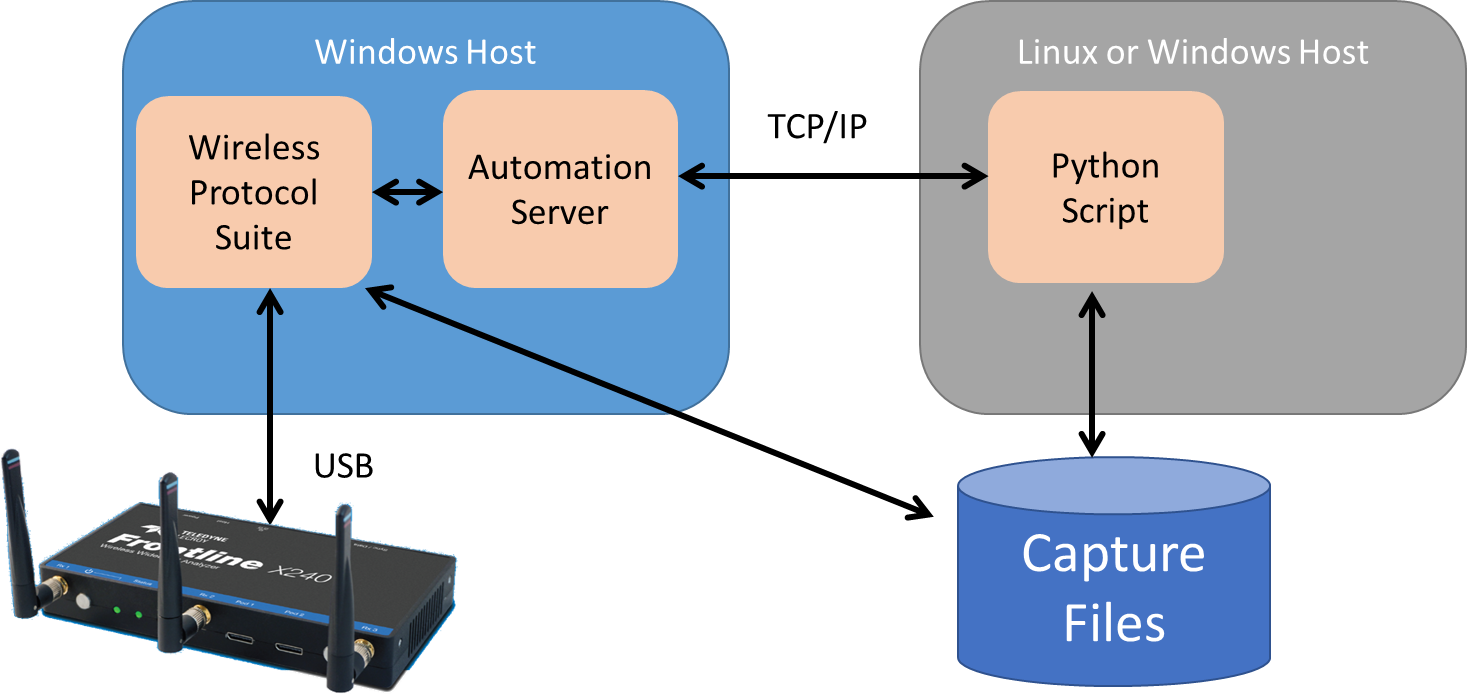
The automation manual and examples are in a subdirectory in the Wireless Protocol Suite application directory. For example Wireless Protocol Suite 7.60 would be located in “C:\Program Files (x86)\Teledyne LeCroy Wireless\Wireless Protocol Suite 7.60” and the automation manual and examples would be located in “C:\Program Files (x86)\Teledyne LeCroy Wireless\Wireless Protocol Suite 7.60\Help and Tools\Automation Server”. In this folder is:
-
The automation manual “Automation Server Protocol.pdf”
-
The Python specific instructions “Python Script Automation Server Access.pdf”
-
Example Python code such as the script “sample_wps_client.py”
It is recommended before attempting automation through Linux to first run the instructions in “Python Script Automation Server Access.pdf” on the Windows host to verify the Windows setup is correct. After verifying the Windows host setup is correct, next test automation in the Linux host by copying “sample_wps_client.py” to your Linux host and then modifying the TCP_IP port in the script by changing the line which has the IP address of the automation server (shown below).
TCP_IP = 'localhost' # Assumes the automation server is running on your local computer
Here the string 'localhost' should be modified to the IP address of your Windows host which is running the Automation Server. If your Windows host’s IP address is 192.168.140.1 then the line would be modified to:
TCP_IP = '192.168.140.1' # The address of the Windows host machine running the automation server.
Then run the Python script and verify the Python script running on the Linux host directs the Automation Server to capture data in WPS and save the file.