Overview
The Python example script sample_wps_client.py demonstrates using the automation server to capture Bluetooth data, analyze it, and save the capture file.
The script is in the directory “Help and Tools\Automation Server” under the WPS base installation which can normally be found at:
C:\Program Files (x86)\Teledyne LeCroy Wireless\Wireless Protocol Suite <version number>
You must configure the script before using it. Additionally, Python 3.8 or higher is required to be installed on the system. Also, the hardware (Sodera, X240, X500, X500e or X700) needs to be connected and powered on before running the script. Important: For configurations that include one or more X240 devices, the capture technology should be configured by using the appropriate datasource prior to starting capture via automation. Configuration of capture technology and initiating firmware update are not supported via the automation interface. The only Personality Keys supported by the automation script are "SODERA", "X240", “X500”, "X500e" and “X700”.
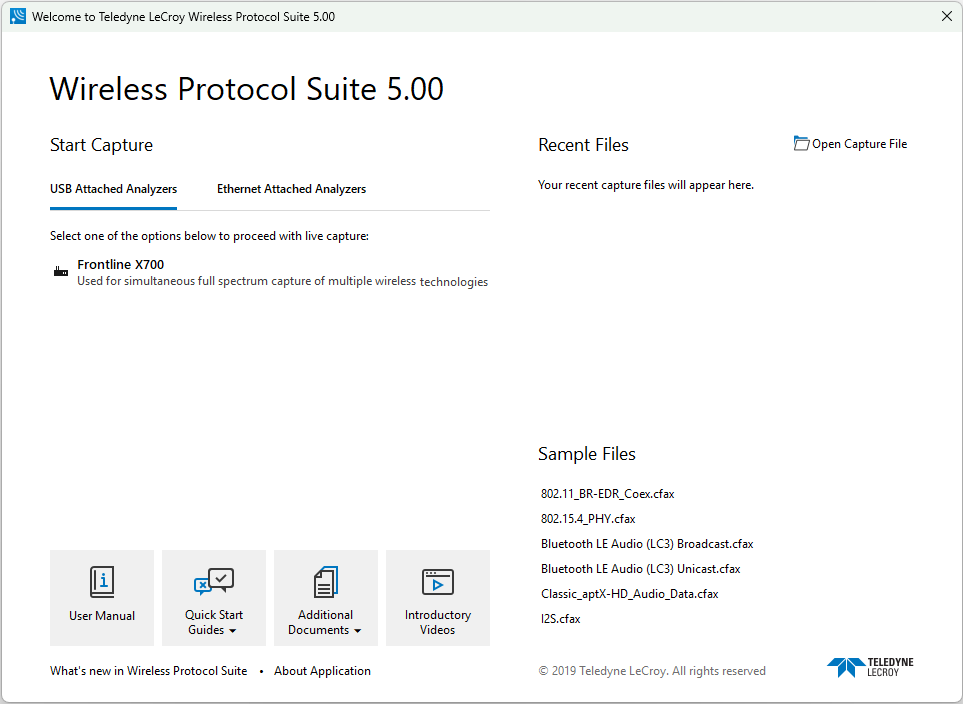
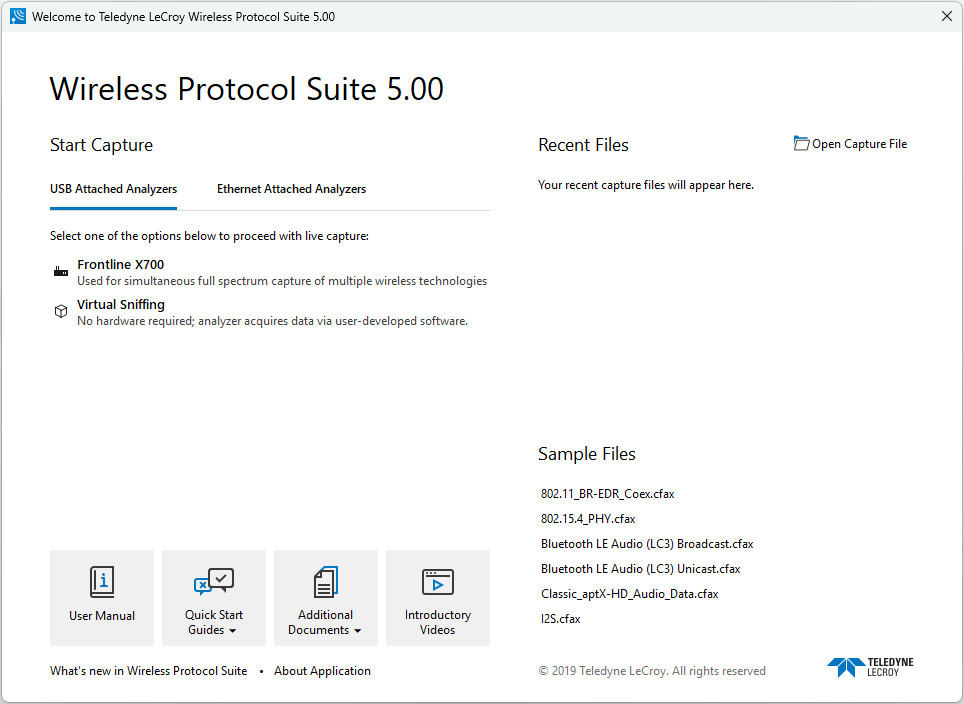
Finally, Wireless Protocol Suite (shown below) should not be running before starting the Python script. If it is, close the software before starting the script.
How to configure and run the Python script “sample_wps_client.py”
-
Before running the script, you must modify the script’s configuration section which includes the path of Wireless Protocol Suite. If you are editing the file in the “Program Files” directory, you may not be able to save changes because you do not have write access to the directory. If this is the case, then copy the Python script file to a directory that gives you write access such as your Documents folder.
-
Open the Python script “sample_wps_client.py” and edit the configuration variables (figure below) to match your settings. Normally you just need to edit the three variables indicated by the red arrows.
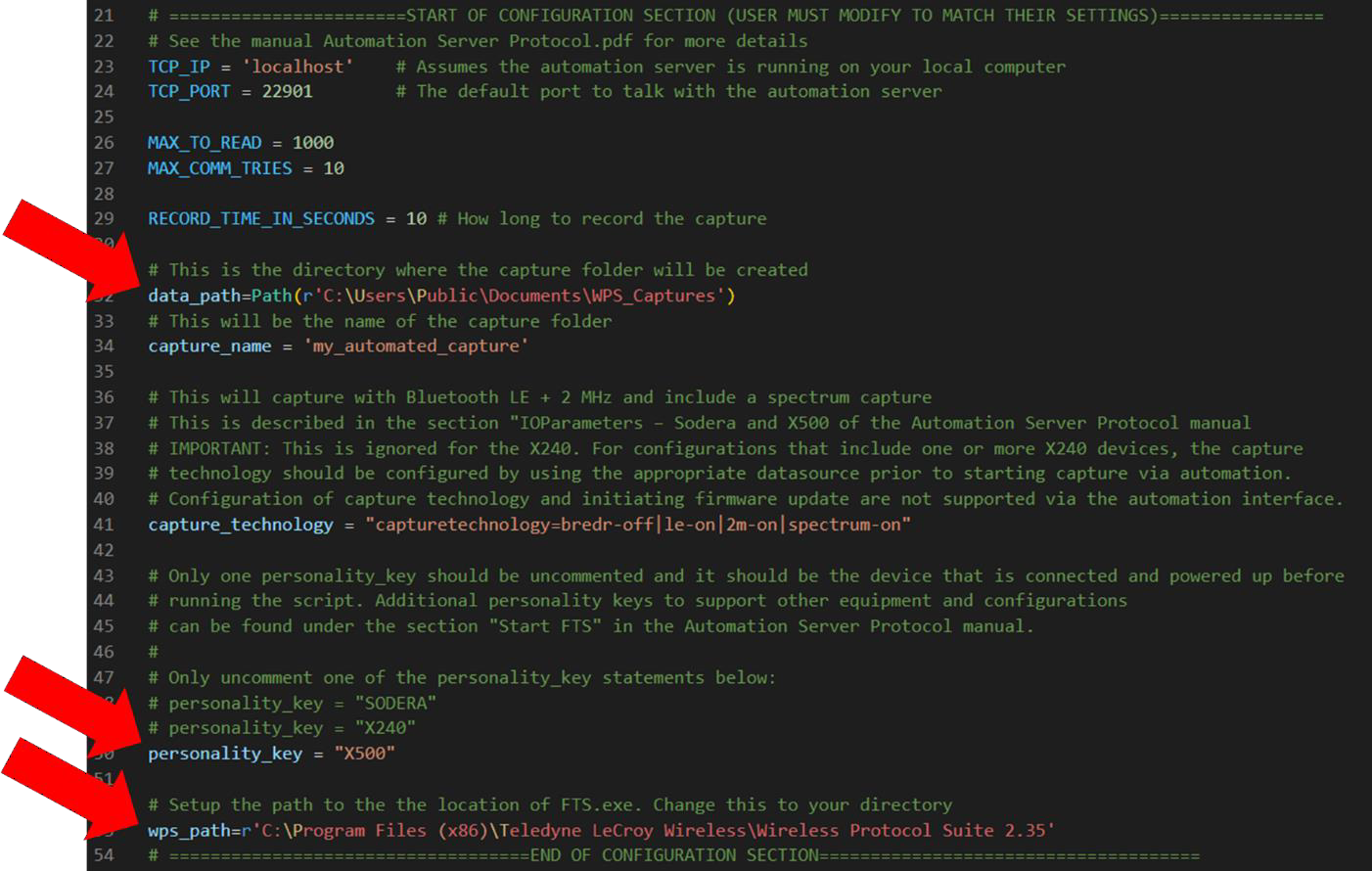
First, if you do not have a path called “C:\Users\Public\Documents\WPS_Captures” on your system or want to save your capture to a different location then you will need to edit the variable “data_path”. Important: “data_path” is not a string variable. The string path must go inside the Path class as shown in this example: data_path=Path(r'C:\Users\Public\Documents\WPS_Captures')
Second, uncomment the one personality_key variable that matches the device that is already connected to the system and powered up.
Third, “wps_path” must be the absolute path to FTS.exe. Important: “wps_path” is a string variable that does not use the Path class as shown in this example: wps_path=r'C:\Program Files (x86)\Teledyne LeCroy Wireless\Wireless Protocol Suite 2.35'.
Additionally, the variable “capture_name” can be changed to be the name of the capture files.
-
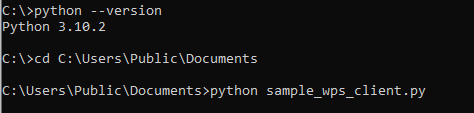
After editing the Python script save it and you can run it using the method available to run Python scripts on your machine. For example, in the figure below, if you have Python accessible from the command line you can:
-
Run the “Command Prompt” app from the start menu.
-
Verify your Python version by typing “python --version”
-
The script can be run by navigating to its location and running the script with “python sample_wps_client.py”
-
Running the script
-
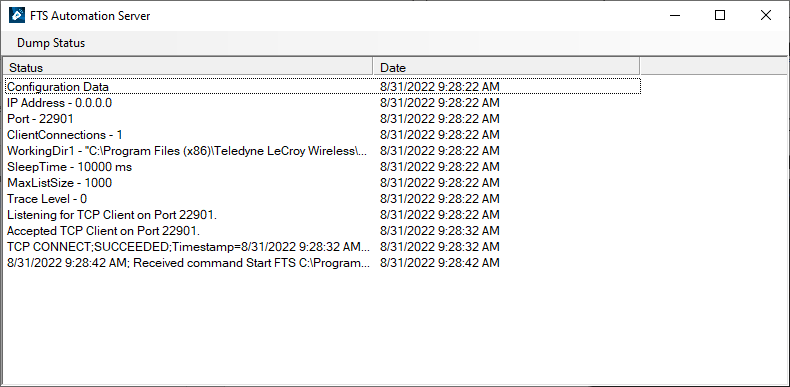
After running the script (for example with “python sample_wps_client.py”) the automation server window will appear as shown below.
-
Next Wireless Protocol Suite will appear as shown below and it will begin recording with the equipment that you have previously connected and powered on.
-
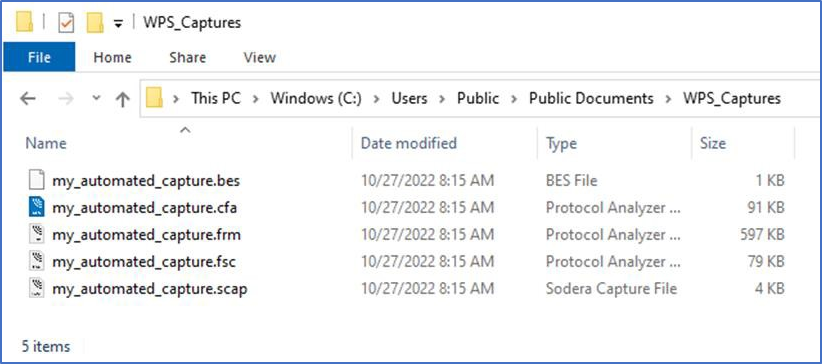
Once the recording is complete, the Python script will close which may be before Wireless Protocol Suite closes. Once both are closed, navigate to the directory you specified with the “data_path” variable and the capture files with the name specified by the Python “capture_name” variable can be found. In the figure below data_path = Path(r'C:\Users\Public\Documents\WPS_Captures') and capture_name = 'my_automated_capture'. This capture can be reopened in Wireless Protocol Suite for additional analysis.