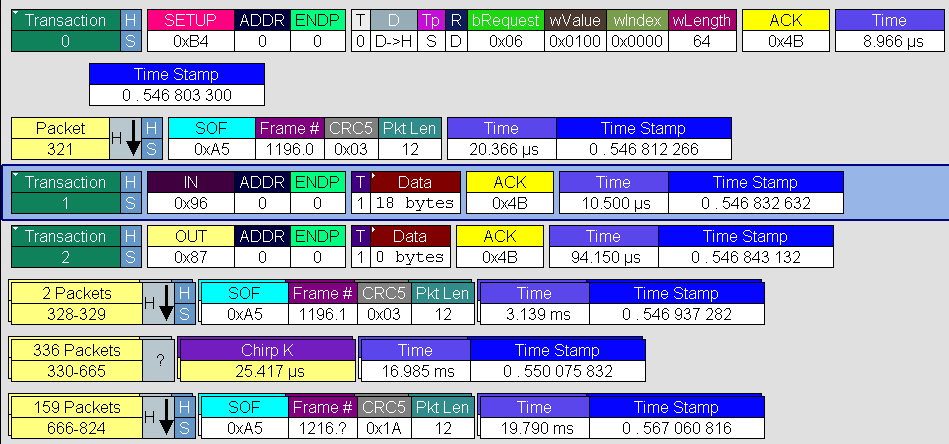
A Transaction is defined in the USB specification as the delivery of service to an endpoint. This consists of a token packet, an optional data packet, and an optional handshake packet. The specific packets that make up the transaction vary based upon the transaction type.
The program default display mode is Packet View. Before you can view decoded transactions, you must switch from Packet View to Transactions View.
Transaction View from Toolbar
To select Transaction View, click the 
NOTE: This menu selection displays a check next to Transaction Level when you have selected it. When you want to switch back to Packet View mode, right-click anywhere in the trace window and then left-click Transaction Level.
-
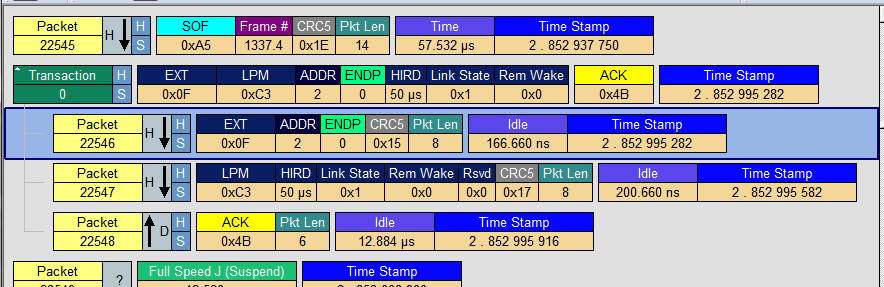
This view also shows Extension Transactions, such as the Link Power Management (LPM) transaction defined by the USB 2.0 LPM specification, as shown below.
Transaction View from the Display Options Window
You can also switch to Transaction View from the Display Options window.
-
Select Display Options under Setup to open the Display Options window.
-
Check Transaction, then click OK.
Power Delivery Transactions
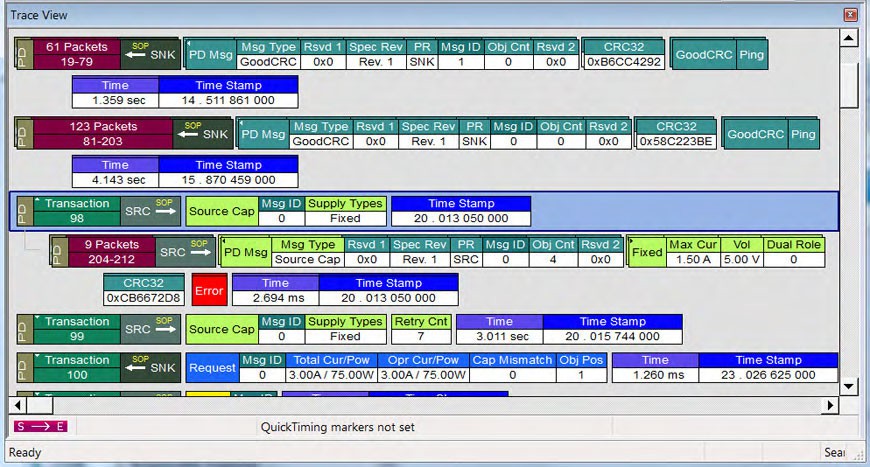
Power Delivery Transactions are also viewable at this level, shown below.
Power Delivery Packets
Right-click on a Power Delivery Packet to view its drop-down menu, below.
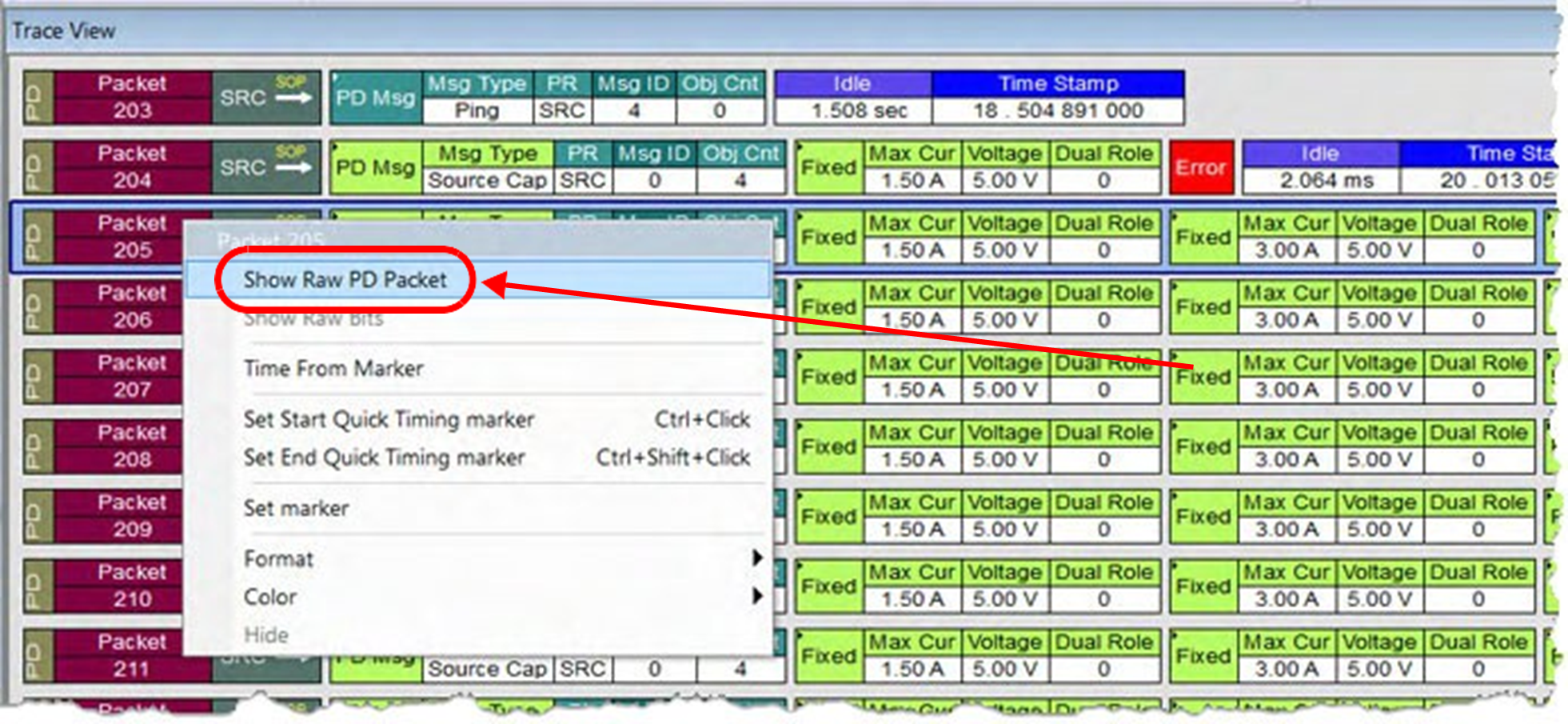
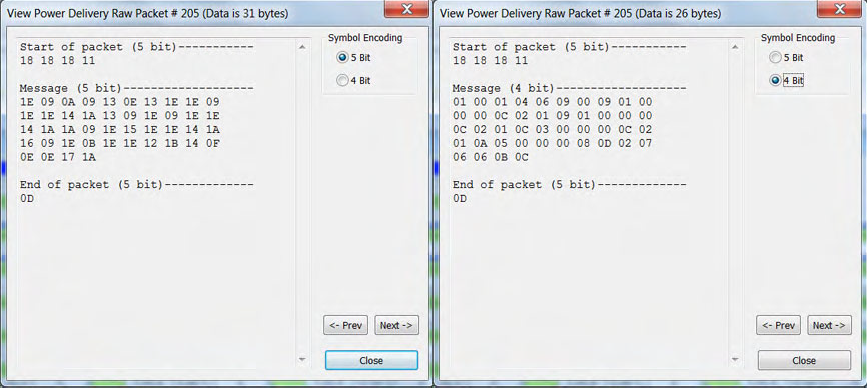
To view the Raw PD data, click Show Raw PD Packet.